
Add allowed Data Store Query
If you develop a custom Manual Task that uses Data Store (DS) API calls from JavaScript, you need to create a set of** Allowed Data Store Queries**.
By default, all Data Store (DS) API calls from Manual Tasks, except Allowed DS Queries, are blocked by WorkFusion security.
Creating Allowed DS Query
To start managing Allowed DS Queries:
- Open the Design tab of your Manual task.
- Switch to Code Editor.
- Click the Allowed Data Store Queries button:
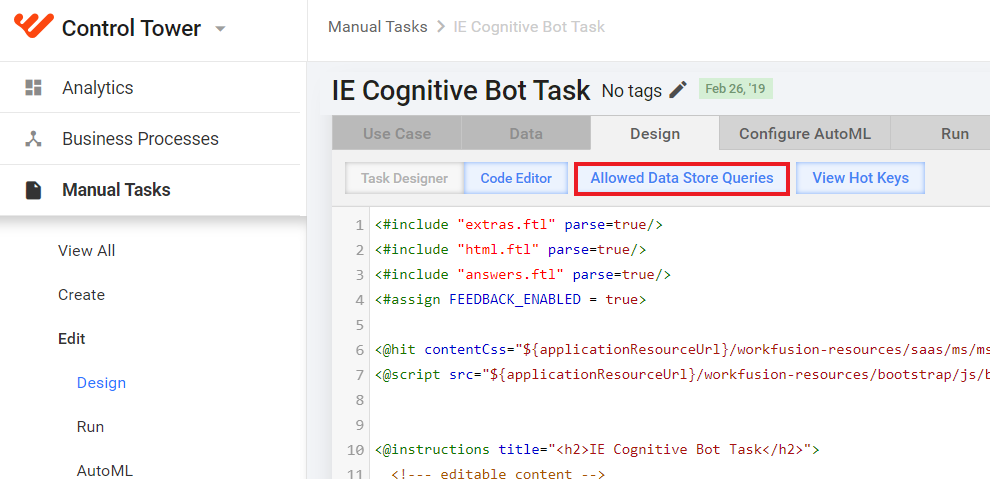
- You will see a popup containing a grid with DS Queries:
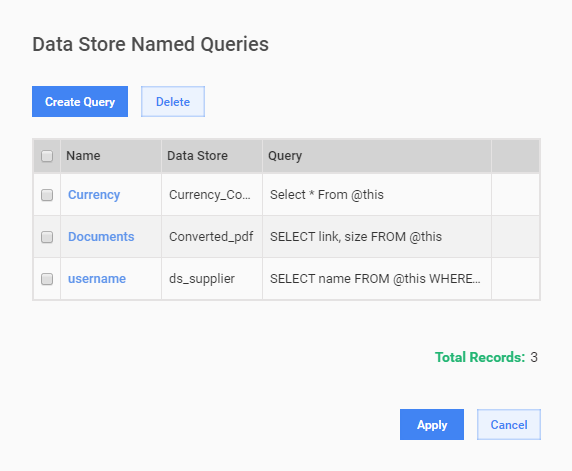
- Click the Create Query button or click an existing query name.
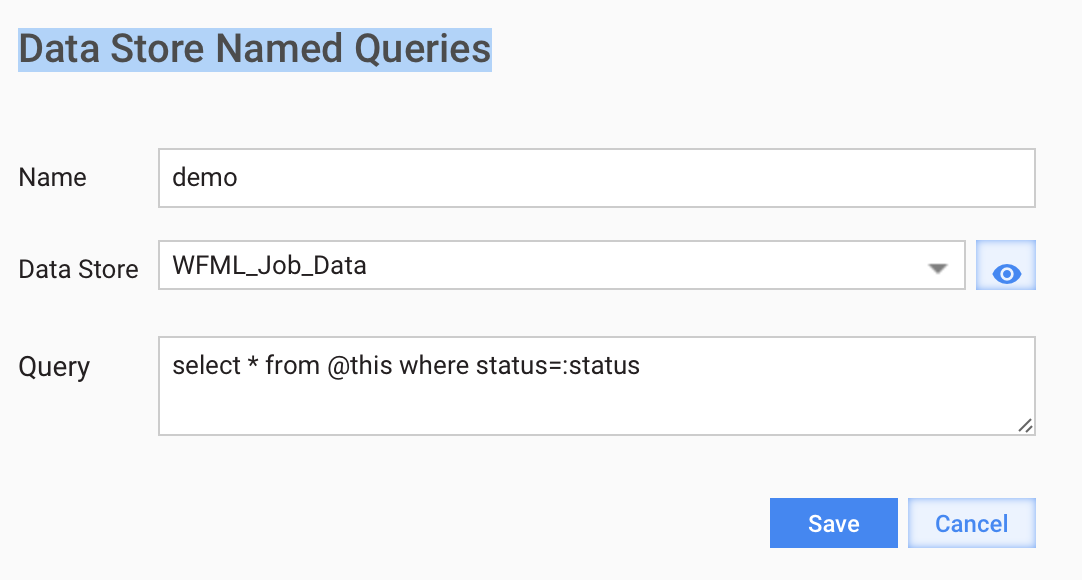
- Provide parameters for your DS Query:
- Enter a unique Name
- Select an existing Data Store. You can click the eye-icon to open a selected DS in a new browser tab.
- enter a valid Query.
- Click the Save button.
All allowed queries are expected to return some data back to Manual Task. That is true for SELECT type queries. If you need other query type – please make sure they return something.
For example:
INSERT INTO @this (ID, document) values (:id, :document) RETURNING id;UPDATE @this SET worker_id=:worker_id WHERE id=:id RETURNING id;
Using Allowed DS Query in Manual Task Code
The Data Store API call in this case will have the following URL pattern:
/workfusion/public/v2/datastores/executeNamedQuery?queryName=demo&nativeId=hitId¶meters={status:"COMPLETED"}
Where:
queryName is a name of your Allowed DS Query;
nativeId is the Task hitId
parameters is a JSON representation of an object containing dynamic query parameters
Add the following code snippet at the bottom of your Manual Task code.
This code is valid for Intelligent Automation Cloud Version 8.3 or newer.
JS code snippet
<script type="text/javascript">
var hitId= $("input[name=hitId]").val();
var requiredStatus = "COMPLETED";
$.ajax({
dataType: "json",
url: "/workfusion/public/v2/datastores/executeNamedQuery?queryName=demo&nativeId=" + hitId +
"¶meters="+encodeURIComponent("{status:'" + requiredStatus + "'}"),
success: function (resp) { alert(resp); },
error: function (resp) { alert("error"); }
})
</script>
The result of this AJAX request will be seen only on:
- Task Preview > External URL. This link appears for task that are not in a draft state (they should be already run)
- in WorkSpace application when you have accepted this task