
Get started as Automation Engineer
When you need to automate a scenario of high complexity, make you automation robust, and allow it to run unattended, you have to dive into Automation Engineering. Intelligent Automation Cloud Developer offers Automation Engineers a set of tools to write, test and deploy a code that can run on server installation of Intelligent Automation Cloud Enterprise unattended.
See the overview of the components included into the Intelligent Automation Cloud Developer installation.
Step 1: Run Workfusion Studio in Code perspective
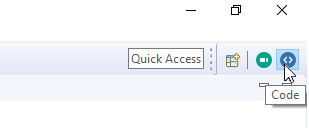
Start by running WorkFusion Studio, an Eclipse-based IDE, suitable for enterprise-grade software development (including Automation Engineering). Its Code perspective is designed specifically for Automation Engineering. To switch to the Code perspective, either click the Code button at the top right corner of the WorkFusion Studio window, or, in the Quick Access field, enter "Code", and press Enter.
Step 2: Set up environment
Automate the business operations to increase the employee productivity. The development operations environment we offer is based on technology stack that includes Git, Maven, Nexus, and Jenkins, which are pretty often used in enterprise software development. We use a Maven-centric ecosystem of build tools to enable CI/CD practices.
You may use a toolset different from the above-recommended tools. Then, it is your call to wire them together in order to establish an automated CI/CD process. Even if you are fine with starting doing operations manually to better understand the platform, you will need to perform some setup.
To set up a local development environment, refer to the guide.
Step 3: Create first project
To learn about the benefits your organization can achieve by adopting ODF, read the guide.
To explore quickstart archetypes for creating a new ODF project in WorkFusion Studio, read the guide.
Step 4: Develop and debug automation code
Being a common-purpose IDE, WorkFusion Studio provides a coding experience that is not different from any other IDE. However, specific automation needs require code interaction with a user interface of different applications. For that purpose, WorkFusion Studio has a built-in object Inspector that simplifies exploring user interface elements' values and properties.
When it comes to debugging, you may debug single Bot Tasks or entire orchestration of Bot and Manual Tasks into a Business Process. For debugging a single Bot Task, see Debug Bot Task.
To create a Manual Task or orchestrate several Bot and Manual Tasks into a Business Process, you will need to start local Control Tower. After you start Control Tower, you can use its capabilities to create a Business Process, export it, and add the Business Process package into your project structure.
Step 5: Deploy your automation to environment
Deployment of the automation created with ODF to local environment of IA Cloud Developer or to remote environment of IA Cloud Enterprise happens pretty similar using Maven. For more details, refer to the guide.
Step 6: Set up CI/CD process
After you mastered the Automation Engineering operations in IA Cloud Developer, it's high time to think about automating them. For instructions on a basic CI/CD setup, see the guide.