
Tips & Tricks in WorkFusion Studio
General Recommendations
If your configuration does not run or some features do not work, use the checklist below.
Make sure you have opened the Code perspective.
Save your configuration before running it.
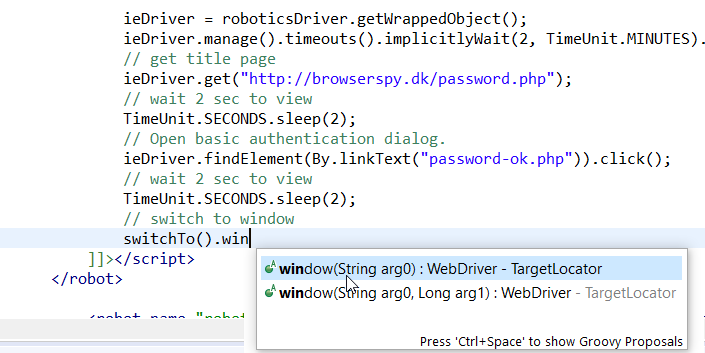
Use Content Assistant (Ctrl + Space) to view:
- web-harvest plugins
- context variables (item, sys, etc.)
- RPA simplified API classes and methods
- include config names suggestions (WorkFusion Studio scans all configs from the current config folder)
The
<config>tag must have the xmlns="http://web-harvest.sourceforge.net/schema/1.0/config" attribute. If your copied configuration does not have this attribute, add it manually.
<config xmlns="http://web-harvest.sourceforge.net/schema/1.0/config" scriptlang="groovy">
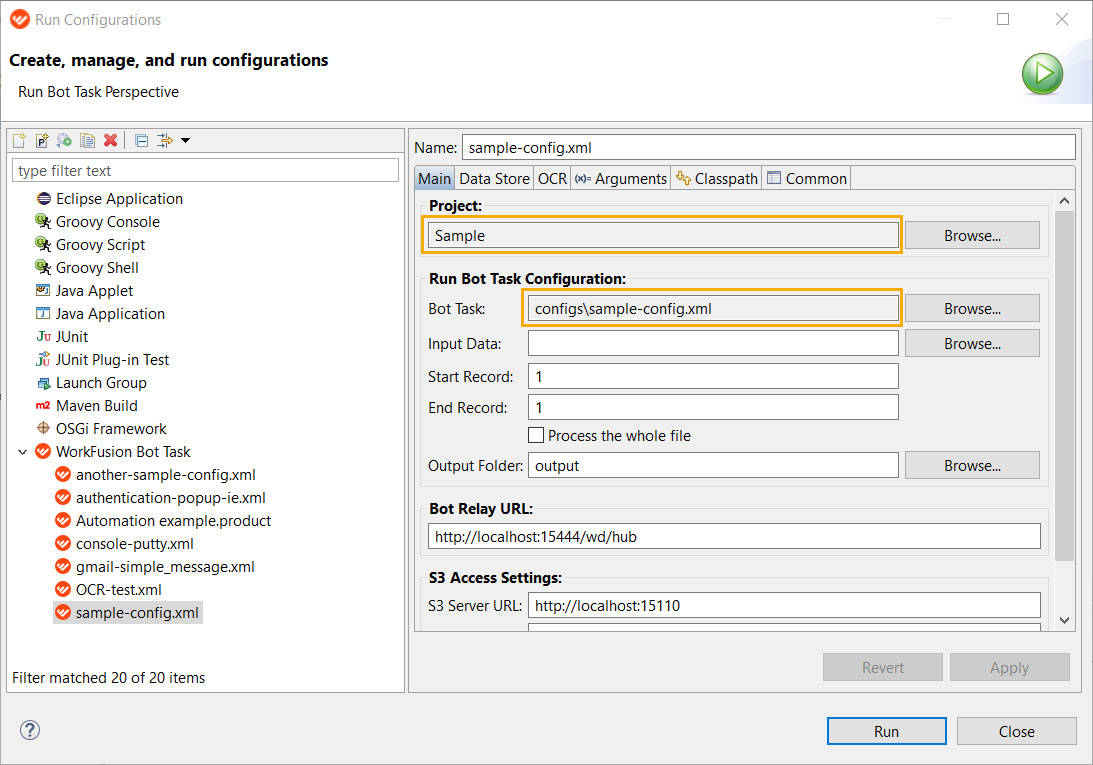
- Make sure your Run/Debug Configuration is set for the script you are trying to launch.
- Periodically update WorkFusion Studio (Help > Check for Updates) and relaunch Eclipse.
- Some old projects may work unstable after WorkFusion Studio update. Create a new project and write configs there.
- To enable Expressions view while debugging, go to Window > Show View > Expressions.
Content Assistant
In WorkFusion Studio, you can adjust Content Assistant to purposes of your development tasks. Go to Windows > Preferences > WorkFusion Studio > Content Assistant to fine-tune the function to get the maximum help from it.
Content Assistant for bot task scripts is disabled by default to make scripting faster. It is recommended not to enable it in case you use the Code perspective.
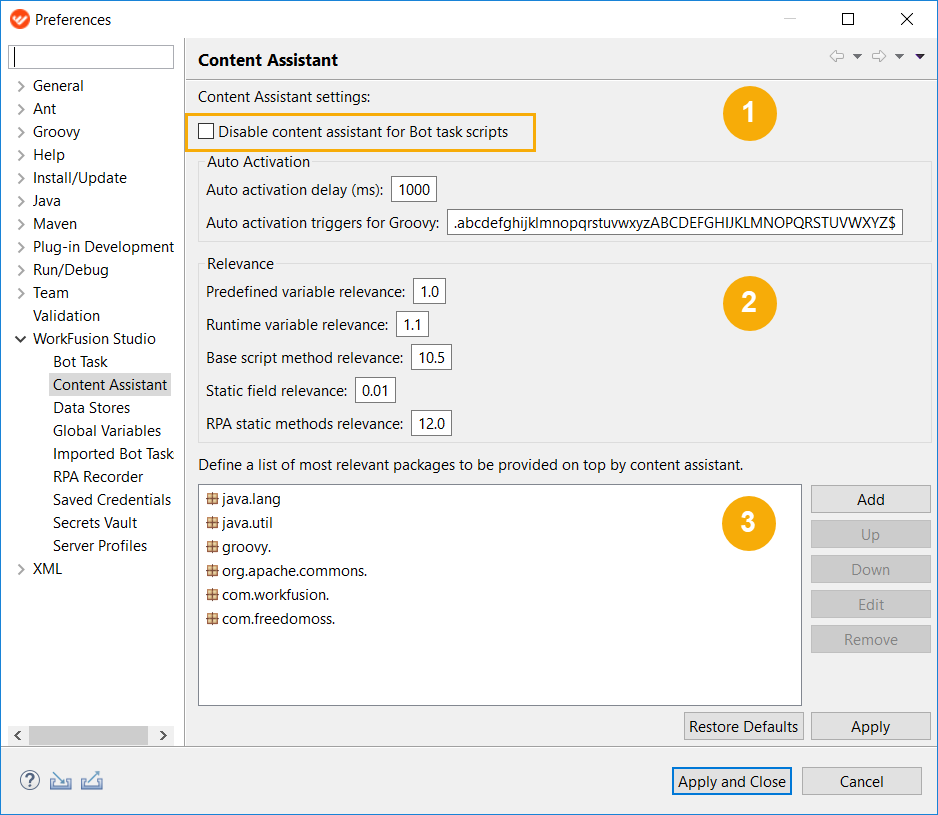 The following options can be adjusted.
- Auto activation – define how fast Content Assistant prompts the suggestions (in milliseconds) and keyboard keys to activate it in Groovy.
- Relevance – rank the constructs according to their importance to your programming preferences. The higher the relevance, the higher the place of a construct in the list.
- Packages – define packages to be used as a source for Content Assistant and their ranking order.