
Create Bot Use Case
Before reading this topic, see the detailed Use Case description here.
To create a Bot Use Case:
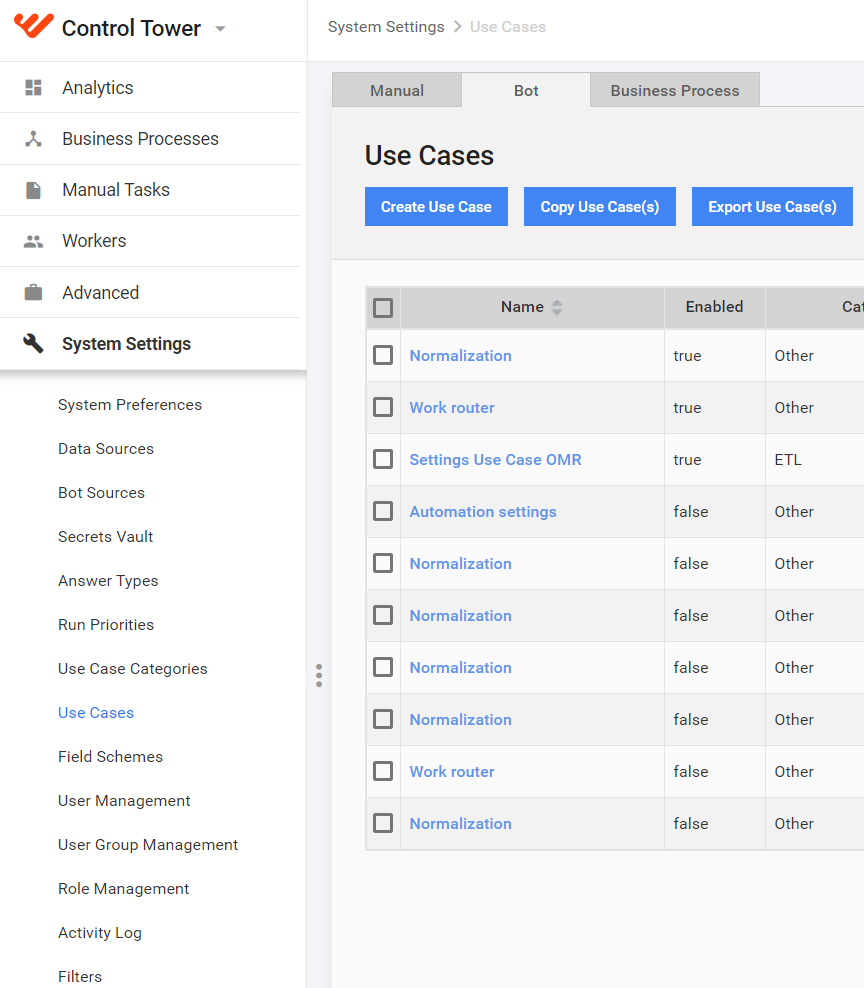
Go to System Settings > Use Cases.
Click the Create Use Case button.
Enter the Use Case Details.
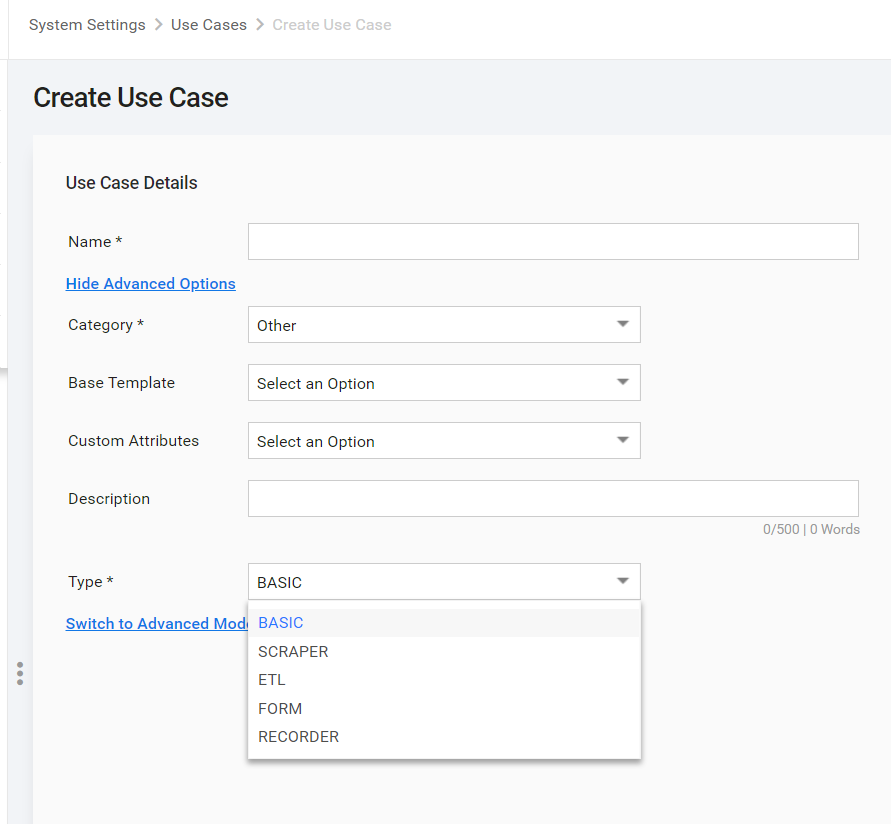
Select the Use Case Type: 1. BASIC—the default type. 2. SCRAPER—this Use Case automatically creates a Bot Task intended for scraping web pages. 3. ETL—using this type, you can add Answers to the Bot Task. These answers can define variables, parameters, or column names used in the config code. By using ETL configs, you improve the config re-using and flexibility. Business users (non-programmers) do not need to edit the config code directly – they only need to specify parameters in Answers while adding Bot Task to a BP. 4. FORM—deprecated; you can't expect it to work with stable quality. 5. RECORDER—Recorder Use Cases can only be imported from the WorkFusion Studio Recorder perspective. To create a Recorder Use Case, make a recording in the Recorder perspective, and then select Publish to Control Tower. See more on the topic: RPA Recorder.
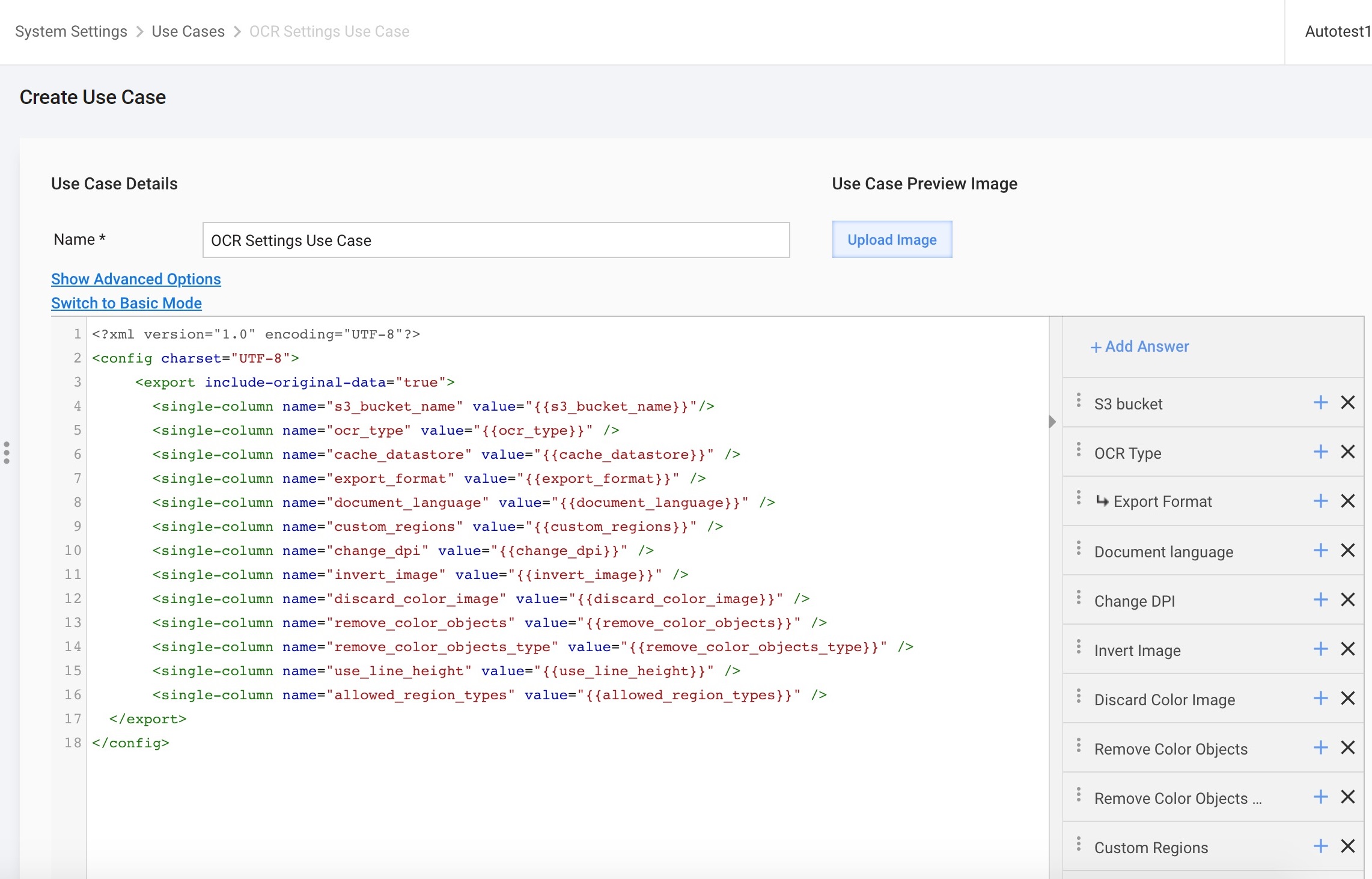
Switch to Advanced Mode and paste your valid XML code from Web-Harvest IDE.
If you create an ETL config, Add Answer. These Answers are completed when using the Bot Step in a BP. You can set some parameters or variables (for example, map input and output columns).
Save the Use Case.
Use variables and Answer values
Variables
<var-def name="var_name">—use this tag to define a new variable in your config.<var name="var_name"/>—returns a value of the defined variable inside the tag.${var_name}—returns a value of the defined variable in tag attributes.Example
<single-column name="http" value="${var_name}"/>to return a value of a variable from the step input data inside another tag, for example "ocr_link", use the template processor:
<mail smtp-host="smtp.example.com"
      smtp-port="587"
      type="text"
      to="venkata@example2.com"
      security="ssl">

      <template>${ocr_link}</template>
</mail>
Answers
{{answer_code}}—returns the ETL answer value.Example
<var-def name="input_column">
    {{column_with_url}}
</var-def>
Column names in Answers
All the ETL config code is processed by the FreeMarker engine. To return a value from the input file column name defined in Answer, wrap it with the <#noparse>...</#noparse> tag. FreeMarker will not search FTL tags and interpolations and other special character sequences in the body of this directive, except the noparse end-tag.
Example
<export include-original-data="true">
    <#noparse>
        <single-column name="http" value="${output_column}"/>
    </#noparse>
</export>