
Create MTurk license
The page contains detailed info about creating an MTurk license from scratch.
Register Requester account
Click the Create an Account button in the header.
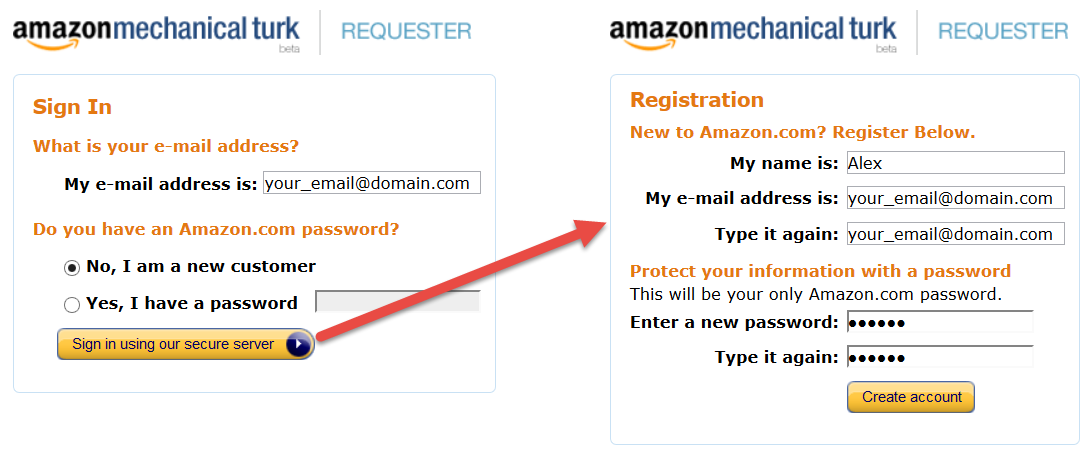
Complete the Personal Information (Country: US only).
Read and accept the Mechanical Turk Participation Agreement.
Create AWS account
Go to http://aws.amazon.com/ and click the Create an AWS Account button.
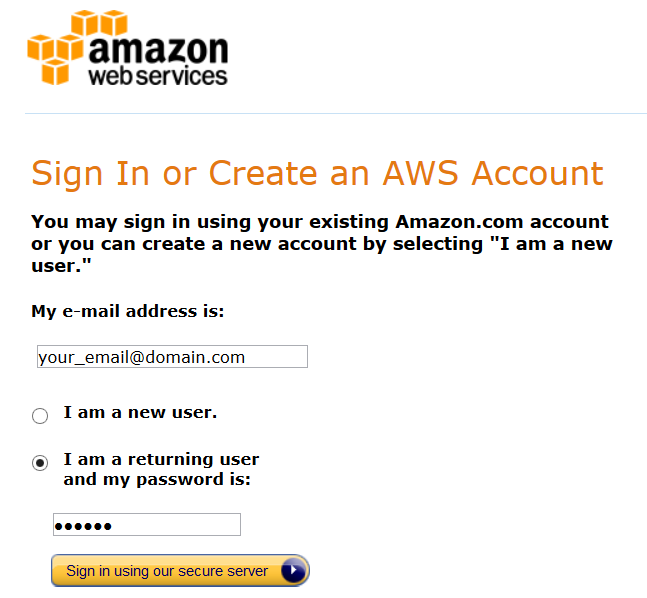
Enter your Requester email and password.
Enter Contact Information (Country: any from the list).
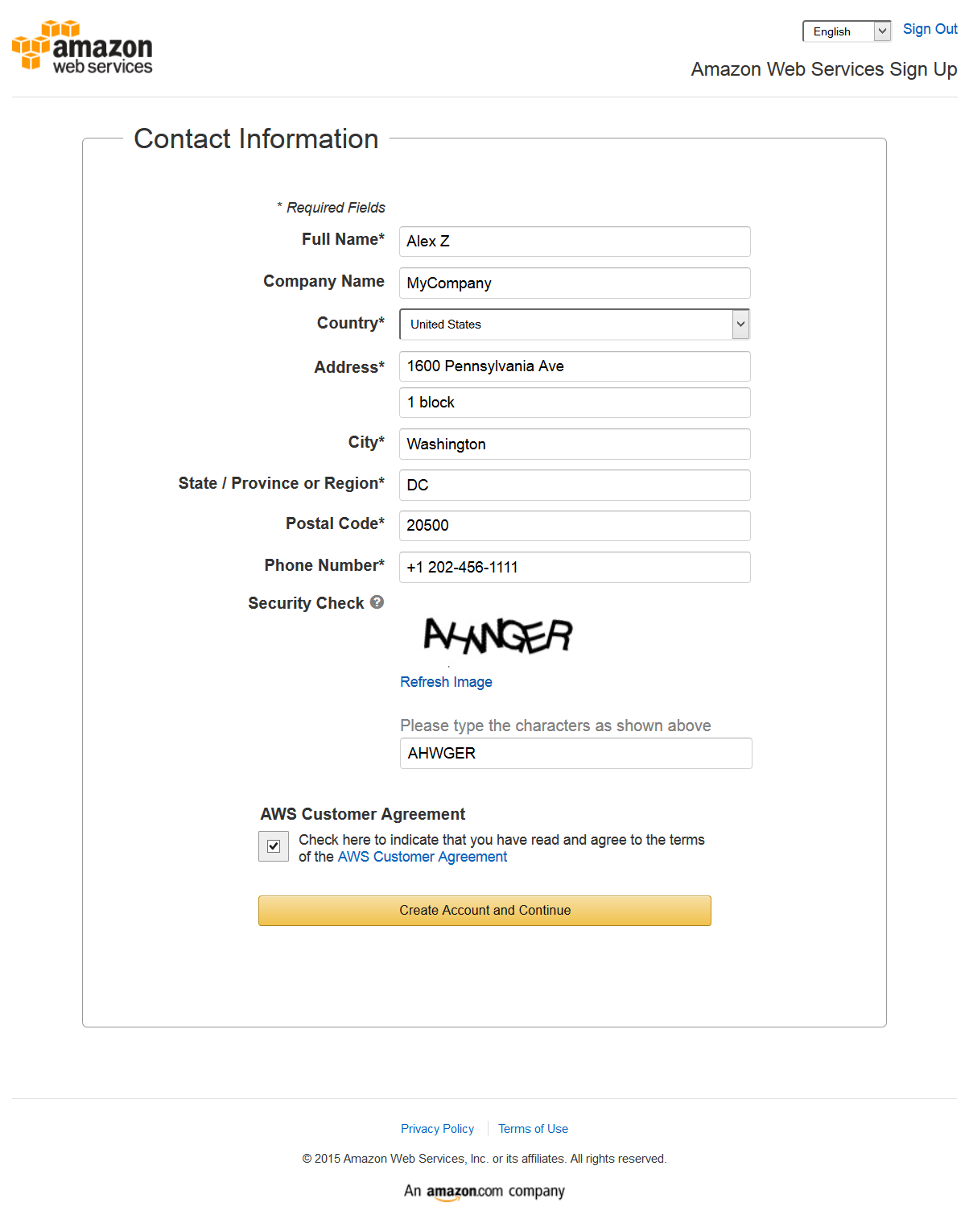
Read and accept the AWS Customer Agreement.
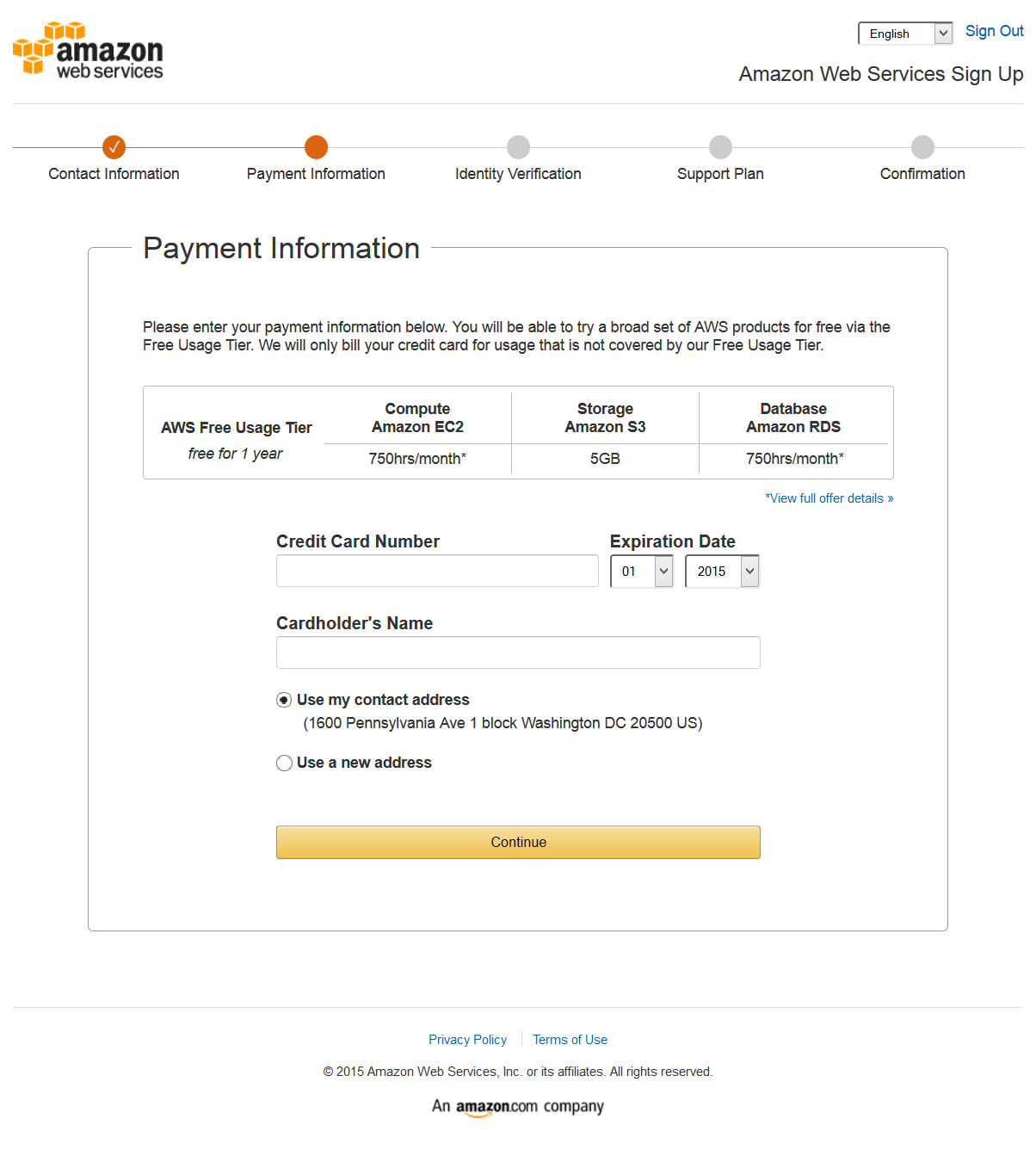
Enter the Payment Information. Enter your billing address and credit card information. You will not be charged unless your usage exceeds the free usage tiers. The authorization is for a low dollar amount ($1), which your bank may decline. If you signed up for multiple AWS services, a $1.00 authorization may be performed for each service. Your bank may approve the first authorization and decline subsequent ones depending on their security policies.
Pass the Identity Verification procedure:
- Provide your phone number.
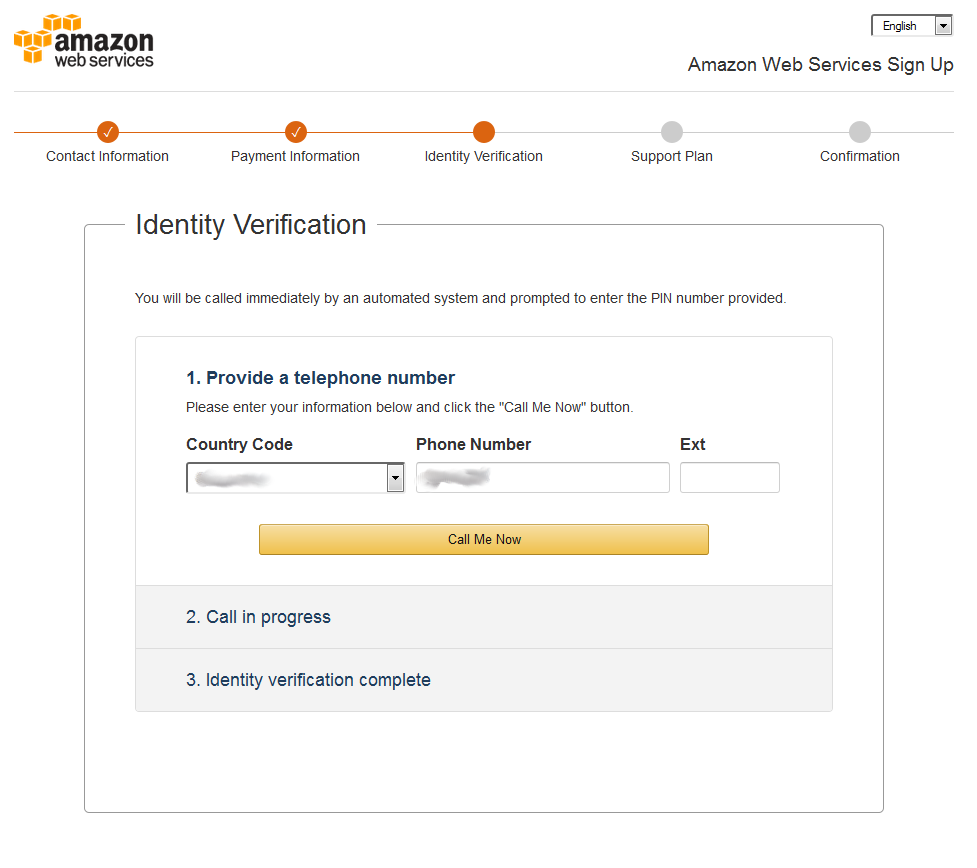
- Click the Call Me Now button.
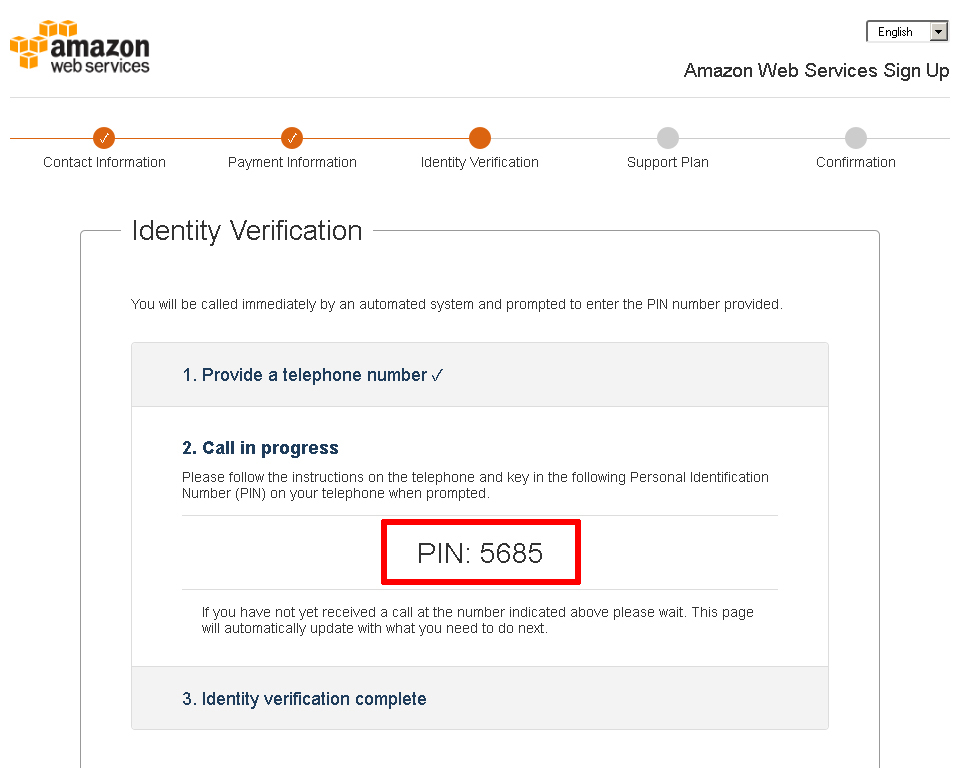
- Amazon will now verify your identity, by making an automated call to your mobile phone number and prompting you to enter the PIN number displayed on the screen.
Choose the Support Plan.
Pass the Confirmation Step.
Activate Requester Sandbox account
To post your HITs to Sandbox, complete the following actions:
Go to https://requestersandbox.mturk.com/ and log in with your Requester email and password.
Read and accept the User Agreement and Privacy Policy.
Generate security keys
Go to the AWS Console: https://console.aws.amazon.com/iam/home#security_credential
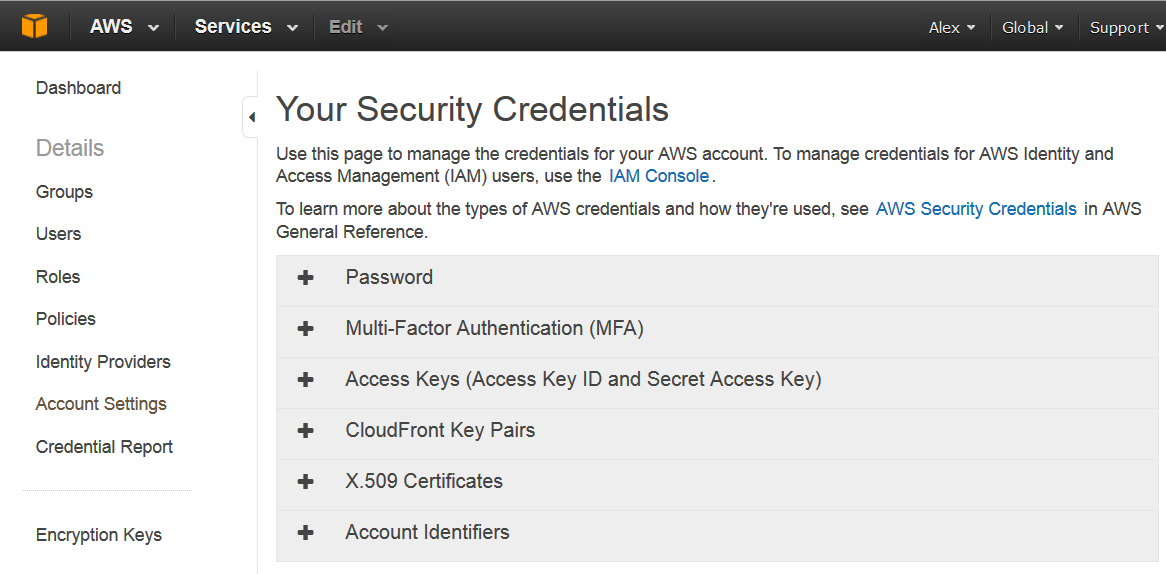
Click the Access Keys (Access Key ID and Secret Access Key) section.
Click the Generate New Access Key button.
The Create Access Key popup will be shown. You can copy the keys or download a CSV file with keys. Access Key ID: 20 symbols, Secret Access Key: 40 symbols
caution
Do not close the popup until you have downloaded or copied the keys. You will not be able to retrieve your secret access key again.
Connect Amazon account to WorkFusion
- In WorkFusion, go to System Preferences > Account Settings tab.
- Click the Add License button.
- Select the Driver Name = Mechanical Turk.
- Enter the previously generated AWS Account Id and AWS Secret Key and click the Next button.
- Enter your License Name and click the Validate AWS Key button.
- If the Combination of AWS credentials is valid, click the Save button.
Use MTurk license
Now, your license is ready for using in WorkFusion. You can create a Crowd and select your License in the End Point field.
As a Requester, you can post your Tasks both to Sandbox (https://requestersandbox.mturk.com) and Production (https://requester.mturk.com) environments.
To view and test your Tasks as a Worker use the following links:
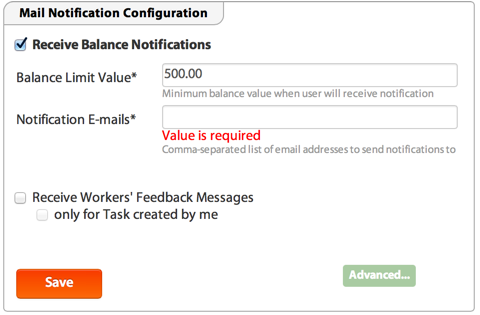
To monitor balances, go to System Preferences > User Settings > Mail Notification Configuration > Receive Balance Notifications.
Purchase prepaid HITs on Mechanical Turk
Monitor the balance and fund your account. Follow these steps to purchase prepaid HITs:
From your Mechanical Turk account, go to Account Settings > Purchase Prepaid HITs.
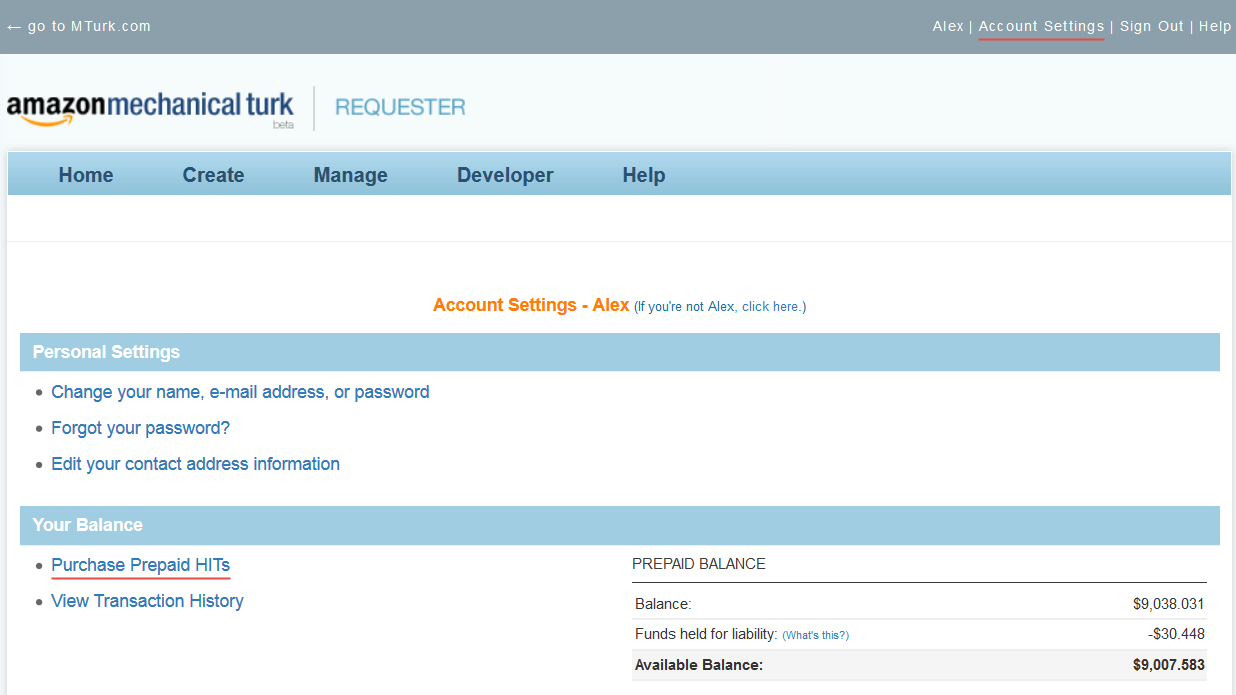
Enter in the amount you would like to purchase.
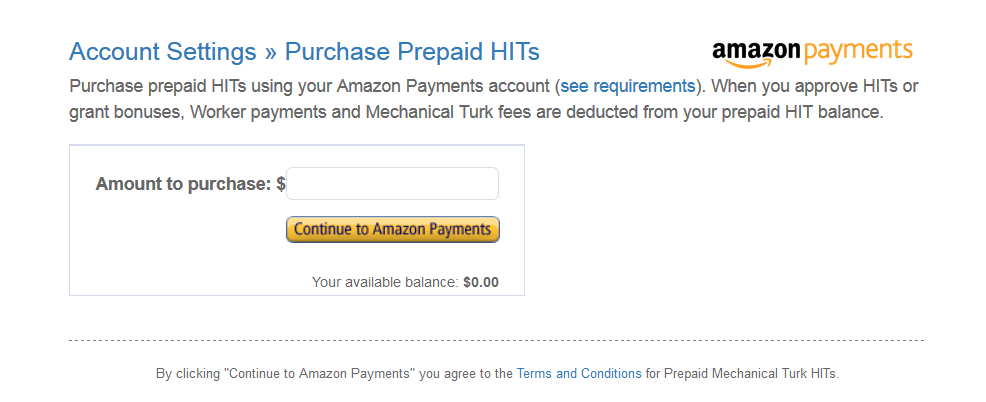
Click the Continue to Amazon Payments button.
Sign in to Amazon Payments with your Amazon Payments account email and password.
Select the credit card or bank account on file or enter new credit card information.
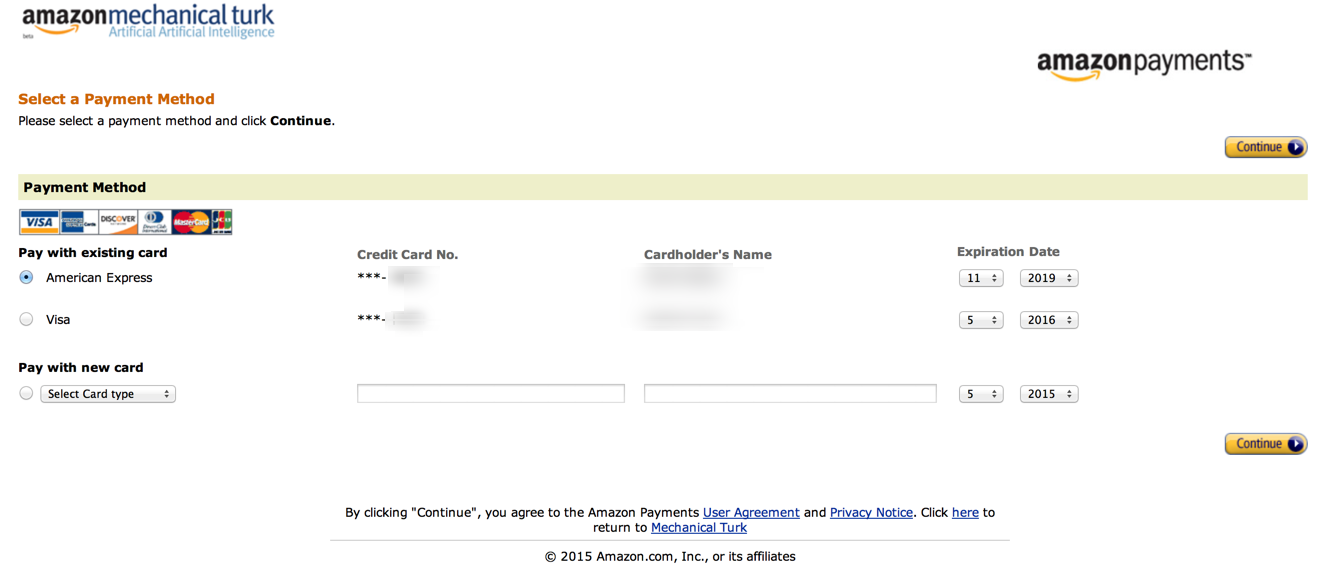
Confirm your purchase.