
Migrate Distribution Rule to another instance
The page describes how to move Distribution Rule and Workforce from one instance to another.
For example, you have two instances:
- A: instance with a source Task, BP, or Rule.
- B: instance you want import your Task, BP, or Rule to.
Export Distribution Rule (instance A)
Go to Campaigns > Rules and select Task Distribution in the filter.
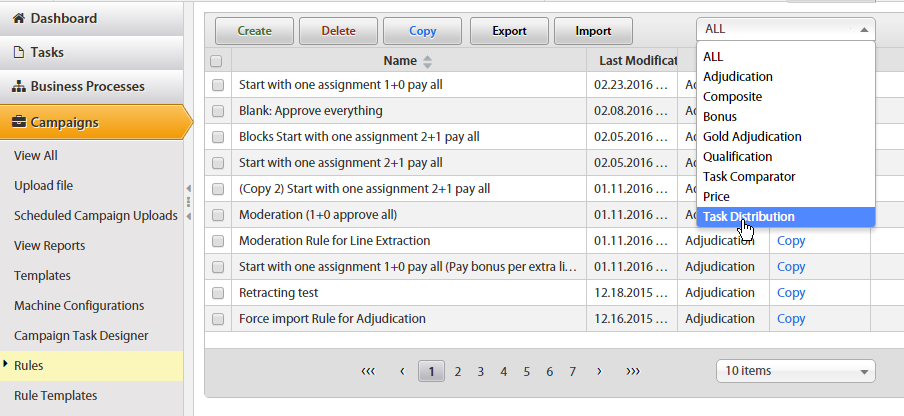
Tick a checkbox opposite the Rule you want to export.
Click the Export button.
As a result, an XML file with Distribution Rule is downloaded to your local machine.
Import Distribution Rule (instance B)
Go to Campaigns > Rules.
Click the Import button and upload the XML file downloaded from instance A.
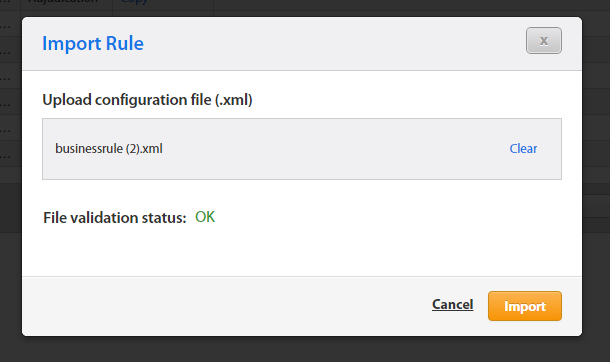
Confirm the import.
Go to Workers > Workforces.
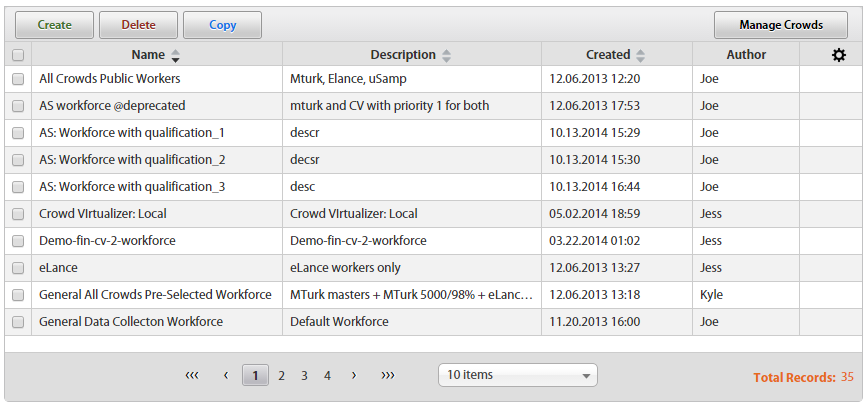
Create a new Workforce by clicking the Create button.
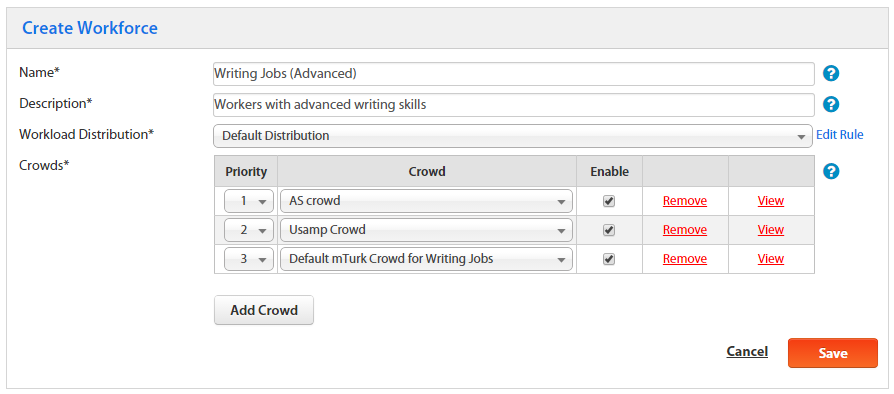
Workload Distribution: Select the imported Distribution Rule from a dropdown.
Add crowds to the Workforce. You should create new Crowds if needed. Mind that crowd names must be the same as in the Rule.
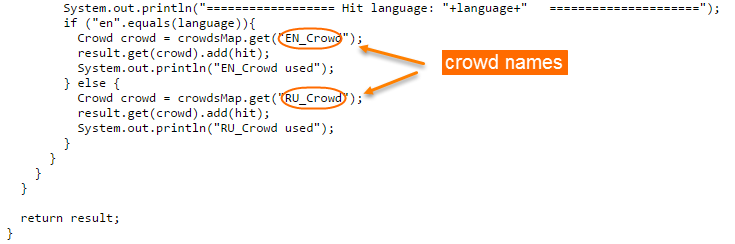
Save the new Workforce.
Go to your Task > the Run Task tab:
- Set the newly created Workforce for this Task.
- Click the Advanced Options button and disable the Dynamic task rendering option.