
Migrate Use Case
WorkFusion platform provides a capability to migrate Use Cases from one instance to another by exporting them to XML files on a source instance and importing these XML files to the target instance.
Let's assume, you have two instances:
- A: instance with a source Task or BP.
- B: instance you want import your Task or BP to.
Create a Use Case (A)
- Go to Configuration > Use Cases > (Manual, Bot, or Business Process tab).
- Click the Create Use Case button.
- Fill out Details and select the source Task (or Campaign) in the drop-down list.
- Click the Save button.
Export the Use Case (A)
- Go to Configuration > Use Cases > (Manual, Bot, or Business Process tab).
- Find the Use Case created in Step 1 and tick its checkbox.
- Click the Export Use Case(s) button and save the XML file to your local machine.
Import the Use Case (B)
Go to Configuration > Use Cases > (Manual, Bot, or Business Process tab).
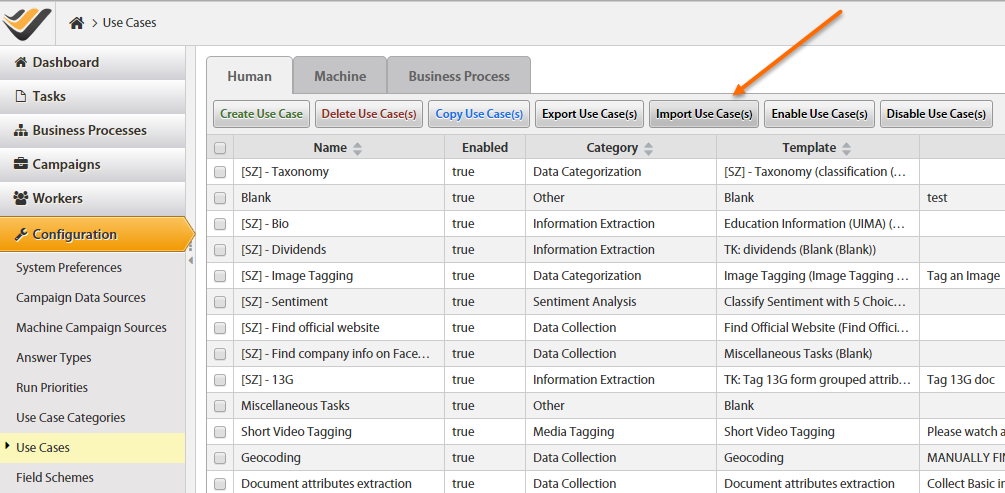
Click the Import Use Case(s) button and upload the XML file saved in Step 2. You will see the file validation:
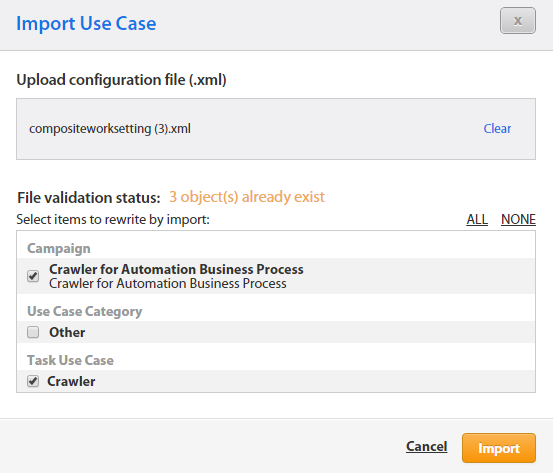
After uploading the XML file, you are able to decide:
- Rewrite duplicated objects (Templates, Rules, Tasks, and so on). Tick the appropriate checkboxes
- Or use the objects already existing in the system. Do not tick any checkbox in this case.
Objects are compared by name, content, and unique IDs.
Click the Import button.
Create new Task or BP from Imported Use Case (B)
- View All Tasks > Create Task > Select Use Case.
- Or View All Business Processes > Create BP > Select Use Case.