
OCR license
License categories
Base category: supported languages, except Arabic, Farsi, Chinese, Japanese, Korean, Thai, Hebrew, Yiddish, and Vietnamese.
CJK category: "Base" category languages plus Chinese Traditional, Chinese Simplified, Japanese, Korean, and Korean Hangul.
All category: all supported languages (see the language list).
Activate license
FRE SDK location (Linux) /ABBYY_FRE11 FRE SDK location (Windows) /FineReaderEngine
After installation of OCR components, you'll find the license_request.txt file on OCR server:
<fre_sdk_dir>/license_request.txt
If you are doing the migration from old versions (pre 8.5), follow the steps below to reuse available number of pages in your new environment:
Get the number of unused pages from pre 8.5 versions.
note
Actions below should be repeated for all activated licenses for all OCR servers.
Run License Manager using any user:
export LD_LIBRARY_PATH=$LD_LIBRARY_PATH:<INSTALL_DIR>/apps/ABBYY/FREngine11/Bin
<INSTALL_DIR>/apps/ABBYY/FREngine11/Bin/LicenseManager.Console
tip
License serial number and other license parameters can differ from samples.
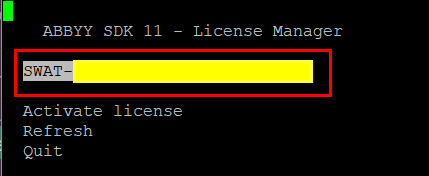
Select the activated license.
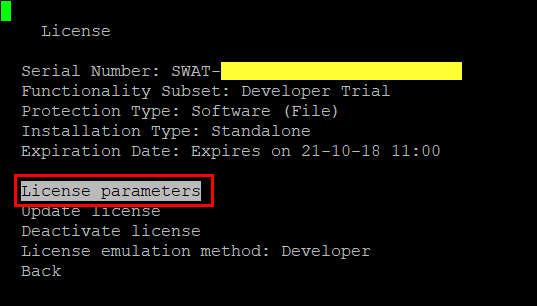
Open license parameters:
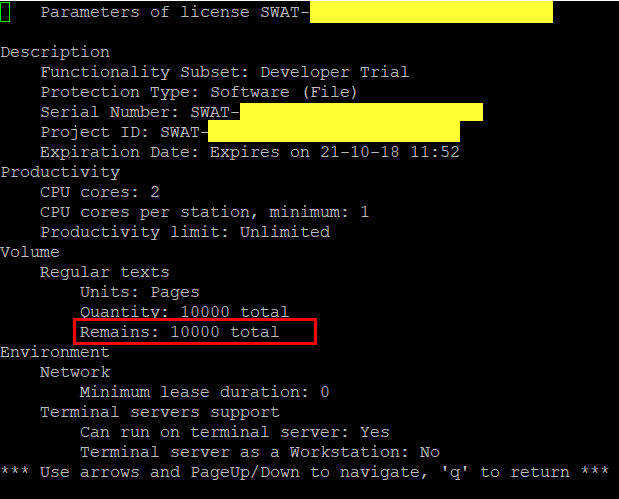
Make a screenshot of the first page. Ensure that the line with 'Volume → Regular Text → Remains' is visible.
Request and activate the license by sending an email to your account manager in WorkFusion or create a Service Desk ticket according to the template from the next step. Attach all license screenshots if remaining is greater than 0.
Send an email to your account manager in WorkFusion or create a Service Desk ticket according to the following template. Attach the
license_request.txtfile to the email:
Dear Support Team,
Please provide OCR license according to the following requirements:
Company name: ___
Number of pages to include: ___ *)Platform type:___(linux/windows)
Status of the server (Production, POC, UAT, DEV) ____
Category of languages: Base, or CJK (supports Chinese, Japanese, Korean), or All
Token returned by prepareLicense API: ___ (content of the file license_request.txt on OCR server)___
* Number of OCR pages should be estimated during POC based on the customer workload – like if during a day they “eat” 1000 pages, then to run the same for a month they need 30000 pages.
Non prod licenses as stated below have some predefined values 10K, 50K, 100K pages depending on complexity of the customer workload. Ideally is to request the minimal one.
Account manager aware of the number of pages included into the contract – it’s a part of negotiation with the customer.
Pay attention that the cost of the license depends on the number of pages as well as the category. Make sure your contract with WorkFusion covers it. If you have multiply OCR servers to balance the workload, then you need to request multiply OCR licenses, separately for each server.
In response to your email, WorkFusion will send you the license_response.txt file.
Copy this file to the following location on OCR server:
<fre_sdk_dir>/license_response.txtNavigate to the
<fre_sdk_dir>directory on your OCR server and execute a script according to the configuration:activate_wf.shon Linuxactivate_ocr.baton Windows in SPA
Example:
cd <fre_sdk_dir>/
./activate_wf.sh
If everything is OK, the command will report a success result like this:
{"message":{"content":"License Activation Succeeded"}}
The newly activated license complements the previous one and adds new OCR pages to the remaining amount.
Verify license
After activation you may check the state of your active license. For that, use the activeLicense API. You need to SSH into OCR server firstly.
If the authentication is disabled (auth-disabled profile is configured), no authentication header is needed and the command is as follows:
curl -s http://localhost:9002/api/v1/cloud/activeLicense | python -m json.tool
If authentication is enabled, the command is as follows:
curl -s -H "Authorization: ..." http://localhost:9002/api/v1/cloud/activeLicense | python -m json.tool
In place of ..., you need to provide credentials according to the OCR Service configuration.
The header can look either like "Authorization: Basic your_username_pwd_base64" for basic authentication or "Authorization: Bearer your_jwt_token" for JWT authentication .
Report OCR usage
If you use "pay as you go" type of license, you activate it once per installation and don't need to activate more licenses later. Instead you need to report license consumption April 1, July 1, October 1, January 1. Send the consumption information to WorkFusion using the steps below.
SSH into OCR server and invoke the following command:
curl -X POST http://localhost:9002/api/v1/cloud/activeLicenseCopy the output of the above command and send it to the WorkFusion support.