
WorkFusion Analytics custom dashboards backup and restore
General migration flow
TheWorkbook migration flow includes the following steps:
- Download a workbook.
- Change data source connections if needed.
- Rename the workbook according to the naming convention.
- Publish the workbook to a new instance.
Backup
Backup dashboards means download them from WorkFusion Analytics Server.
WorkFusion Analytics Server 9
Open WorkFusion Analytics Server page and select appropriate Site.
Click Projects.
Choose the needed one.
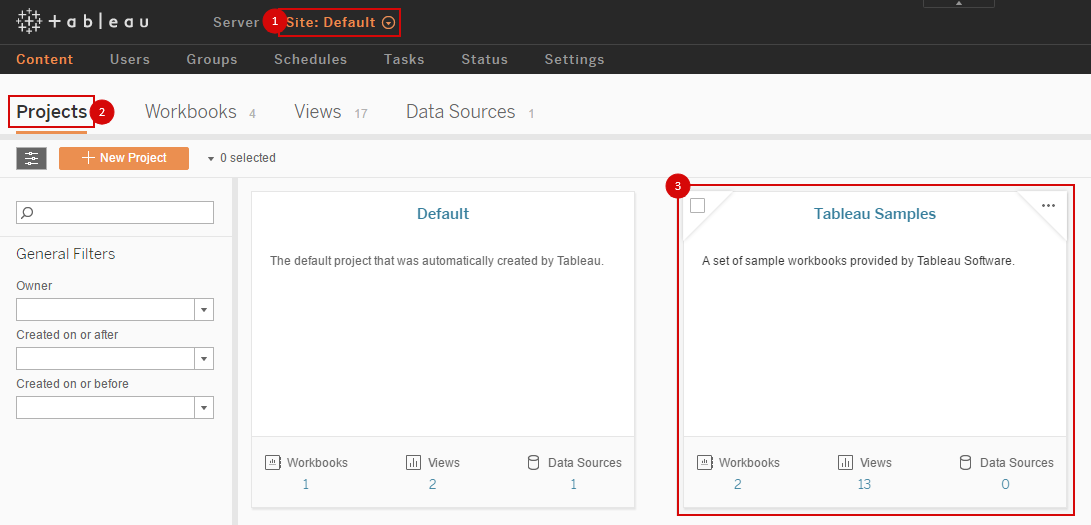
Find a workbook for downloading and expand the workbook menu by pointing and clicking three dots.
Click Download. The TWBX workbook file is downloaded.
WorkFusion Analytics Server 10
Open WorkFusion Analytics Server page and select appropriate Site.
Click Projects.
Choose the needed one.
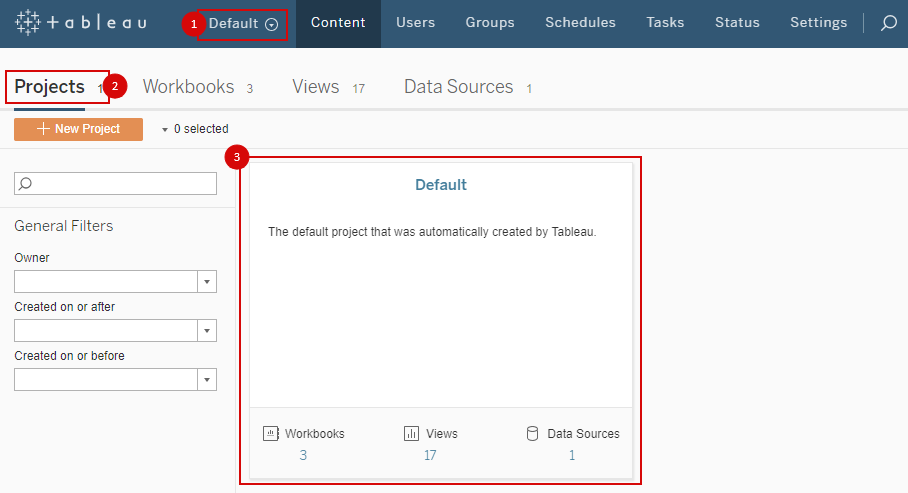
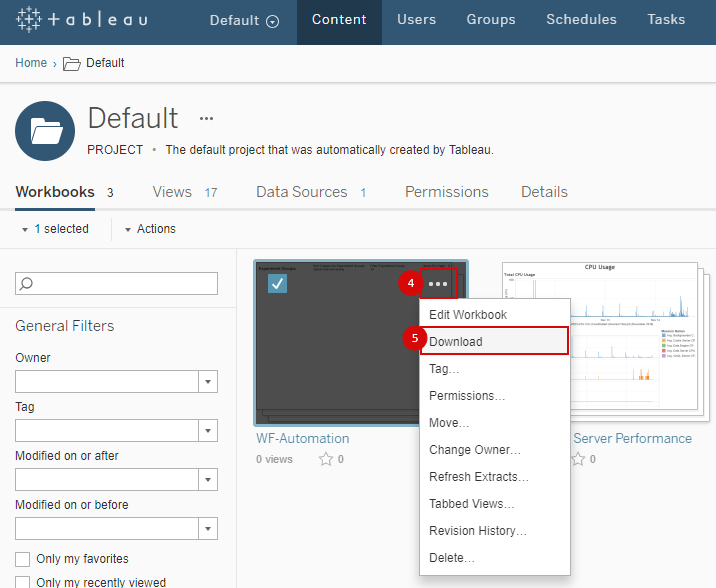
Find a workbook for downloading and expand workbook menu by pointing and clicking three dots.
Click Download. The TWBX workbook file is downloaded.
Restore: WorkFusion Analytics Desktop
Change connections (optional)
If all connections to database server remain the same, skip the step and proceed to the next.
Open the recently downloaded workbook file in WorkFusion Analytics Desktop.
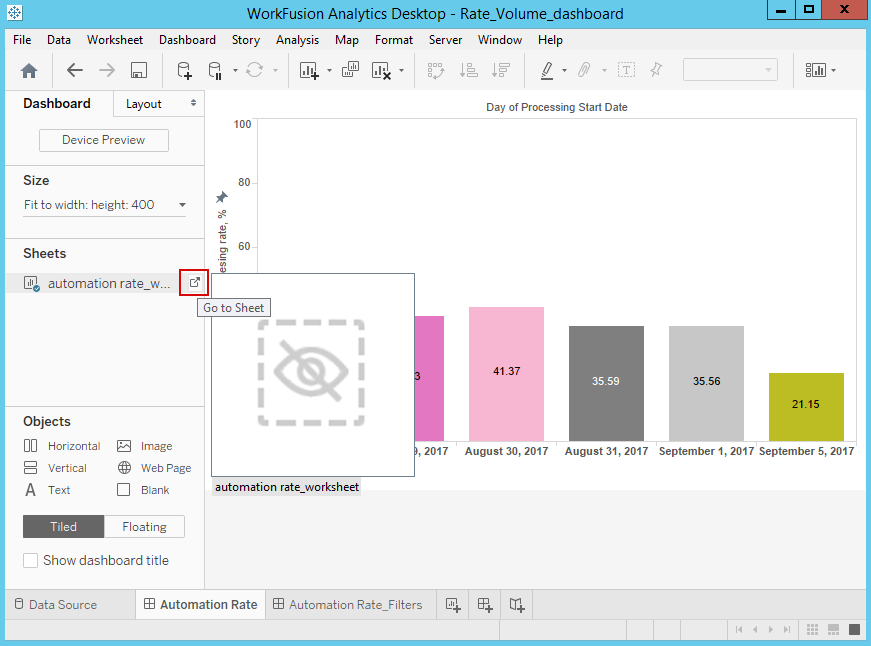
Go to the worksheet by pointing and clicking the Go to sheet button in the Dashboard section.
On the Data tab, right-click the data source and choose Edit data source....
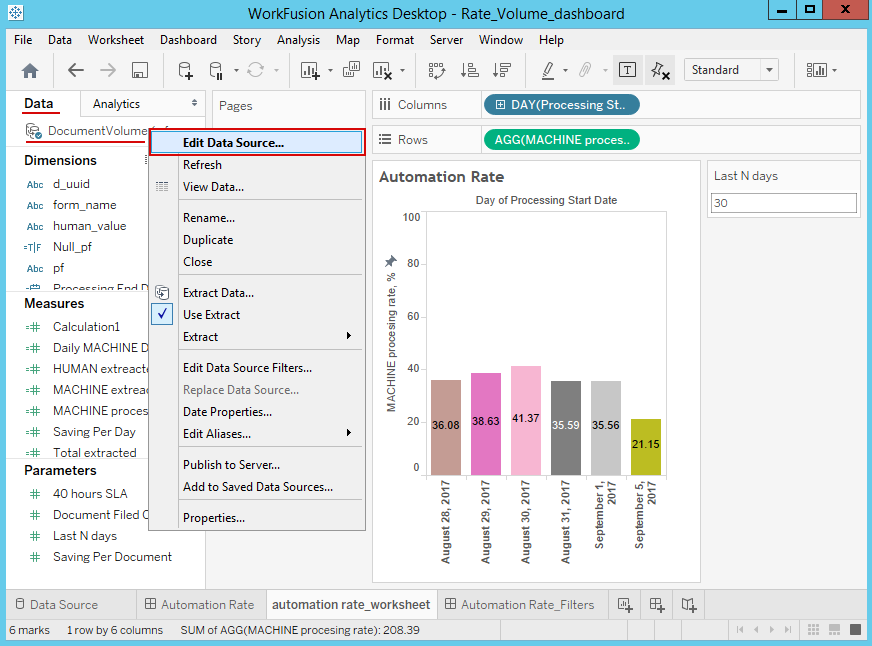
Edit data base connection settings and click OK. Move to the dashboard sheet.

Sign into Server
On the menu bar, choose Server - Sign in....
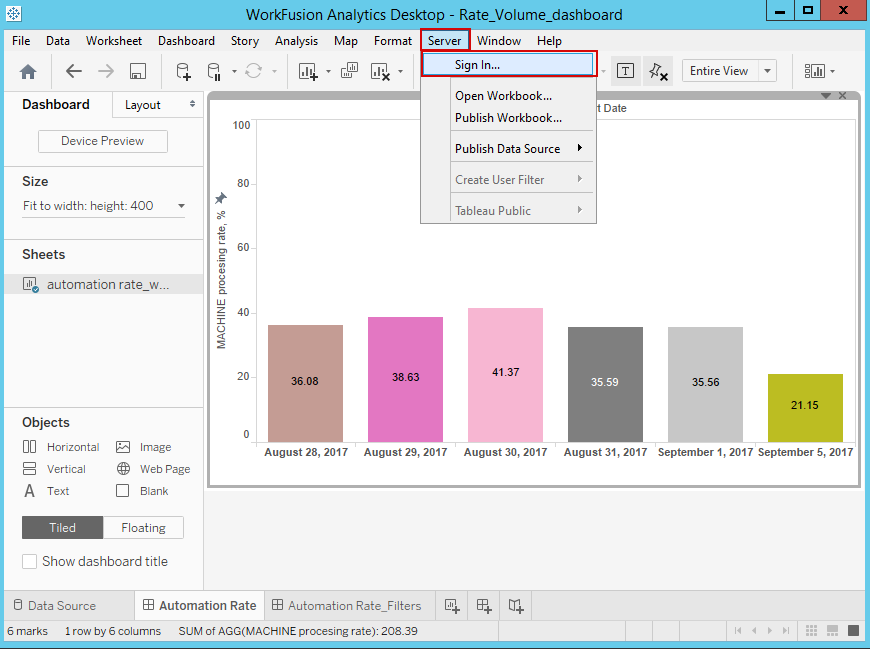
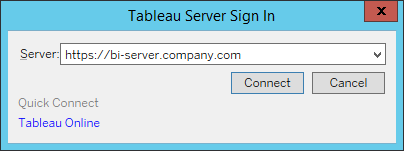
Enter the BI server URL and click Connect.
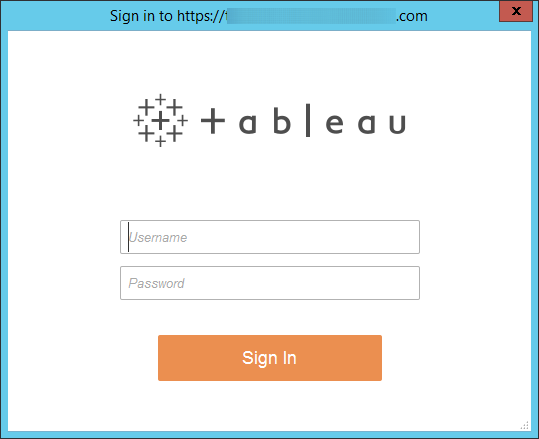
Enter WorkFusion Analytics Server credentials and click Sign In. You should have the Publisher, Site, or Server Administrator role.
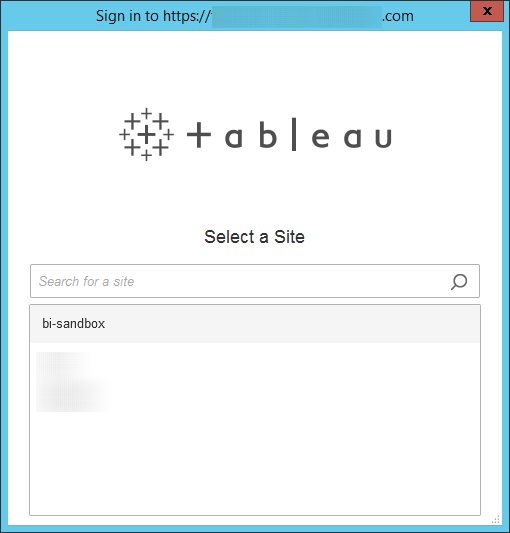
Select appropriate Site for publishing.
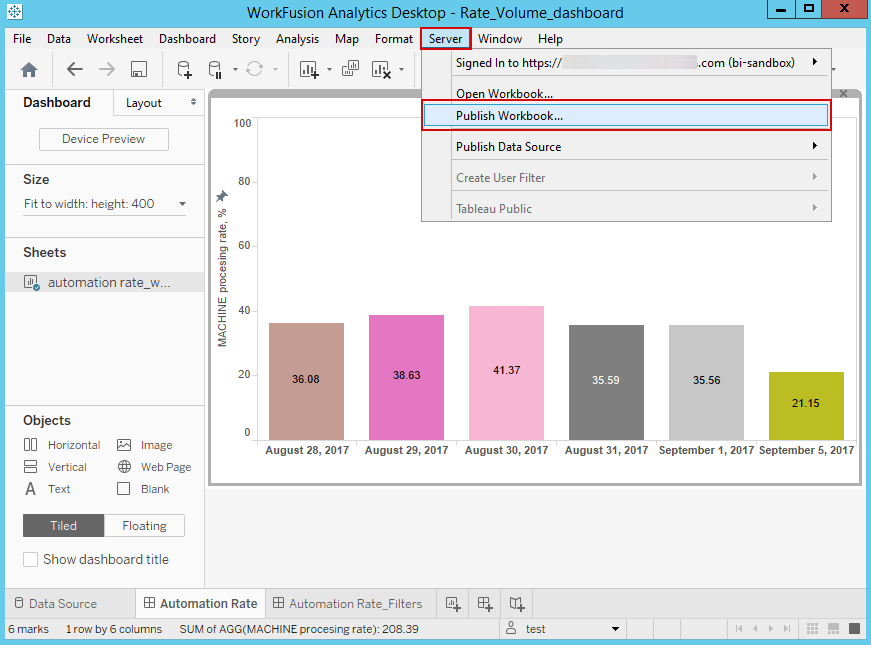
Publish Workbook
On the menu bar, choose Server - Publish Workbook....
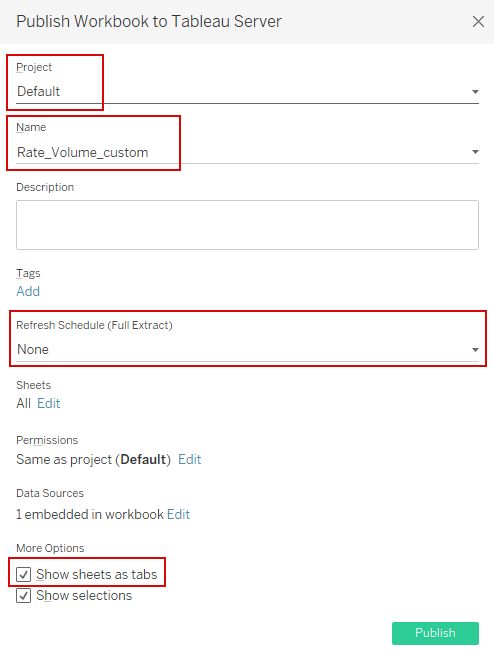
Check the Project and Name fields.
To meet the WF Dashboard configuration requirements, use the
_custompostfix in a name. The name should not start with a digit. After a workbook is published, the dashboard appears in Control Tower > Analytics > Custom.Choose the Show sheets as tabs option. Optionally, there is an opportunity to add refresh extract schedule.
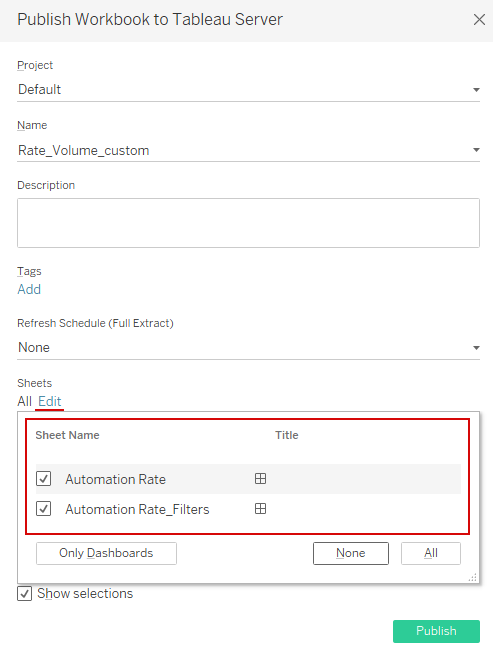
Click Edit in the Sheets section and select sheets to publish.
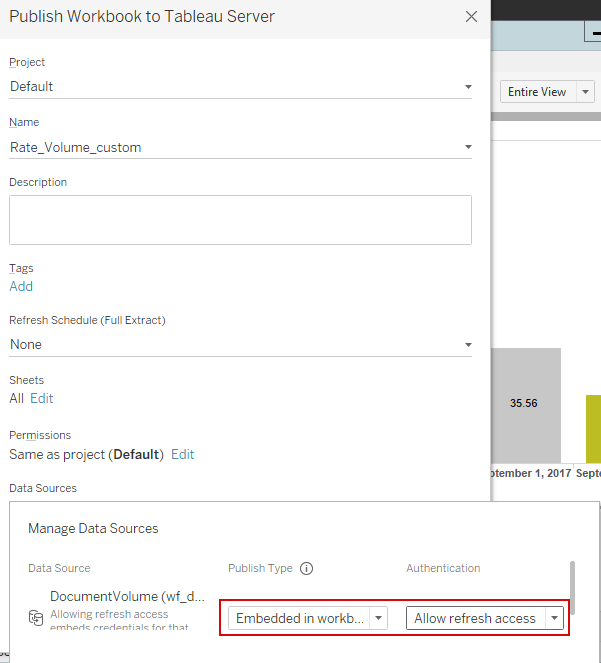
Click Edit in the **Data Sources **section and change the publish type to Embedded in workbook and the authentication mode to Allow refresh access.
Click Publish.
Check the published workbook on BI server.