
Platform Monitor configuration
Platform Monitor is installed with RPA, though it requires additional configuration.
Configure Nginx
The section describes using of secure connection between Bot Manager and Bot Relay.
- Upload the SSL certificate and SSL key files to the
nginx/ssldirectory and rename them toserver.pem,server.keyandclient.pem(if exists) correspondingly.
You can download the configuration files from APP server. For more details, refer to Preparation of RPA and BI configurations.
- Edit
<INSTALL_DIR>/nginx/conf/nginx.conf.
- Replace all
{HOST_NAME}with a valid DNS name of your Windows RPA server. - Replace
{WF_HOST_IP}with IP address of APP server. - Replace
{LOCAL_IP}with IP address of your RPA Windows Server.
Configure Windows Firewall
Create a new rule to allow inbound secure communication for applications on the Bot Relay server for using a SSL connection.
Define the local port 443 to allow the connection. You can also define ports 10000-10010 if needed.
Encrypt properties
To encrypt properties, use status-agent-*.jar as the command line tool.
- Default installation directory is
/opt/workfusion. - Required VM options:
-Dencrypt. The option should be added before the JAR file. Otherwise, it will run status-agent as a web server. - Required program arguments: -input X, where X is a string line for encryption.
- Take wfagent credentials from
secrets.ymlon Linux servers:
wfagent_username: wfagent
wfagent_password: 'Kt#Ol4luYl'
- Execute the following commands on any Linux server to encrypt the credentials:
$ source <INSTALL_DIR>/environment.sh

$ java -jar -Dencrypt <INSTALL_DIR>/wfagent/status-agent-9.2.0.0.jar -input wfagent
BwW9oB1vte63yeSXqi9AkQ==
$ java -jar -Dencrypt <INSTALL_DIR>/wfagent/status-agent-9.2.0.0.jar -input 'Kt#Ol4luYl'
Fe8sbyY5d5P0wam4GtH0/m2uevMCp5S0
Output of commands are string lines, for example, BwW9oB1vte63yeSXqi9AkQ==, where prefix and suffix ENC( ) need to be added. As a result, it will look like: ENC(BwW9oB1vte63yeSXqi9AkQ==``).
- Put the encrypted property to the
<INSTALL_DIR>/wfagent/conf/environment.ymlfile on RPA server.
pm_user: ENC(Y9OMveSzAbN4yObOxme27g==)
pm_password: ENC(BbsfHdEgYsW2rd1caHTlk5/L5TQI5KT5)
Configure Platform Monitor basic settings
Edit <INSTALL_DIR>/wfagent/conf/environment.yml.
rpa_hub_hostname: rpa.example.com         ## Modify to hostname of RPA server
rpa_hub_port: 4444                          ## Internal port for Bot Relay service
rpa_hub_protocol: http                      ## RPA Bot Relay service internal protocol usage
rpa_nginx_port: 443                         ## RPA external port
pm_hostname: apm.example.com                ## Modify to hostname of Application Platform Monitor
pm_port: 443                                ## Modify port number of Application Platform Monitor
pm_scheme: https                            ## Modify protocol of Application Platform Monitor
pm_path_context: "/_agent"                    ## Modify context path of Application Platform Monitor
pm_user: ENC(BwW9oB1vte63yeSXqi9AkQ==)      ## Modify username of Application Platform Monitor
pm_password: ENC(Fe8sbyY5d5P0wam4GtH0==)    ## Modify password of Application Platform Monitor
agent.hostname: rpa.example.com             ## Modify to hostname where current Windows session will be running
logstash_port: 4567                         ## logstash port
Configure RDP settings
note
Required only for the RDP-in-RDP deployment type.
The configuration is done under the Bot Relays user.
The RPA package comes with the bundled wfagent directory (/wfagent/rdp), where you can find six RDP client connection files.
nodeX.RDP is a connection to local RDP with Bot #X.
Open the files and perform the following actions.
Run RDP client using
nodeX.RDP.Save credentials for this connection.
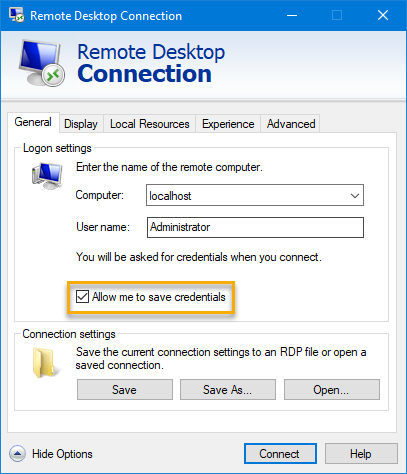
Open the connection and select all checkboxes to prevent any undesired dialogs in future.
Make sure you are connected to RDP. Disconnect and open the connection again. There should be no warning messages during the initial connection or inside the RDP session, as they will disrupt any automatic session logon.
Update Platform Monitor Keystore
RPA Platform Monitor doesn't support SSL while APM server supports SSL. In case of APM Server, RPA Platform Monitor keystore needs to be updated.
- Download the root certificate from APM server using the following URL: http://dns_host:port/ca.crt, where:
Arguments
dns_host is host of APM server
port is set during install; default port is 8080
You might download via powershell command:
Invoke-WebRequest -Uri "http://dns_host:port/ca.crt" -Outfile "ca.crt"
Find the RPA Java path, for example,
C:/RPA/java.Go to the bin directory, for example,
C:/RPA/java/bin.Import the downloaded
ca.crtfile to RPA Java keystore.Run this command with your arguments from
C:/RPA/java/bindirectory:
keytool -import -alias APM -file "path/to/ca.crt" -keystore "path/to/cacerts" -storepass changeit
Where:
Arguments
path/to/ca.crt is absolute path to downloaded ca.crt, e.g., C:\\ca.crt
path/to/cacerts is absolute path to default RPA Java keystore, e.g., C:\\RPA\java\jre\lib\security\cacerts
changeit default password for RPA Java keystore
Configure multiple RDP sessions
Multiple RDP Sessions are configured on Windows Server.
Connect to Windows Server.
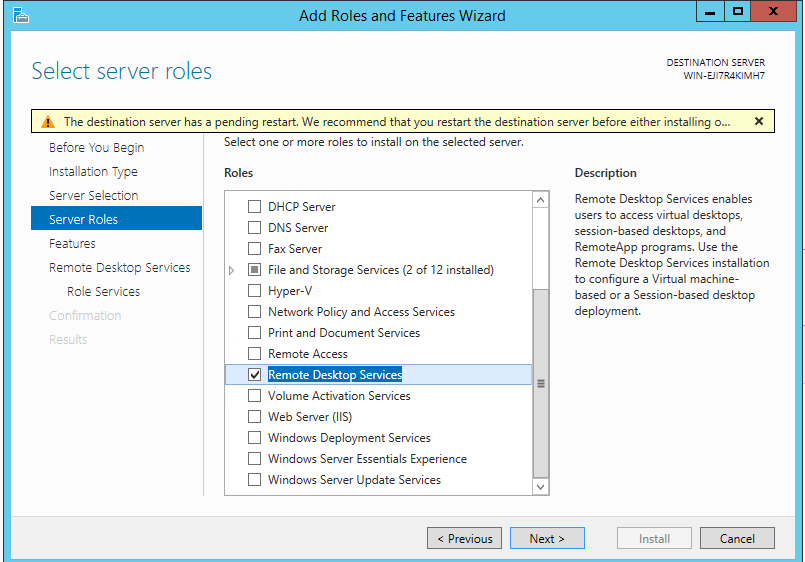
Navigate to Server Manager > Manage > Add Roles and Features. The Add Roles and Features Wizard opens.
Go to Server Selection > Server Roles > Remote Desktop Services > Next.
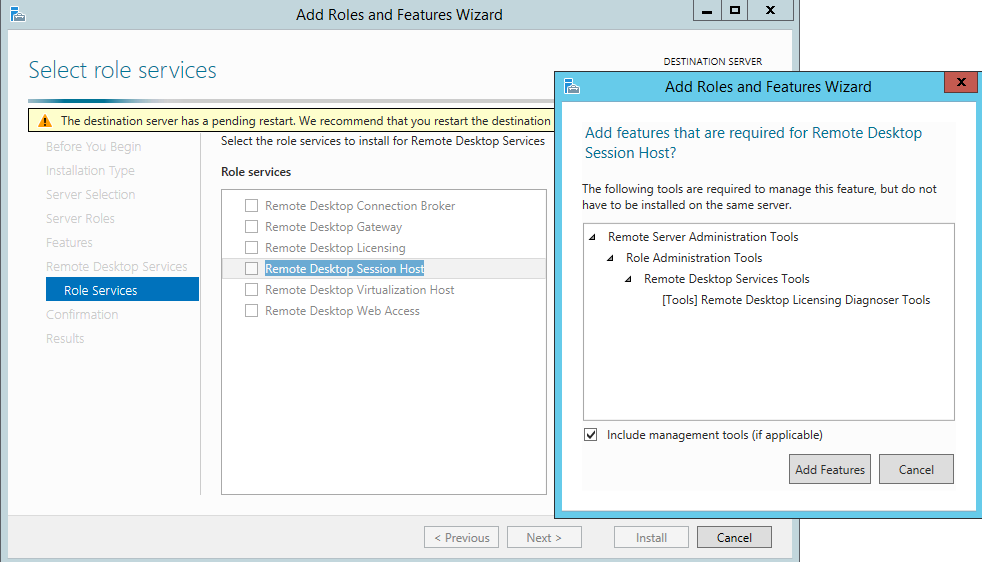
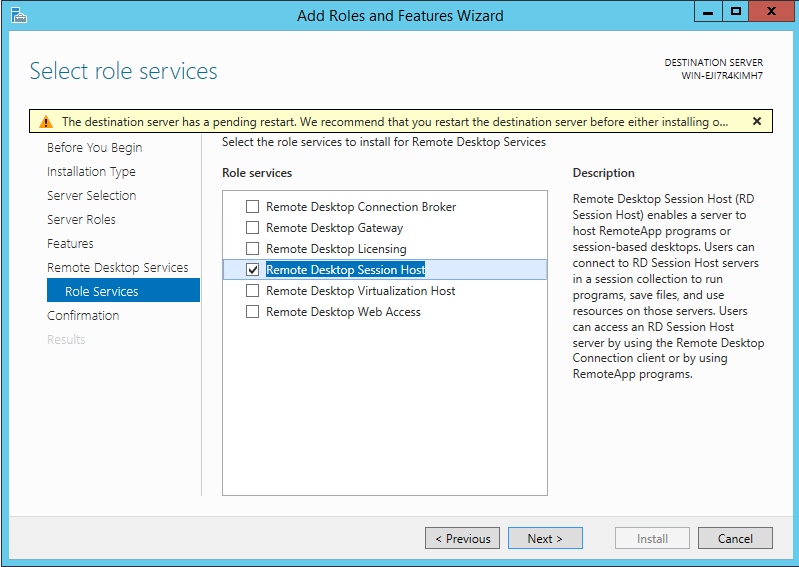
- Select Remote Desktop Session Host > Next > Add Features.
- Reboot your machine.
Configure Bot Relay autostart
The Bot Manager configuration is also related to the configuration of Bot Relays.
To allow Bot Relay autostart, provide correct credentials to Platform Monitor at PM host.
Gain the shell access to PM host.
Switch to the
<install_dir>/wfagent/settingsdirectory.Modify template settings in
rpa.ymland provide settings under credentialsid,user,password.
rpa.yml:
## replace credentials
  credentials:
    - id: rpahostname1                  ## Put RPA server public host. Required. Example: rpa.hostname.server.com
      user: user                        ## Put RPA server RDP username. Required. Example: user
      password: password                ## Put RPA server RDP password. Required. Example: password
- Restart WF Agent.
wfmanager restart wfagent
Start Platform Monitor manually
| 1 RPA Bot per Server (VDI) | Multiple RPA Bots per Server (RDP-in-RDP) |
|---|---|
Run C:/RPA/wfagent/bin/wfagent-hub-nordp.bat. Run C:/RPA/wfagent/bin/wfagent-node0.bat. | Run C:/RPA/wfagent/bin/wfagent-hub.bat. All RPA Bots should start automatically. |
Schedule Platform Monitor startup on logon
Scheduling of tasks can be performed using task scheduler or advanced group policies. Use the method below only if you don't have any other standard way to schedule tasks for users.
| 1 RPA Bot per Server (VDI) | Multiple RPA Bots per Server (RDP-in-RDP) |
|---|---|
|
|