Add nested Business Processes
When designing a Business Process (BP), you can include another BP in it. This allows you to reuse process designs and improve BP testing, monitoring, and visualization.
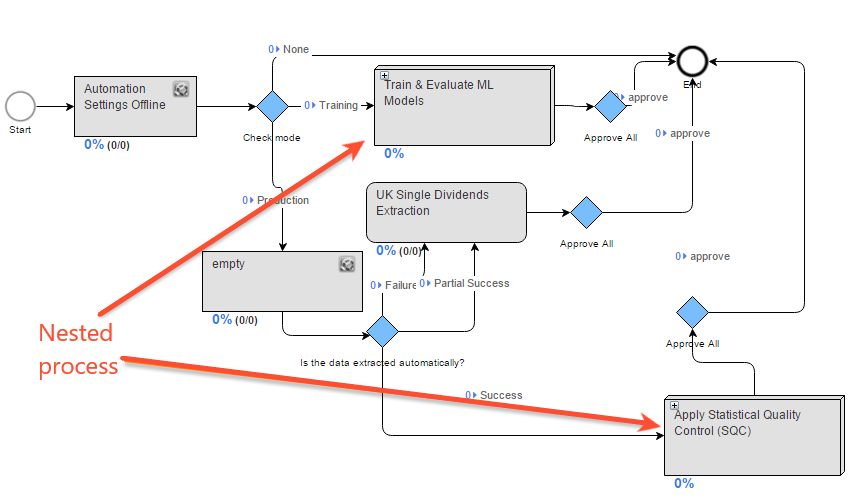
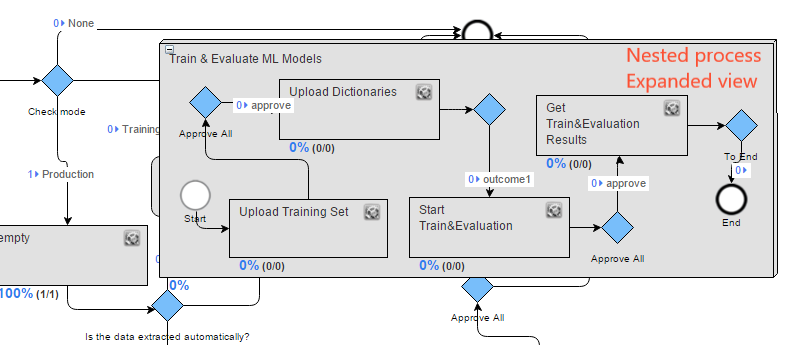
Prepare BP for nesting
To use a BP as a nested process, complete the following steps:
- Create a Business Process from an existing or empty Operation.
- Test the BP in the development environment and fix any errors if needed.
- Create an Operation from the BP.
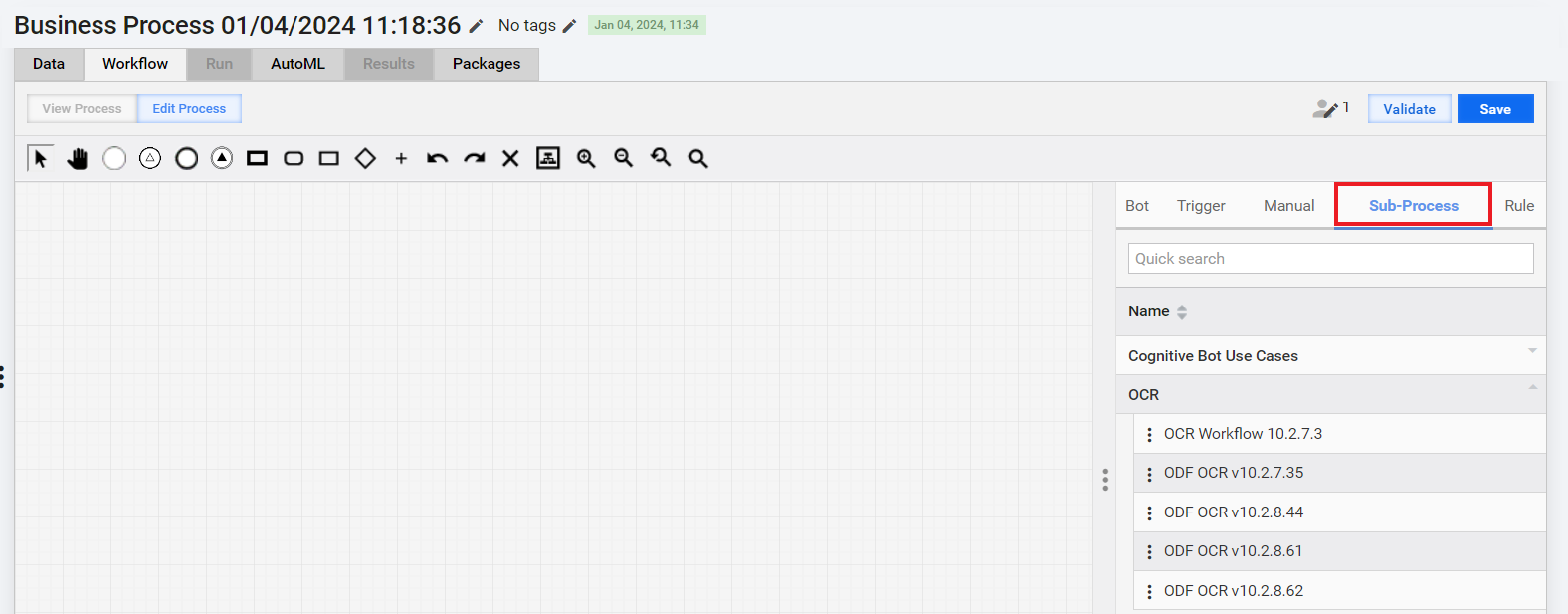
As a result, the BP Operation appears on the Sub-Process tab in the side panel of the BP Designer.
Add BP Operation as sub-process
Let's assume that you designed an OCR BP, tested it, and created an Operation. Our aim is to include this OCR Operation as a nested process into another BP. For that, follow the steps below:
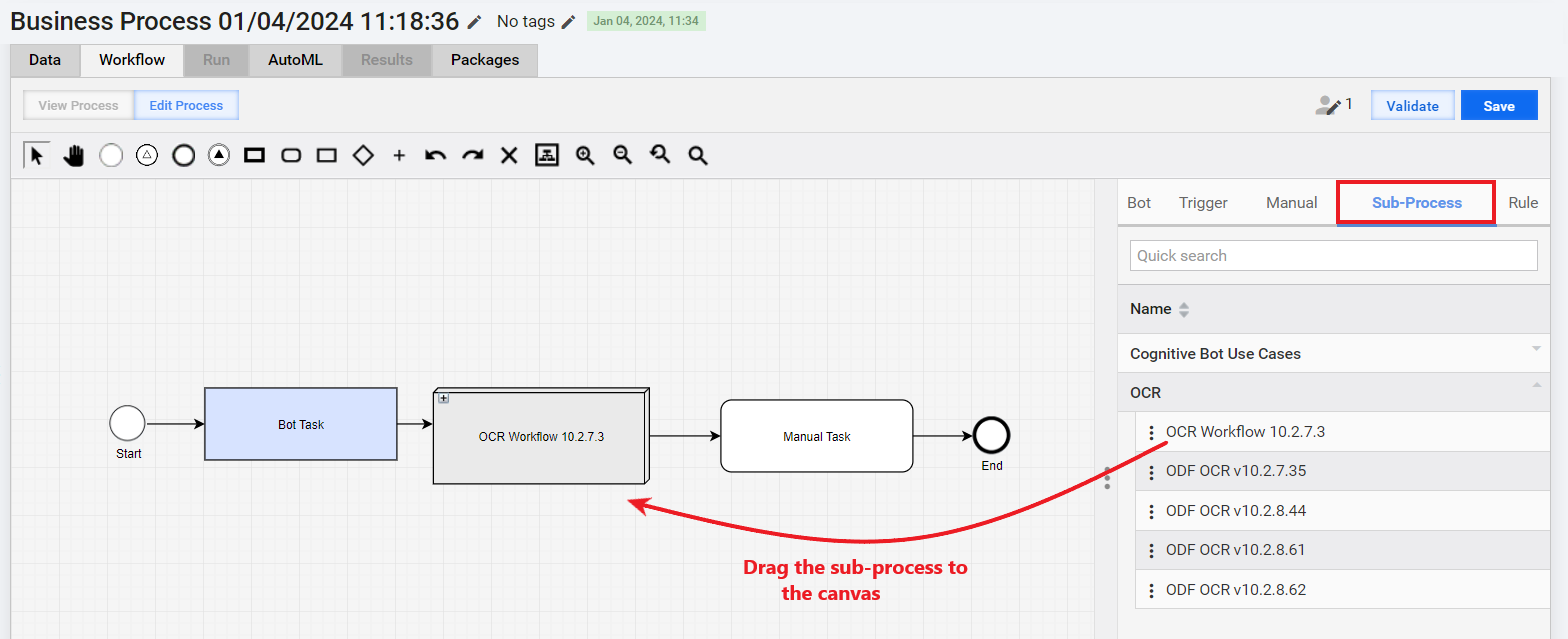
Open the BP and navigate to the Workflow tab. On the side panel, open the Sub-Process tab and drag the OCR Operation from the side panel to the canvas.
Connect the OCR sub-process to other BP steps.
Verify that the BP input file column names match the OCR sub-process data elements (variables).
Edit sub-process
After you add a sub-process to a BP, the following inheritance rules apply:
- If you edit a sub-process step (parameters, name, and so on), the source Operation is updated accordingly, and vice versa.
- If you change the connections inside a sub-process, the source Operation is NOT updated, and vice versa.
If you want to change a sub-process step without affecting the source Operation, follow the instruction below:
Expand the sub-process by clicking + in its top left corner.

Right-click the target step and select the Copy action.
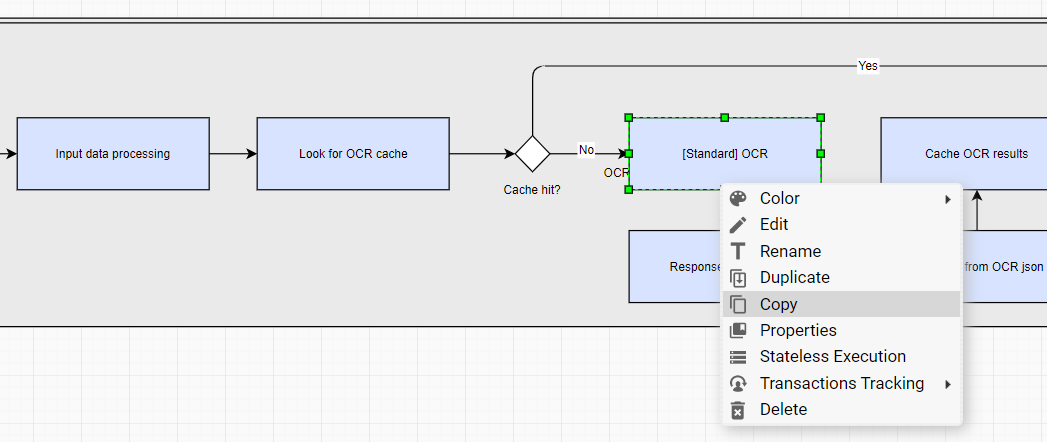
Delete the target step.
Drag the copied step inside the sub-process and connect the step to others. You can also delete other sub-process steps or drag new steps inside it if needed.
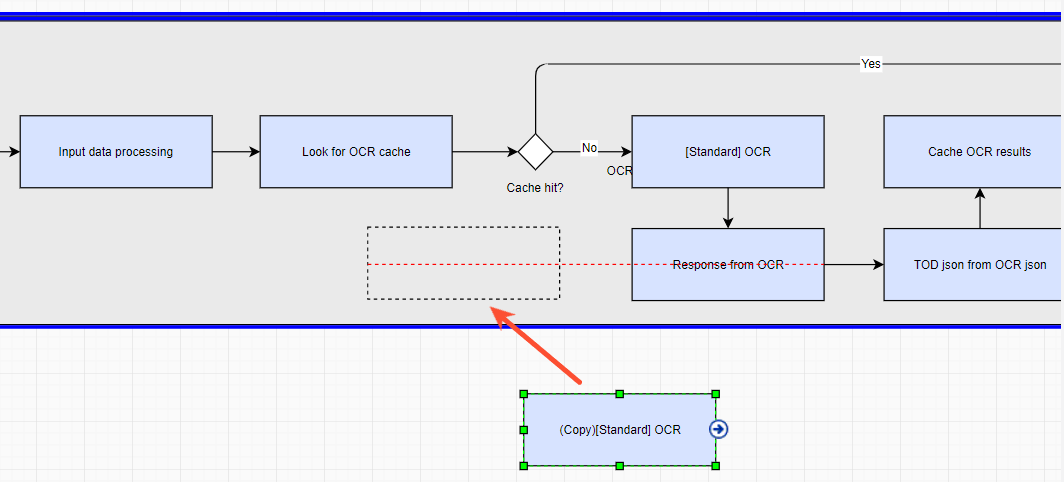
- WorkFusion supports multiple BP nesting levels.
- Sub-processes do not have their own BP options (streaming threshold, due date) and input data file. They receive data from the preceding BP step and pass the result data to the subsequent one.
Explore alternatives solutions
Instead of adding a sub-process, you can also try the following solutions:
Set sub-process steps
Using the steps, you can start a sub-process from another BP based on a specific event or initiate transaction processing from another transaction within a different BP. Work.AI supports two sub-process step types:
Asynchronous Sub-process Execution
Synchronous Sub-process Execution
For details, refer to Start Business Process by internal event.
Add bot step
Configure a bot step that creates or updates a specific folder on an external server registered as described in Start task and Business Process from Data Source. This can be the event that starts a new BP or task.
Use task-start plugin
Use the task-start plugin to start another BP or task, depending on the current BP results. For details, refer to Bot Task plugins | task-start.
When you have trouble creating an embedded BP, read the support guide to resolve the problem.