Add Manual Task
You can add a Manual Task (MT) to a Business Process (BP) using one of the following methods:
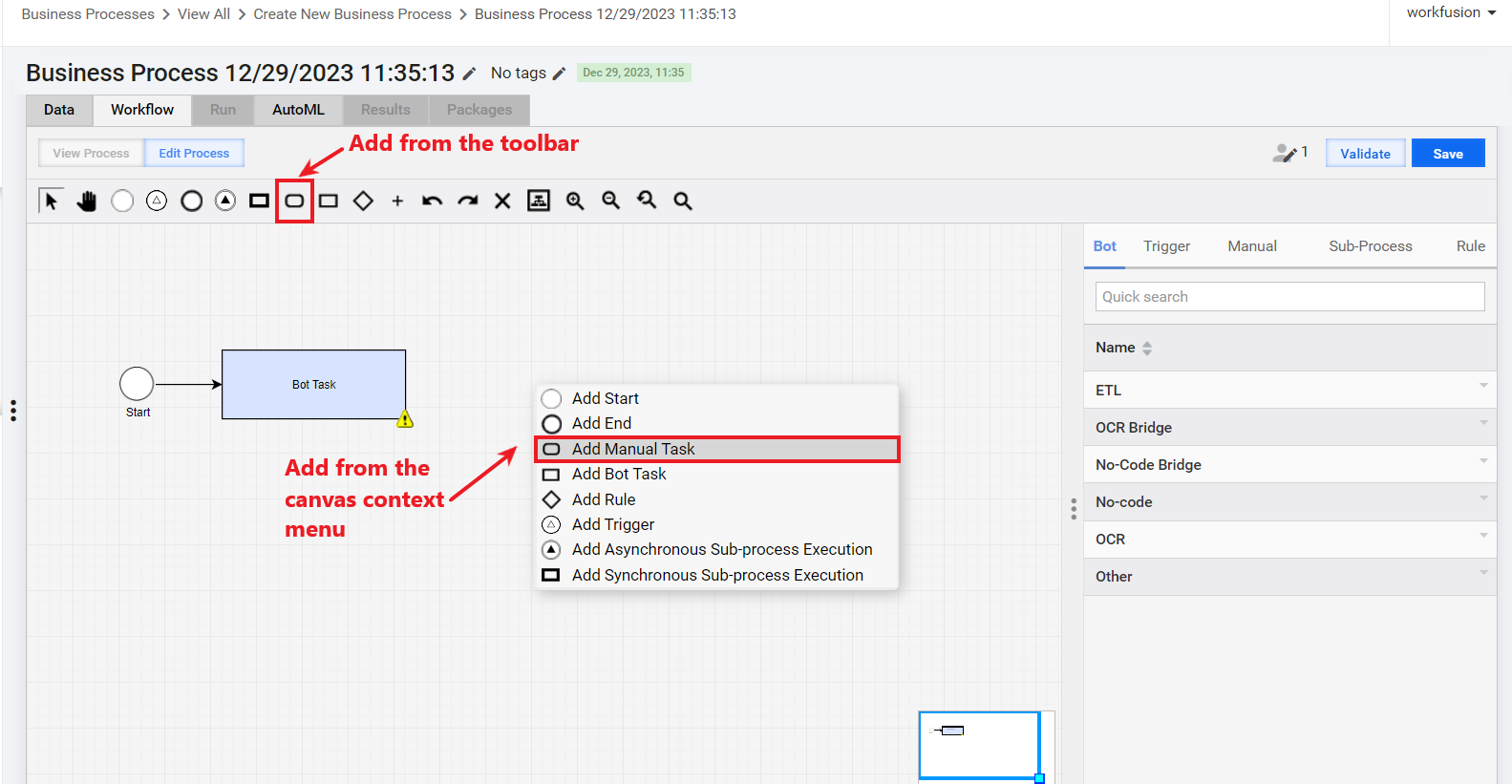
Create from scratch: drag the MT element from the toolbar to the canvas, or click the canvas and, in the context menu, choose Add Manual Task. In this case, a blank task is created, and you will need to select an Operation and design a form layout from scratch.
Add a ready-to-use task: on the right panel, navigate to the Manual tab, drag an option to the canvas, and edit the task if needed. In this case, any changes you make to the task are propagated to all BPs where the task is used.
Alternatively, click the Copy button for the MT option you choose, in which case an independent task copy is added to the canvas. In this case, the changes you make are not propagated to the source task or other independent copies of the same task.
You can also click an MT element on the canvas or on the Manual tab and, in its context menu, choose Duplicate or Copy. In this case, the properties and design are copied from the source task. You can edit the task if needed.
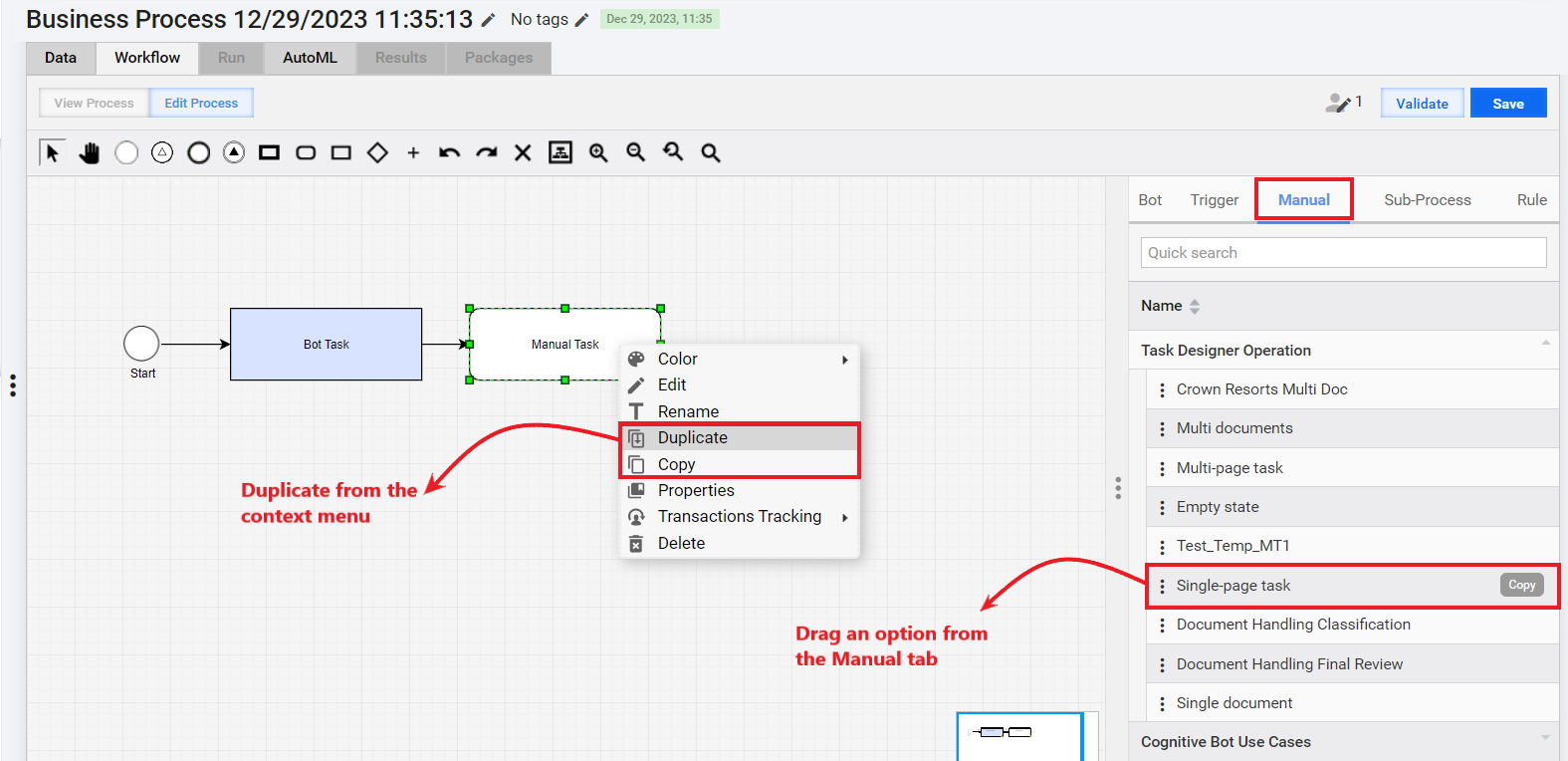
If you duplicate an MT, all subsequent changes in the source or duplicated task are synchronized.
If you copy an MT, you are prompted to edit its name, and there is no synchronization between the source and the copy.
Select Operation
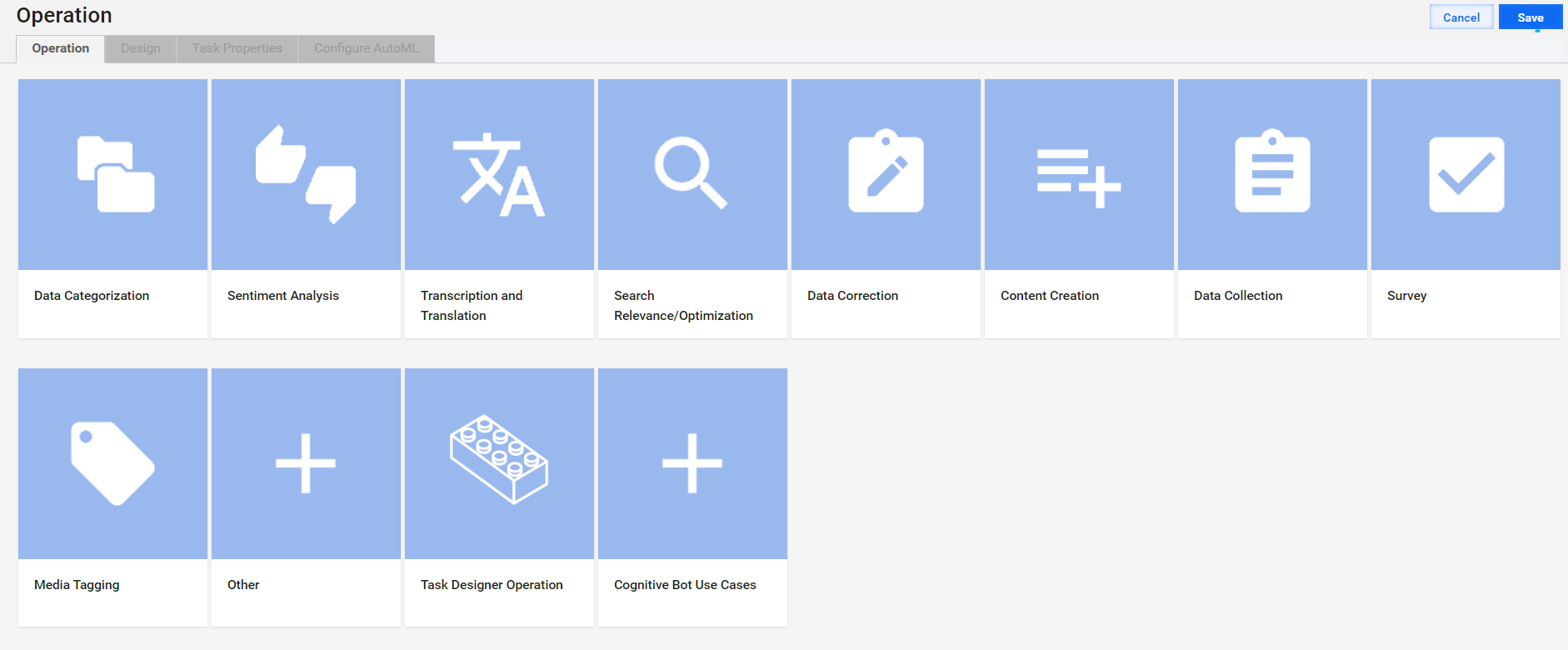
If you drag the MT element to the canvas from the toolbar or add it from the canvas context menu, a blank task is created, and you are redirected to the page where you can choose an Operation. For more details, see Create Manual Task | Create from Operation.
The recommended choice is the Task Designer Operation. The operation type provides a no-code way to implement Manual Task forms: to generate them from a template model or to build them manually in a drag-and-drop editor.
However, you can also choose any other Operation category and proceed with the legacy way to design tasks.
Design task form
To design a form layout for a created MT, navigate to the Design page. For further instructions, refer to the following guides:
For Task Designer Operation, follow the instructions in Design Manual Tasks via Task Designer Operation. This is the recommended way to design Manual Tasks. The operation type provides a no-code way to implement Manual Task forms: to generate them from a template or to build manually in a drag-and-drop editor.
For any other Operations, proceed in the legacy way to design MTs as detailed in Design Manual Task in legacy Task Designer mode.
Mind that the process of designing MTs from a BP flow differs from the one you follow when creating a standalone non-BP task.
Set task properties
To set the properties of the designed MT, navigate to the Task Properties tab and follow the instructions in the Configure and run Manual Task topic.
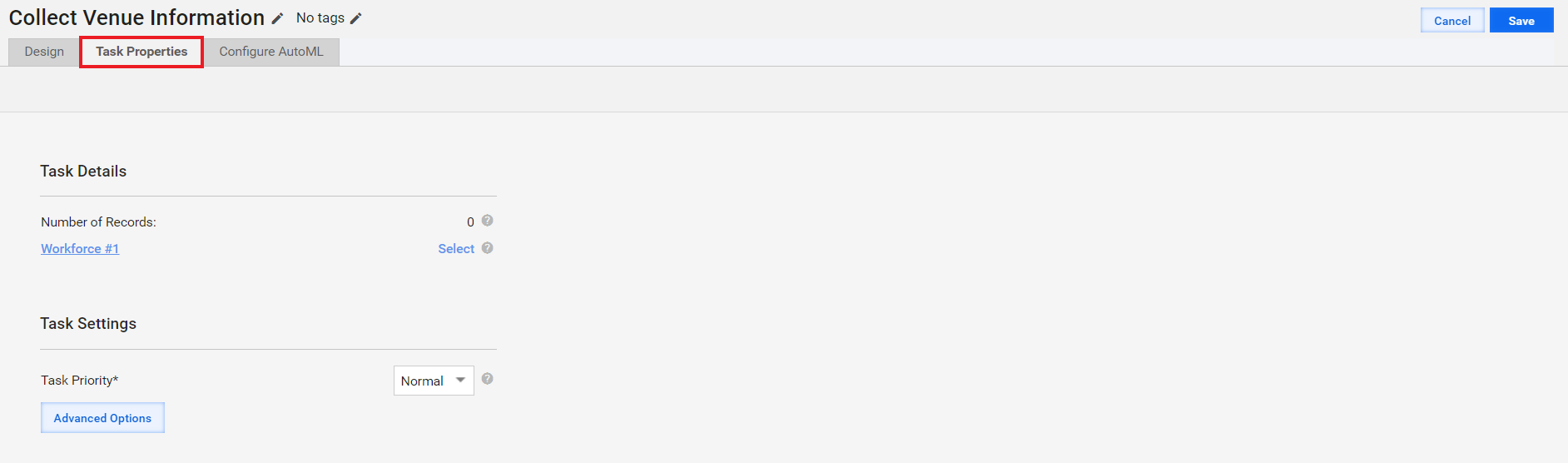
You cannot run a BP-associated Manual Task from the tab as the task runs are managed by the Business Process engine.
In case you have issues with Manual Task steps, look for troubleshooting tips in the following support guides: