Improve Manual Task transition performance
The guide is valid for Work.AI versions starting v10.2.9.
Starting from Work.AI v10.3.3, you no longer need to upload the files manually. Pack them into the web_resource directory of your AI Agent Asset Bundle instead, and Control Tower uploads them to the web server on import. For details, refer to Package AI Agent Asset Bundle | web_resource.
The guide describes how to update the Workspace caching to improve the loading performance of Manual Tasks (MT). The idea is to host the JavaScript files and other static assets directly on the web server, which allows the browser to leverage caching, resulting in faster MT transitions.
The sequence of steps is as follows, depending on the Work.AI version you are using:
- For Work.AI versions up to 10.2.9
- For Work.AI v10.3+
In Control Tower, open the Business Process (BP) containing the MT where you want to improve the performance.
Within the BP flow, find the MT step and double-click it to open the configuration page. On the Design page, switch to the Code Editor mode.
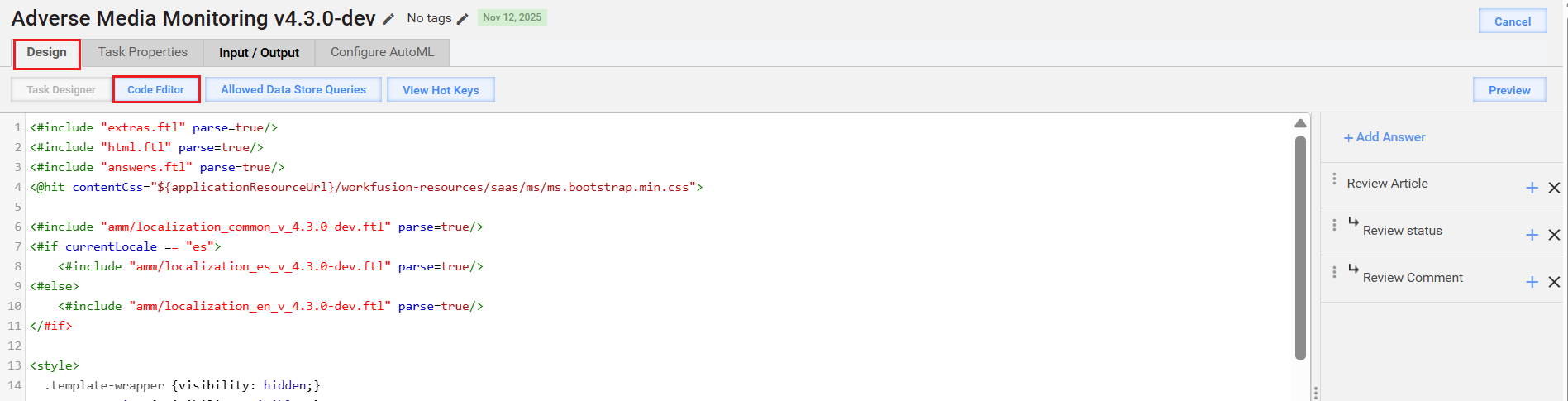
In the Code Editor box, locate the section referencing the JavaScript files (line 62-64 in the sample screenshot below) and comment them out.
Below is the sample code for an AMM manual review task:
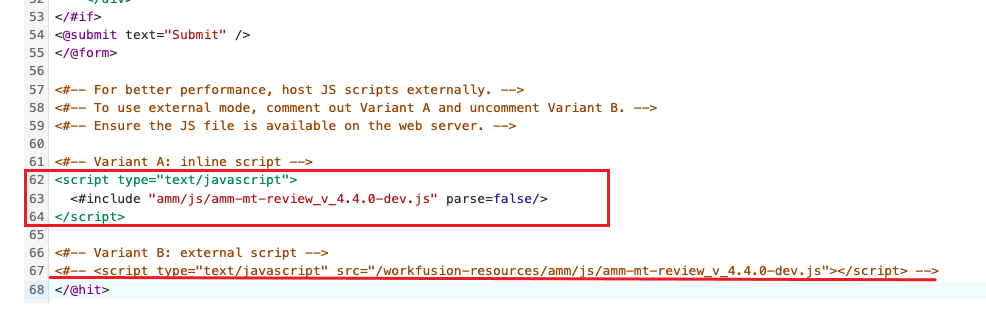
Uncomment or add the line that loads the JavaScript file from the server’s static resources directory (line 67 in the sample screenshot above).
Create a
your-task_v_[VERSION].jsJavaScript file (for AMM, for instance, this can beamm-mt-review_v_4.3.0.js):your-taskis the name of your Manual Task.[VERSION]is the version of your Manual Task.
In Control Tower, go to Advanced > Templates > Macro and copy the content of the
your-task_v_[VERSION].jsmacro template associated with the MT to the JavaScript file created in Step 5. For instance, in the example below, the macro template you need isamm/js/amm-mt-review_v_4.3.0-dev.js.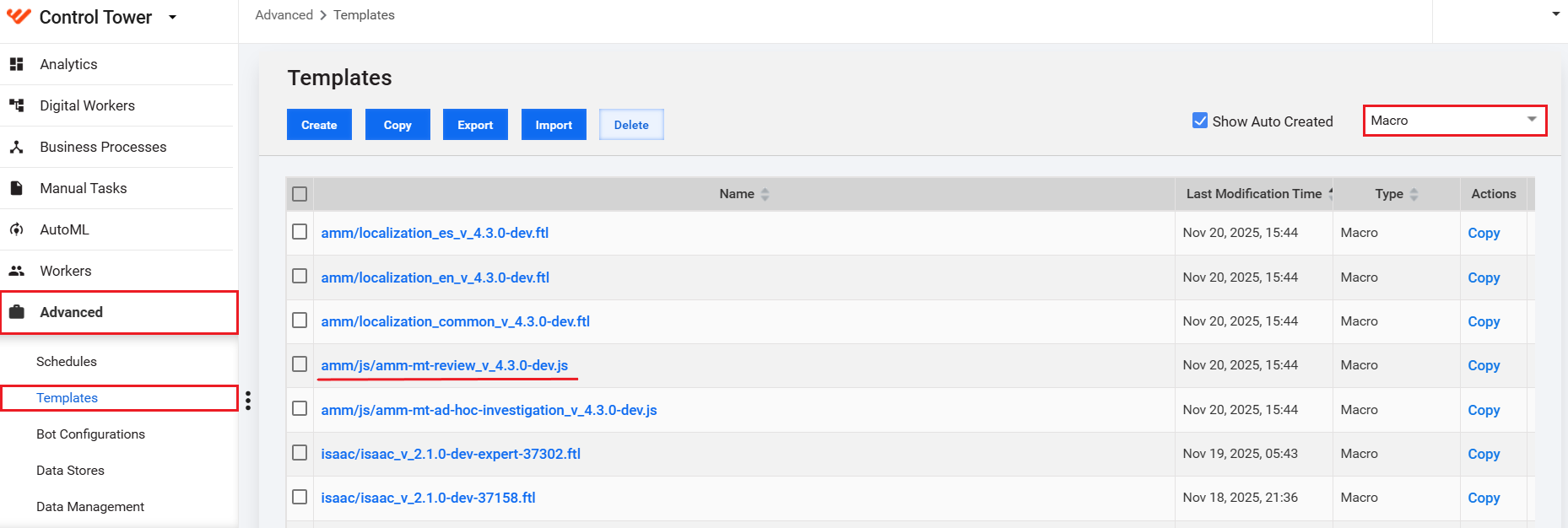
Connect to the Master node via SSH.
Navigate to the static resources root:
/opt/workfusion/static-apps/workfusion-resources/Create a
<your_folder>sub-folder for the specific resources if it does not exist.Move the
your-task_v_[VERSION].jsJavaScript file to the created sub-folder:/opt/workfusion/static-apps/workfusion-resources/<your_folder>/js.
In Control Tower, open the Business Process containing the MT where you want to improve the performance.
Within the BP flow, find the MT step and double-click it to open the configuration page. On the Design page, switch to the Code Editor mode.
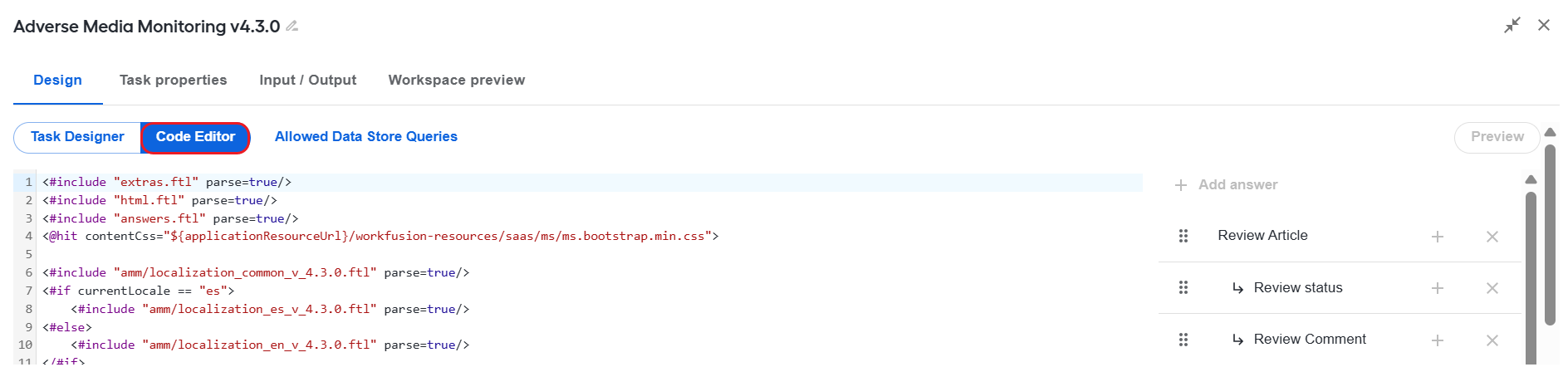
In the Code Editor box, locate the section referencing the JavaScript files (line 62-64 in the sample screenshot below) and comment them out.
Below is the sample code for an AMM manual review task:
Uncomment or add the line that loads the JavaScript file from the server’s static resources directory (line 67 in the sample screenshot above).
Create a
your-task_v_[VERSION].jsJavaScript file (for AMM, for instance, this can beamm-mt-review_v_4.3.0.js):your-taskis the name of your Manual Task.[VERSION]is the version of your Manual Task.
In Control Tower, go to Advanced > Templates > Macro and copy the content of the
your-task_v_[VERSION].jsmacro template associated with the MT to the JavaScript file created in Step 5. For instance, in the example below, the macro template you need isamm/js/amm-mt-review_v_4.3.0.js.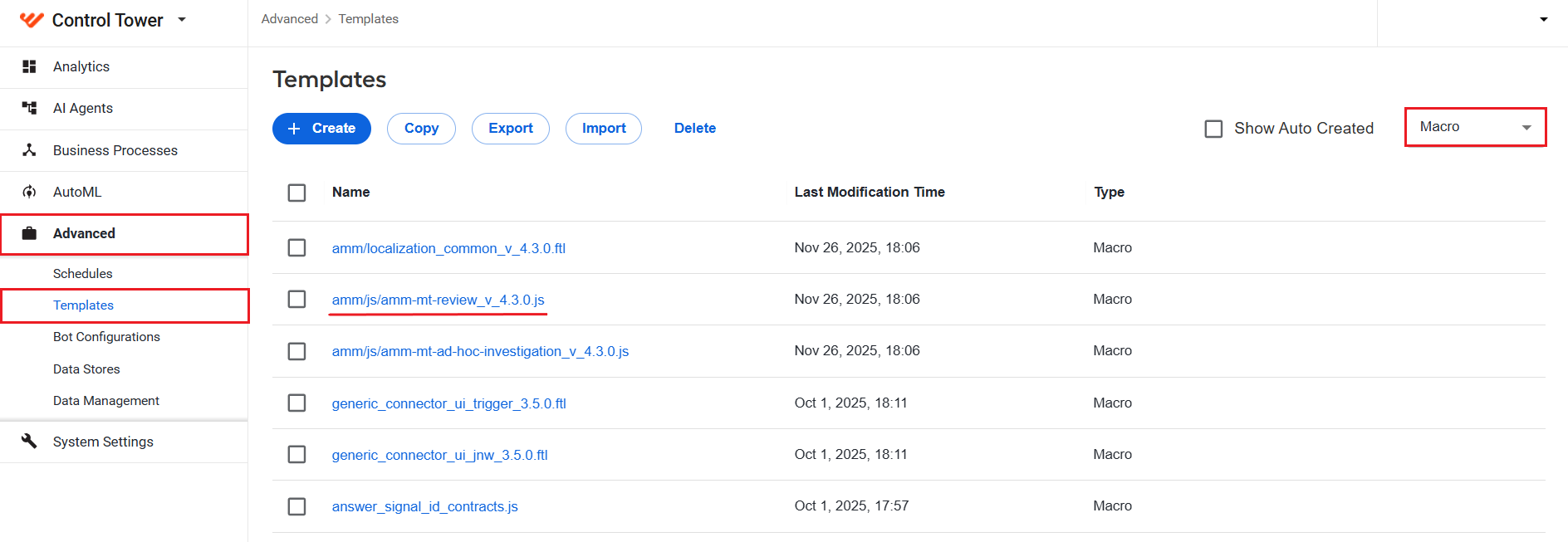
Connect to the Master node via SSH.
Navigate to the static resources root:
/opt/workfusion/static-apps/workfusion-resources/Create a
<your_folder>sub-folder for the specific resources if it does not exist.Move the
your-task_v_[VERSION].jsJavaScript file to the created sub-folder:/opt/workfusion/static-apps/workfusion-resources/<your_folder>/js.
If you are working with MTs within AI Agent flows, you will need to repeat the steps every time you install a new AI Agent version.