Service management
Windows services are a special type of application configured to launch and run in the background, in some cases, before a user even logs in. You can set them to run as a local system account.
Services are designed to run continuously in the background and perform system tasks, such as running a server process that listens on a network port. Unlike regular applications you can launch and run under your user account, you must install and register a service with Windows, which requires an administrator account, and usually a User Account Control prompt before that happens. So if you don’t allow an application to run as administrator, it cannot just create a service to run in the background.
Services panel
Windows has always used the Services panel as a way to manage the services running on your machine. To get there at any point, hit WIN + R on your keyboard to open the Run dialog and type in services.msc.
The Services panel is simple: there is a list of services, a status column to show whether it is running or not, and more information, such as the name, description, and startup type of the service. You’ll notice that not every service is running all the time.
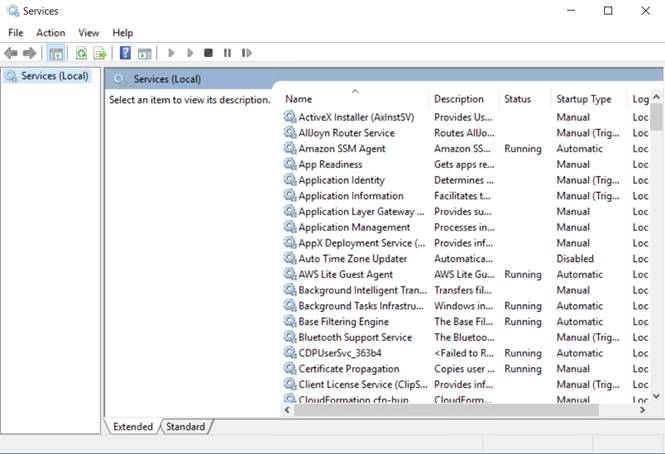
While you can select a service and either right-click it or click the toolbar buttons to start, stop, or restart it, you can also double-click to open up the properties view and get more information.
Disabling the service is as simple as changing the Startup type drop-down box to disabled and choosing Apply. You can also change it to Manual or automatic with a delayed start.
The Log On tab allows you to choose whether the service is logged on as the local system account or under another account. This is mostly useful in a server environment where you might want to run a service account from the domain that has access to resources on other servers.
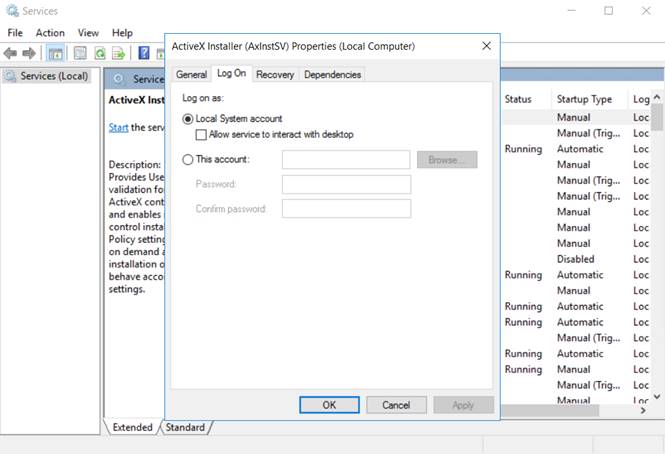
You might notice the option for Allow service to interact with desktop. By default, services are not allowed to access your desktop unless this box is checked, and this checkbox is really only there for legacy support. Services aren’t supposed to be interactive because all windows exist in the same user terminal with access to common resources, such as the clipboard. If the services are running along with other processes, there could be an issue where a malicious application running in a normal user process could attempt to gain more access through a service. Considering that services run as a local system account, that probably isn’t a good thing.
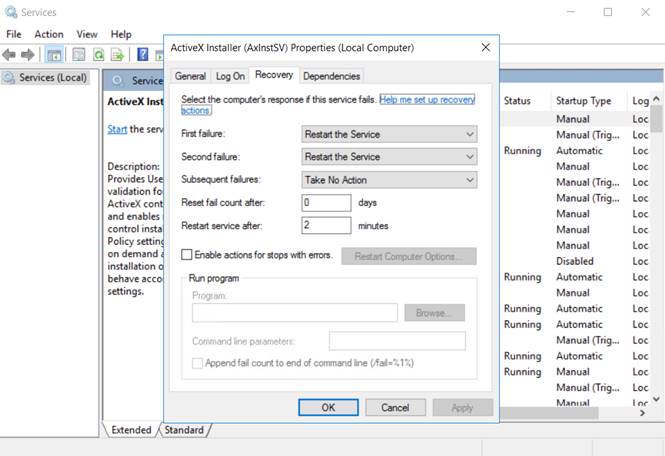
The Recovery tab allows you to choose options for what happens when the service fails. You can choose to automatically restart the service, which is generally the default option, or you can run a program or restart the computer.
The Run a program option is probably the most useful, since you could set Windows to automatically send out an email if the service fails more than once. The function is helpful in a server environment, though definitely much less helpful on a regular desktop.
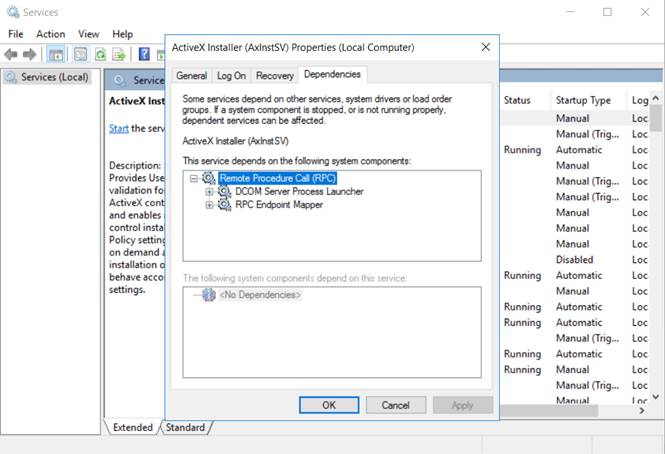
The Dependencies tab shows which services depend on a particular service and which ones depend on the one you are looking at. If you are planning on disabling a service, you should probably consult this section first to make sure nothing else requires that service.
The information is taken from: https://www.howtogeek.com/.