Entity Data Enrichment connector
The Entity Data Enrichment connector retrieves information about a business entity from external data sources and returns the results as JSON.
You can use the connector to enrich entity records with business registration data, Money Services Business (MSB) registration information, and location-based evidence.
The connector supports the following lookup sources and can query one or multiple sources in a single request:
Secretary of State (SoS) for business registry and registration records.
FinCEN for MSB registration records.
MAP for location-based evidence, including map and Street View imagery when available.
Input
Submit the request as JSON in the input parameter. The connector supports the following input fields:
entity_name(required): the primary business name to search, for example,"Paypal, inc.". The connector uses this value for all configured lookups.SoS_states(required for SoS lookups): a list of two-letter state codes that define which SoS registries to search, for example,["DE", "TX"].entity_address(required for MAP lookups): the business address used for map and Google Street View searches, for example,"117 Barrow St, New York, NY 10014".source(optional): a comma-separated list containing data sources to use. Supported values areSoS,FINCEN, andMAP.bucket(optional): the storage location where generated files, such as screenshots, are saved.
A sample input is as follows:
{
  "entity_name": "Paypal, inc.",
  "entity_address": "2233 N First St, San Jose, CA 95131, United States",
  "SoS_states": ["AZ"],
  "source": "SoS,MAP"
}
Sources
Before you start, make sure you know which sources you want to search. Set source to only the checks you need. You can provide one or more sources as a comma-separated list.
To search SoS registries, set source to
SoSand provideentity_nameandSoS_states. Use two-letter state codes, such asDEorTX.To search FinCEN, set source to
FINCENand provideentity_name.To search Google Maps and Street View, set source to
MAPand provideentity_nameandentity_address. Provide a complete address, including street, city, state, and postal code.To search multiple sources, combine the values in the
sourcefield, for example,SoS,FINCENorSoS,FINCEN,MAP.
If source is not provided, the connector attempts the default source set: SoS,FINCEN,MAP.
The following example searches all supported sources:
{
  "entity_name": "Paypal, inc.",
  "entity_address": "2233 N First St, San Jose, CA 95131, United States",
  "SoS_states": ["DE"],
  "source": "SoS,FINCEN,MAP"
}
You can also search multiple SoS registries in the same request:
{
  "entity_name": "Paypal, inc.",
  "entity_address": "117 Barrow St, New York, NY 10014",
  "SoS_states": ["DE", "MT"],
  "source": "SoS,FINCEN,MAP"
}
The request above returns SoS, FinCEN, and MAP lookup results for the same entity while searching both Delaware and Montana state registries.
SoS lookup
Use an SoS lookup when you need business registration data for one or more supported states.
{
  "entity_name": "NVIDIA CORPORATION",
  "SoS_states": ["IA", "TX"],
  "source": "SoS"
}
The connector first searches for the provided entity name. If it does not find a clear match, it retries the search using normalized versions of the name, such as variations without suffixes, prefixes, or punctuation.
The connector returns results based on the outcome of the search:
If exactly one matching entity is found, the connector returns the entity's registry details.
If multiple matching entities are found, the connector returns an error along with a screenshot link to help you review and identify the correct entity.
If no matching entity is found, the connector returns a no-data-found error and, when available, a screenshot link for reference.
If the requested state is not supported, the connector returns an unsupported-state error for that state.
The response can include the following output fields:
file_number: the registry file or business identifier.registered_agent_information: the registered agent's name and address, when available.registry_url: a link to the source registry page or search results.entity_name: the entity name recorded in the registry.jurisdiction: the jurisdiction associated with the entity, when available.screenshot: a link to supporting evidence, such as a screenshot or PDF.entity_status: the entity status reported by the registry.incorporation_date: the entity's incorporation or registration date.entity_form: the entity type or legal form, when available.error: a source-specific error message.error_screenshot: a screenshot captured when an automation error occurs.
A typical SoS response looks like this:
{
  "state_registry_lookup": {
    "TX": {
      "file_number": "0013121706",
      "registered_agent_information": {
        "agent_name": "CORPORATION SERVICE COMPANY",
        "agent_address": "211 E. 7TH STREET SUITE 620 AUSTIN, TX 78701"
      },
      "registry_url": "https://SoS/link",
      "entity_name": "NVIDIA CORPORATION",
      "jurisdiction": "DE",
      "screenshot": "https://host/bucket/entity-state-result.png",
      "entity_status": "ACTIVE",
      "incorporation_date": "03/10/2000",
      "entity_form": ""
    }
  }
}
FinCEN lookup
Use a FinCEN lookup when you need MSB registration information for an entity.
{
  "entity_name": "Coinbase, Inc.",
  "source": "FINCEN"
}
The FinCEN lookup response returns the following output fields:
legal_name: the legal name found in FinCEN.dba_name: the doing business as (DBA) name, when available.street_address,city,state,zip: address details from the registration record.msb_activities: Money Services Business (MSB) activity codes associated with the registration.msb_activities_description: human-readable descriptions of the MSB activity codes.states_of_msb_activities: states in which the registered MSB activities are conducted.auth_sign_date: the authorization signature date recorded in the registration.received_date: the date when the registration was received by FinCEN.msb_registration: a link to the registration PDF.screenshot: a link to screenshot evidence captured during the lookup.error: a source-specific error message.error_screenshot: a screenshot captured when an automation error occurs.
See a typical FinCEN response below:
{
  "fincen_lookup": {
    "zip": "10010",
    "street_address": "One Madison Avenue Suites 2400 & 2500",
    "city": "New York",
    "msb_activities_description": [
      "Money transmitter",
      "Provider of prepaid access"
    ],
    "msb_registration": "https://host/bucket/entity-fincen-registration.pdf",
    "dba_name": "",
    "screenshot": "https://host/bucket/entity-fincen-result.png",
    "auth_sign_date": "11/01/2024",
    "msb_activities": ["409", "414"],
    "received_date": "11/01/2024",
    "legal_name": "Coinbase, Inc.",
    "state": "NY",
    "states_of_msb_activities": ["AK", "AL", "AZ", "CA", "NY"]
  }
}
Google MAP lookup
Use a MAP lookup when you need location-based evidence for an entity. The lookup can return a MAP image and, when available, a Street View image for the specified location.
{
  "entity_name": "Pay with Spire, Inc.",
  "entity_address": "3309 ELM STREET, SUITE 340, DALLAS, TX, 75226",
  "source": "MAP"
}
When processing a request, the connector first searches using both the entity name and address. If it cannot find Street View data for that combination, it automatically performs a second search using the address only.
The connector returns results according to the available data:
If Street View is available for the provided entity name and address, the response includes both a MAP screenshot and a Street View screenshot.
If Street View is not available for the entity name and address combination but is available for the address alone, the response includes a MAP screenshot and a Street View screenshot for the address.
If Street View data cannot be found, the connector returns a MAP screenshot when available, along with an error message indicating that Street View could not be retrieved.
If no address is provided, the connector returns an error indicating that the address is required.
The MAP lookup response can include the following fields:
screenshot_google_street_view: a link to the captured Street View screenshot when Street View data is available for the location.screenshot_MAP: a link to the MAP screenshot generated for the specified location.error: a source-specific error message.error_screenshot: a screenshot captured when an unexpected error occurs.
A typical MAP response looks like this:
{
  "MAP_lookup": {
    "screenshot_google_street_view": "https://host/bucket/entity-address-street-view.png",
    "screenshot_MAP": "https://host/bucket/entity-address-MAP.png"
  }
}
Workflow
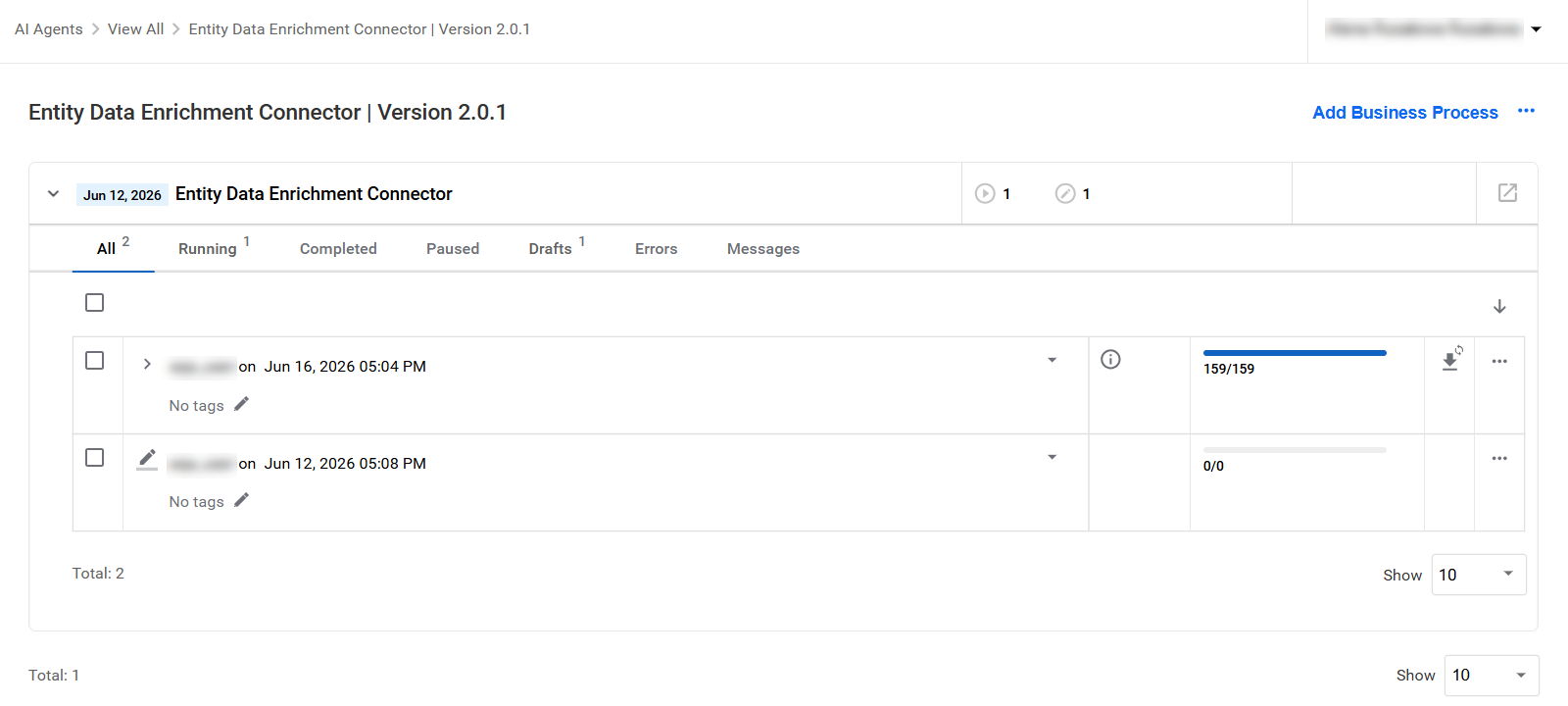
To view the connector, go to Digital Workers (Work.AI 10.2.9 or earlier) or AI Agents (Work.AI v10.3 or later). Then, find and open Entity Data Enrichment Connector.
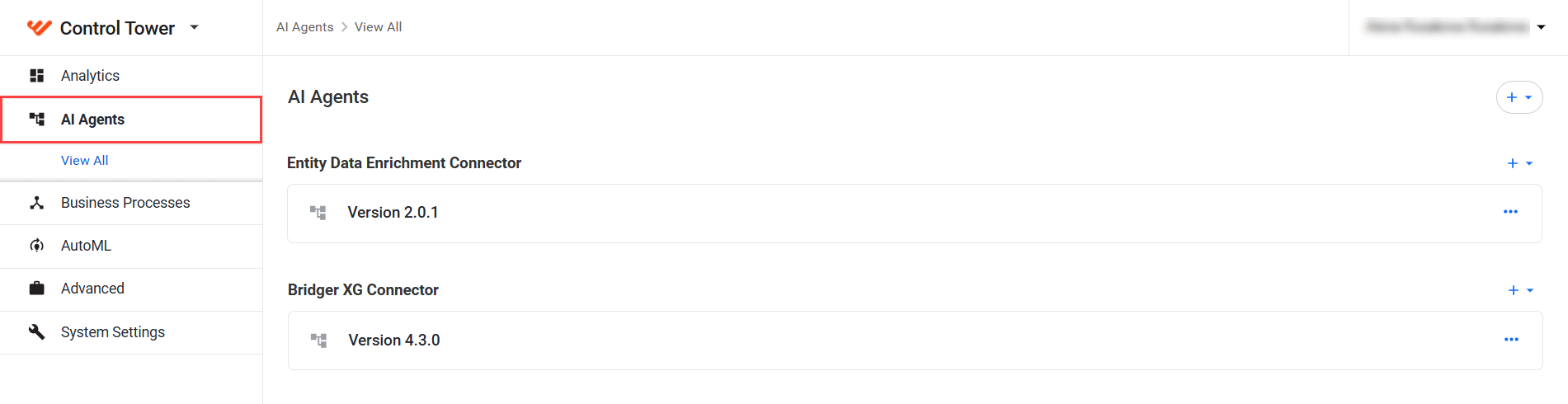
Open the connector's Business Process.
The workflow contains three steps:
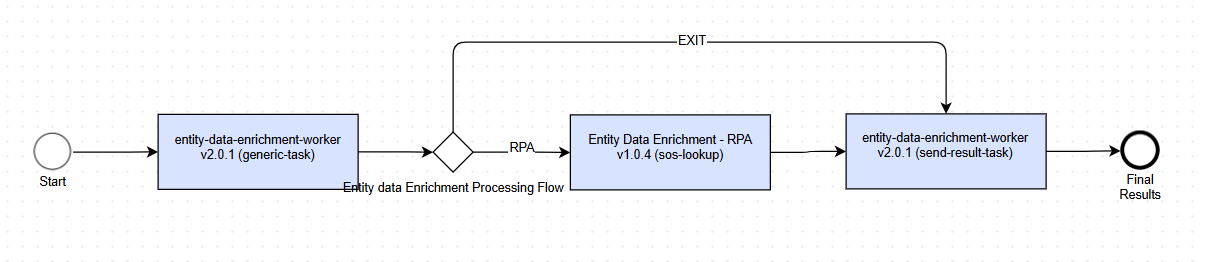
- Initial lookup (generic-task): performs the requested searches and determines whether an additional RPA lookup is required. This step supports:
SoS lookup for Alabama, Arkansas, Colorado, Delaware, Florida, Idaho, Kentucky, Maine, New Jersey, New Mexico, North Dakota, Rhode Island, South Carolina, Texas, Utah, West Virginia, and Wisconsin
Additional SoS lookup (sos-lookup): performs SoS lookups for Georgia, Iowa, Massachusetts, Michigan, Minnesota, Mississippi, Missouri, Montana, New Hampshire, and Wyoming. When
sourceis omitted or includesSoS, requests for these states are routed to this step.If an additional lookup is not required, the workflow proceeds directly to the final step.
Send results (send-result-task): returns the lookup results to the external caller.
If an error occurs while processing a source or state, the corresponding result includes the error message and, when available, a screenshot. The workflow then continues processing the remaining requested sources or states.
Output
The connector returns the results as a JSON object in the output column.
The response includes a separate result object for each lookup that was performed. If your request targets multiple sources, the output can contain SoS, FinCEN, and MAP results in a single response, as shown in the following example:
{
  "state_registry_lookup": {
    "DE": {
      "entity_name": "PAYPAL, INC.",
      "entity_status": "",
      "incorporation_date": "3/9/1999",
      "screenshot": "https://host/bucket/SoS-result.png"
    },
    "MT": {
      "entity_name": "PAYPAL, INC.",
      "entity_status": "Active-Good Standing",
      "incorporation_date": "08/08/2014",
      "screenshot": "https://host/bucket/SoS-result.png"
    }
  },
  "fincen_lookup": {
    "legal_name": "PayPal, Inc.",
    "state": "CA",
    "screenshot": "https://host/bucket/fincen-result.png"
  },
  "MAP_lookup": {
    "screenshot_google_street_view": "https://host/bucket/street-view.png",
    "screenshot_MAP": "https://host/bucket/MAP.png"
  }
}
If one lookup cannot be completed but the other selected lookups can still run successfully, the connector returns an error for the affected lookup and continues processing the remaining ones.
Depending on the requested sources, the response can include the following fields:
state_registry_lookup: SoS lookup results for the specified states.fincen_lookup: FinCEN lookup results.MAP_lookup: results from the Google MAP lookup, including MAP and Street View data when available.error: a request-level error message, typically returned when required input is missing or invalid.
Troubleshooting
If a lookup cannot be completed or returns an unexpected result, follow the recommended action for the applicable issue listed below.
| Issue | Description | Recommended action |
|---|---|---|
No entity name provided in the input. | The entity_name field is missing from the request. | Add entity_name and submit the request again. |
No state provided for the entity name ... | A SoS lookup was requested, but no value was provided in SoS_states. | Add at least one supported state code or remove SoS from the source field. |
The state ... is not supported | The request includes a state that is not supported for SoS lookups. | Replace it with a supported state code and try again. |
No data found ... please check screenshot. | The lookup did not return a matching record. | Review the screenshot link, confirm spelling, and retry using the entity's legal name if needed. |
More than one result found ... please check screenshot. | The lookup returned multiple potential matches. | Review the screenshot and determine which record corresponds to the entity you are searching for. |
No address provided ... | A MAP lookup was requested, but entity_address was not provided. | Add a complete address or remove MAP from the source field. |
No Google street view available ... | The MAP lookup succeeded, but Street View is not available for the specified address. | Review the MAP screenshot. If the address is incomplete or incorrect, update it and retry. |
The response contains error_screenshot. | The automation encountered a technical issue while processing the request. | Retry the request once. If the issue persists, contact support and include the output JSON. |