Firco Continuity Case Manager API connector
Tara uses a dedicated connector for the Firco Continuity Case Manager API to retrieve alert information and update alerts with results.
Installation
To obtain an Asset Bundle (zip archive) containing the required connector version, contact your account manager or the Support team. Once you have the Asset Bundle, upload it to Control Tower, following the installation instructions.
You must have your own Firco Continuity license to communicate with the system.
Configuration
To configure the connector, complete the following steps:
- In Control Tower, do the following based on the Work.AI version you are using:
For Work.AI versions up to v10.2.9: go to the Digital Workers page, open the Actions menu next to the connector variation, and click Settings.
For Work.AI v10.3+: go to the AI Agents page, open the Actions menu next to the connector variation, and click Settings.
Configure the settings as needed:
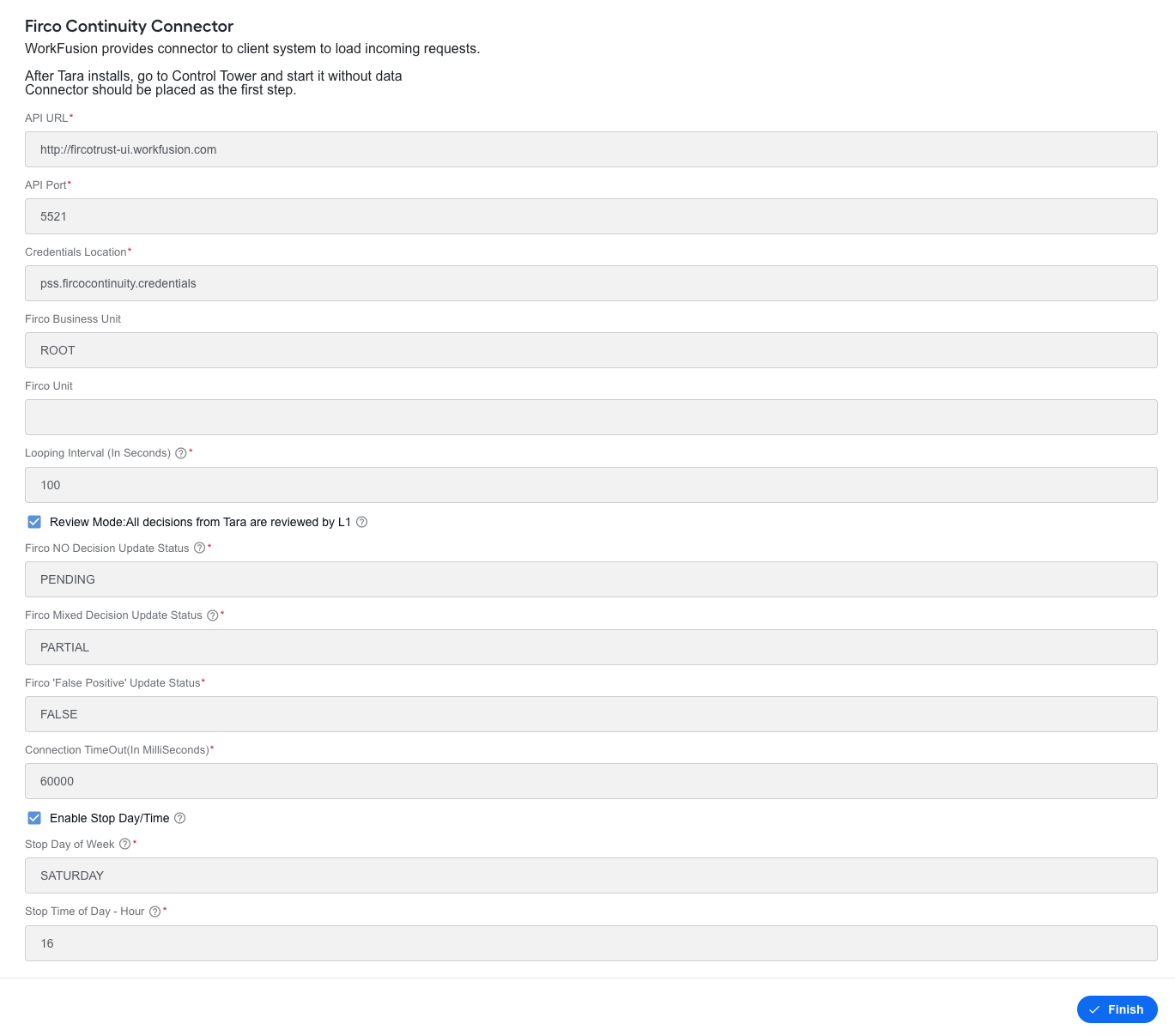
API URL. Enter the common endpoint for the SOAP service.
API Port. Specify the port the SOAP API listens on.
Credentials Location. Define a secret entry for the username and password used to access Firco Continuity.
Firco Business Unit. Provide the business unit used to retrieve messages from Firco Continuity. If it is null, no value is passed.
Firco Unit. Specify the underlying unit or feed associated with the business unit where the screening takes place. If it is null, no value is passed.
Looping Interval (In Seconds). Set how frequently the AI Agent connects to Firco to request open alerts. The recommended value is 60 seconds.
Review mode: All decisions from Tara are reviewed by L1. Select the option to indicate the review workflow. During the review period, all Tara's decisions are routed to the No decision review path for additional verification. If not selected, Tara's decisions are automatically applied to false positives, with all hits marked as false positives.
Firco No Decision Update Status. Apply the status to an alert when at least one item within the alert cannot be confirmed as false positive. In Firco Continuity's Global Screening (GS) configuration, the corresponding status code is
WF_ND.Firco Mixed Decision Update Status. Apply the status to an alert when it contains both unresolved items that cannot be cleared as false positives and items determined to be false positives. In the GS configuration, the corresponding status code is
WF_PD.Firco False Positive Update Status. Apply the status to an alert when all hits are determined to be false positives. In the GS configuration, the corresponding status code is
WF_FP.Connection TimeOut In MilliSeconds. Set the timeout for the HTTP connection to the SOAP API. The recommended value is
60000(60 seconds).Enable Stop Day/Time. Select the option to schedule a weekly stop time for a Business Process. If not selected, the Business Process runs continuously until manually stopped. When selected, the next two fields define the stop day and time.
Stop Day of Week. Specify the day of the week for your Business Process to stop. You can set only one; you must spell it correctly, for example,
FRIDAY.Stop Time of Day – Hour. Set the hour (in EST) for your Business Process to stop on the specified day. The value must be between
0and23.
- Click Finish to save the changes.
Workflow
A Business Process that uses the Firco Continuity PI connector includes the following steps:

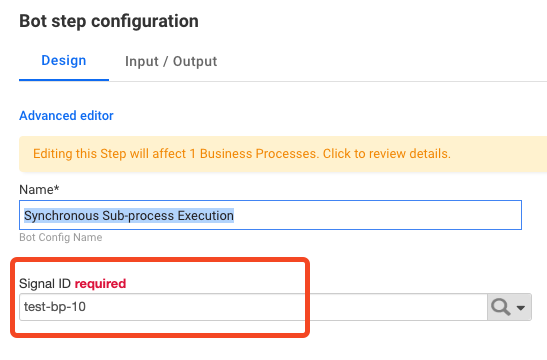
The Synchronous Sub-process Execution bot step must contain Tara's signal ID.