TR ID Verification connectors
The TR ID Verification solution coordinates applicant risk evaluation, identity matching, and identity verification (IDV) across the Feedzai, Thomson Reuters CLEAR Confirm Person Search, and Au10tix systems. Its API-driven workflows reduce manual handoffs and route applicants through the appropriate verification process based on provider results.
The related Business Processes (BPs) act as connectors:
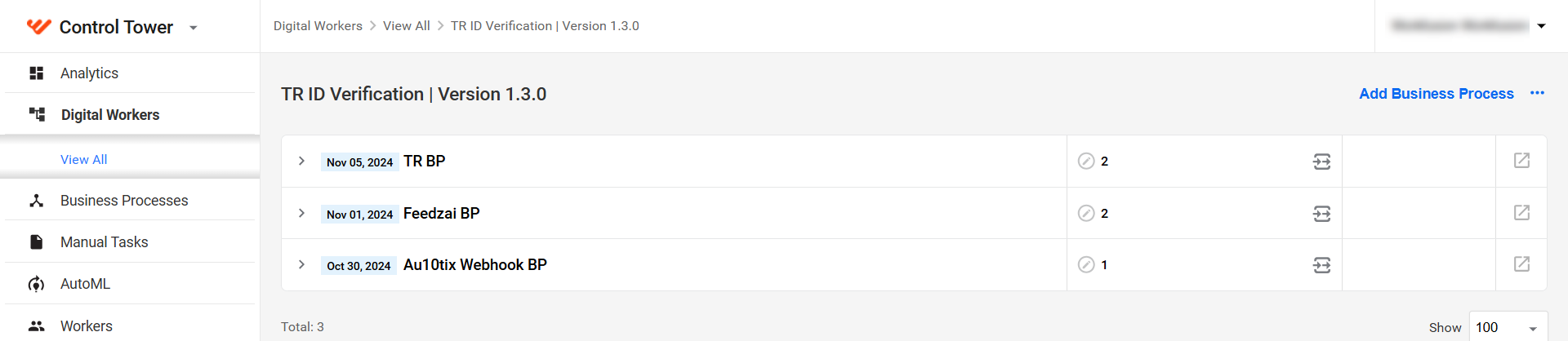
Feedzai BP evaluates applicant risk through Feedzai.
TR BP performs identity matching through Thomson Reuters CLEAR and initiates Au10tix verification when additional IDV is required.
Au10tix Webhook BP receives verification results asynchronously from Au10tix.
A client system starts the Feedzai or Thomson Reuters workflow through the corresponding API. Au10tix returns completed verification results through the webhook.
Requirements
Before configuring the connector, make sure you have the following prerequisites:
The base URLs and API endpoints for Feedzai, Thomson Reuters CLEAR, and Au10tix
Access to Secrets Vault and the credentials required by each provider
A Thomson Reuters client certificate, certificate password, user ID, and password
An Au10tix private key and the credentials required to request an access token
Configuration
To configure the TR ID Verification connectors, complete the following steps:
In Control Tower, go to Digital Workers for Work.AI 10.2.9 or earlier, or AI Agents for Work.AI 10.3 or later.
Find TR ID Verification, open the Actions menu next to the connector variation, and click Settings.
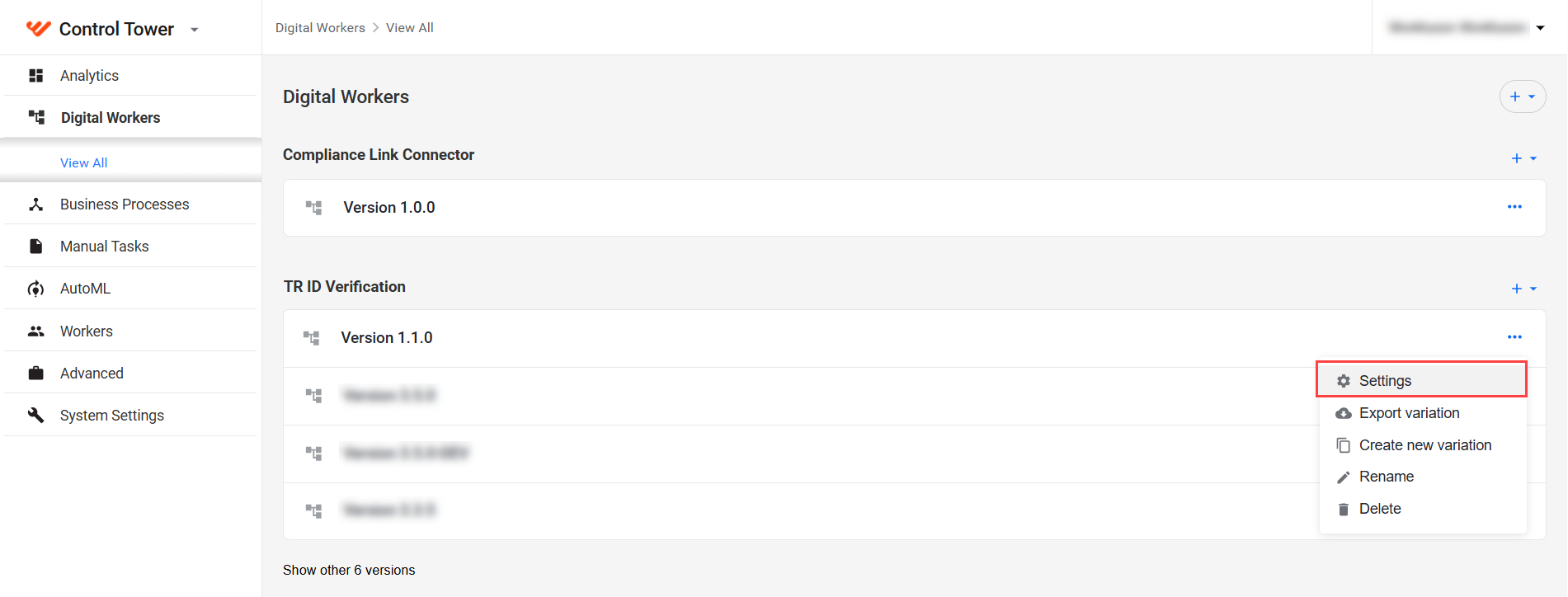
Configure the settings on each tab as described in the following sections:
- Click Finish to save the configuration.
The values shown in the screenshots are examples. Use the provider endpoints, credentials aliases, thresholds, and redirect URLs for your environment.
Business rules
On the Business Rules tab, configure how the connector evaluates provider scores and risk factors:
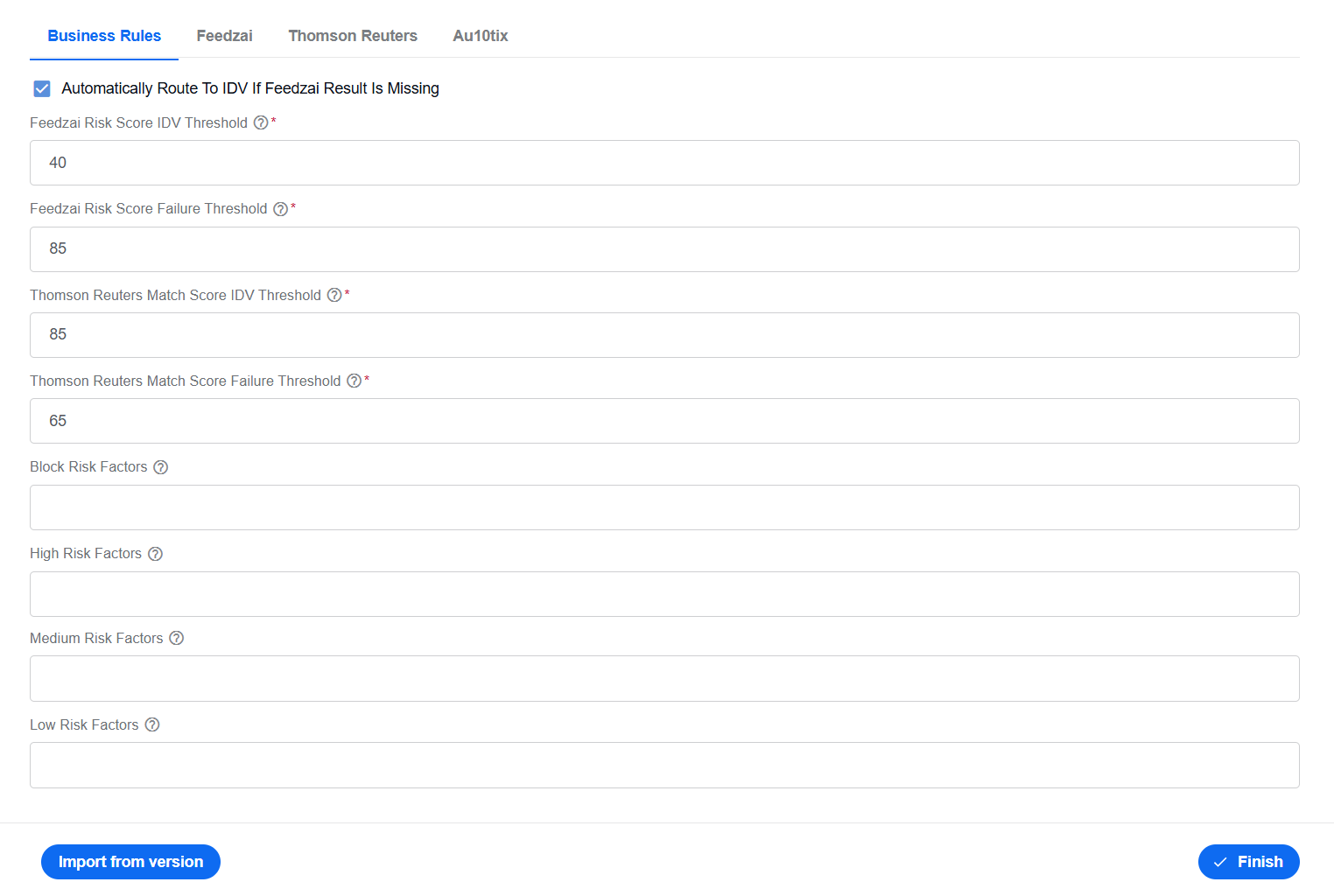
Automatically Route To IDV If Feedzai Result Is Missing. Select the option to send the applicant for IDV when Feedzai does not return a result.
Feedzai Risk Score IDV Threshold. Enter the Feedzai score at which the applicant must be routed to IDV. Feedzai scores range from 0 to 100, with a higher score indicating greater risk.
Feedzai Risk Score Failure Threshold. Enter the Feedzai score at which the applicant is considered too high-risk to continue. The value must be higher than the IDV threshold.
Thomson Reuters Match Score IDV Threshold. Enter the match score below which the applicant must be routed to IDV. Thomson Reuters match scores range from 0 to 100, with a higher score indicating a closer match.
Thomson Reuters Match Score Failure Threshold. Enter the match score below which the identity match is considered unsuccessful. The value must be lower than the IDV threshold.
Block Risk Factors. Enter the risk factors in the Feedzai or Thomson Reuters response that must block the applicant.
High Risk Factors. Enter the response factors that the connector must classify as high risk.
Medium Risk Factors. Enter the response factors that the connector must classify as medium risk.
Low Risk Factors. Enter the response factors that the connector must classify as low risk.
Feedzai
On the Feedzai tab, configure the Feedzai connection:
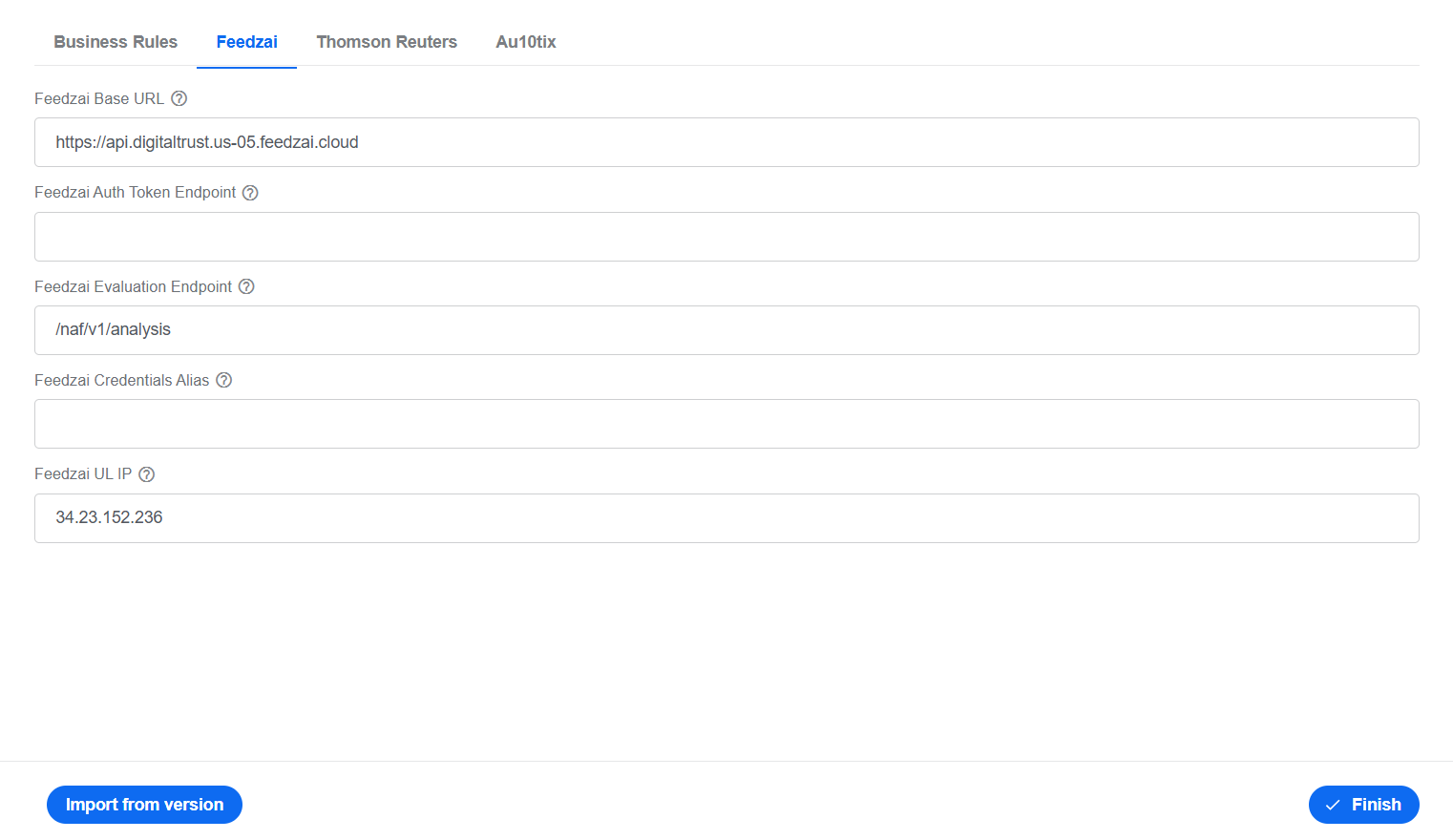
Feedzai Base URL. Enter the base URL used to communicate with Feedzai.
Feedzai Auth Token Endpoint. Enter the endpoint used to obtain an authentication token.
Feedzai Evaluation Endpoint. Enter the endpoint used to evaluate an applicant.
Feedzai Credentials Alias. Enter the alias of the Secrets Vault entry that stores the Feedzai API key.
Feedzai UL IP. Enter the Feedzai UL IP address assigned to the WorkFusion environment.
In Secrets Vault, create the following secret entry for Feedzai:
| Alias | Key | Value |
|---|---|---|
feedzai.api.key | feedzai.api.key | Feedzai API key used as the bearer token |
Thomson Reuters
On the Thomson Reuters tab, configure the Thomson Reuters CLEAR connection and permissible-purpose values:
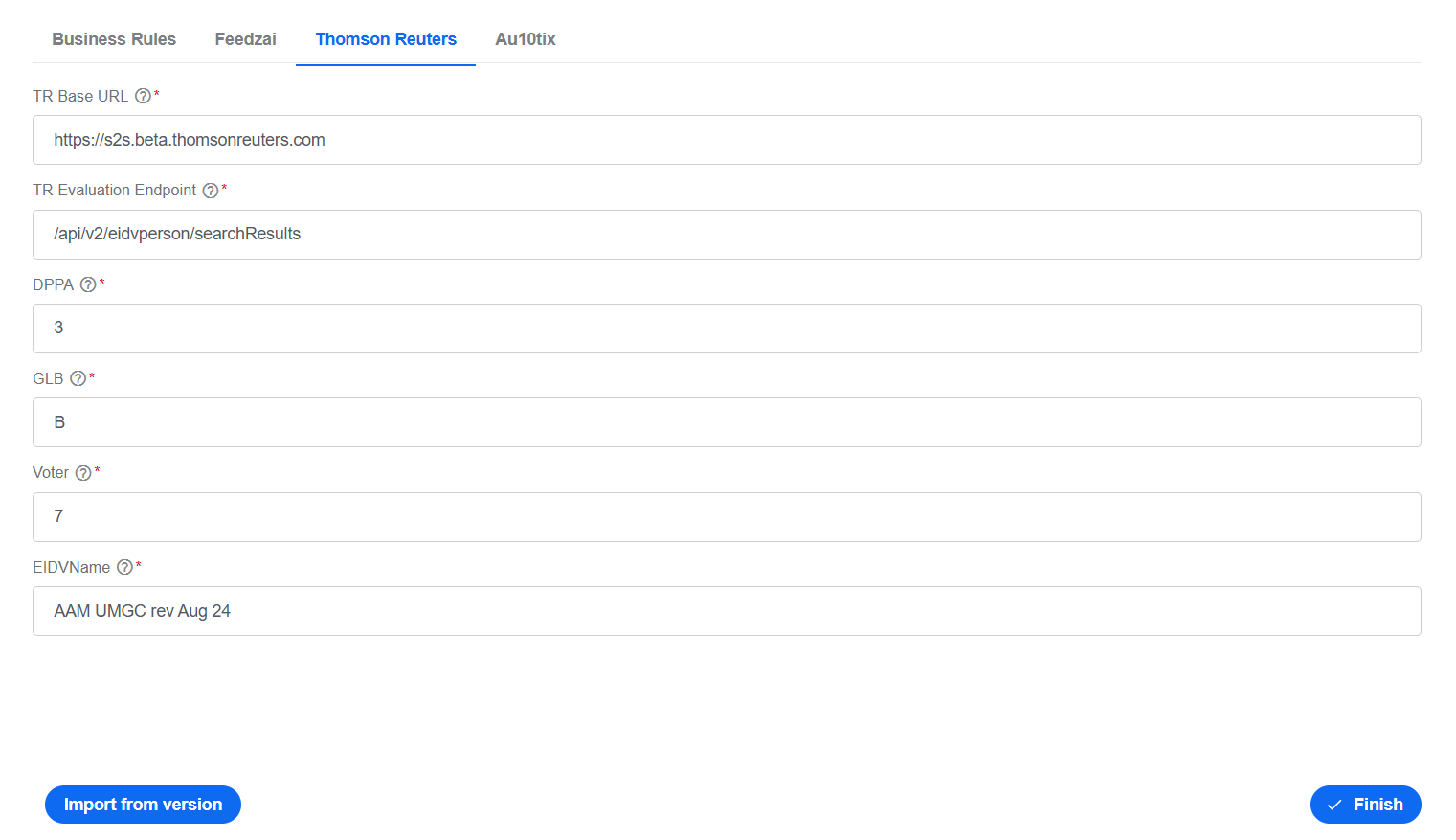
TR Base URL. Enter the base URL used to communicate with Thomson Reuters CLEAR.
TR Evaluation Endpoint. Enter the endpoint used to evaluate an applicant.
DPPA. Enter the permitted-purpose code required under the Driver's Privacy Protection Act.
GLB. Enter the permitted-purpose code required under the Gramm-Leach-Bliley Act.
Voter. Enter the permitted-purpose code for voter-record searches.
EIDVName. Enter the Electronic Identity Verification configuration name provided by Thomson Reuters.
Set up SSL certificate
The Thomson Reuters CLEAR API requires an SSL client certificate in addition to a user ID and password for basic authentication. A single certificate can be used for multiple clients within the same WorkFusion environment.
To install the certificate, complete the following steps:
Create a keystore from the client certificate and password provided by Thomson Reuters. For example:
keytool -importkeystore -v -srckeystore clientcert.pfx -srcstoretype pkcs12 -keystore newstore.ksUse the certificate and password for the target environment. Production and non-production environments use separate certificates.
Upload the keystore to each Agent virtual machine at
/opt/workfusion/vds-data/connectors/tr-id-verify.Create the following secret entries in Secrets Vault:
Alias Key Value tr.clear.api.keystore.locationtr.clear.api.keystore.locationAbsolute path to the keystore on the Agent machine, for example, /opt/workfusion/vds-data/connectors/tr-id-verify/newstore.kstr.clear.api.keystoretr.clear.api.keystoreKeystore password tr.clear.api.usertr.clear.api.userThomson Reuters CLEAR user ID tr.clear.api.credentialstr.clear.api.credentialsThomson Reuters CLEAR password Request Thomson Reuters to add the public IP addresses of the WorkFusion Agent nodes to the provider allowlist. API calls fail if the Agent nodes are not included in the allowlist.
Au10tix
On the Au10tix tab, configure the identity verification workflow, results webhook, and redirect URLs.
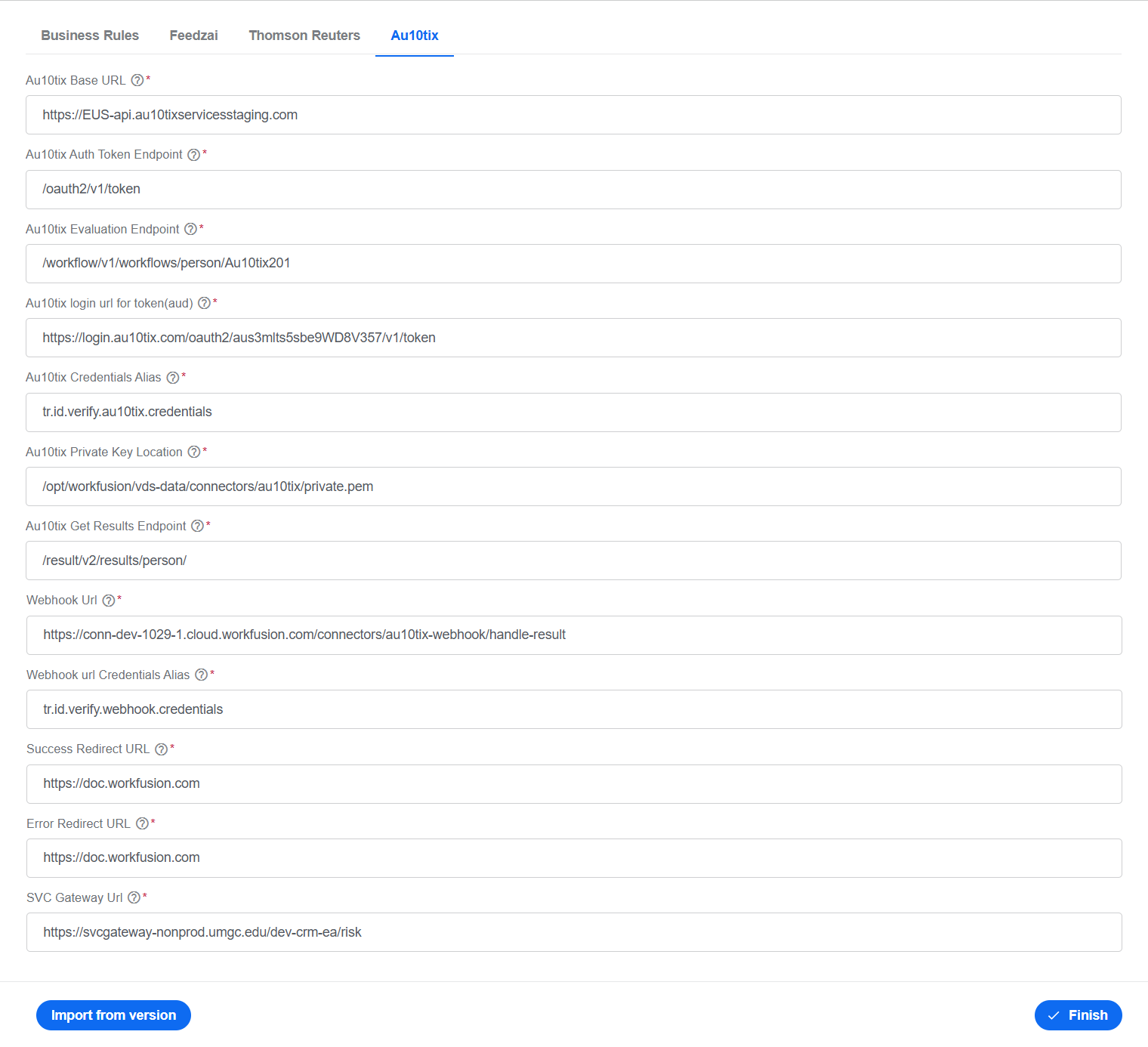
Au10tix Base URL. Enter the base URL used to communicate with Au10tix.
Au10tix Auth Token Endpoint. Enter the endpoint used to obtain an authentication token.
Au10tix Evaluation Endpoint. Enter the endpoint used to start an applicant IDV workflow.
Au10tix Login URL for token (aud). Enter the login URL used as the token audience (
aud).Au10tix Credentials Alias. Enter the alias of the Secrets Vault entry that stores the Au10tix client ID and key ID, for example,
tr.id.verify.au10tix.credentials.Au10tix Private Key Location. Enter the absolute path to the Au10tix private key on the Agent machine.
Au10tix Get Results Endpoint. Enter the endpoint used to retrieve IDV results.
Webhook URL. Enter the WorkFusion endpoint that Au10tix calls when results are available.
Webhook URL Credentials Alias. Enter the alias of the Secrets Vault entry that stores the Control Tower credentials used to authenticate calls to the webhook, for example,
tr.id.verify.webhook.credentials.Success Redirect URL. Enter the URL to which the applicant is redirected after successful IDV.
Error Redirect URL. Enter the URL to which the applicant is redirected if IDV fails.
SVC Gateway URL. Enter the service gateway URL to which the connector sends the final result.
Create the following secret entries for Au10tix:
| Alias | Key | Value |
|---|---|---|
tr.id.verify.au10tix.credentials | Au10tix client ID | Au10tix key ID |
tr.id.verify.webhook.credentials | Control Tower webhook user name | Control Tower webhook password |
Connector implementation
The Feedzai and TR CLEAR ID Confirm Person Search connectors are configured using the no-code Generic Connector REST Client component. For each connector, you should update the default route definition in Additional options of the related bot step.
Feedzai connector
The input request from the client system contains a base64-encoded string. The connector must decode the input and use the decoded binary string as the request body for the Feedzai API.
As the Generic Connector REST Client currently does not support base64 decoding of the request body, you should add a step that decodes the base64-encoded request body.
Open Feedzai BP > Workflow > the Feedzai Validation API-Jnw bot step and expand Additional options.
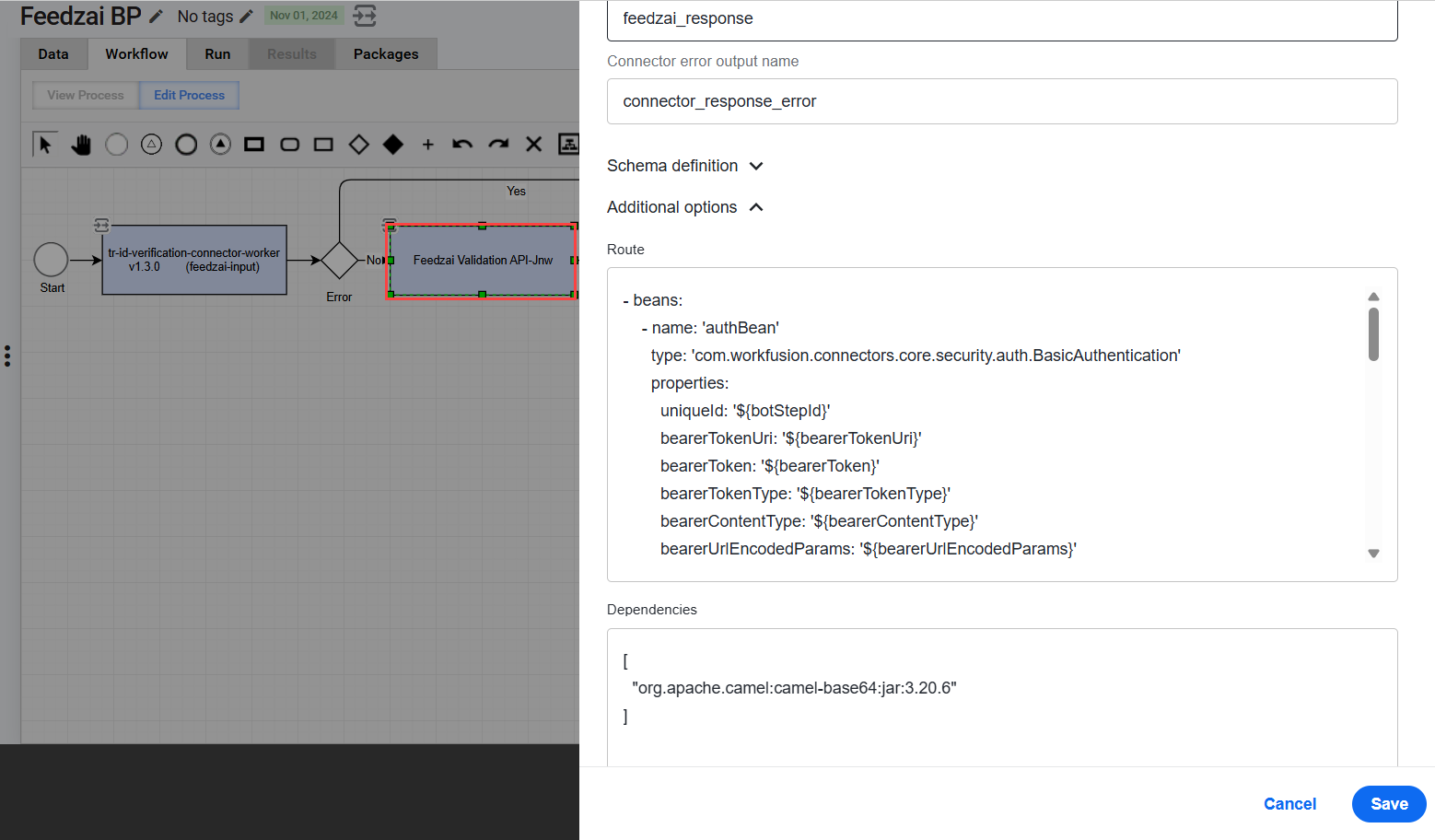
In Route, enter the following custom route:
Expand to see the route
- beans:
    - name: 'authBean'
      type: 'com.workfusion.connectors.core.security.auth.BasicAuthentication'
      properties:
        uniqueId: '${botStepId}'
        bearerTokenUri: '${bearerTokenUri}'
        bearerToken: '${bearerToken}'
        bearerTokenType: '${bearerTokenType}'
        bearerContentType: '${bearerContentType}'
        bearerUrlEncodedParams: '${bearerUrlEncodedParams}'
        username: '${username}'
        password: '${password}'
        useCamelAuth: '${useCamelAuth}'
        authHeaderName: '${authHeaderName}'
        responseTokenJsonPath: '${responseTokenJsonPath}'
- route:
    id: '${botStepId}'
    from:
      uri: 'direct:start'
      steps:
        - bean: 'authBean'
        - set-header:
            name: 'Content-Type'
            constant: 'application/octet-stream'
        - set-header:
            name: 'CamelHttpMethod'
            constant: '${httpMethod}'
        - process:
            ref: 's3Processor'
        - process:
            ref: 'multipartFormDataProcessor'
        - unmarshal:
            base64:
              lineLength: 0
        - convertBodyTo:
            type: 'String'
            charset: 'ISO-8859-1'
        - log: 'Decoded body: ${body}'
        - to: '${uri}?deleteWithBody=true&getWithBody=true'
        - process:
            ref: 'jsonPathProcessor'
        - process:
            ref: 'dataTypeTransformer'
In Dependencies, enter the
camel-base64dependency required for the route:[
"org.apache.camel:camel-base64:jar:3.20.6"
]Click Save.
TR CLEAR ID Confirm Person Search connector
The Thomson Reuters APIs exchange XML payloads and require an SSL certificate. Add a custom route to configure SSL and convert the XML response to JSON for the platform's no-code transformation step.
The XML request is generated by a no-code transformation step and passed to the connector as a string.
Open TR BP > Workflow > the TR ID Verify Search Connector - jnw bot step and expand Additional options.
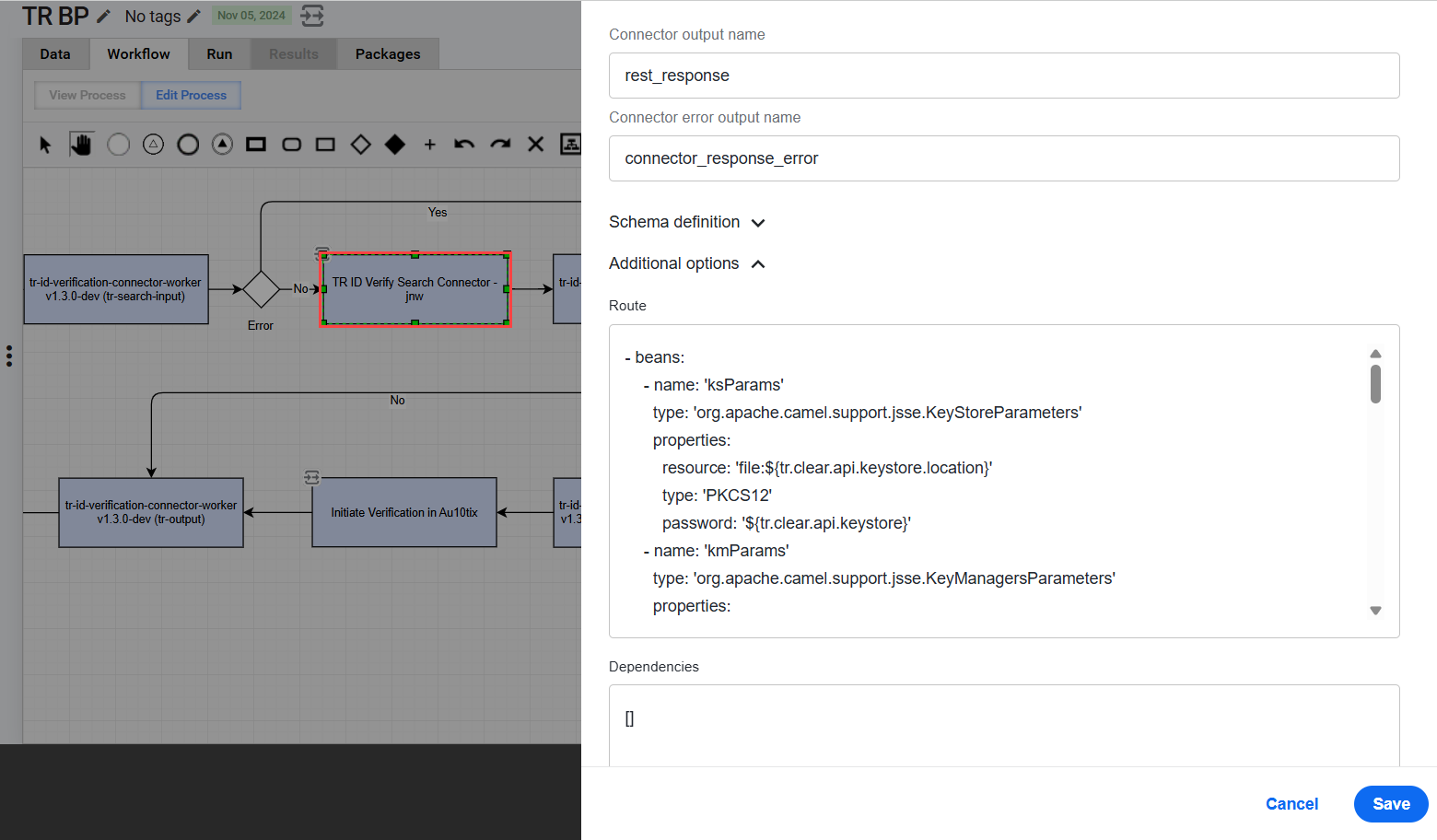
In Route, enter the following custom route:
Expand to see the route
- beans:
    - name: 'ksParams'
      type: 'org.apache.camel.support.jsse.KeyStoreParameters'
      properties:
        resource: 'file:${tr.clear.api.keystore.location}'
        type: 'PKCS12'
        password: '${tr.clear.api.keystore}'
    - name: 'kmParams'
      type: 'org.apache.camel.support.jsse.KeyManagersParameters'
      properties:
        keyStore: '#ksParams'
        keyPassword: '${tr.clear.api.keystore}'
    - name: 'sslParams'
      type: 'org.apache.camel.support.jsse.SSLContextParameters'
      properties:
        keyManagers: '#kmParams'
- route:
    id: '${botStepId}'
    from:
      uri: 'direct:start'
      steps:
        - set-property:
            name: 'messageFormat'
            simple: '${messageFormat}'
        - set-header:
            name: 'Content-Type'
            constant: 'application/xml'
        - set-header:
            name: 'CamelHttpMethod'
            constant: '${httpMethod}'
        - to: '${uri}?sslContextParameters=#sslParams&authMethod=basic&authUsername=${tr.clear.api.user}&authPassword=${tr.clear.api.credentials}'
        - set-property:
            name: 'statusCode'
            xpath:
              result-type: 'String'
              expression: '//StatusCode/text()[1]'
        - choice:
            when:
              - simple: '${exchangeProperty.statusCode} == ''200'''
                steps:
                  - set-property:
                      name: 'searchUrl'
                      xpath:
                        result-type: 'String'
                        expression: '//Uri/text()[1]'
                  - remove-headers: '^(?!(Authorization|Cookie|Set-Cookie|Content-Type)$).*'
                  - set-header:
                      name: 'CamelHttpMethod'
                      constant: 'GET'
                  - toD: '${exchangeProperty.searchUrl}?sslContextParameters=#sslParams&authMethod=basic&authUsername={{tr.clear.api.user}}&authPassword={{tr.clear.api.credentials}}'
                  - convertBodyTo:
                      type: 'String'
                  - transform:
                      simple: '${body.replace("ns2:", "")}'
                  - process:
                      ref: 'dataTypeTransformer'
- Click Save.