Fen-X connector
The Fen-X connector integrates Fenergo Fen-X with Kayla to automate entity periodic reviews. It starts and manages the Fen-X journey, sends the entity data to Kayla for review, and returns the reviewed data and supporting documents to Fen-X.
The connector can also use configured services to enrich entity data, verify addresses, recalculate customer risk, and send status notifications.
Requirements
Before configuring the connector, make sure that:
Your have access to the required Fen-X APIs and the Fen-X application.
Kayla is installed and configured, and the signal ID of the Requirements validator Business Process (BP) is available.
You have the base URLs and OAuth2 client credentials for the Fen-X, Customer Risk Rating (CRR), and Master Data Management (MDM) services used in your environment.
The service credentials have permission to read and update the entity, journey, risk, and document data required by the connector.
Configuration
Set up secret entries
Add the following entries to Secrets Vault. Enter the aliases exactly as shown because the connector uses them to locate the values.
| Alias | Value |
|---|---|
fenXAPIClientId | Fen-X OAuth2 client ID |
fenXAPIClientSecret | Fen-X OAuth2 client secret |
fenXAPITenantId | Tenant identifier sent with Fen-X requests |
mdmAPIClientId | MDM OAuth2 client ID |
mdmAPIClientSecret | MDM OAuth2 client secret |
mdmAPIXAuthenticatedUser | Authenticated-user value sent with MDM requests |
crrAPIClientId | CRR OAuth2 client ID |
crrAPIClientSecret | CRR OAuth2 client secret |
crrAPIUserId | User identifier sent with CRR requests |
If SMTP authentication is enabled, also create a secret entry for the SMTP username and password. You can choose its alias that you can later enter in the Email credential alias field in the configuration form.
Configure connector
To configure the Fen-X connector, complete the following steps:
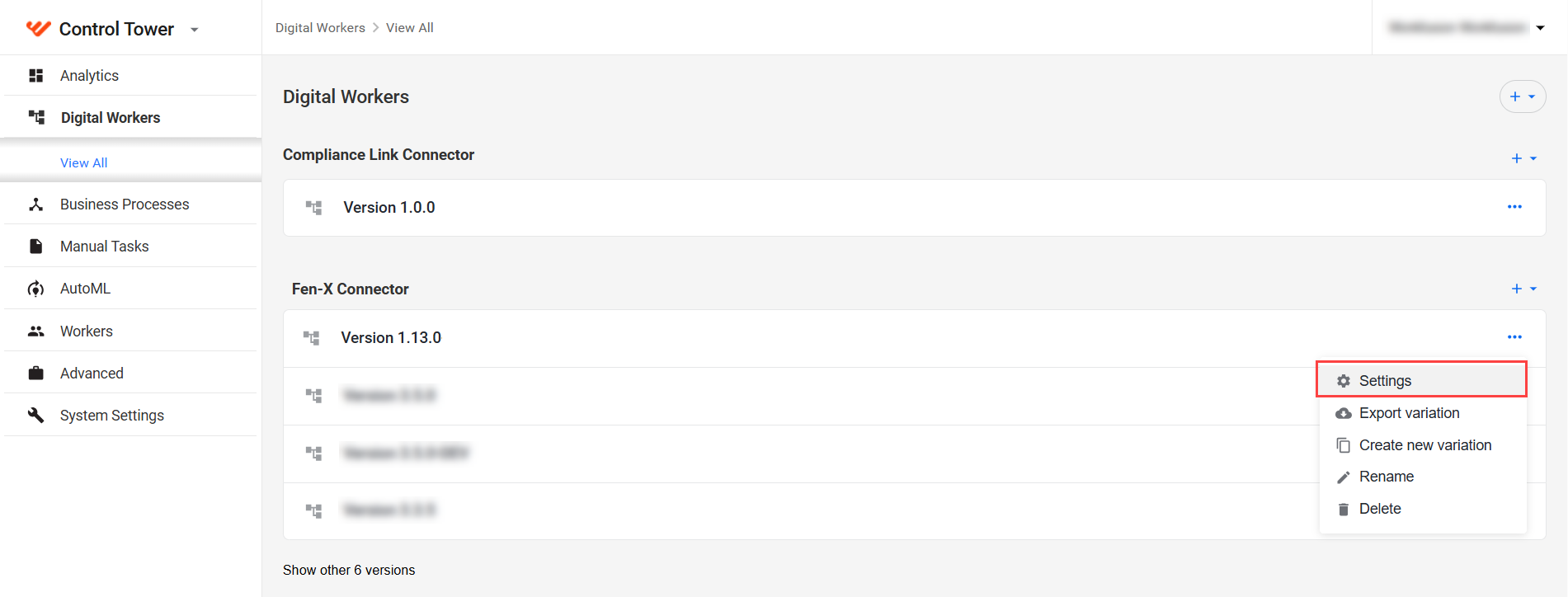
In Control Tower, go to Digital Workers (Work.AI 10.2.9 or earlier) or AI Agents (Work.AI v10.3 or later) and find Fen-X Connector.
Open the Actions menu next to the connector variation and click Settings.
Configure the Fen-X connection settings:
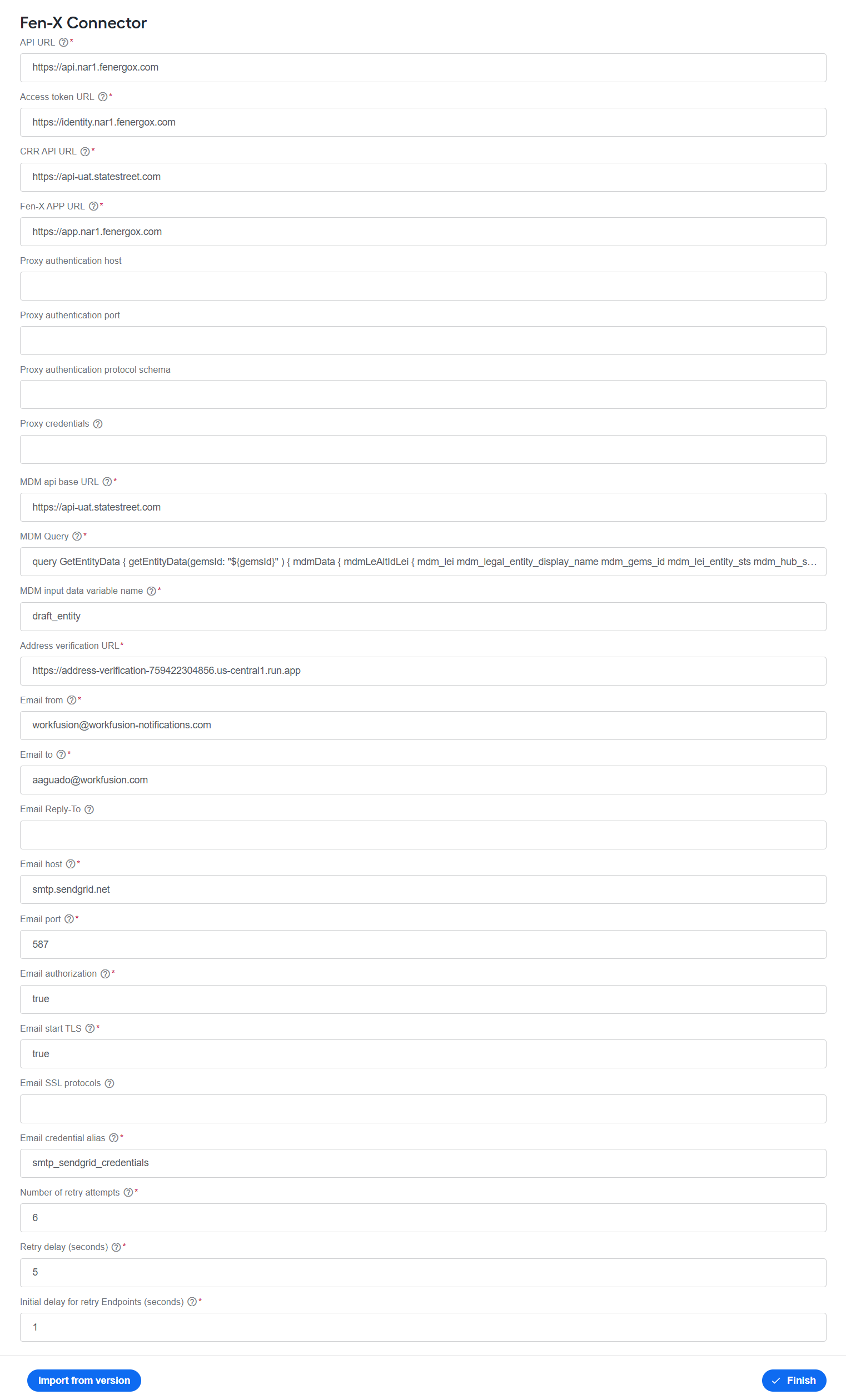
API URL. Enter the Fen-X API base URL.
Access token URL. Enter the base URL of the Fen-X authorization server. The connector uses the OAuth 2.0 Client Credentials grant type to obtain access tokens.
CRR API URL. Enter the CRR API base URL.
Fen-X APP URL. Enter the base URL of the Fen-X application. The connector uses this URL when creating links to the applicable journey.
If the connector uses a proxy, configure the following settings. Otherwise, leave them blank:
Proxy authentication host. Enter the proxy host name.
Proxy authentication port. Enter the proxy port.
Proxy authentication protocol schema. Enter the proxy protocol, such as
httporhttps.Proxy credentials. Enter the proxy authentication value required by your environment.
Configure the MDM integration:
MDM api base URL. Enter the MDM API base URL.
MDM Query. Enter the GraphQL query used to retrieve the entity reference data required by Kayla. The query must contain the
${gemsId}placeholder so that the connector can substitute the identifier for the entity being processed.MDM input data variable name. Enter the name of the input JSON variable that contains
gemsId.
If MDM cannot return enrichment data, the connector continues the journey without that data.
In Address verification URL, enter the base URL of the service that parses and verifies addresses.
Configure email notifications:
Email from. Enter the sender address.
Email to. Enter the default notification recipient.
Email Reply-To. Enter the reply-to address, if needed.
Email host. Enter the SMTP server host name.
Email port. Enter the SMTP server port.
Email authorization. Enter
trueif the SMTP server requires authentication; otherwise, enterfalse.Email start TLS. Enter
trueto enable STARTTLS; otherwise, enterfalse.Email SSL protocols. Enter the SSL/TLS protocol supported by your SMTP server, if required.
Email credential alias. Enter the Secrets Vault alias containing the SMTP username and password.
Configure retry behavior:
Number of retry attempts. Enter how many times the connector checks for a journey task to reach the expected status.
Retry delay (seconds). Enter the base delay between checks. For each subsequent attempt, the connector increases the wait by multiplying this value by the attempt number.
Initial delay for retry Endpoints (seconds). Enter the delay before the first request to endpoints that might need time to return the expected status.
Click Finish.
API reference
The Fen-X connector uses the base URLs configured in the connector settings. The endpoint paths below contain placeholders only. The connector supplies the applicable entity, journey, draft, and task identifiers at runtime.
Authentication
The connector authenticates to Fen-X using the OAuth 2.0 Client Credentials grant type:
POST {accessTokenUrl}/connect/token
Content-Type: application/x-www-form-urlencoded
The connector reads the client ID, client secret, and tenant identifier from the fenXAPIClientId, fenXAPIClientSecret, and fenXAPITenantId Secrets Vault entries. It sends the access token as a bearer token and includes the tenant identifier with Fen-X API requests.
If a Fen-X endpoint returns HTTP 401, the connector refreshes the access token and retries the request. For HTTP 429 responses, it uses the rate-limit reset information returned by Fen-X to determine the retry delay.
Fen-X endpoints
All endpoints in the following table use the configured Fen-X API URL and require a bearer token and tenant identifier.
| Method | Endpoint | Purpose |
|---|---|---|
GET | {apiUrl}/journeyquery/api/journey-instance/search?entityId={entityId} | Checks for an existing journey and retrieves its status. |
GET | {apiUrl}/journeyquery/api/journey-schema/lite | Retrieves the active journey schema used for Kayla-assisted periodic review. |
POST | {apiUrl}/journeycommand/api/journey-instance | Creates a journey instance for the entity. |
GET | {apiUrl}/entitydataquery/api/v2/entity/{entityId} | Retrieves the entity details used to prepare the draft and Kayla input. |
POST | {apiUrl}/entitydatacommand/api/v2/entity/{entityId}/draft | Creates a draft entity for the journey. |
GET | {apiUrl}/journeyquery/api/journey-instance/{journeyInstanceId} | Retrieves journey stages and tasks so the connector can monitor task status. |
GET | {apiUrl}/productquery/api/product/{entityId}/{journeyInstanceId} | Retrieves product data sources associated with the entity and journey. |
POST | {apiUrl}/policylogicengine/api/v3/engine/evaluate-requirement-sets | Evaluates requirement sets and determines the applicable jurisdictions. |
PUT | {apiUrl}/entitydatacommand/api/v3/entity/{entityId}/draft/{draftId} | Updates draft properties, addresses, jurisdictions, and data sources. |
PUT | {apiUrl}/journeycommand/api/journey-instance/{journeyInstanceId}/task/complete?taskId={taskId} | Completes the applicable journey task. |
GET | {apiUrl}/entitydataquery/api/v2/entity/{entityId}/draft/{draftId} | Retrieves the latest draft entity state. |
GET | {apiUrl}/documentmanagementquery/api/documentrequirement/{journeyInstanceId} | Retrieves the document requirements for the journey. |
POST | {apiUrl}/documentmanagementcommand/api/v2/documentmanagement | Registers a document and obtains a temporary upload URL. |
CRR endpoints
The connector authenticates to CRR using OAuth 2.0 client credentials. It reads the credentials and user identifier from crrAPIClientId, crrAPIClientSecret, and crrAPIUserId in Secrets Vault. Authenticated CRR requests include a bearer token and the configured user identifier.
| Method | Endpoint | Purpose |
|---|---|---|
POST | {crrApiUrl}/oauth/accesstoken | Obtains a CRR access token. |
POST | {crrApiUrl}/customer-risk-rating/v1/entity-risk-calculation | Calculates the aggregate risk rating for the entity. |
POST | {crrApiUrl}/customer-risk-rating/v1/entity-risk | Persists the calculated risk rating. |
MDM endpoints
The connector authenticates to MDM using OAuth 2.0 client credentials. It reads the credentials and authenticated user value from mdmAPIClientId, mdmAPIClientSecret, and mdmAPIXAuthenticatedUser in Secrets Vault. Authenticated MDM requests include the returned token and the configured authenticated user value.
| Method | Endpoint | Purpose |
|---|---|---|
POST | {mdmApiUrl}/oauth/accesstoken | Obtains an MDM access token. |
POST | {mdmApiUrl}/aml-monitoring-platform/v2/entity-reference | Runs the configured GraphQL query to retrieve additional entity reference data. |
If the lookup fails, the connector continues the journey without the optional MDM enrichment data.
Address verification and document transfer
The connector sends addresses to the following endpoint for parsing into structured address components:
POST {addressVerificationUrl}/parse-address
Content-Type: application/json
For supporting documents, the connector downloads the review and evidence files referenced in Kayla's response and uploads the processed files using the temporary URL returned by the Fen-X document management endpoint.
Troubleshooting
If the connector cannot start, update, or complete a Fen-X journey, use the following table to identify and resolve the issue:
| Issue | Recommended action |
|---|---|
| The connector cannot obtain a Fen-X access token. | Verify the Access token URL, the fenXAPIClientId and fenXAPIClientSecret Secrets Vault entries, and the service account permissions. |
| The connector reports that a journey is already in progress. | Review the existing journey in Fen-X. Complete or cancel it as appropriate before starting another review for the same entity. |
| A journey task does not reach the expected status. | Check the Fen-X journey state and increase the retry count, retry delay, or initial delay if the service needs more processing time. |
| Fen-X document requirements or document upload cannot be processed. | Verify connectivity to the Fen-X document service and document storage. |