
Manage Data Stores
The Data Store module is a web interface for managing DB tables in WorkFusion. A Field Scheme defines the Data Store table structure and column data format.
You can use Data Stores to keep lookup tables for multivalue Answer options, save Business Process (BP) results, and query Data Stores from Bot Configs and Rules.
To manage Data Stores, you should configure Data Store Modifications permissions.
Go to System Settings > Role Management and select the user to modify the permissions.
On the Edit Role screen, select the Manage Data Stores permission and click Save.
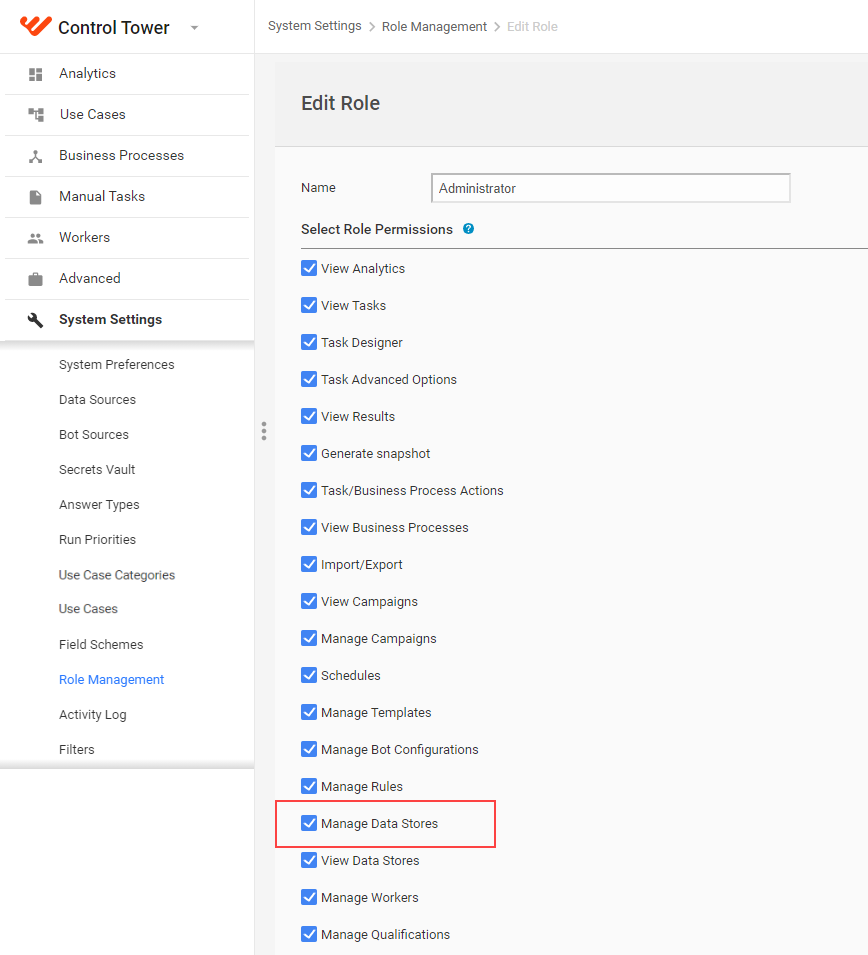
Manage Data Store
To start managing Data Stores, go to Advanced > Data Stores.
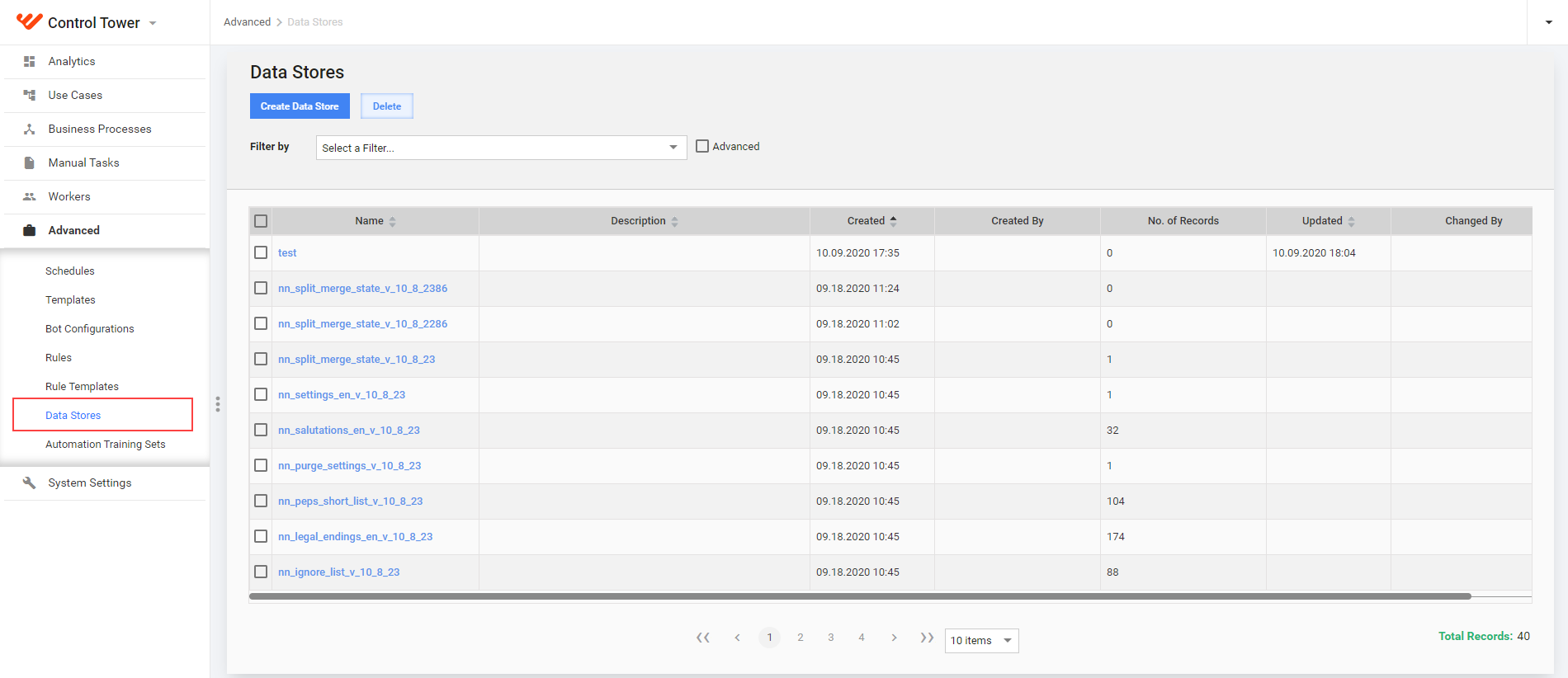
Create Data Store
Click the Create Data Store button above the grid.
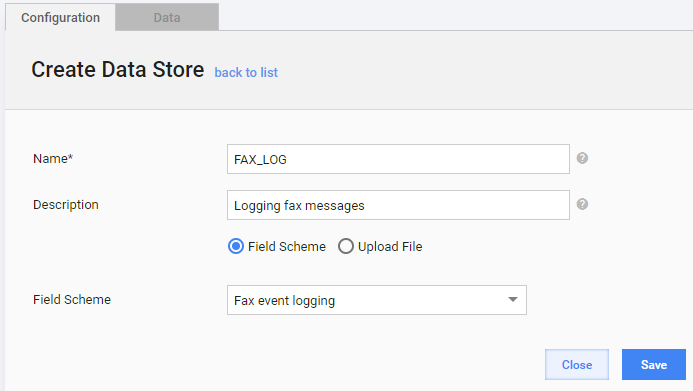
Enter a unique Name and Description to distinguish the Data Store. Names can contain alphanumeric characters, underscores, and spaces.
To define the Data Store structure, select one of the following options:
- Select a Field Scheme from a dropdown. To manage Field Schemes, go to System Settings > Field Schemes or click the Edit link to the right of the dropdown.
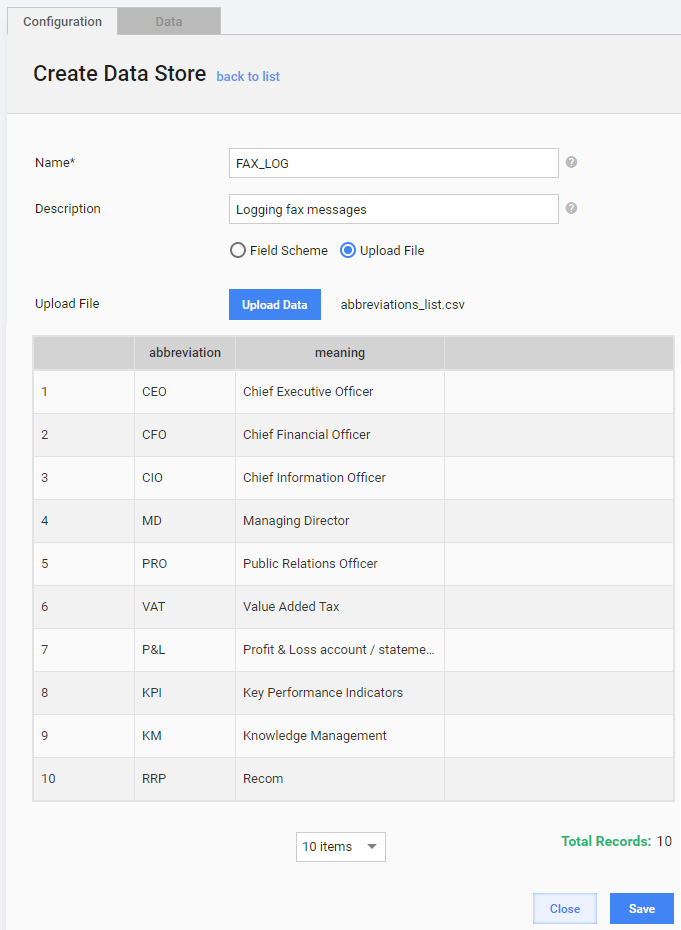
- Select Upload File and add your CSV file. The first row should contain column headers.
Click the Save button.
important
- You cannot select another Field Scheme or source CSV file after saving the Data Store.
- Column names cannot contain spaces.
Add Data to the Data Store.
- Upload a CSV file by clicking the Upload Data button. To create a data file, click the Download Data button and populate the downloaded file containing all necessary columns. When you finish populating the file, upload it.
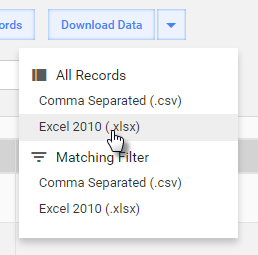
You can choose the data format (CSV, XLSX) and data set (All Records, Matching Filter) for downloading.
- Or add Records manually one by one by clicking the Add Record button.
View and edit Data Store
To view or edit a Data Store, click the appropriate Data Store name in the grid.
You can perform the following operations with Records:
- view and filter by column values. For that, set columns to display in the grid
- add
- edit—hover over the appropriate Record number and click the Edit button. Save the Record after editing
- upload a new file
- If the new file column names coincide with the Data Store columns, all new records append to the Data Store
- Otherwise, map columns from the file to the Data Store
- delete or delete all
Delete Data Store
To perform a bulk Data Store deletion:
Go to Advanced > Data Stores.
Select the appropriate Data Stores in the grid.
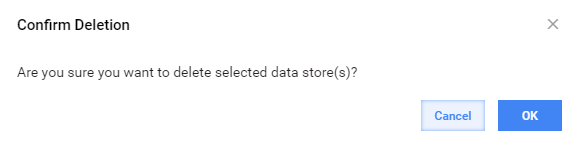
Click the Delete button and confirm this action.
Use Filters
For quick navigation through the Data Stores, you can use filters.
There're two types of filters:
Predefined—you can filter out Data Stores created by username.
Advanced—you can set some criteria for the filter.
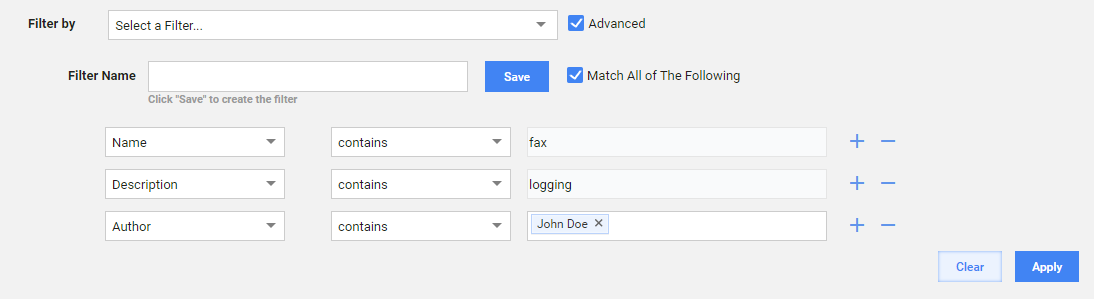
To add a parameter to your filter, use the Select an Option dropdown. After you add the first parameter to the filter, you can add or delete the parameters using the plus (+) or minus (-) sign.
- Name—is the text containing in the Data Store name.
- Description—is the text containing in the Data Store description. With Name and Description, you can use contains and does not contain or equals to and not equals to options.
- Author—is the name of the user who created a Data Store. In the Author field, you can specify several authors and define the contains and does not contain options.
tip
You can also use Match All of The Following to match the search results with all options defined in your filter.
Use Data Store
Answers
You can use a Data Store to create a re-usable lookup list for Task Answer, for example, List of Countries.
Instead of adding options manually, you can use Records from a Data Store for the following Answer Types:
- Free Text
- Select Multi
- Select One
- Check One
- Check Multi
- Taxonomy
Select the Input from Data Store checkbox and choose an item from the list.
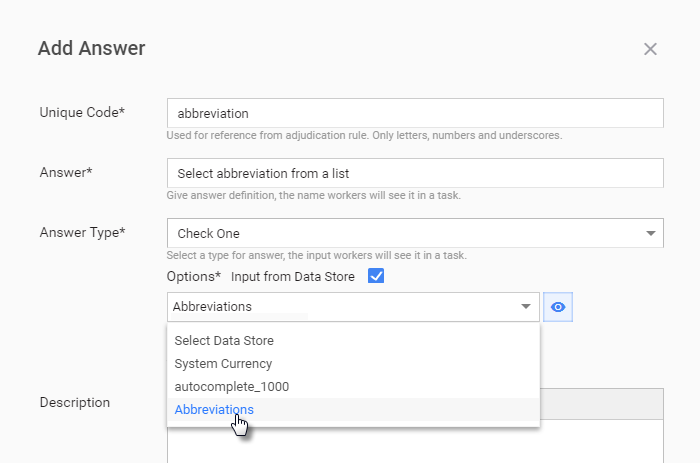
To use a predefined list in Answers, create a Data Store with two columns:
- id—a unique identifier
- name—a label to show in the dropdown
Currency
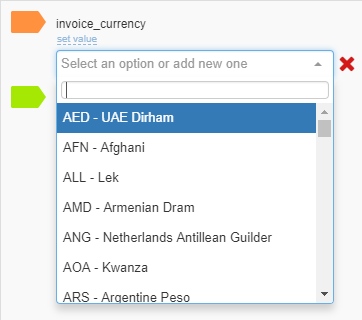
All currencies used as an answer for the Currency Answer Type are stored in a system Data Store called System Currency. In the Data Store, the currency code represents the currency id and name that contain the currency code and name.
The names appear in the dropdown, where you can select the appropriate currency when processing a task.
Bot Configs
Create a Bot Task Operation (ETL) with a Data Store Answer. Using the Data Store plugin, you can use SQL queries to read or modify the Data Store content.
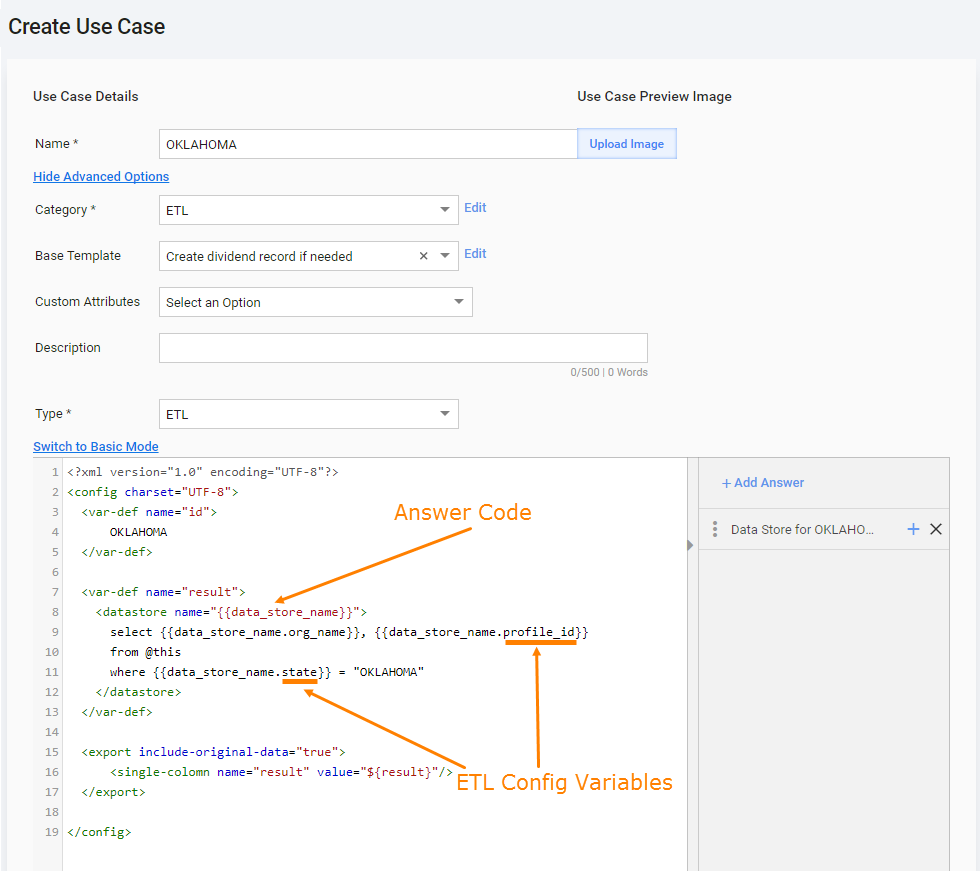
To create a Data Store, use the
insert-datastoreplugin. See the full list of Bot Config plugins.Add the Bot Task to your BP and set up its options.
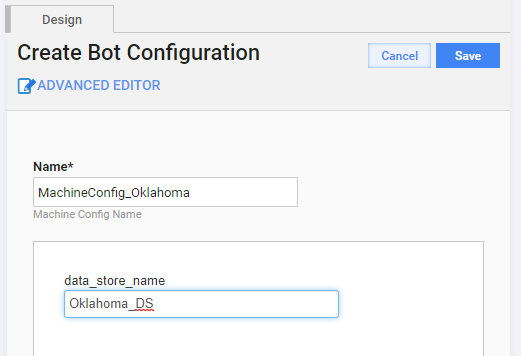
- Select the Data Store name.
- Map Data Elements to the variables.
Business Processes
To automatically load the BP Final Results to a Data Store, select the Copy results to Data Store checkbox. In this way, you won't have to generate a BP Snapshot and store it on your local computer or in the cloud.
Business Process Export
If a BP uses Data Stores in its steps, you can include the Data Stores in the package during the export procedure and then create them in another Control Tower after you import the package. For more details, refer to Migrating Packages of Tasks and BPs.
Global Variables
All global variables are stored in one Data Store with the Global Variables name. You can use these variable values in the var-global plugin.
Data Store Query
Manual Task
You can develop a custom Manual Task that uses Data Store API calls from JavaScript. In such Manual Tasks, you should create a set of Data Store Queries. For more details, refer to Allowed Data Store Queries.
Rules
You can query a Data Store from a Rule:
String query = "SELECT * FROM @This WHERE color = '" + answer.getFormInputValue() + "';";
List<Object[]> prohibitionRecords = ruleContext.queryDataStore("Prohibited Colors", query);
Data Store for Model Training
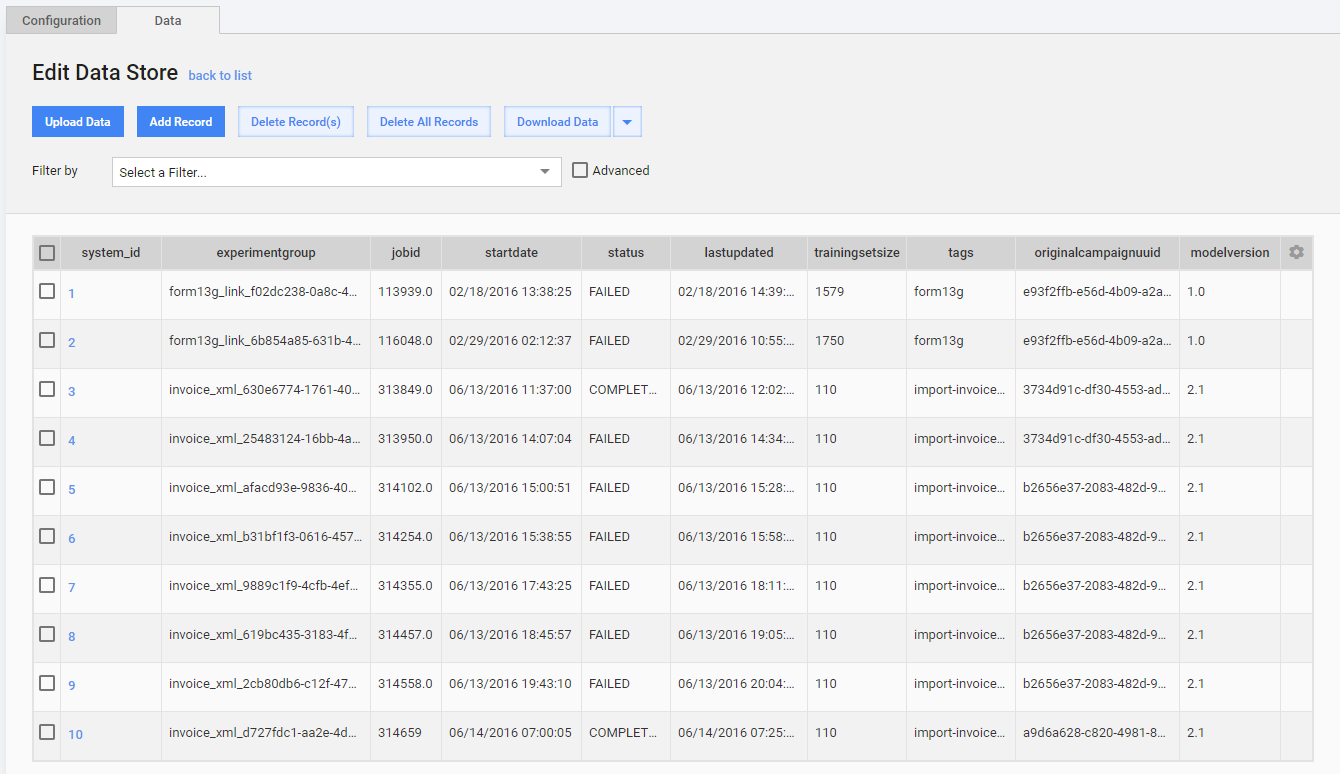
During the Model Training, a special Data Store is created to keep the information about each training step together with its results. A record in the Data Store represents the results per Model Training.
Manage Field Schemes
A Field Scheme defines Data Store column names and content types. To start managing Field Schemes, go to System Settings > Field Schemes.
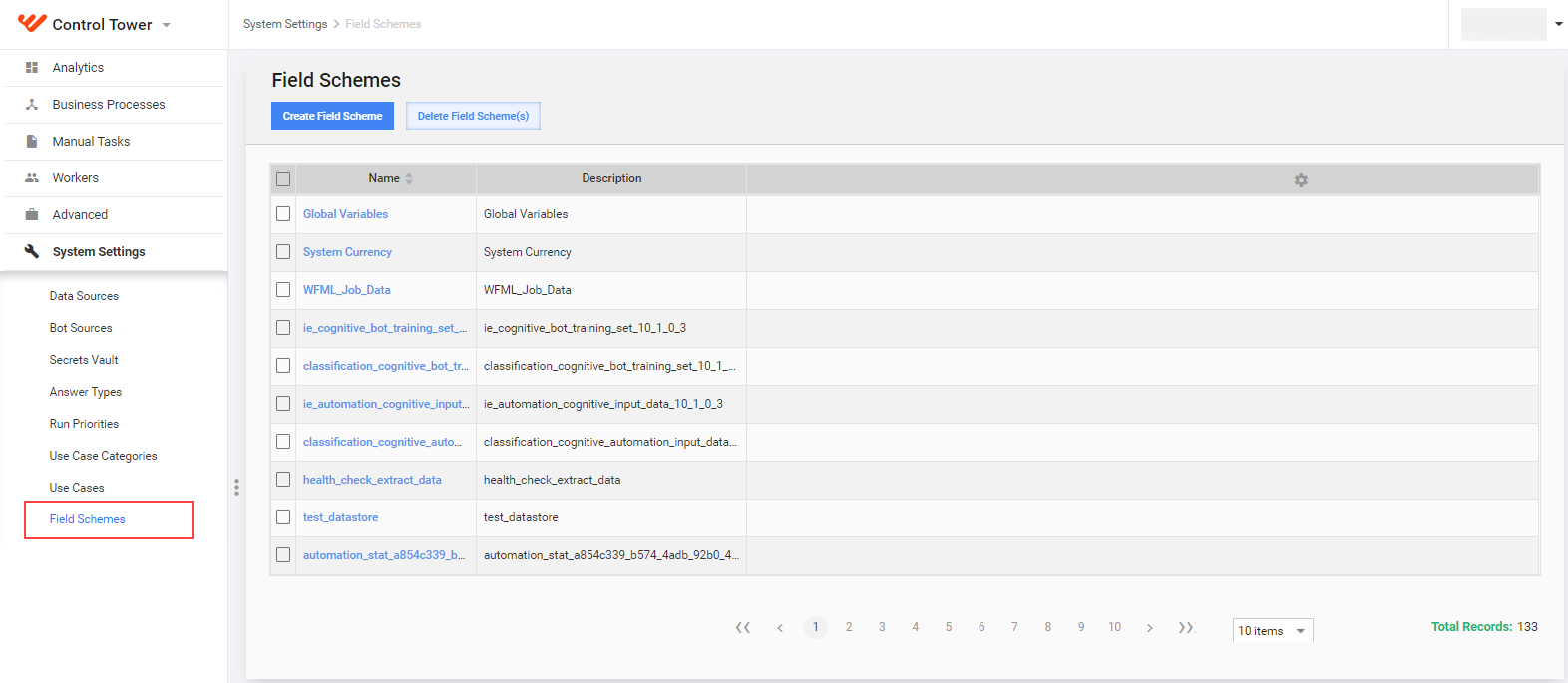
- Click the Create Field Scheme button.
- Enter a unique Name and Description to distinguish the Field Scheme.
- Add Answers to the Field Scheme. The step is similar to adding Answers on the Task Design tab. The Field Scheme allows setting data format for each Data Store column by using specific Answer Types, for example, Email and Number.
- Click the Save button.
note
For a Data Store created from a file, an appropriate Field Scheme is created automatically.
Optimize Data Store performance
The Data Store functionality is implemented using a relational database. To optimize performance for a significant amount of data, think about indexes.
There are two ways of managing Data Store indexes:
- Set up indexes within the Bot Task code. See examples in Data Store plugins.
- Contact your Operations team to create an index in MSSQL with the given table and index details.
Also, see the article about Data Store purging.
Audit Data Store
You can track all actions with Data Stores in the ds.data_store_audit table in DB. The table contains information about the operation type, the Data Store where it appeared, the number of affected records, when and who performed the action, and related comments.
The following operations are logged to the table:
- CREATE_DATASTORE
- DELETE_DATASTORE
- MODIFY_DATASTORE
- INSERT_ROW
- MODIFY_ROW
- DELETE_ROW
- DELETE_COLUMN
note
Only the operations via API are logged to the table.
Archive Data Store
The archive table is created automatically along with the main one for each Data Store. For example, see the archive for the ds_test table in the ds_test_archive table. Removed records are automatically saved to this DB table with the _archive postfix when the delete trigger is activated. After that, the records are deleted from the main table, copied to the archive one, and can be restored via Database only.
A deleted Data Store isn't removed from DB, an archive table is created instead, for example, ds_currencies will be renamed to ds_currencies_deleted_20160129022959.