
Import a model customized with AutoML SDK
important
The section describes how to manually create an Asset Bundle to deploy an old AutoML project. In a new AutoML project, an Asset Bundle is already created as a part of the project immediately after its generation from the Archetype. For more details, refer to Start from Archetype.
The importing flow includes the following steps:
- Add the artifact and the model you customized with AutoML SDK to an Asset Bundle.
- Deploy the Asset Bundle containing the artifact and the model to Control Tower.
- Check that the artifact and the model are imported successfully.
Add artifact and trained model to Asset Bundle
Within an Asset Bundle structure, both the artifact and the trained model reside in the automl directory, as shown below. For the complete structure, refer to the guide.
...
├── automl
│   ├── model
│   └── artifact
...
Prepare artifact for import
If you build a model in Maven with mvn clean install, the artifacts for the model are created under the ./deploy directory as ./deploy/%model_code%/%model_version%.
Example of the ./deploy directory structure
Assume, we build the following hypermodel:
@ModelDescription(
        code = "se20ie",
        title = "se20 ie",
        description = "se20 ie model",
        version = "1.0-SNAPSHOT",
        type = ModelType.IE
)
@HypermodelConfiguration(Se20ieModelConfiguration.class)
public class Se20ieModel extends IeGenericSe20Hypermodel {}
After you run the mvn clean install command, the ./deploy directory for the hypermodel above has the following structure :
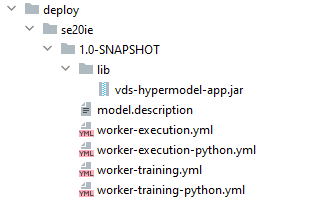
To import the built models, copy the entire content of the ./deploy directory into automl/artifact within the structure of the Asset Bundle to be deployed.
Prepare trained model for import
When you run model training locally, set id for your training configuration. This id is used as the trained model ID.
Once model training is finished, the output directory will contain the following structure:
...
├── id
│   ├── output
│     └── model
...
Example of the output directory structure
Assume, we train the following model:
LocalTrainingConfiguration configuration = LocalTrainingConfiguration.builder()
               .inputDir(inputDirPath)
               .outputDir(outputDirPath)
               .fields(fields)
               .id("training-se20-ie")
               .parameters(parameters)
               .build();

 ModelRunner.run(Se20ieModel.class, configuration);
The resulting output directory for the model above has the following structure:
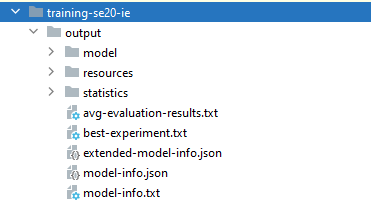
Copy the ./id/output/ directory with its content into the modeldirectory of the Asset Bundle to be imported.
note
During import, trained models are validated against corresponding artifacts. When such artifacts are missing on the target instance or in the bundle, the import fails.
Check the resulting Asset Bundle structure
Below, you can find an example of an Asset Bundle structure for importing two artifacts and two trained models:
%bundle_root%
├── automl
│   ├── model
│ │ ├── pss-classification-model-1-0-15
│ │ │ └── output
│ │ │   └── model-info.json
│ │ │   └── model
│ │ ├── nss_name_matcher_python_model
│ │ │ └── output
│ │ │   └── model-info.json
│ │ │   └── model
│ │ │   └──....
│   ├── artifact
│ │   ├── pss-classification-model
│ │   │   └── 1.0.15
│ │   │   │   └──lib
│ │   │   │   └──model.description
│ │   │   │   └──worker-training.yml
│ │   │   │   └── ...
│ │   ├── nss-name-model
│ │   │   └──1.0.0
│ │   │   │   └──lib
│ │   │   │   └──model.description
│ │   │   │   └──worker-training.yml
│ │   │   │   └──...
└── meta-info.json
Import Asset Bundle
See the instructions on importing an Asset Bundle:
via the Control Tower interface
via REST API
Instead of importing the entire Asset Bundle structure as illustrated above, you can import only artifacts or trained models using the AutoML user interface in Control Tower:
For artifact importing instuctions, read Manage hyper models | Import.
For trained model importing instructions, read Manage trained models | Import.
Check availability of imported assets
After the Asset Bundle import is completed successfully, the console shows the SUCCEEDED status of the procedure.
Login successful
Asset Bundle <C:\Users\John_Appleseed\Downloads\negativenews-package-10.1.zip> Import has started
Checking import status: Import in progress, attempt 1
Checking import status: Import in progress, attempt 2
Checking import status: Import in progress, attempt 3
Checking import status: Import in progress, attempt 4
Checking import status: Import in progress, attempt 5
Checking import status: Import in progress, attempt 6
Checking import status: Import in progress, attempt 7
Checking import status: Import in progress, attempt 8
Checking import status: Import in progress, attempt 9
Checking import status: Import in progress, attempt 10
Checking import status: Import in progress, attempt 11
Checking import status: Import in progress, attempt 12
Checking import status: Import in progress, attempt 13
Checking import status: Import in progress, attempt 14
Checking import status: Import in progress, attempt 15
Checking import status: Import in progress, attempt 16
Asset Bundle Import job finished with status: SUCCEEDED
C:\Users\John_Appleseed\Downloads>
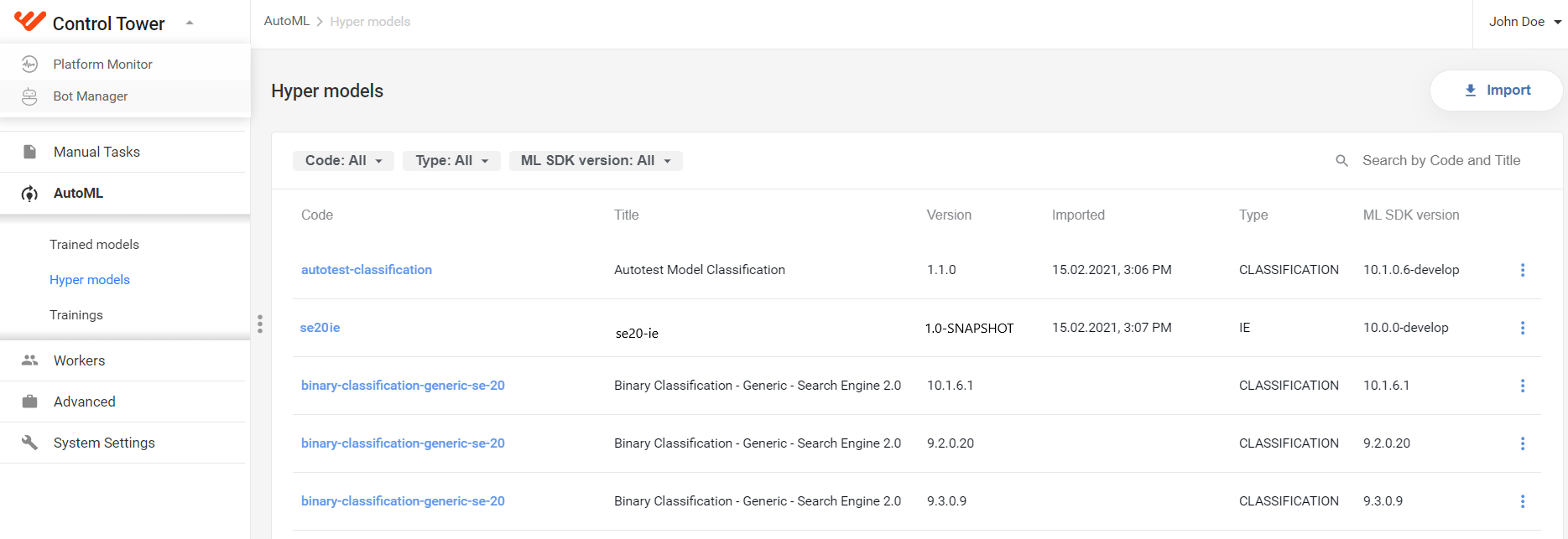
To check the availability of the imported artifact in Control Tower, go to the AutoML menu, select Hyper models, and find it on the list.
The artifact's title and version correspond to the ones contained in the Hypermodel class (from the examples above, se20 ie and 1.0-SNAPSHOT).
To check the availability of the imported trained model in Control Tower, go to the AutoML menu, select Trained models, and find it on the list.
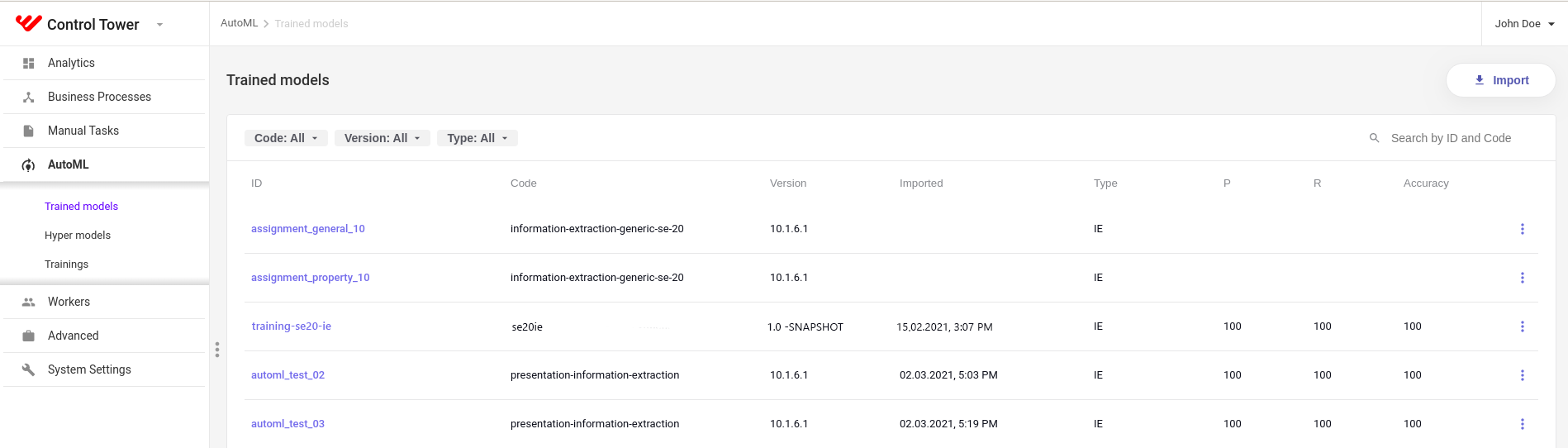
The model's title corresponds to the output directory ID (from the examples above, training-se20-ie).
Alternatively, to check whether the artifact and trained model are imported successfully, use the GET /bundle-import/{uuid} endpoint of the Asset Bundle migration API.