
IDE password management
Why IDE has its secure storage
A secure storage saves data in an encrypted form. On some operating systems, it uses your operating system account information to provide a single sign-on experience.
The secure storage itself does not contain encryption code. It uses algorithms supplied by the Java virtual machine or the operating system.
How secure storage works
Let's consider a concrete example of CVS integration. When you specify a password for a CVS connection, the application allows saving your username and password using a secure storage.
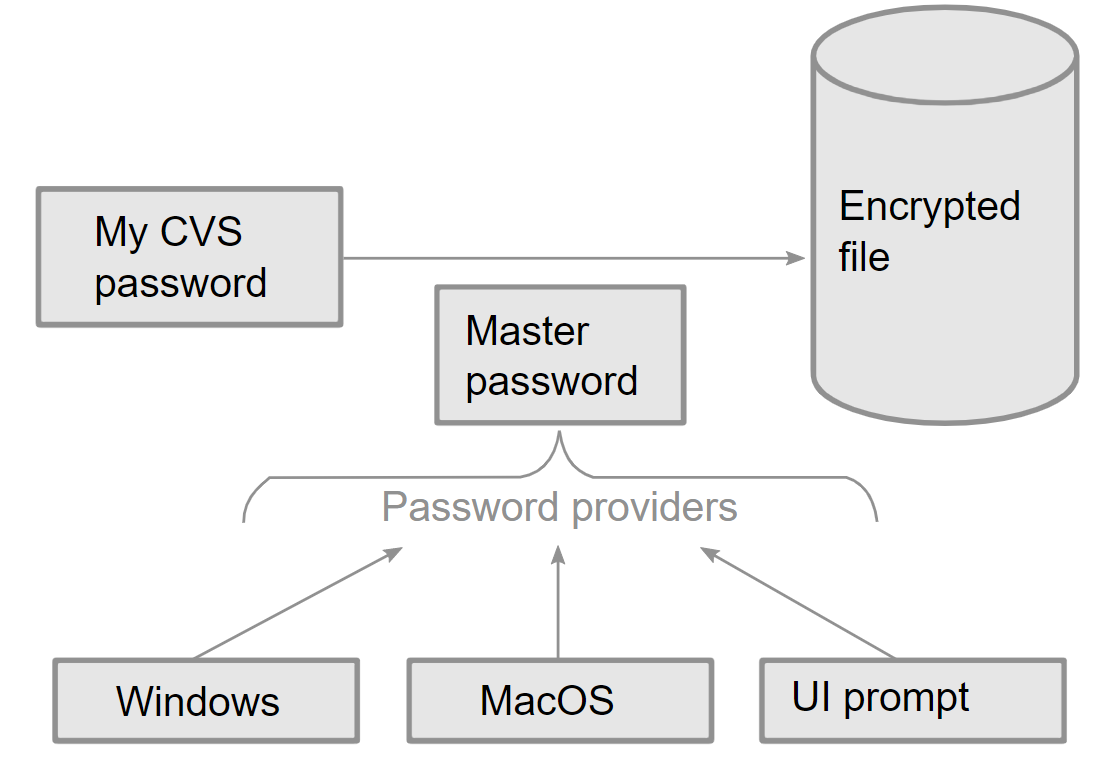
Your CVS password is passed as data to the secure storage. The secure storage uses a master password to encrypt and store the encrypted CVS password in a file on the disk.
The master password is obtained from a password provider module. Master passwords are obtained when they are about to be used. Password providers can use different techniques:
On Windows, the master password is generated as a random value encrypted based on your Windows login information and stored in the secure storage.
On macOS, the master password is initially created as a random value stored in the OS keyring.
The default password provider prompts you for a password.
Other password providers can be added in your application.
When data is saved with the secure storage, the password provider is selected based on the priorities from the list of enabled password providers. Only that provider can be used to decrypt the data.
Secure storage setup
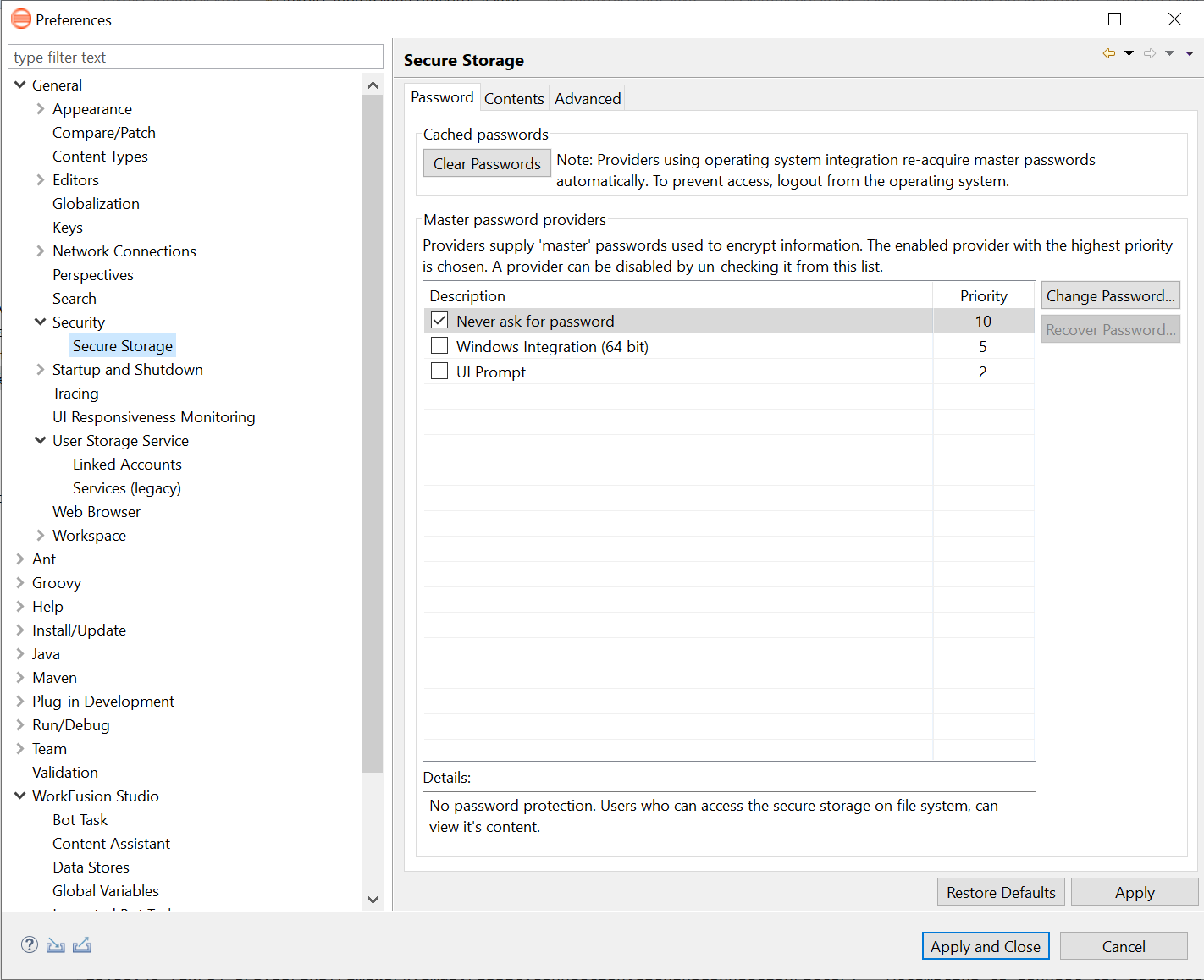
To set up the storage of encrypted information in Eclipse IDE, go to Preferences > General > Security > Secure Storage. Typically, you have no reason to alter these preferences. The options are used primarily for troubleshooting and setup of multiple providers.
Password providers
The Password tab contains the functionality related to the master password lifecycle and password providers.
The Clear Passwords button clears cached master passwords from memory, which is similar to logging out of a secure storage. Mind that some password providers obtain credentials from the OS automatically. To prevent them from doing so, log out from the OS account.
The Master password providers section contains a list of currently available password providers. By default, the enabled provider with the highest priority is used to encrypt data added to the secure storage. The priority range is from 0 to 10, with 10 being the highest. A password provider can be disabled if it malfunctions or if you prefer a lower-priority password provider.
Note that data can only be decrypted by the same provider that encrypted it. This means that changes to the list of password providers affect only new entries. A password provider for the existing entries can only be overwritten by the application storing the data.
By default, all password providers are enabled.
The available options for password providers are as follows:
Never ask for password: a security option allowing a custom provider to use a hardcoded master password for the secure storage. It silently authenticates storage on each Studio launch, so you are not asked to enter your password to work with all stored records.
important
The recommended configuration is checking Never ask for password only and unchecking all the rest.
Windows Integration (64 bit): a native OS password storage that is standard for every user's OS way for the secure storage. It is not recommended because of known issues on older Eclipse and OS versions.
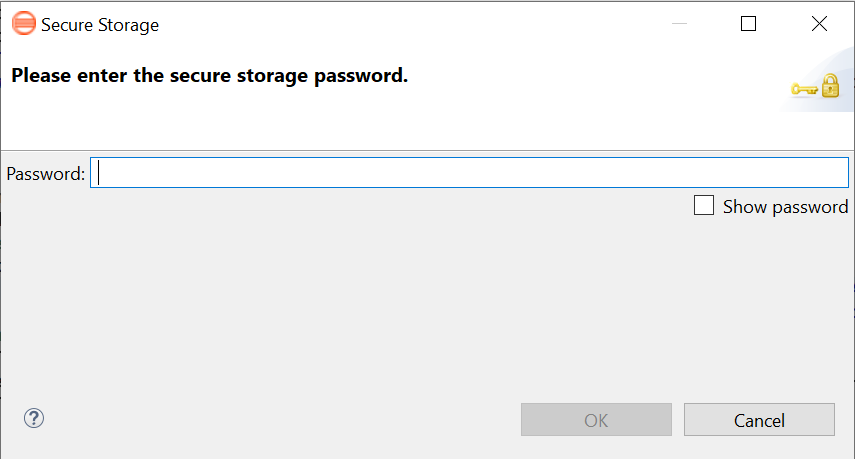
UI Prompt: an option that asks for a password on each Studio launch. When a higher level of security is required, you can configure Studio to ask for the secure storage master password on each launch. To switch off, go to the Password tab and uncheck UI Prompt.
Each password provider used at least once has an associated master password. Click the Change Password... button to modify the master password of the selected password provider.
The Recover Password... button opens the password recovery dialog. Use this option if you forgot the master password and configured password recovery questions. The button is disabled if the password recovery setup was canceled while creating the master password.
note
You should enter answers for password recovery questions exactly as they were specified during the password recovery setup. Answers are case-sensitive and white spaces are significant.
Contents
The Contents tab displays the contents of the default secure storage.
A secure storage is organized as a tree where nodes represent the context of the information, and values are associated with each node. Selecting a node in the tree displays a table of values associated with that node. Values stored in a non-encrypted form are displayed; the encrypted values are shown as "*********".
At the bottom of the tab, you can see the actual file location used to persist the secure storage data.
To save changes for the secure storage contents, click Save.
To delete stored data to recover from an error or to reflect a change in the setup, click Delete. This deletes all secure storage contents. In some cases, other parts of the application may depend on the contents that you deleted. To avoid unexpected errors, restart the application after you deleted the secure storage.
Advanced options
The Advanced tab of the Preferences page offers some extra tweaks to your secure storage.
You can modify the encryption algorithm used by a secure storage. The drop-down list displays the discovered algorithms provided by the Java virtual machine that are compatible with the secure storage.
Changes in the encryption algorithm are only applied to the data stored after the change. If you have already created a secure storage, delete and re-create it to use the newly selected encryption algorithm.
note
The list of available algorithms can be different for different Java virtual machines. You can extend it by providing custom algorithms with the help of the Java security provider mechanism.
Troubleshooting
Lost secure storage password
When a secure storage is used for the first time, it generates a master password used to encrypt data. This master password is required to retrieve data from the secure storage.
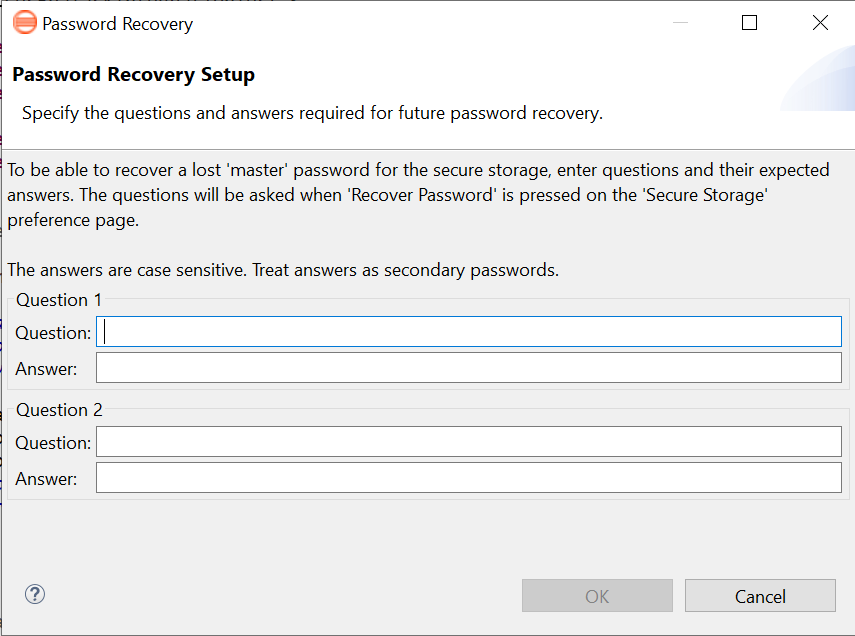
If the master password becomes unavailable, the secure storage provides optional support for password recovery. If the master password is lost or forgotten, you can recover it by providing exactly the same answers to the recovery questions. This can help prevent data loss if you forget or lose your master password.
Pick password recovery questions that are easy for you to answer but hard for other people to guess. For example, consider asking about a memorable date, a place you liked when you were a child, or your favorite quote. The strength of the secure storage is determined by its weakest link. Don't use answers that are short or easy to guess.
If you specified password recovery questions and answers, go to Preferences > General > Security > Secure Storage to recover your master password. After the master password is recovered, it is strongly recommended to change the master password. To do this, go to General > Security > Secure Storage and click the Change Password... button.
The recovered password is not displayed but stored in the memory cache until the application is closed.
Invalid secure storage password
If you have a problem with a secure storage that you cannot find a workaround for, you can delete it:
Close the Incorrect password or data is corrupted window by clicking OK. It may require several clicks on the message window.
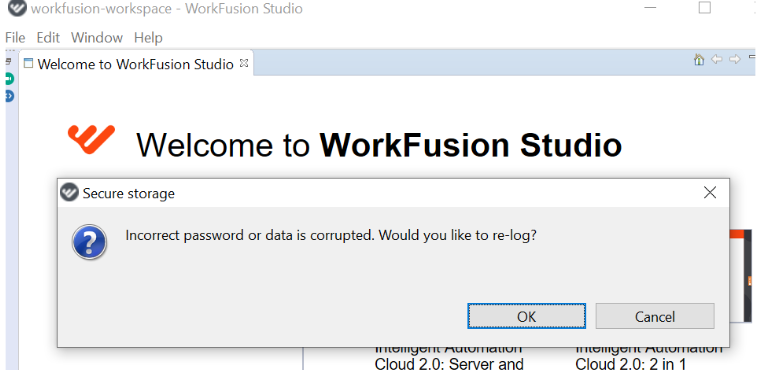
Close the Studio application.
Go to
C:/Users/your_user_nameand remove the.eclipsefolder.In the same folder, remove the
profiles.propertiesfile.Re-run the application and enter a new password and hints if needed.
caution
If you delete all Eclipse settings, re-point into your workspace upon the next launch, re-create your Server Profile if you used one, re-create secure storage records, and so on.