
Automate Outlook operations
As Outlook is one of the most popular email clients used by many companies nowadays, you will find here some recommendations on how to automate it with RPA Recorder.
Open Outlook
There are two ways to open Outlook.
The first and best way is to:
- Use Win + R and open it with the Run command.
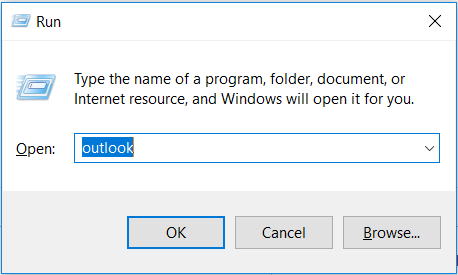
- Add the Wait action to give your PC time to open it, for example, 5 seconds.
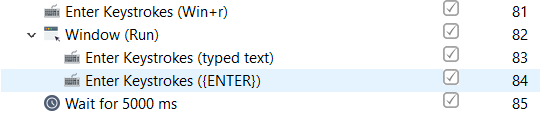
The second way is a little more complicated, as you have to define the location of
Outlook.exeon your computer.- Add the Launch Application action and enter the path of
Outlook.exein the Executable file or command field.
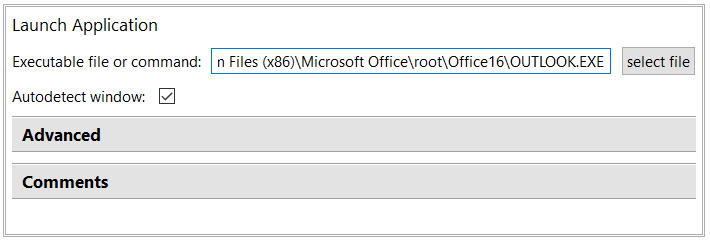
- Add the Wait action as in the first method.

- Add the Launch Application action and enter the path of
Work in Outlook
Now, as your Outlook is opened, there are some basic recommendations for working with it.
As the screen resolution can vary on various machines, clicks by image and position can be unstable. We recommend using Window Control in Mouse Click actions instead of clicks by position and image. You can define a selector for Window Control using Inspector.
Use Outlook keyboard shortcuts for easier automation.
Use the Window action to define the Outlook window where you are working.

note
Note that some window titles and elements can be different depending on the Outlook version.
Outlook automation examples
Here are some examples of automating Outlook.
- In this example, a bot takes bulk emails from the Excel spreadsheet and sends them with a specific subject and text in Outlook.
- Some of our Reusable Components from Examples Library refer to working in Outlook.