
Start IA Cloud Developer
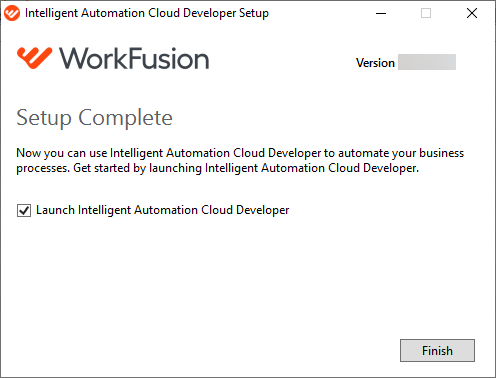
After successful installation, you can launch IA Cloud Developer from the installer.
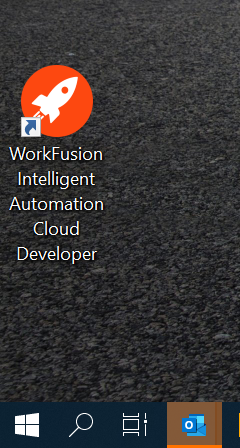
Alternatively, click the desktop shortcut to start it:
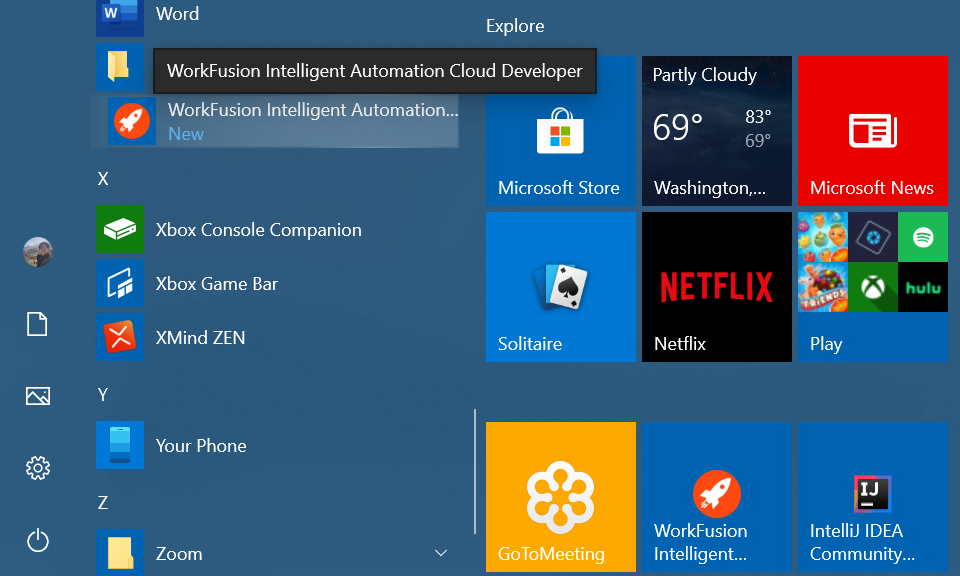
You can also select IA Cloud Developer from the Windows Start menu:
Upon the IA Cloud Developer launch, two applications start simultaneously:
- Launcher: Allows you to activate or turn off local server components, access their logs, and search through them. You don't need Launcher if you debug a Bot Task that doesn't have OCR or RPA or if you don't deploy your project to the local Control Tower. In this case, the Worker in WorkFusion Studio is enough for a Bot Task to execute successfully.
- WorkFusion Studio Eclipse-based IDE: On starting WorkFusion Studio IDE, specify a folder for its workspace. Make sure you use a new folder for a new version of IA Cloud Developer's Studio. Do not use existing folders as it may cause problems later.
Access components
IA Cloud Developer provides six UI applications to manage the environment. You can open them as described below:
- In the Launcher application
- Via the system tray
- Directly in a browser by opening the related URLs
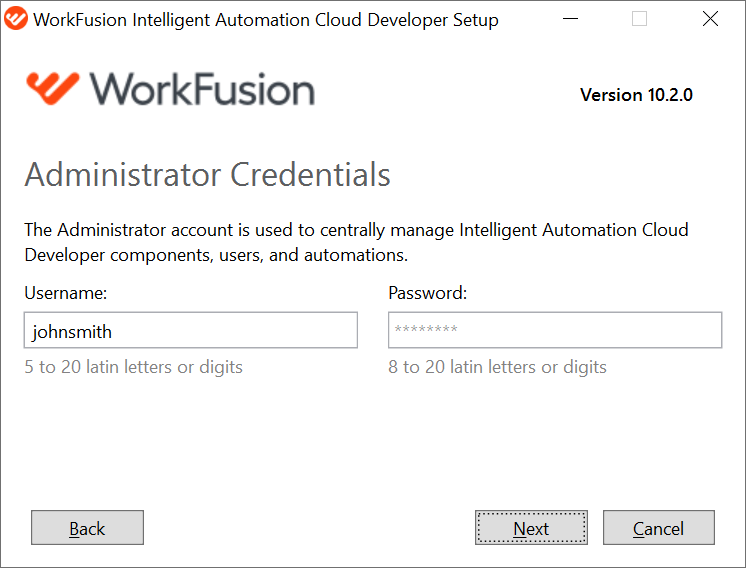
All components require you to log in. Use the Administrator username and password specified during the installation.
View component groups
The Launcher window shows component processes combined into three main groups, each available on a separate tab. This segregation saves RAM and capacity on local machines as much as possible and makes the start of components faster. The groups are as follows:
- RPA Worker with RabbitMQ and Secrets Vault dependencies
- Control Tower & Workspace with RabbitMQ, File Storage, Nexus, and Secrets Vault dependencies
- OCR with OCR Rest API, RabbitMQ, File Storage, and Secrets Vault dependencies
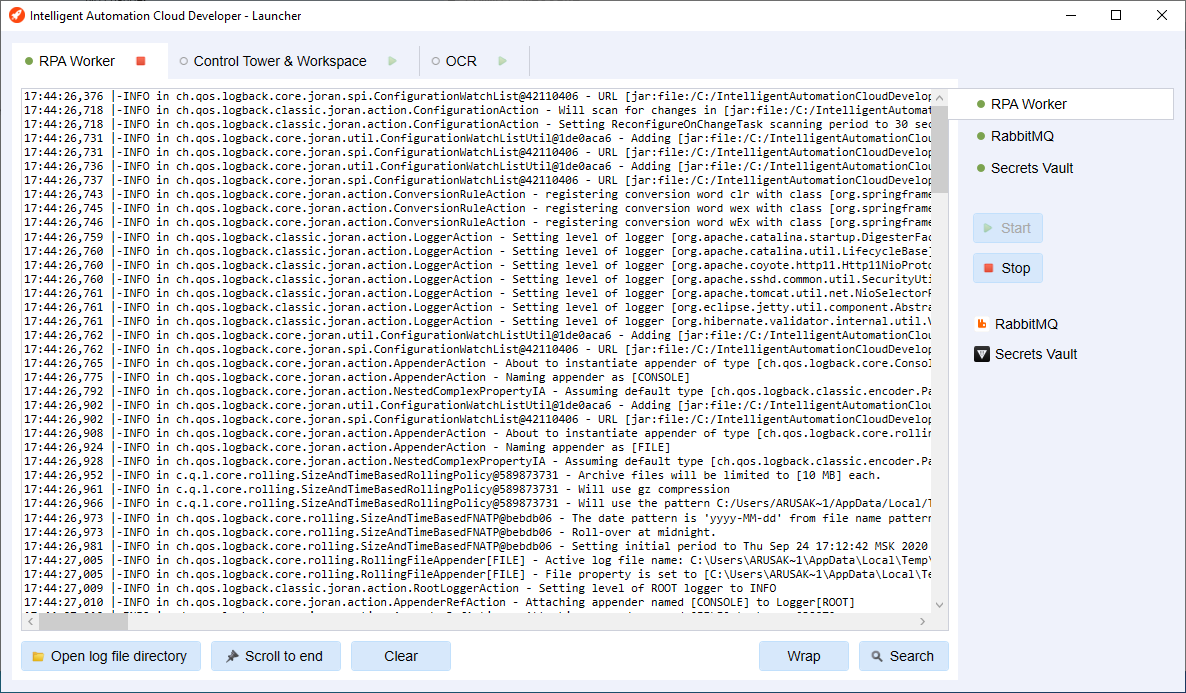
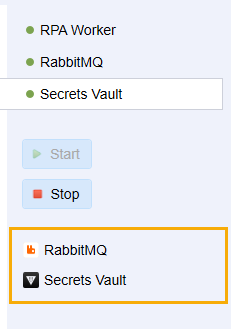
To navigate to the UI of the components, on the right side of the screen, under the Stop button, click the related direct links. Each process group contains its own set of links:
Access from tray menu
Upon running Launcher, you can also access the most frequently used options. To open the quick access menu, in the tray, right-click the Launcher icon.
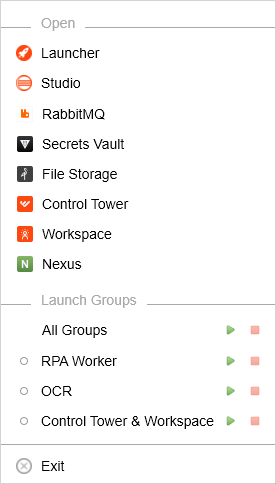
Use the following options:
The Open section contains direct links to the corresponding server components. Click any component to access its web UI.
The Launch Groups section enables you to view the statuses of components and manage them:
- To launch a group of components, click the Start button next to the group.
- To stop a running group, click the Stop button.
- To launch or stop all the groups, click the Start/Stop buttons next to All Groups.
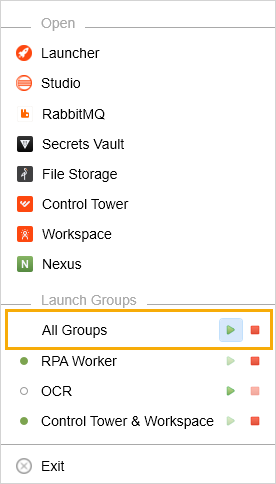
The Exit option closes Launcher.
Access from browser
The components also have a web interface you can access directly in the browser.
| Component | Running condition | URL | Login |
|---|---|---|---|
| Control Tower application | Must be running so you can access it. | http://localhost:15280/workfusion | Username and password. Upon login, you have the Administrator role with all privileges. |
| File Storage Minio web browser | Must be running so you can access it. | http://localhost:15110 | Username and password. |
| Nexus repository web manager | Always running when IA Cloud Developer starts. | http://localhost:8081/nexus | Username and password to log in as Administrator. |
| RabbitMQ management web UI | Always running when IA Cloud Developer starts. | http://localhost:16772/ | Username and password to log in as Administrator. |
| Secrets Vault HashiCorp web UI | Always running when IA Cloud Developer starts. | https://localhost:18280/ui | Username and password to log in as Administrator. |
| Workspace application | Must be running so you can access it. | http://localhost:15280/workspace |
|
Manage components
When Launcher starts, all server components are off by default.
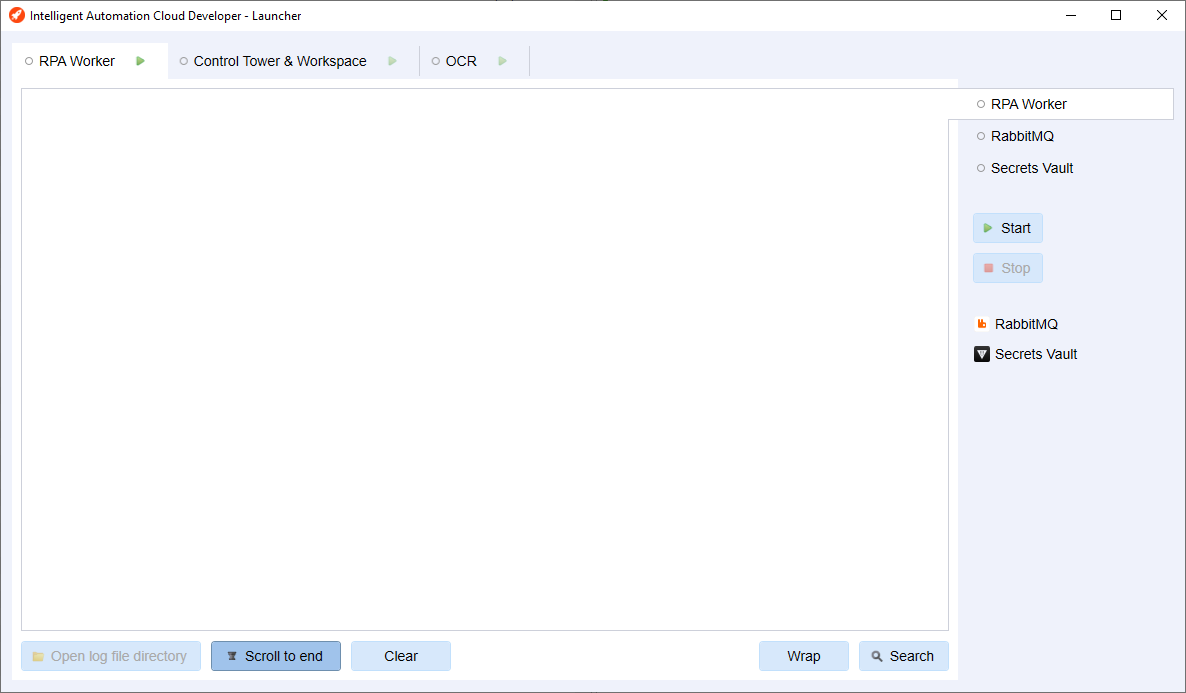
Start components
Depending on your automation workflow, launch the needed group of processes. For example, if you have RPA in scope, start the RPA Worker group.
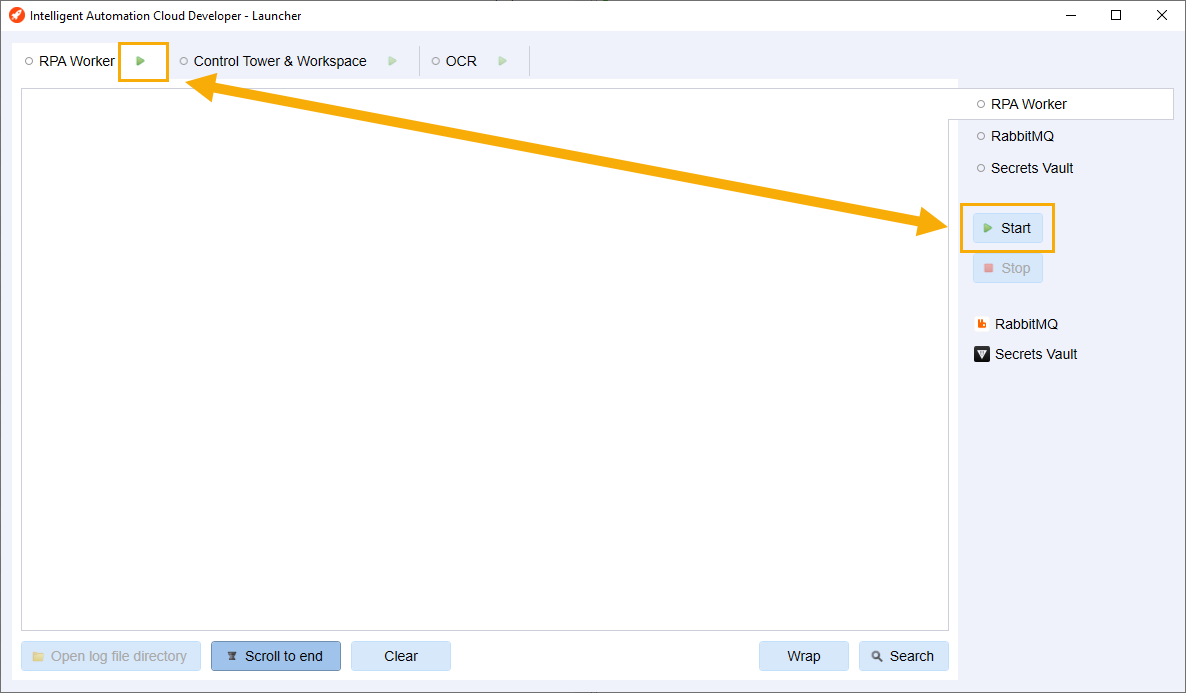
To enable a component, choose one of the three scenarios:
Select the required process group and click the Start button on the right side of the screen.
Choose your process group and click the Start button located directly on the group tab.
Run any or all process groups from the tray menu by clicking Start.
note
Once you enable Control Tower & Workspace, the RPA Worker group starts automatically as this process group needs RPA Worker to perform.
Eventually, Launcher with all running component groups looks as follows:
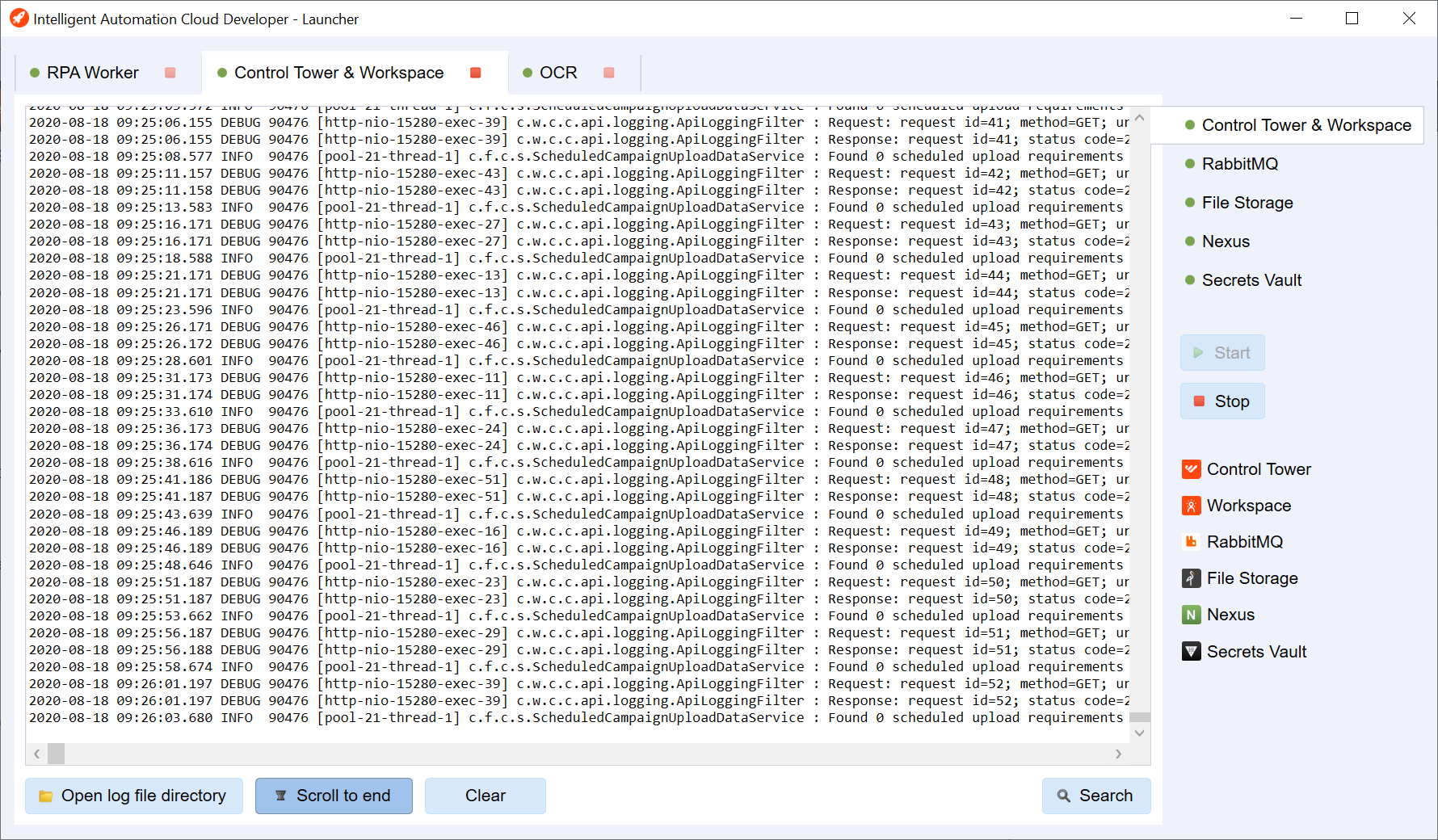
When you initiate a process group, processes start gradually, with their statuses shown on the right side of the screen:
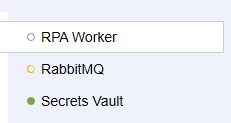
- Grey: The process is waiting for its turn to launch.
- Yellow outline: The launch is in progress.
- Green: The process is up and running.
The solid yellow color means that something is wrong with the component, or some action is needed. Hover over the status icon to see the warning tooltip:
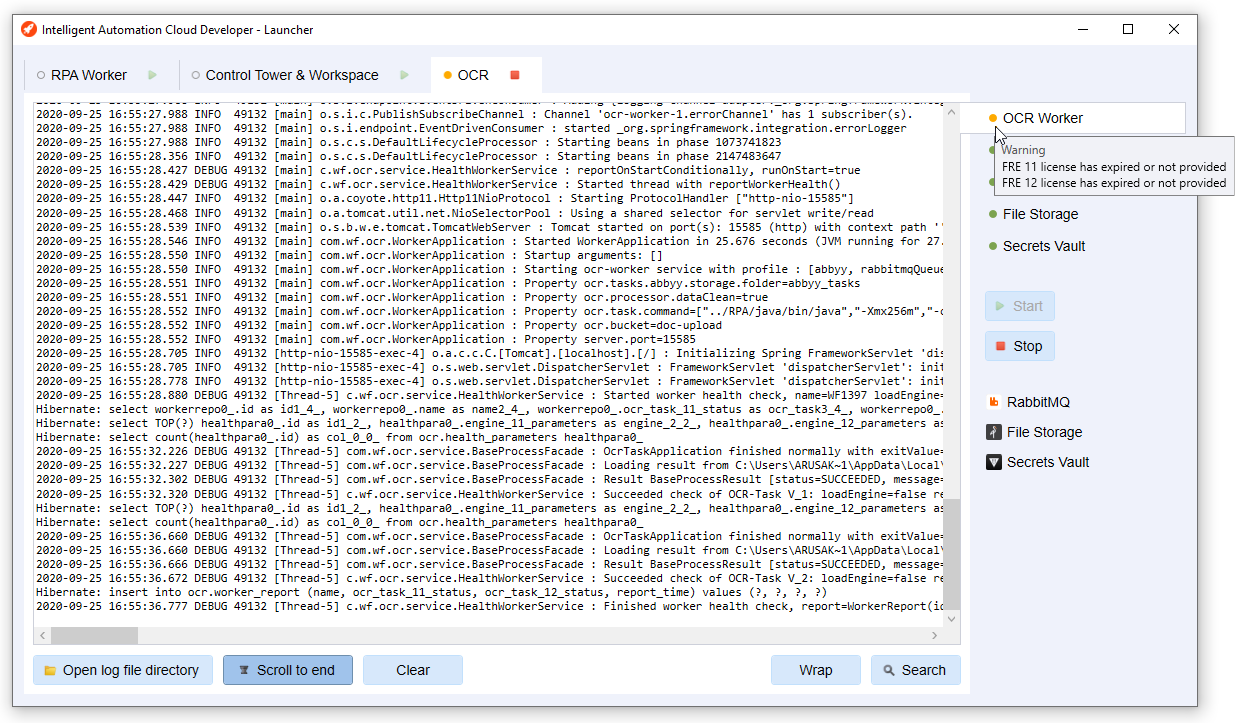
tip
The Control Tower & WorkSpace group takes the longest to launch. Some machines with less than 16 GB RAM and several applications running can take 8-12 minutes to start. In this case, wait till the status icon turns green.
caution
Watch the console output for all three groups. In case of any issues, look for exceptions. You can also open a log file directory to find all component logs to trace a problem in detail.
Stop components
To disable components, use one of three ways:
Select your process group and click the Stop button on the right side of the screen.
Choose your process group and click the Stop button located directly on the group tab.
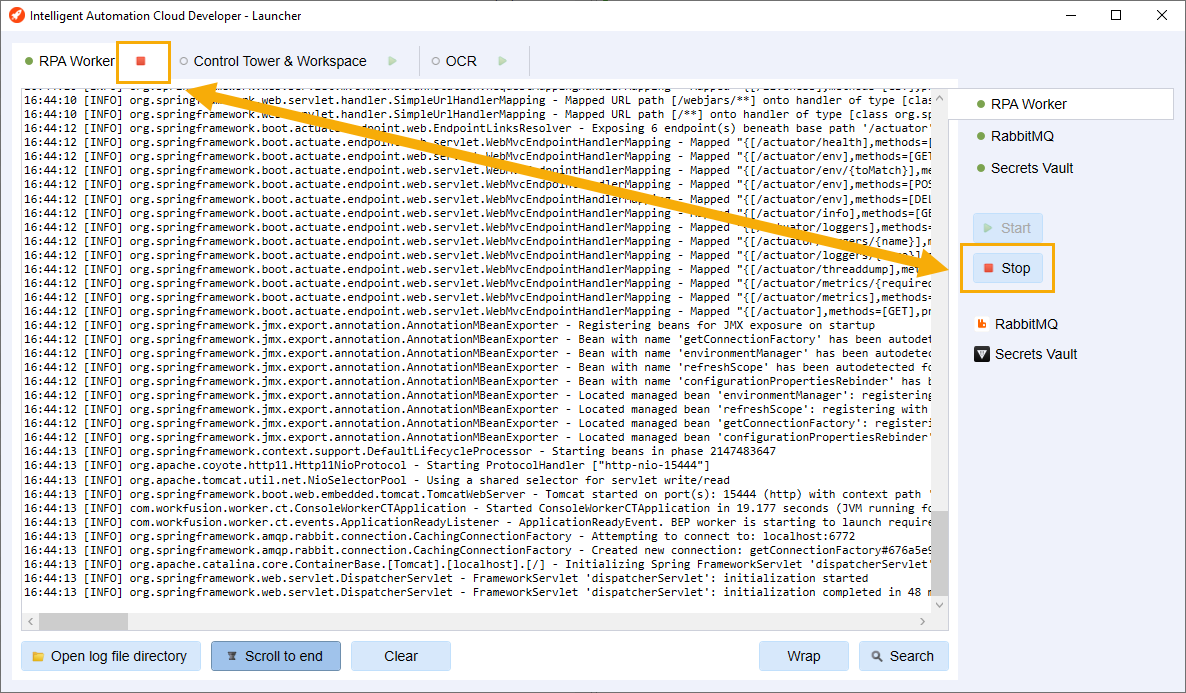
Stop any process group or all process groups from the tray menu by clicking Stop.
Fix performance issues
When you work in the application for an extended period of time, the performance and connectivity of all components can degrade. You can notice that, for example, a Business Process executes slowly, or you get failed execution of the code working with Secrets Vault, Data Stores, File Storage, and other components.
To fix such issues, remember to restart all component groups and the Launcher application periodically:
- Before putting your workstation to sleep, stop all component groups and wait for indicators to show the shutdown status.
- In the system tray, right-click the Launcher icon and, in the context menu, click Exit.
- When you log into your workstation the next time, start IA Cloud Developer again and launch the required component groups.
important
MS SQL Express 2016 is required for IA Cloud Developer. It is installed by IA Cloud Developer as Windows Service and starts automatically whenever your workstation starts. If you stopped MS SQL Express 2016 processes for some reason, you can restart its service. Start Microsoft Services application > find the SQL Server (WFIACDEVELOPER) service > Start.
Change default credentials
Default credentials for accessing components are set during the IA Cloud Developer installation.
To change your Administrator credentials for all components, do as follows:
Run
IntelligentAutomationCloudDeveloperInstaller.exe.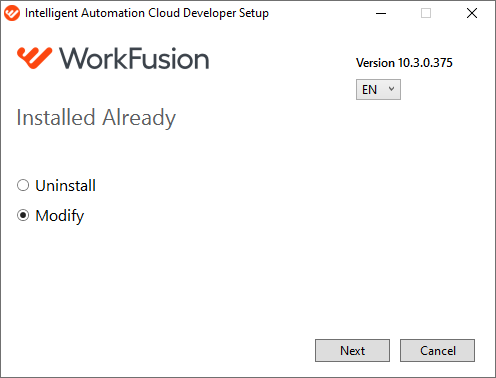
If you do not have the installer file, open Windows Settings > Apps & features, start entering the application name (
WorkFusion), and click Modify. Accept a security prompt by clicking Yes on the User Account Control screen.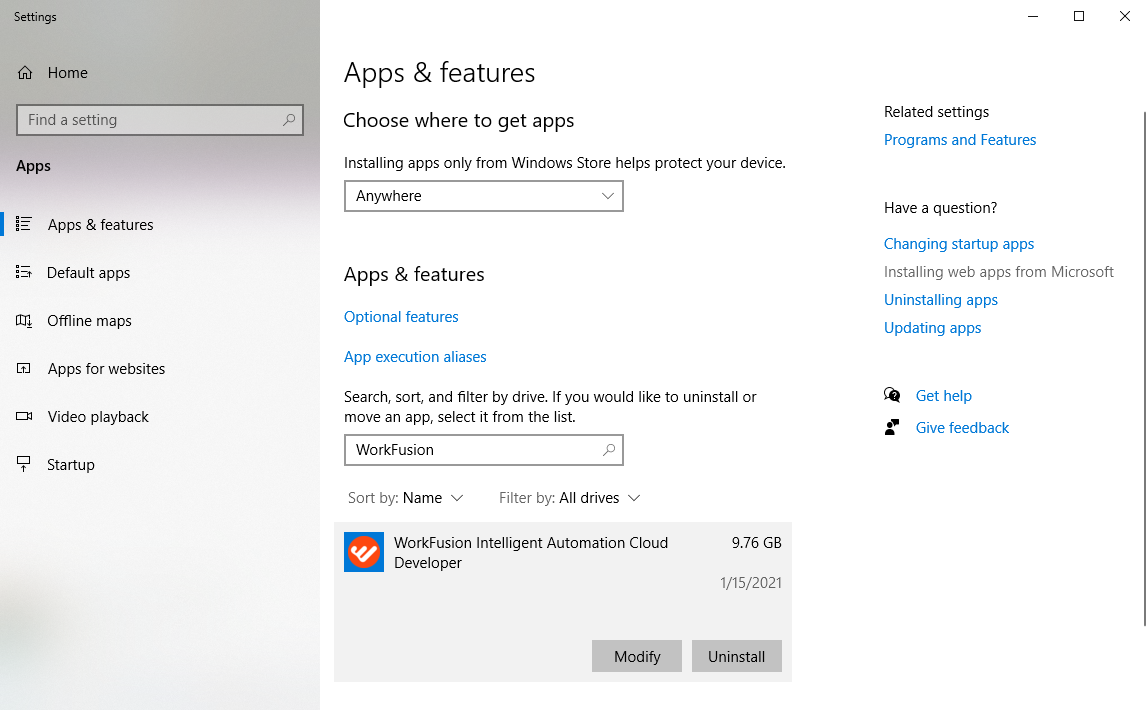
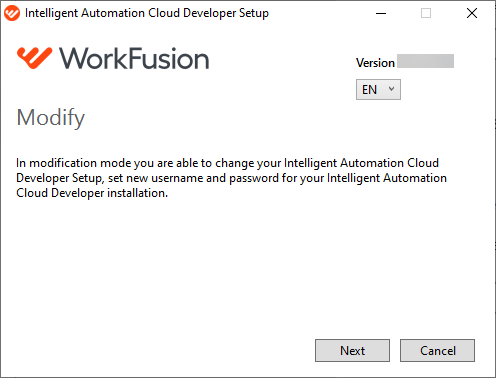
In the installer window, select Modify and click Next.
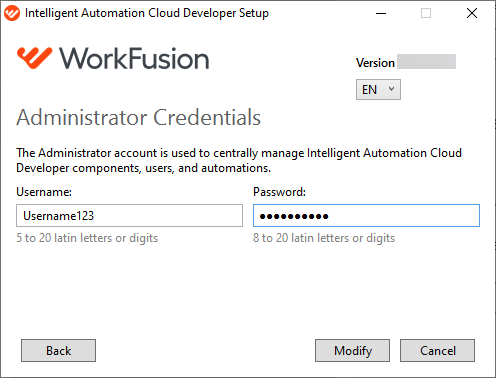
Change your username or password and click Modify.
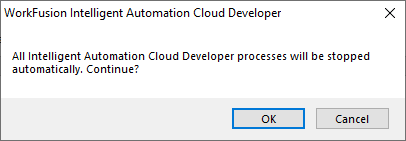
All IA Cloud Developer processes are stopped automatically. To continue, in the warning message window, click OK.
Wait until IA Cloud Developer is modified. Click Finish to exit.
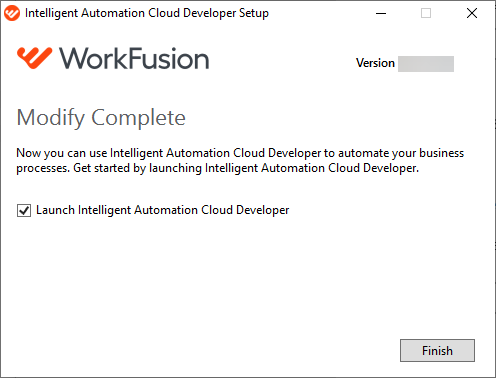
After that, the default credentials for all the components change to new ones. Use the updated credentials to access the components.
Use Nexus
Starting from v10.1, local Nexus is installed automatically as part of IA Cloud Developer. With local Nexus, you can avoid using the shared public Nexus and pull random Bot Config Bundles (BCBs) to your local Control Tower. Alternatively, use your company's hosted Nexus server.
For a local development environment, you can have all WorkFusion environment components within a workstation.
Nexus automatically downloads all JARs from the wf-machine-config-bundle repository to C:\IntelligentAutomationCloudDeveloper\machine-config-bundle. Then, Control Tower reads the JARs from the directory and includes them into the Bot Task classpath.
To access the Nexus Repository Manager UI, in your browser, go to http://localhost:8081/nexus/ and log in with the default credentials:
- username:
admin - password:
admin123
Apply Maven Archetype
All out-of-the-box ODF Archetypes have a profile to build and deploy locally. The Archetype's root pom file contains the configuration:
<bcb.repository.url>http://localhost:8081/nexus/service/local/repositories/wf-machine-config-bundle/content/</bcb.repository.url>
The user credentials to deploy to out-of-the-box local Nexus are configured automatically in your local Maven's settings.xml file as you install IA Cloud Developer:
<server>
    <id>bcb-repository</id>
    <username>admin</username>
    <password>********</password>
</server>
Track logs
To resolve any issues faster, Launcher shows logs of all main processes in real time as soon as components start running.
To view logs, switch between the components tabs. The log data is available in the center part of the Launcher window. Mind the following options:
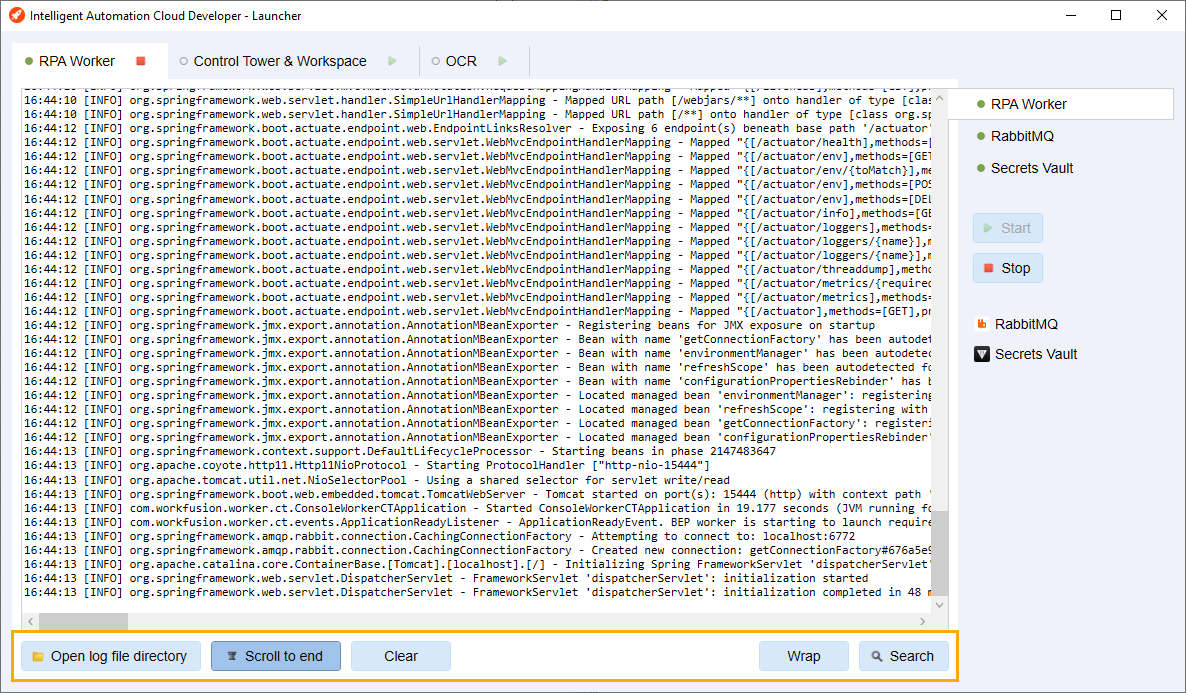
To access log files, click Open log file directory. Your file explorer opens the corresponding folder.
To view recent messages, click Scroll log to end for the records to scroll to the end automatically.
To clear the output console, click the Clear button.
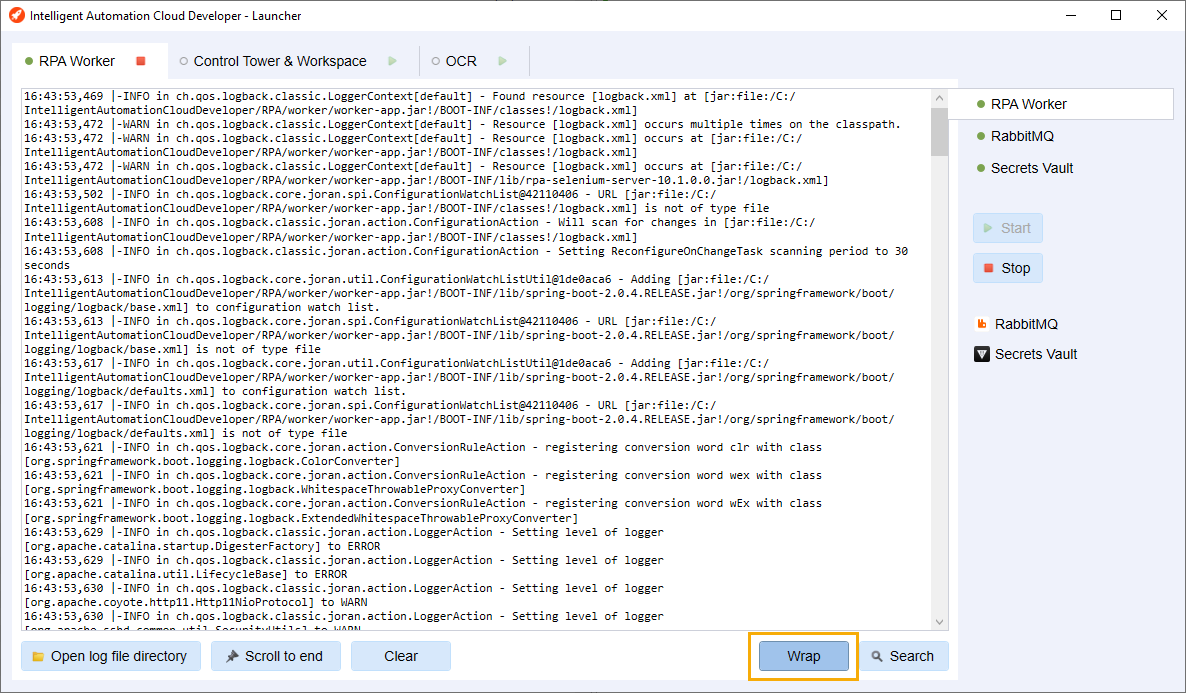
To hide the horizontal scroll, select Wrap.
To search for specific data, choose the Search option.
Search in logs
To search through logs, perform the following steps:
Click Search.
In the Search field, enter your search parameter:
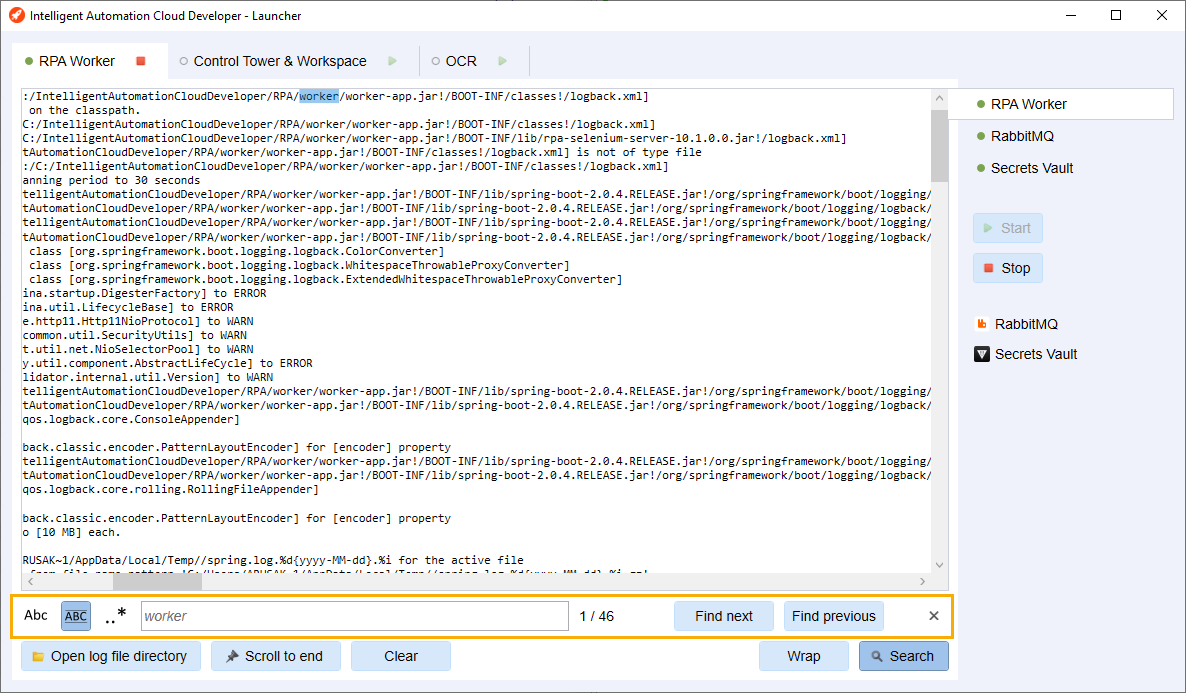
If needed, specify one of the search options:
- Abc: matches the case.
- ABC: matches the whole word.
- ..*: uses regular expressions.
Navigate through search results by clicking the Find next and Find previous buttons.
To exit the search mode, click Search or the Close button.
tip
You can also search in logs by pressing Ctrl + F.