
Platform Monitor for RPA - installation
Install Platform Monitor for RPA
Platform Monitor is installed with RPA. But it requires additional configuration.
Installation should go through the following steps:
- Select installation type as described in Platform Monitor for RPA - Architecture.
- Check all prerequisites for deployment.
- Configure Platform Monitor for RPA.
- Configure RDP settings for the RDP-in-RDP installation type.
- Start Platform Monitor manually.
- Validate installation.
- Configure RPA service startup after login.
- Configure Active session recovery after reboot.
Select installation type
Currently the following installation types are supported:
- 1 RPA Bot per server (VDI)
- Multiple RPA Bot's per server (RDP-in-RDP)
Make sure deployed RPA configuration matches these requirements. Platform Monitor might not work properly under non-standard deployments
- There is 1 Bot Relay process per server.
- All Bot processes are running on the same server as Bot Relay.
Prerequisites for deployment
Firewall
- Open connection from APM Server to RPA Server on 10000-10010 ports.
- Open connection from RPA Server to APM Server on 10101 port (this might be customized during installation).
- APM host is accessible to users via HTTP on 10101 port.
APM Linux instance
- Platform Monitor is installed.
- 2 packages need to be installed: rdesktop, Xvfb. If Xvfb is not available, check alternatives from your subscribed repositories. This is required only for RPA Active session recovery after reboot and is not mandatory
RPA Server Windows instance
There should be separate Windows user for each RPA Bot.
There should be separate Windows user for Bot Relay session in case of Multiple RPA Bot's per server (RDP-in-RDP) installation type.
Local user provisioning:
net user Hub Test123 /add
net user Node1 Test123 /add
net user Node2 Test123 /add

net localgroup "Remote Desktop Users" Hub /add
net localgroup "Remote Desktop Users" Node1 /add
net localgroup "Remote Desktop Users" Node2 /add
Add RPA full folder premissions to all created users (Hub, NodeX).
Hub user should be member of the Administrator group.
Configure Platform Monitor for RPA
Edit C:/RPA/wfagent/conf/environment.yml or C:/RPA/wfagent/environment.yml and update three properties:
pm_hostname: wfapm.com                        # Modify to hostname of Platform Monitor (APM). Required. Example: apmhostname.server.com
pm_port: 8443                               # Modify port number of Platform Monitor (APM). Optional if not modified during installation. Required only for ssl. Example: 13101
pm_scheme: https                            # Modify protocol of Platform Monitor (APM). Optional if not modified during installation. Example: https
pm_path_context: "/_agent"                # Modify context path of Platform Monitor (APM). Optional if not modified during installation. Example: "/_monitor"
pm_user: ENC(Y9OMveSzAbN4yObOxme27g==)      # Modify username of Platform Monitor (APM). Optional if not modified during installation. Example: user
pm_password: ENC(0wdRxRSaEMrYAykPH46A1Q==)  # Modify password of Platform Monitor (APM). Optional if not modified during installation. Example: password
agent.hostname: wfrpa.com                   # Modify to hostname where current Windows session will be running. This hostname should be resolvable from APM server. Example: rpa-1-hostname.server.com
Comments:
- Ansible default username and password for Platform Monitor synchronized with
environment.ymlfrom RPA installation. - If you want to update username and password for Platform Monitor in
environment.ymlfile you should update secutiry storage (Vault) too.
Configure RDP settings
Required only for the RDP-in-RDP installation type.
RPA packages come with bundled wfagent directory where you can find two RDP client connection files:
nodeX.RDP: connection to local RDP with Bot #X
Open these files and perform the following actions:
Run RDP client using nodeX.RDP.
Make sure you save credentials for this connection.
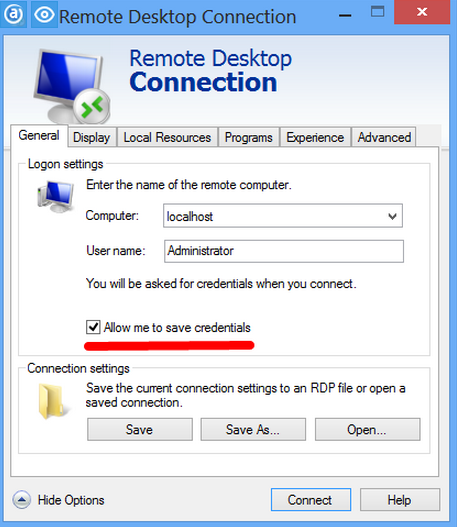
Open connection and mark all checkboxes to prevent any undesired dialogs in future.
Make sure you are connected to RDP.
Disconnect and open connection again. There should be no any warning messages during initial connection or inside RDP session. They will disrupt any automatic session logon
Scheduling Platform Monitor startup on logon
Scheduling of tasks can be performed using task scheduler or advanced group policies. Use the method below only if you don't have any other standard way to schedule tasks for users Schedule startup tasks example:
VDI Deployment type
Two tasks are required for single VDI user:
SchTasks /Create /SC onlogon /TN "wfagent-hub" /TR "C:\RPA\wfagent\bin\wfagent-hub-nordp.bat" /RU Hub /IT /F

SchTasks /Create /SC onlogon /TN "wfagent-node0" /TR "C:\RPA\wfagent\bin\wfagent-node0.bat" /RU Hub /IT /F
RDP-in-RDP deployment type
Three tasks are required. One for Hub user and one for each Node user:
SchTasks /Create /SC onlogon /TN "wfagent-hub" /TR "C:\RPA\wfagent\bin\wfagent-hub.bat" /RU Hub /IT /F

SchTasks /Create /SC onlogon /TN "wfagent-node0" /TR "C:\RPA\wfagent\bin\wfagent-node0.bat" /RU Node1 /IT /F
SchTasks /Create /SC onlogon /TN "wfagent-node1" /TR "C:\RPA\wfagent\bin\wfagent-node1.bat" /RU Node2 /IT /F
Platform Monitor for RPA
Configuration of RPA manager is also related to configuration of Bot Relays.
To allow Bot Relay autostart it necessary to provide correct credentials to Platform Monitor at PM host.
Gain shell access to PM host.
Switch to the
<install_dir>/wfagent/settingsdirectory.Modify template settings in
rpa.ymland provide settings under credentials id, user, password:rpa.yml# replace credentials credentials: - id: rpahostname1 # Put RPA server public host. Required. Example: rpa.hostname.server.com user: user # Put RPA server RDP username. Required. Example: user password: password # Put RPA server RDP password. Required. Example: passwordRestart WF Agent:
wfmanager restart wfagent
Update RPA Platform monitor keystore if APM server has SSL
RPA Platform Monitor doesn't support SSL but APM server supports SSL as it needs to update the RPA Platform Monitor keystore.
Steps
Download root certificate from APM server URL is like that
http://dns_host:port/CA.crt, where:Arguments
dns_host is host of APM server
port which is set during install. Default is 8080
You might download via the powershell command:
Invoke-WebRequest -Uri "http://dns_host:port/CA.crt" -Outfile "ca.crt"Find RPA Java path, for example,
C:/RPA/java.Go to the
bindirectory, for example,C:/RPA/java/bin.Import downloaded
ca.crtto the RPA Java keystore.Run this command with your arguments from the
C:/RPA/java/bindirectory:keytool -import -alias APM -file "path/to/ca.crt" -keystore "path/to/cacerts" -storepass changeitwhere:
Arguments
path/to/ca.crt is absolute path to downloaded ca.crt, for example, "C:\\ca.crt"
path/to/cacerts is absolute path to default RPA java keystore, for example, "C:\\RPA\java\jre\lib\security\cacerts"
changeit default password for RPA java keystore
Multiple RDP sessions on Windows Server
- Connect to Windows Server.
- Navigate to Server Manager > Manage > Add Roles and features > Next > Next > Next > Select Remote Desktop Services > Next > Select Remote desktop session Host > Finish > Next > Select Remote desktop session Host > Finish.
- Add Features.
- Click Next > Finish.
Start Platform Monitor manually
1 RPA Bot per server (VDI)
- Run
C:/RPA/wfagent/bin/wfagent-hub-nordp.bat. - Run
C:/RPA/wfagent/bin/wfagent-node0.bat.
Multiple RPA Bot's per server (RDP-in-RDP)
Run C:/RPA/wfagent/bin/wfagent-hub.bat. All RPA Bots should start automatically.
Using Platform Monitor for RPA
- Make sure that RPA processes (like Nginx, Hub, Node) are not started manually. Stop everything before launching Platform Monitor.
- Launch Platform Monitor. It should start all configured processes (Nginx, Bot Relay, local RDP Connections, Bots).
- Control all processes in the Platform Monitor UI. Navigate to Processes or Bot Manager.