Migrate Use Case
If you need to migrate a Use Case from one Control Tower to another (for example, from the development to the production environment), the workflow depends on whether the source and target Control Tower have the same SPA version. If version is the same, use the simple migration procedure. If the versions are different, opt for a workaround.
Simple migration
Simple migration is only possible when the source and target Control Tower have the same SPA version.
Export from source version
To export from a source version, do as follows:
At your source (development) instance, go to System Settings > Use Cases.
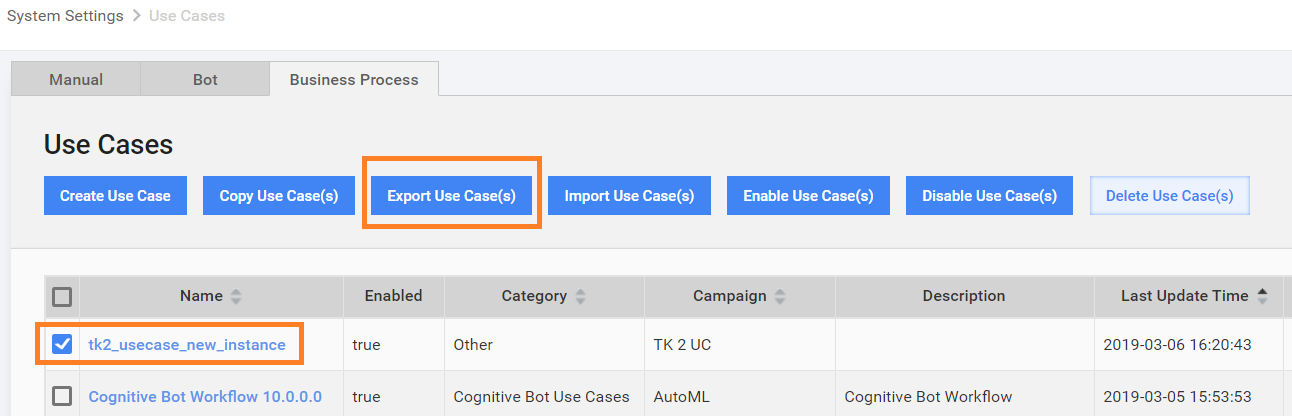
Select your use case.
Select Export Use Case(s) to generate the XML file with the use case.
Import to target instance
On your target (production) instance, go to System Settings > Use Cases.
Select the tab corresponding to the type of the use case you have exported on the step 3 (Manual, Bot or Business Process).
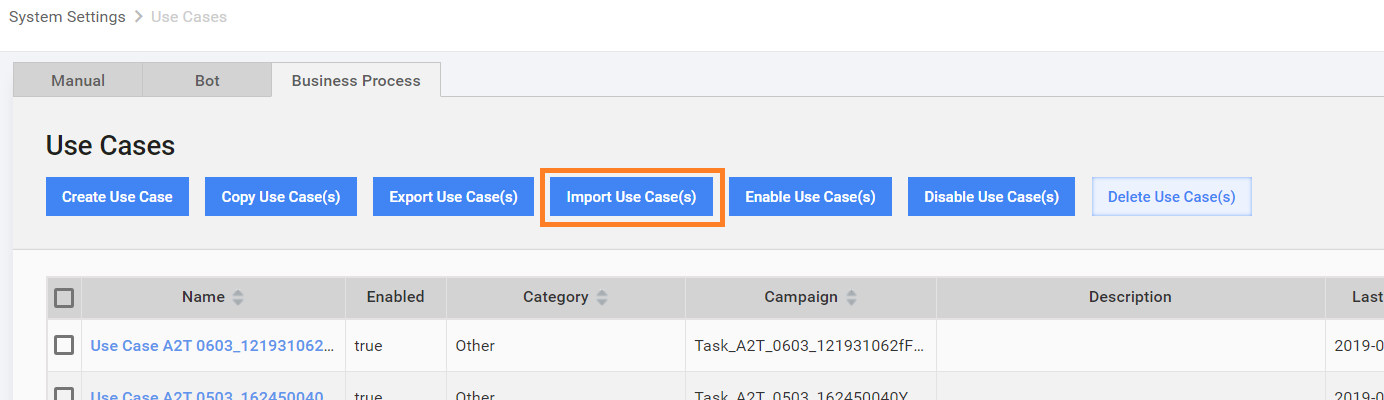
Select Import Use Cases(s) and upload the XML file from step 3.
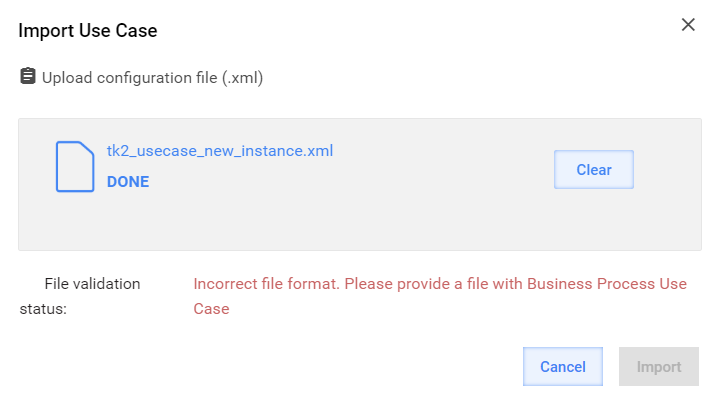
Note that the target Control Tower should have the same SPA version as the source Control Tower, otherwise the XML file is not recognized:
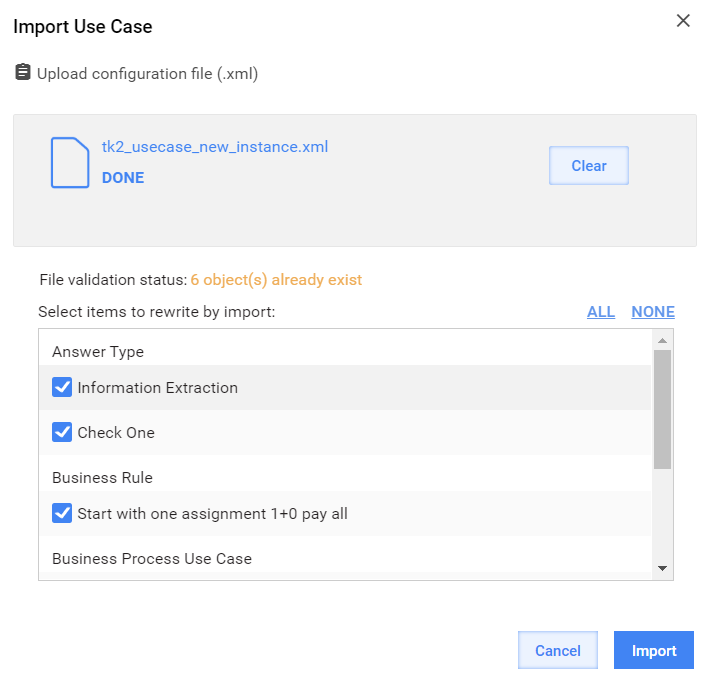
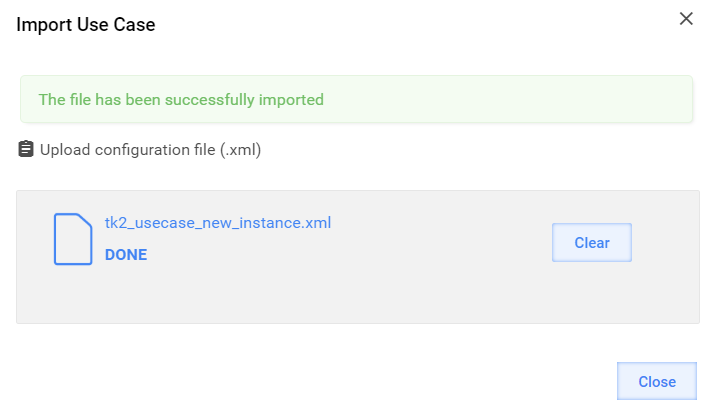
If the version is correct, preview and select components to Import:
Workaround
The workaround is should be used when cross-version import of a use case is required.
Export from source version
On the System Settings > Use Cases tab, find your use case.
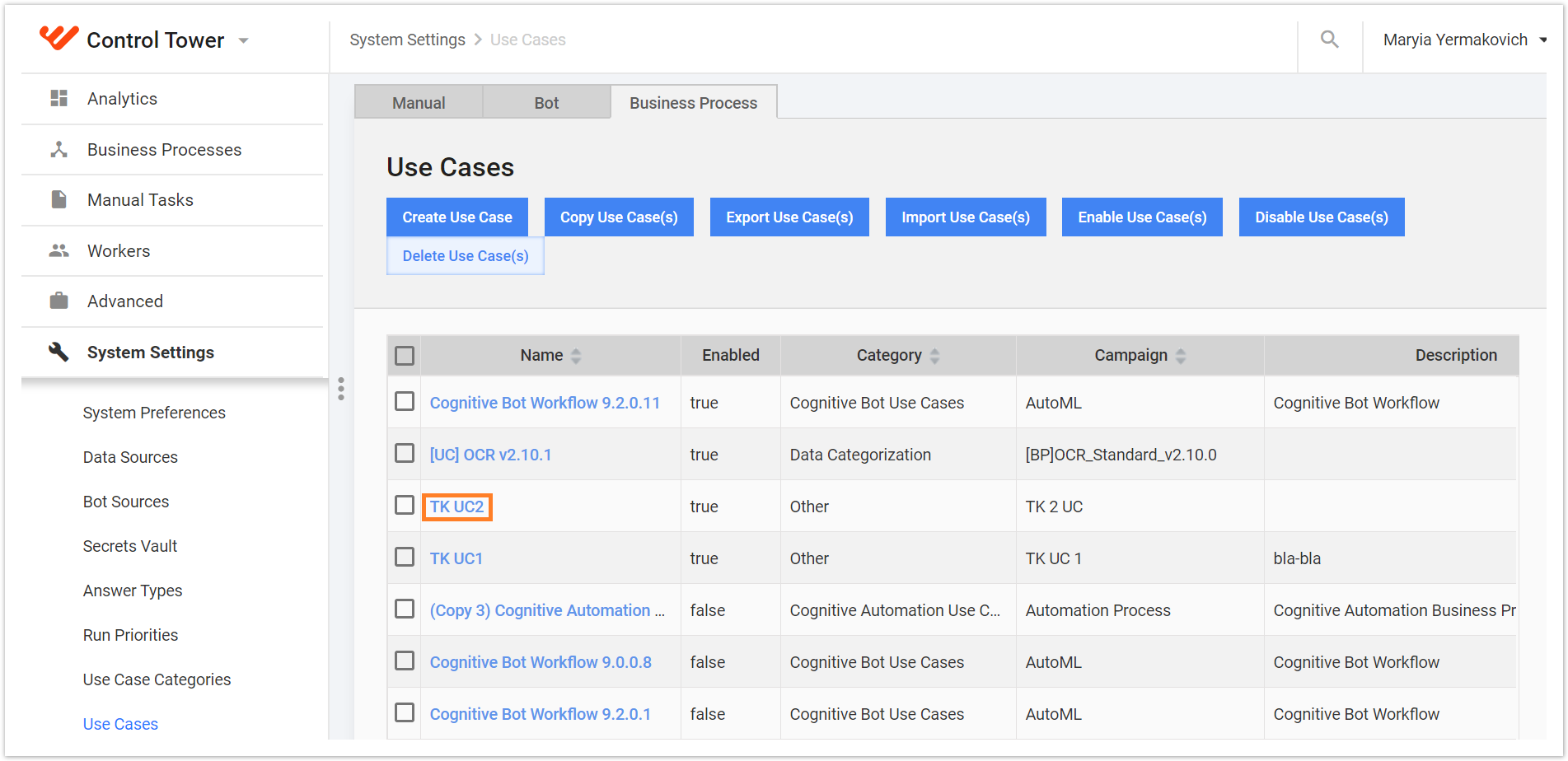
Select your use case and find the business process it is based on: Edit Use Case > Campaign.
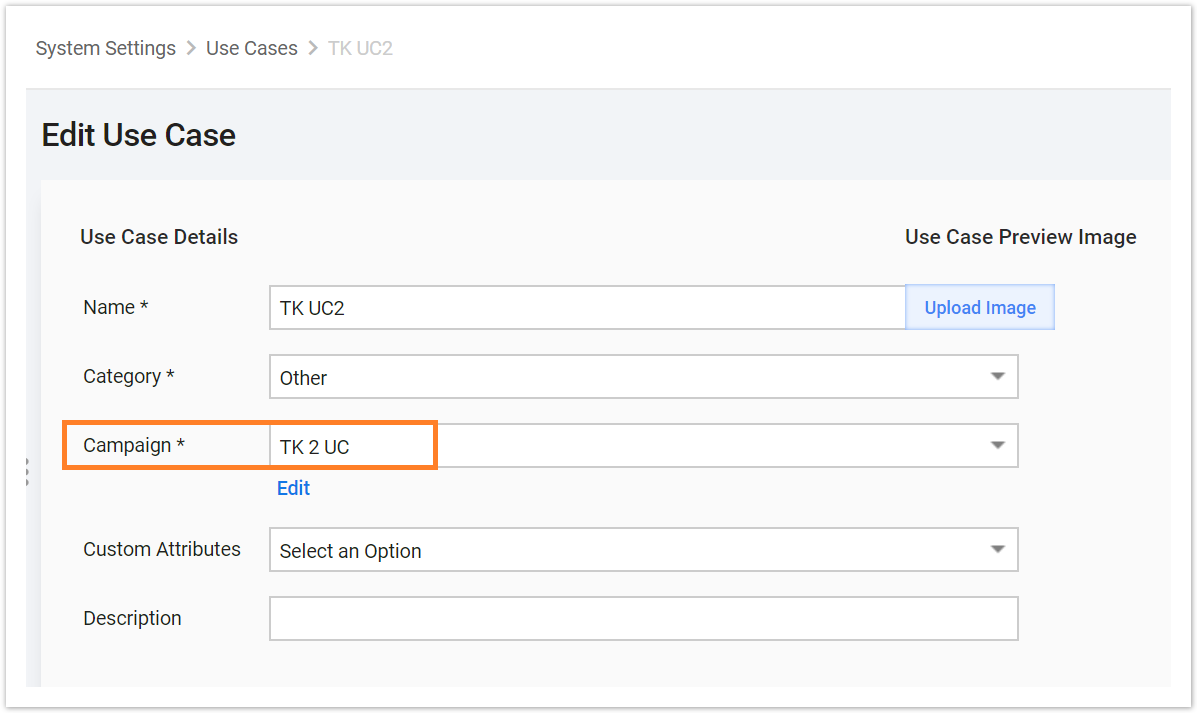
Go to Business Processes and find this business process.
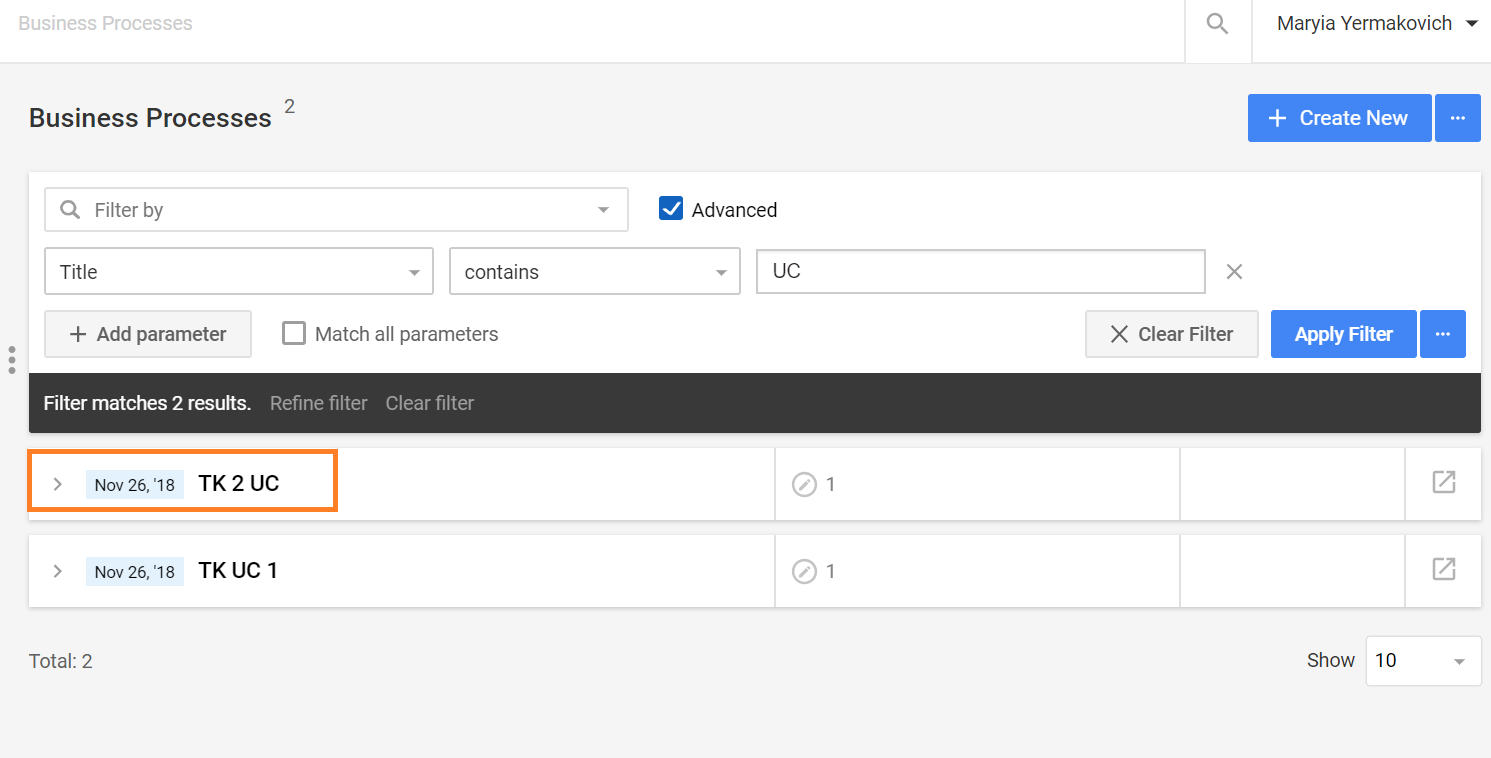
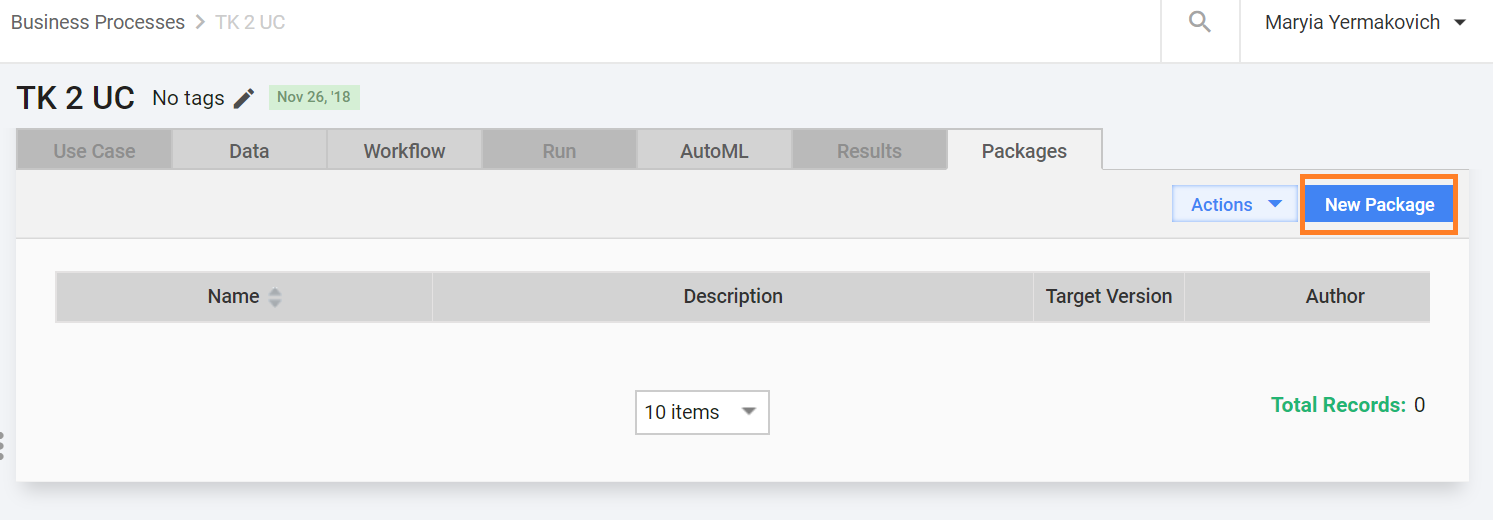
Open it and go to the Packages tab, select New Package.
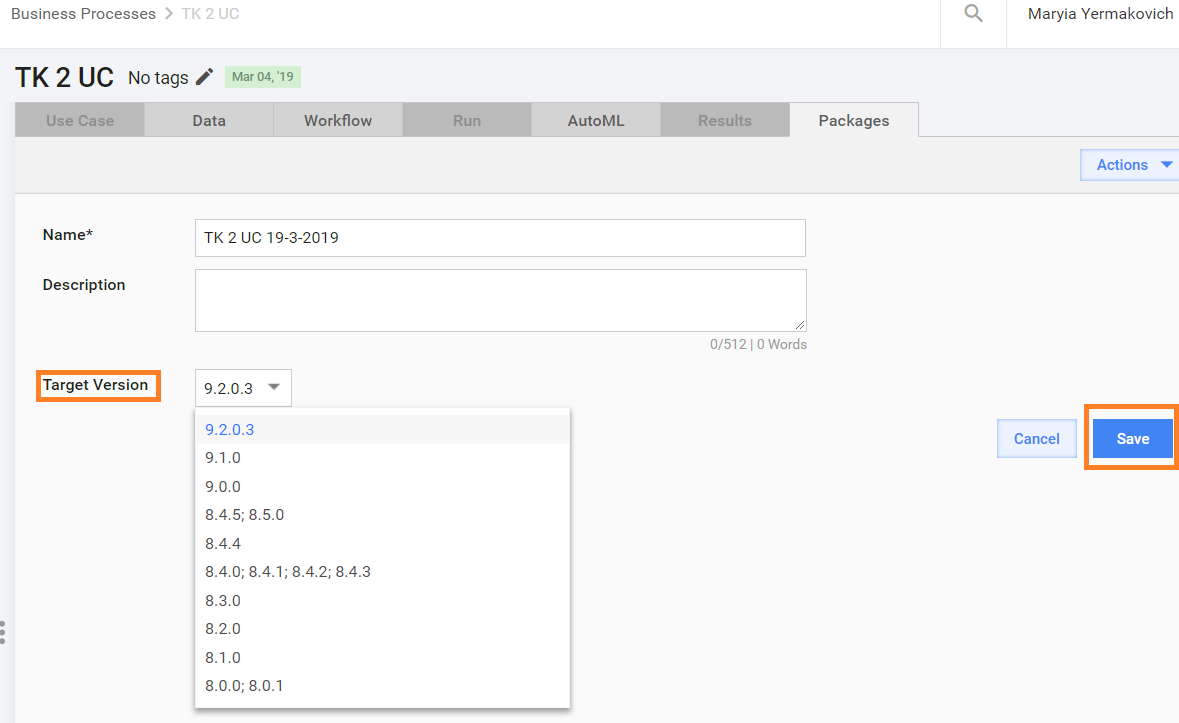
Select the target version (SPA version of your target instance) and save your BP.
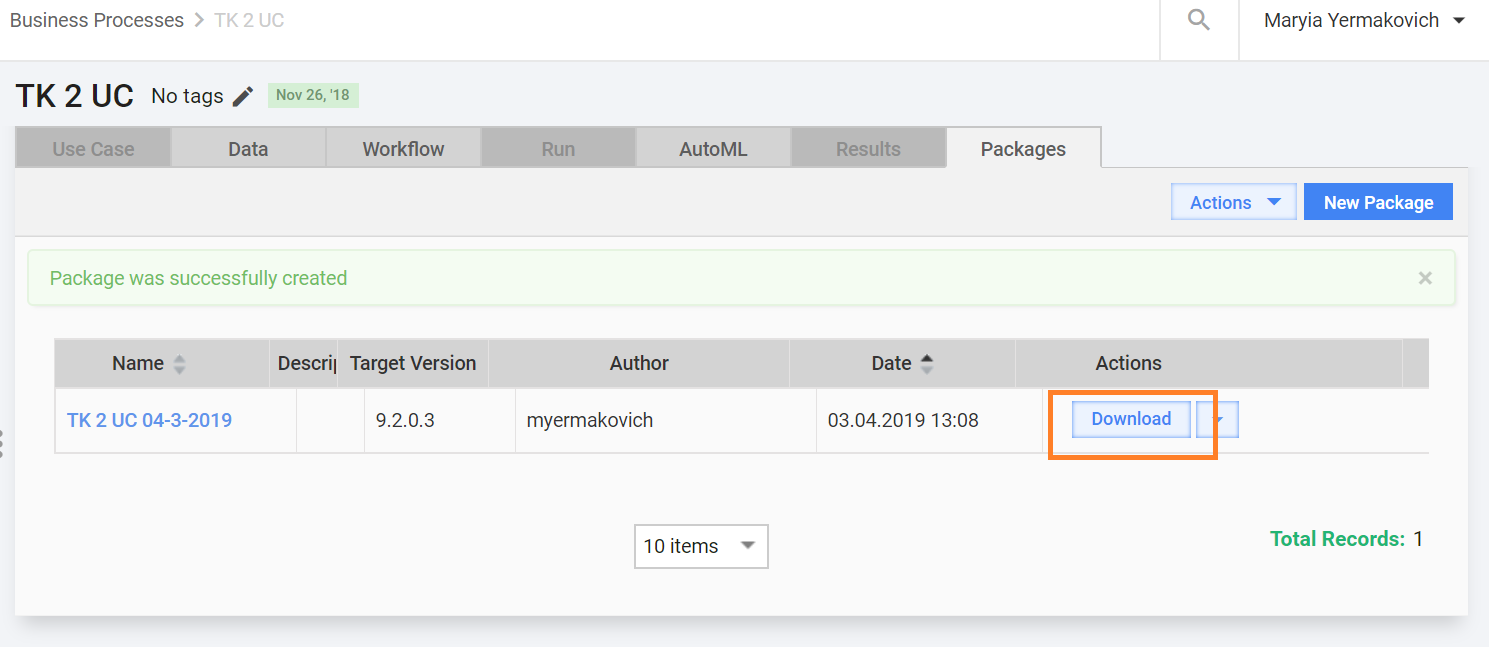
After your BP package is generated, download the zip file.
Import to target instance
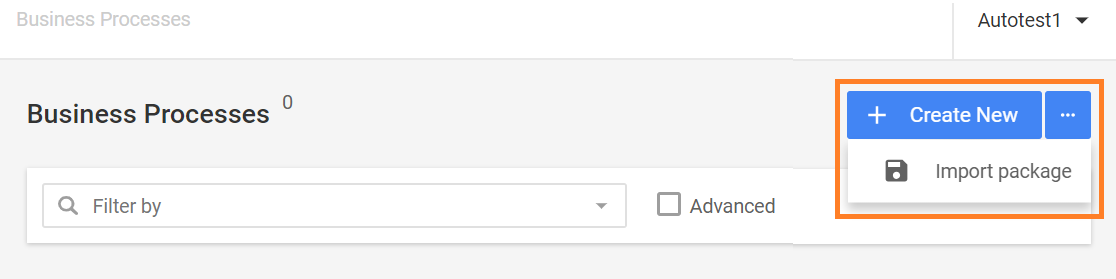
In the target instance of Control Tower, select Business Processes > Import Package.
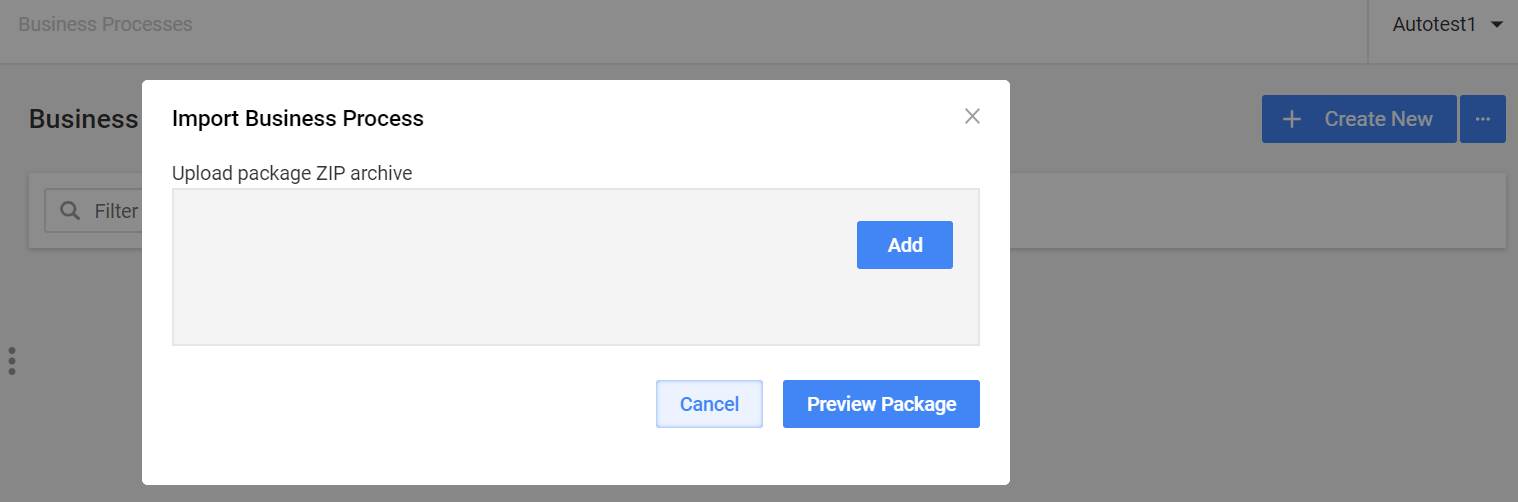
Select Add and specify your zip package.
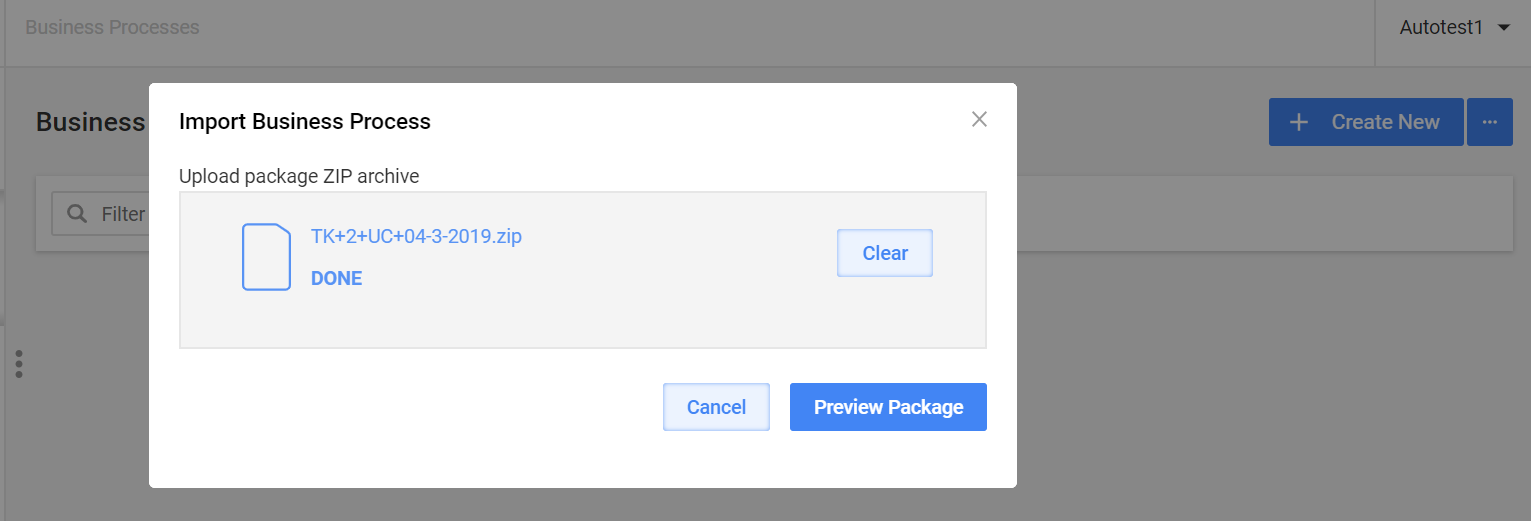
Select Preview Package.
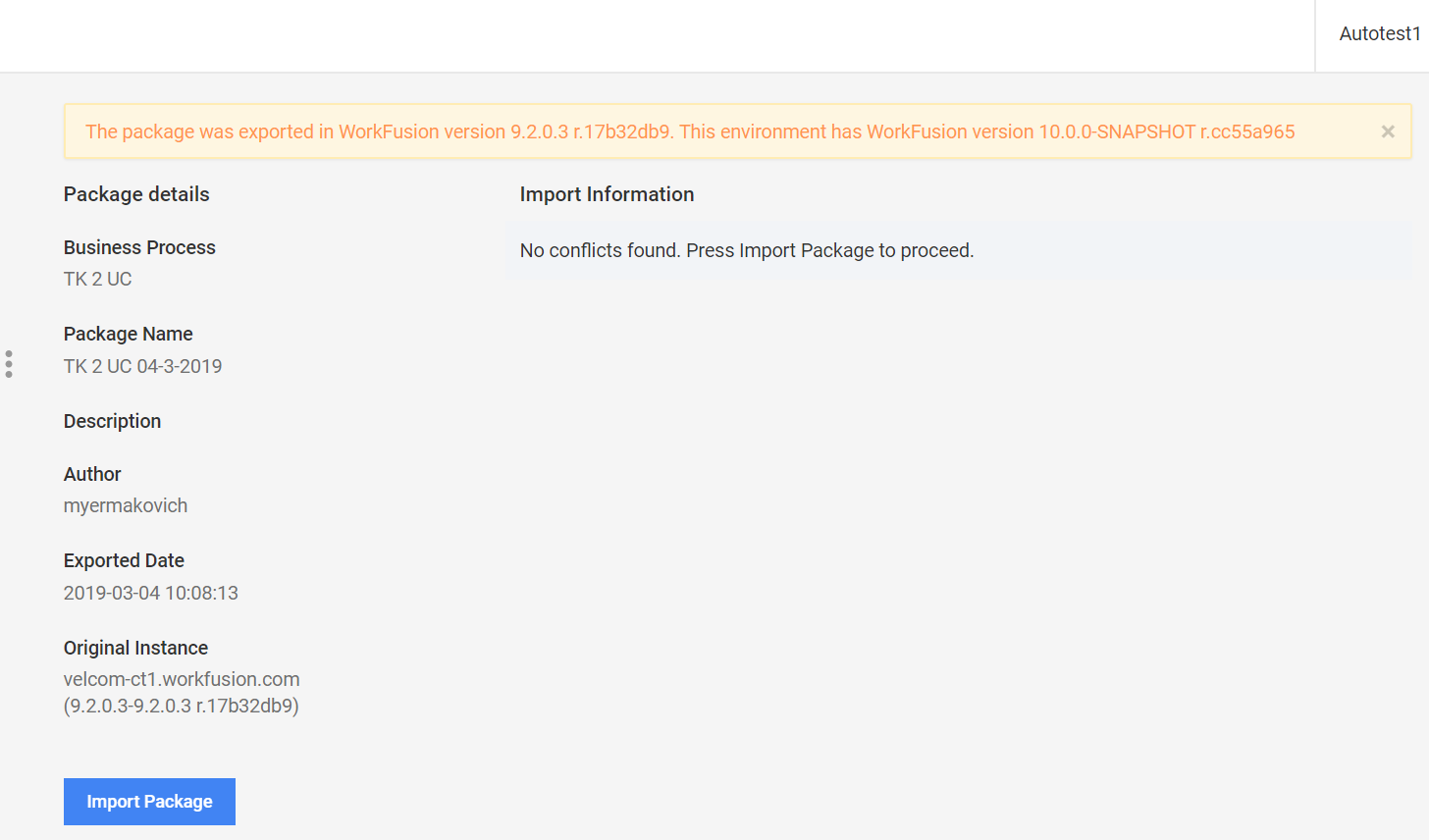
After the package is checked for compatibility, select Import Package.
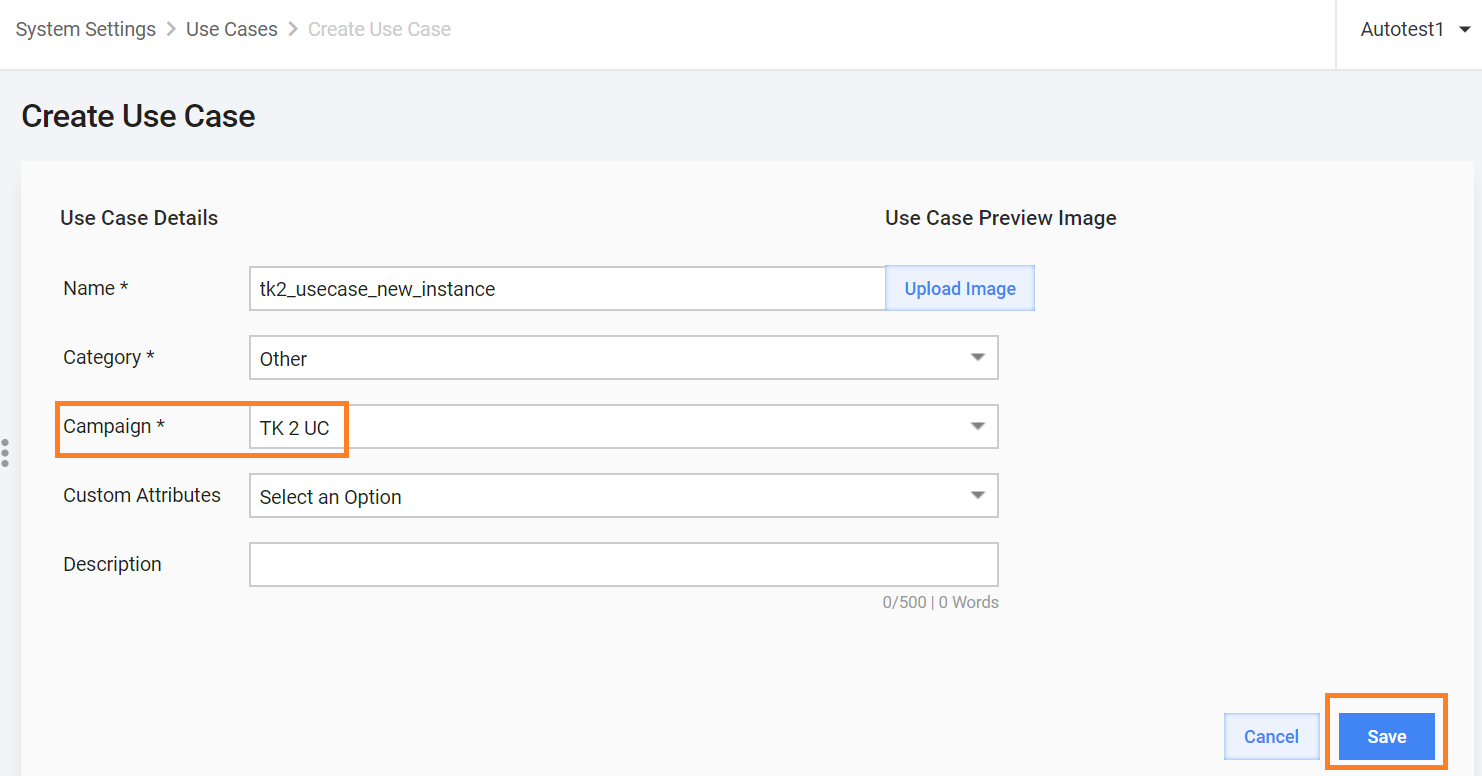
Go to System Settings > Use Cases and select Create Use Case.
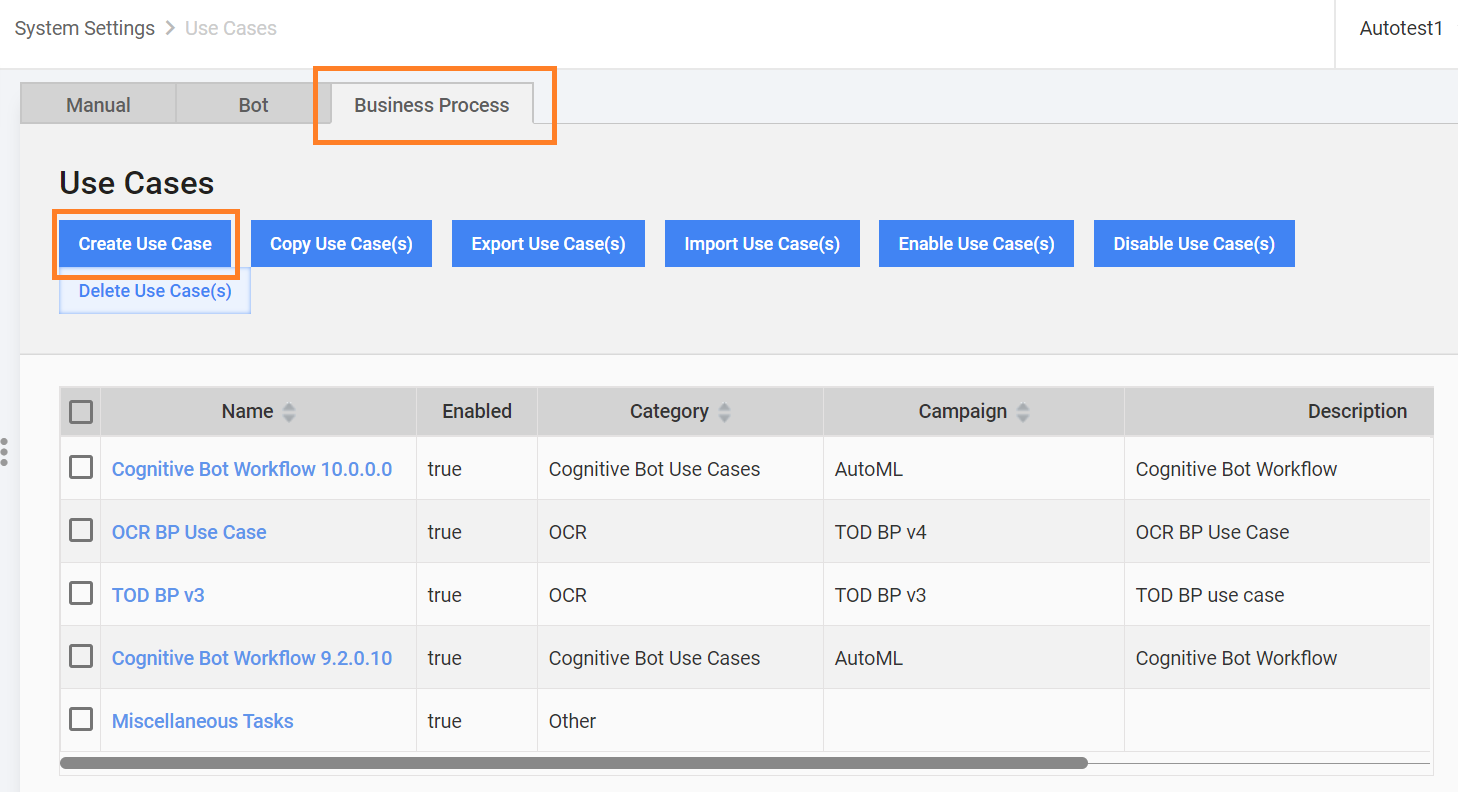
In Campaign section, select the BP you imported on step 4, and save your use case.