
Properties
On the Properties tab, you can set different options for your Task. If you are new to the WorkFusion platform, edit the Keywords and Description fields – all other options have default values set.
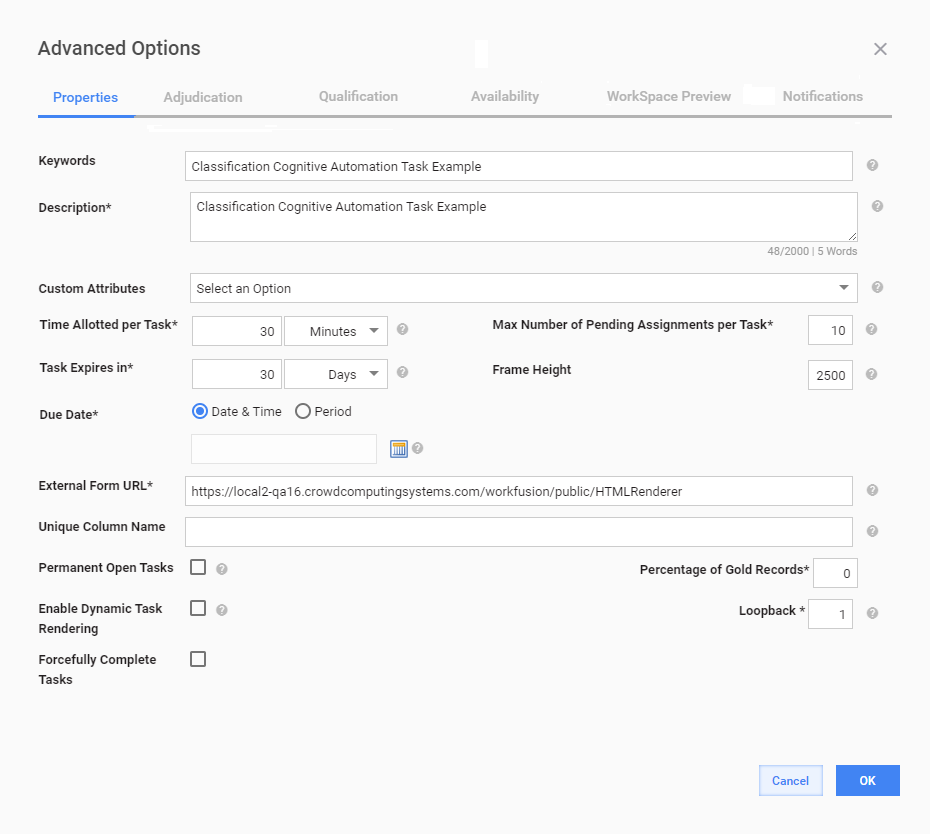
Keywords
Provide keywords that will help Workers identify your Task while searching.
Description
Briefly describe what Workers are expected to do in order to successfully complete the Task and get paid.
Custom Attributes
If you want to add Custom Attributes to your Task, select the Field Scheme upon which they will be based.
Time Allotted per Task
Maximum amount of time Workers are allowed to spend while completing the Task. If a Worker exceeds this time limit, the Task becomes available for other Workers.
Task Expires in
A time period after which a Worker Task expires if nobody accepts it. After expiration, the Worker Task will not be available to Crowd Workers.
Due Date
Date until all Worker Tasks should be completed. The Task becomes unavailable after the Due Date.
Max Number of Pending Assignments per Task
The maximum number of Tasks a user can accept and keep in accepted state (not submitted). To accept new Worker Tasks, Worker should start submitting the accepted ones. Value -1 for unlimited Worker Tasks per Worker.
Frame Height
The height of the frame element which contains the Worker Task. Useful Tip: make the frame height equal to the height of the Task Design (Preview).
External Form URL
Displays the URL of the Task. This field is automatically populated based on Crowd settings.
After the Task has been started, this URL is used to build a Task preview link with public access.

Unique Column Name
Used for grouping Records from the uploaded Data file. See the Grouping Records by Unique Column topic.
Permanent Open Tasks
The number of Worker Tasks available to Workers simultaneously. For example, a Task contains 100 Records, Permanent Open Tasks = 10. It means each Worker in WorkSpace can see that only 10 Tasks are available in this Task Type.
Percentage of Gold Records
This field is used to create Tasks with Gold Data for some Records. These Tasks are intended to imperceptibly check the Qualification of Workers.
See the Create Tasks with Ongoing Qualifications topic for a detailed description.
Turn On Recommendations for Automation
Check to enable continuous monitoring and Automation Recommendation Engine calculations for this Task.
Loopback
This function is used to automatically assign a Worker Task to a new Worker if the majority is not reached. The Loopback number defines how many times the Task will be launched if the Task results contain Records without Confidence.
Default value = 1, it means that no new Worker answer is needed. This option is useful for Tasks with Block Size > 1, in other cases use a different Adjudication Rule.
note
Loopback value shouldn't be applied to Qualification Tasks.
Enable Dynamic Task Rendering
Enable dynamic Task sorting. This functionality is intended to sort Worker Tasks by type, to make it possible to complete Tasks in a custom order.
See the Dynamic Task Rendering and Task Comparator (Manual tasks sorting) topics for a detailed description.
Forcefully Complete Tasks
This feature allows a user to forcefully complete individual Tasks and Business Processes when the following completion criteria are met:
- % of Records completion
- idle time
The task is completed when both conditions are met.