Configure no-code rule-based Bot Tasks
When you design a Business Process (BP), you can apply rules that affect what path to follow in the BP depending on various conditions. Thus, you can end your BP early if some issue is detected or the data is not enough.
A business rule is basically a data element in your BP. Rules are individual collections of logic that can potentially define a decision.
A decision element functions as follows:
- Each rule has access to all data objects in the context.
- Rules have priorities. If multiple rules are satisfied, the priority is given to the highest rule.
- You can use any string input as a decision and then apply it at a later step.
The article describes how to set up rules in specific no-code Bot Tasks (bot steps):
Create Business Process with rule-based bot step
To build a BP with a rule-based Bot Task, follow the steps:
Create a BP as described in the guide.
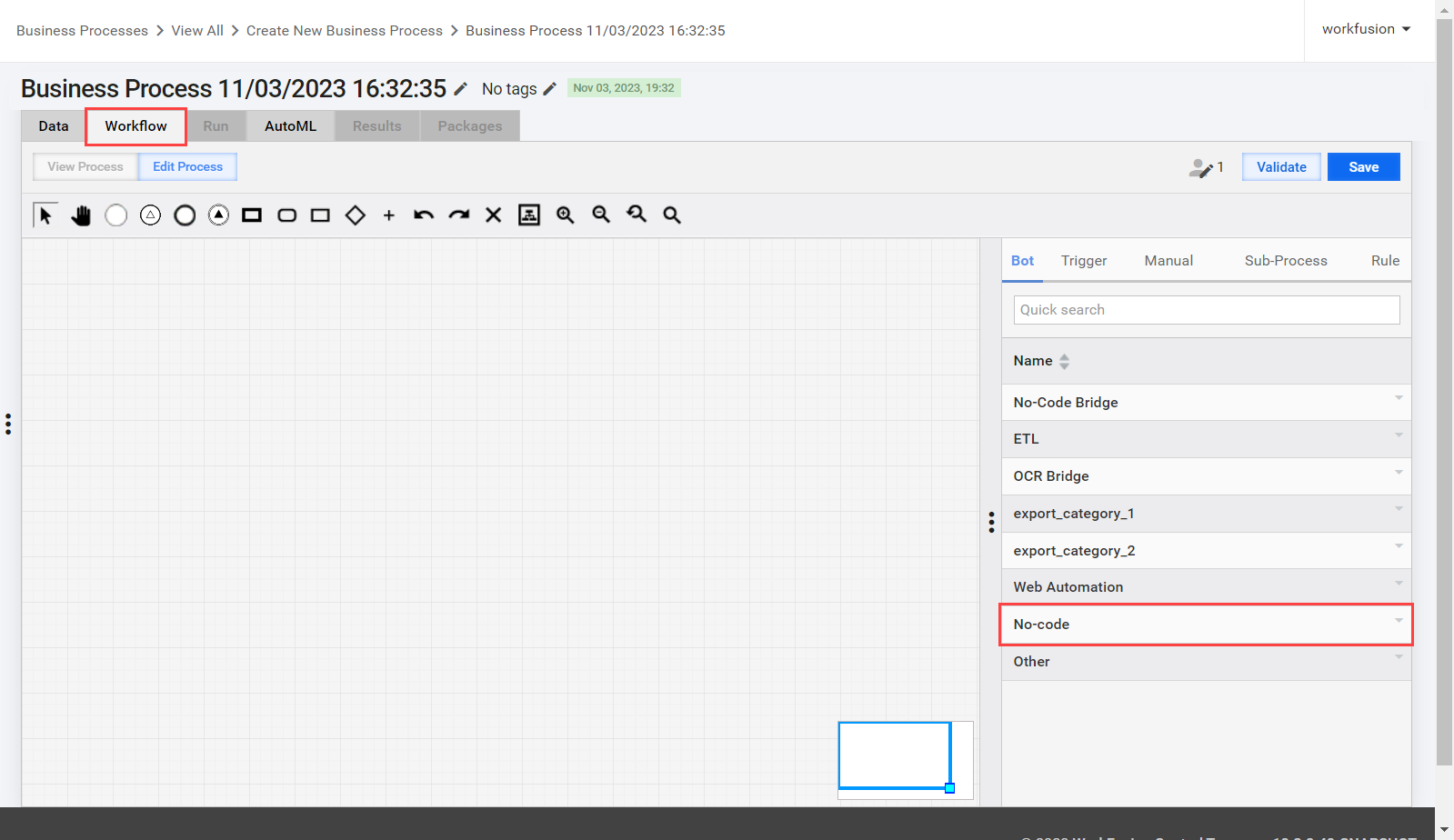
Navigate to the Workflow tab. In the side panel on the right, select Bot and click No-Code to open the list of available no-code bot steps.
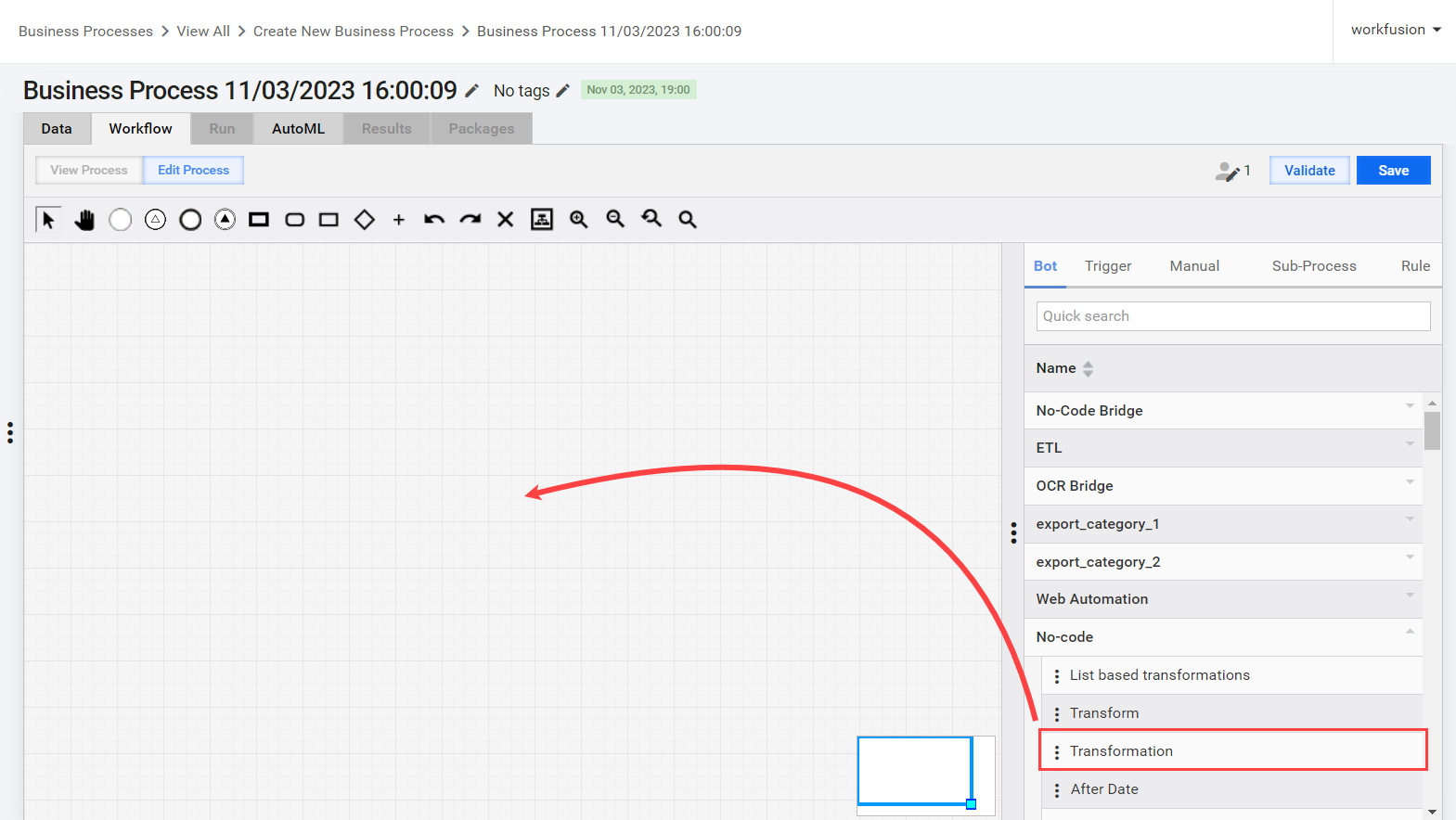
Hover over a needed step and click Copy. As a result, you create an independent Transformation step instance: the changes you make in the copy are not synchronized with the source. Select the step in the list and drag it to the canvas.
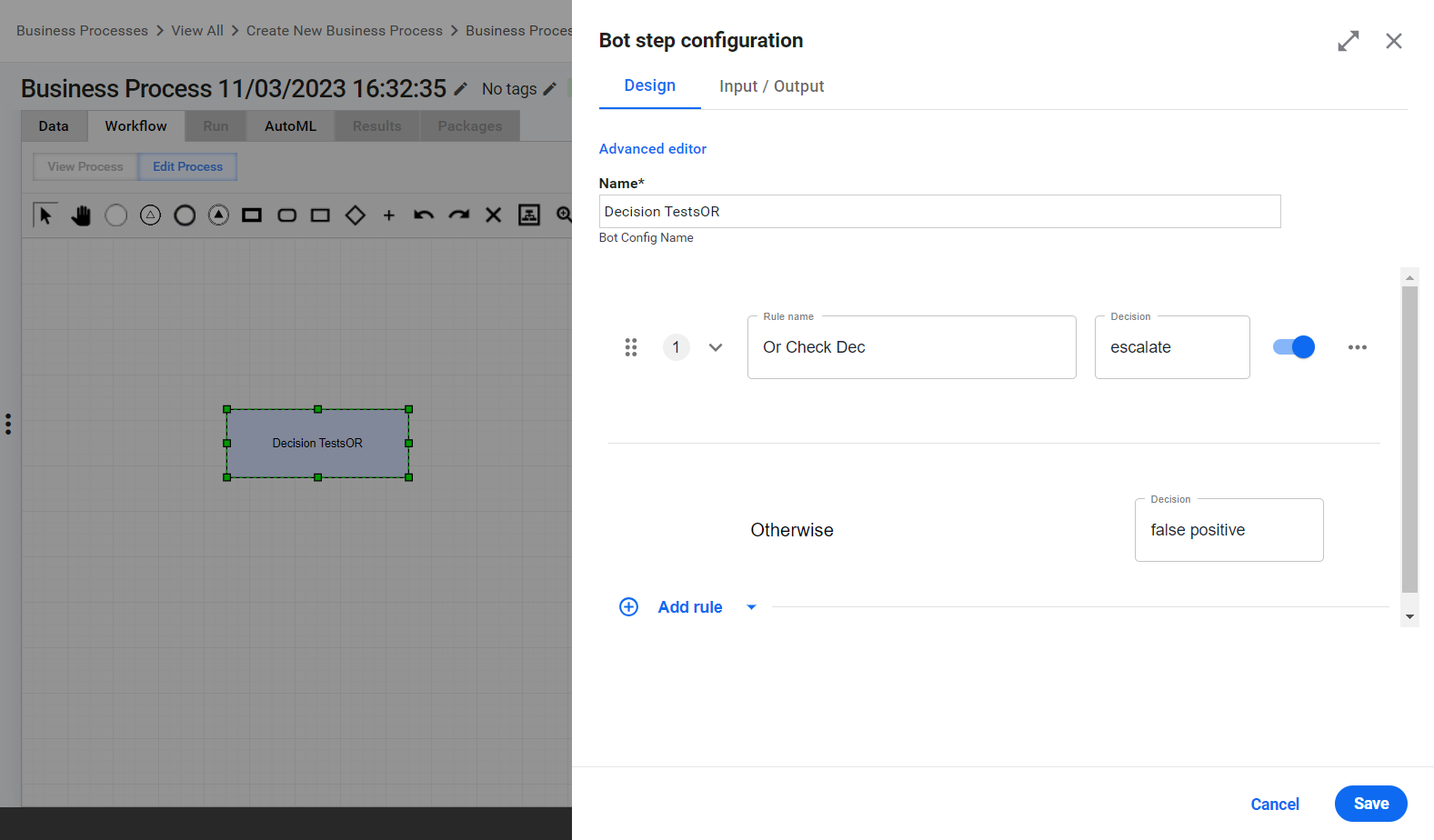
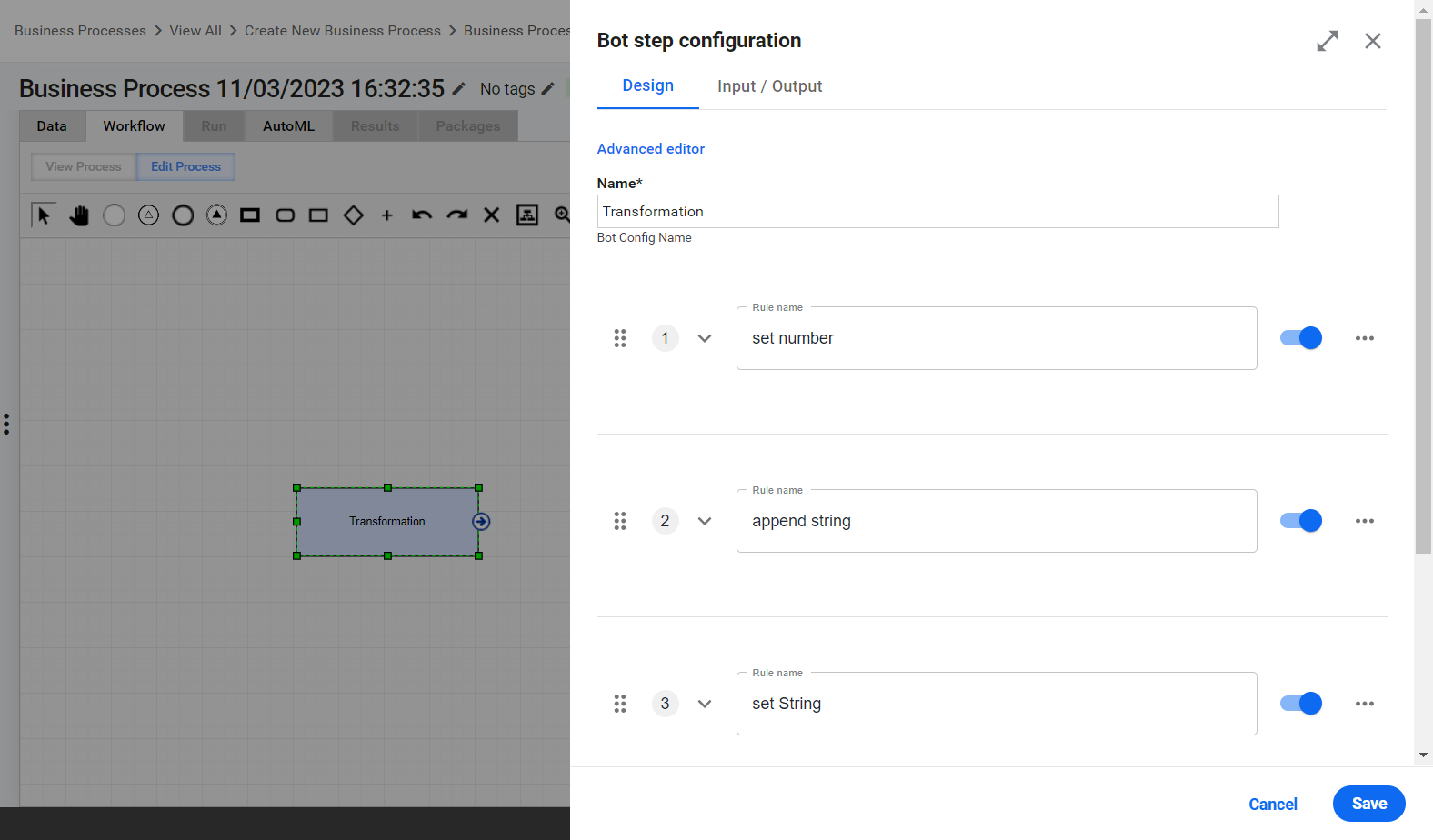
Double-click the step on the canvas. On the Design tab of the Bot step configuration panel, set up the rules for:
Enable and set up input and output contracts on the Input / Output tab.
On setting up the inputs and outputs, the whole BP becomes a schema-based one, and you will have to configure inputs and outputs for the rest of the steps in the same BP (if those are not configured yet).
Click Save.
If you want to add a rule-based bot step to your existing schemaless BP, your first step is to convert the BP into a schema-based one. Otherwise, the rule-based step's logic won't work.
To change your BP into a schema-based one, see Configure input and output contracts in Business Process steps | Add contract.
Configure Decision step
With the help of a Decision step, you can set up simple rules. For any rule, configure a condition that requires a certain number of parts, such as a primary variable, an operator, and a secondary variable.

- A primary variable is any data element from a session, such as:
- Source, extracted, or enrichment data
- Calculated metrics and transformations
- Model results
- An operator compares two variables based on which there is a decision. For the list of operators, see the Supported operators section.
- A secondary variable can contain data enumerated above or literal values.
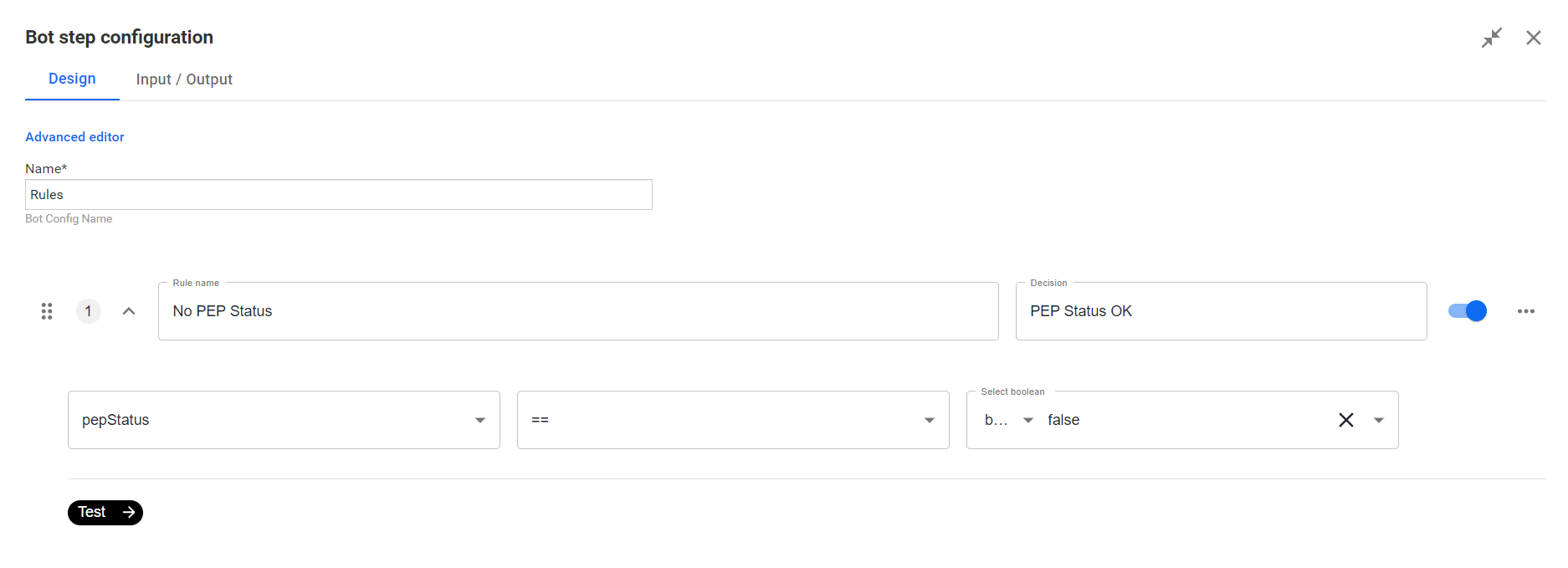
To configure rules for a Decision step, go to its Design tab. For more convenient work, you can switch to the fullscreen mode by clicking the Open in fullscreen option  next to the Close icon.
In the Rule name field, enter a name for the rule.
Set up a condition. Define variables in the right and left fields and select the operator.
In the Decision field, specify the decision.
Click Save.
Configure Transformation step
The Transformation step is a more advanced form of a no-code Bot Task that allows you to implement complex scenarios. You can combine rules into rule sets by adding them together using the AND operator, which means that all the conditions must be satisfied for a rule to be observed. You can also apply the OR operator when executing the logic, which means any condition that is satisfied will overall satisfy the rule.
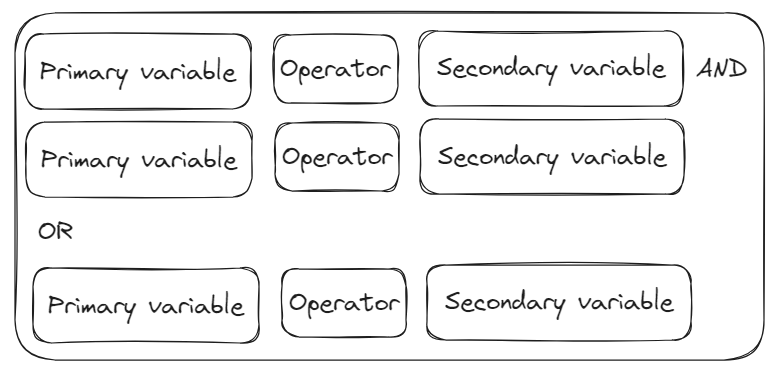
The right side of a transformation can have multiple fields required in different ways. Once you select a function, you see some labeled input parameters you must populate. The number of parameters can vary:
No parameters. For some rebuilt functions, such as clear, clean, rest, or switch a boolean, you do not need to select a variable on the right.

One parameter. Functions to update a field, perform a mathematical operator, or remove an item from a list require one input on the left.

The input types are as follows:
- A schema-selected item
- A custom value, for example, a string or a list of varying sizes
- A custom dropdown, for example,
<document.output> <Change Case> <lower>where the dropdown containslowerandupper
Two parameters. You can apply two-parameter inputs to change strings, for example, reformat a date or clean up messy text output.

The input types are as follows:
- A schema-selected item
- A custom value, for example, a string or a list of varying sizes
- A custom dropdown, for example,
<document.output> <reformat> <“MM-DD-YYY> TO <“DD/MM/YY>, where there is a list of supported date formats
Three parameters. For three-parameter use cases, you can apply the functions to fetch data from Data Stores or perform some complex prebuilt functions, such as geocoding.
The input types are as follows:
- A schema-selected item
- A custom value, for example, a string or a list of varying sizes
- A custom dropdown, for example,
<customer.address> <find> <“CURRENT”> from <addressStatus> In <fenergo.Addresslist>, where there is an array ofaddressobjects that have theaddressStatusfield
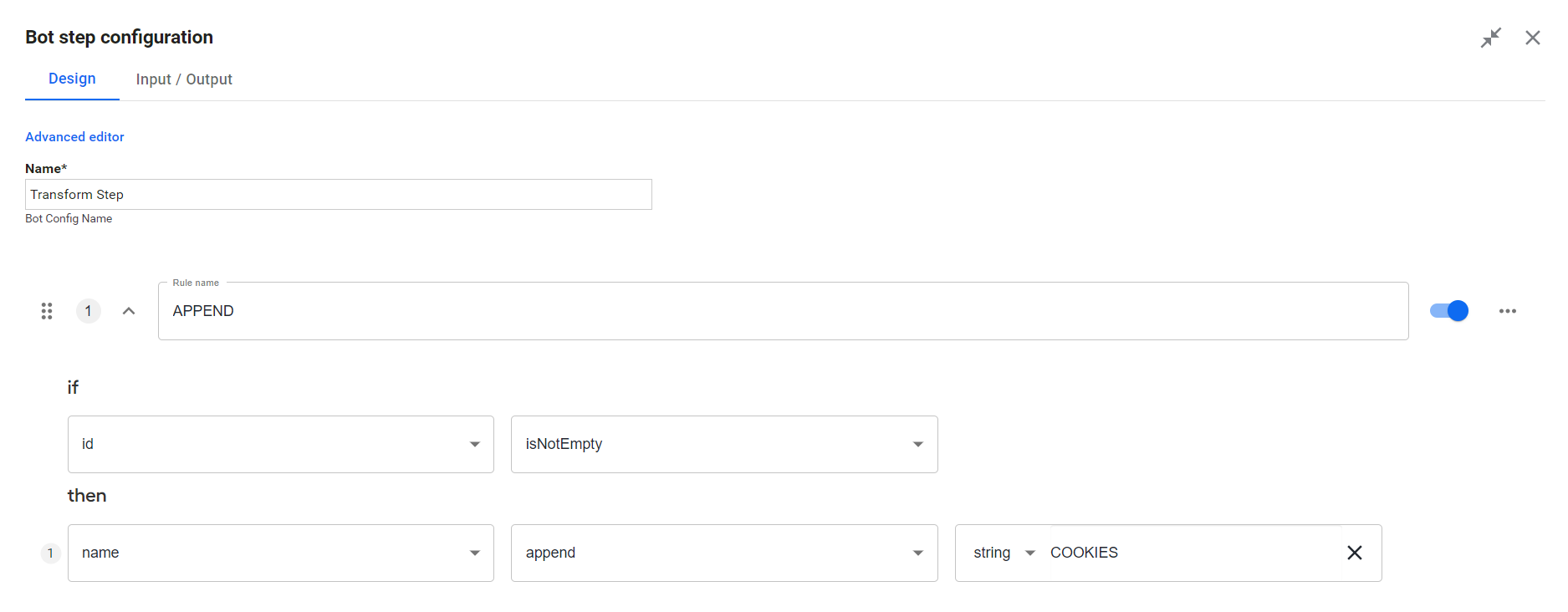
To configure rules for a Transformation step, go to the Design tab.
In the Rule name field, enter a name for the rule.
Set up a condition. Specify variables for the if and then sections and select the operators.
Click Save.
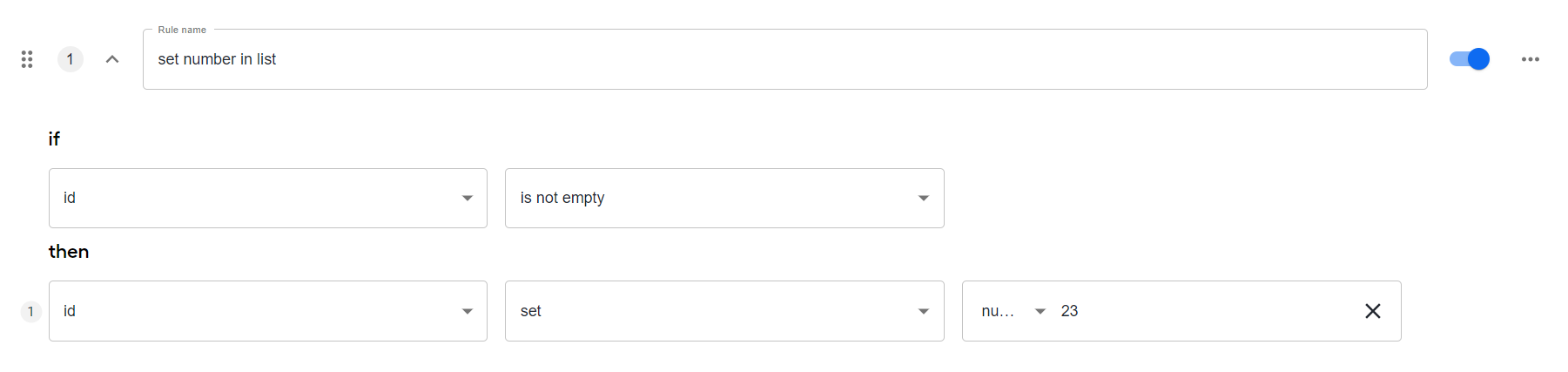
For list-based transformations, mind the following:
- You can select to perform an action with a list of complex actions on the left side, for example,
List[Hits]. - The actions can each have their own conditions and actions.
- You can remove a number of objects from the list.
Manage rules
You can perform the following actions with rules on the Design tab for a rule-based Bot Task:
To add a new rule, click Add rule.
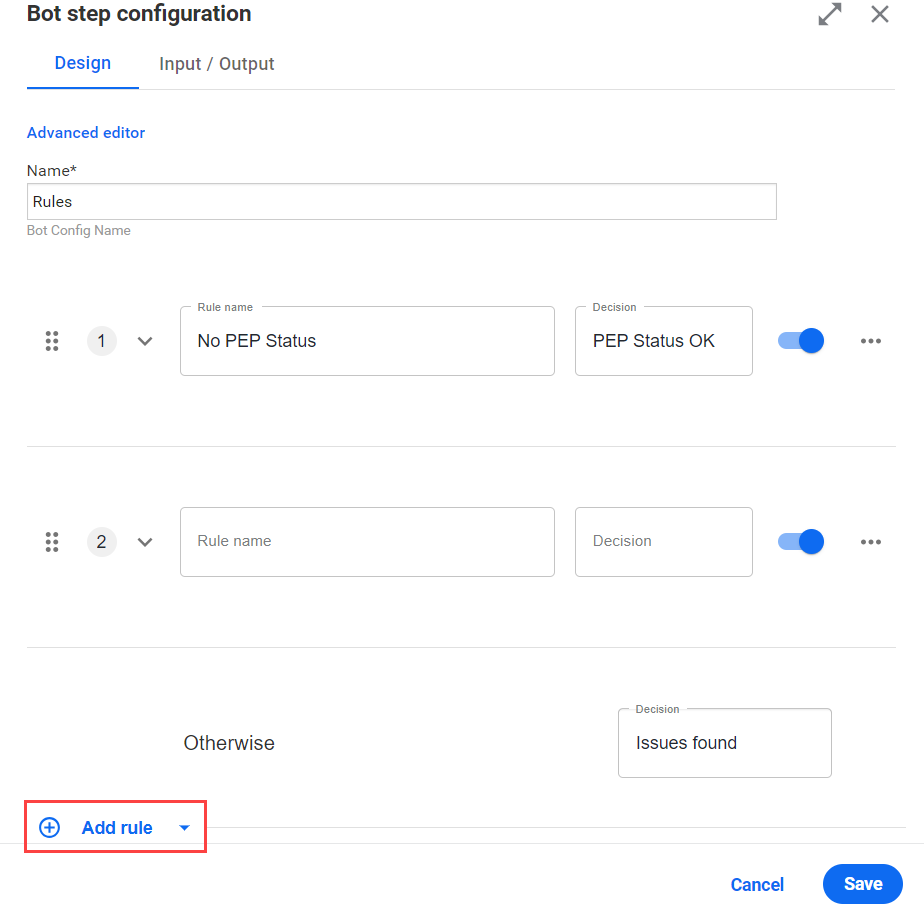
To copy or delete a rule, click the Options button next to it and select an option.

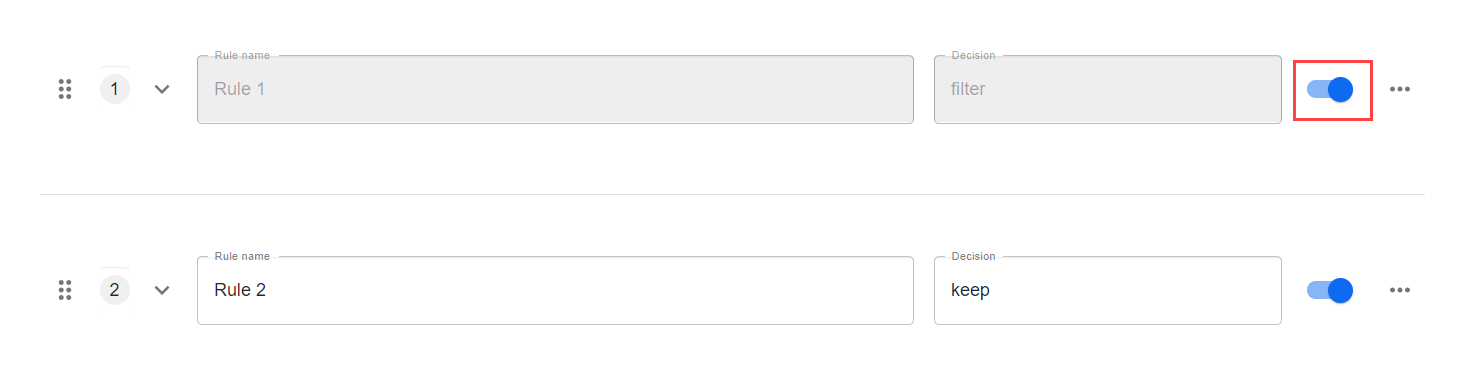
To disable a rule, use the toggle next to it. The disabled rule appears as grayed out in the list of rules.
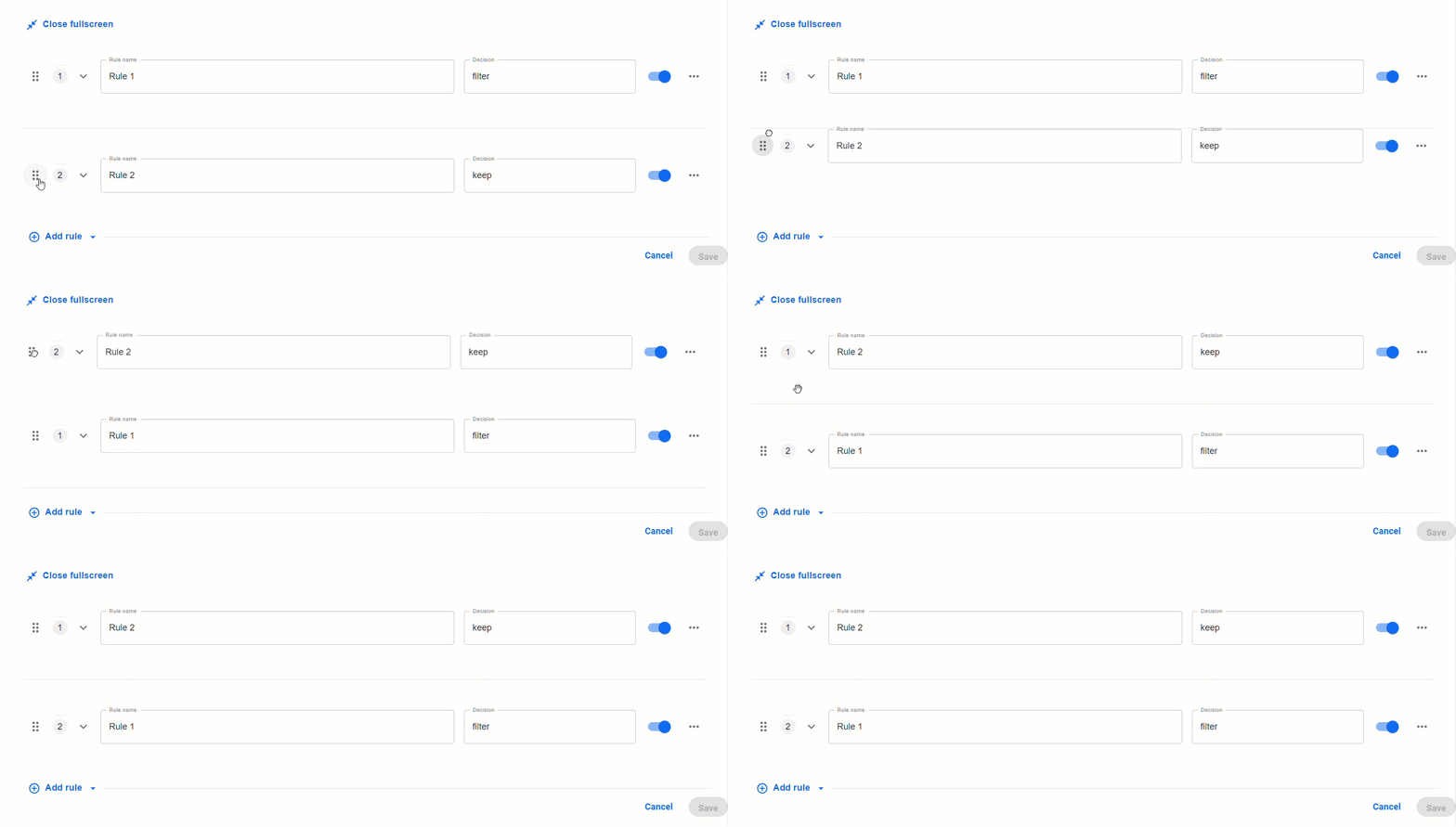
To modify the priority of rules, drag them to form a preferred order.
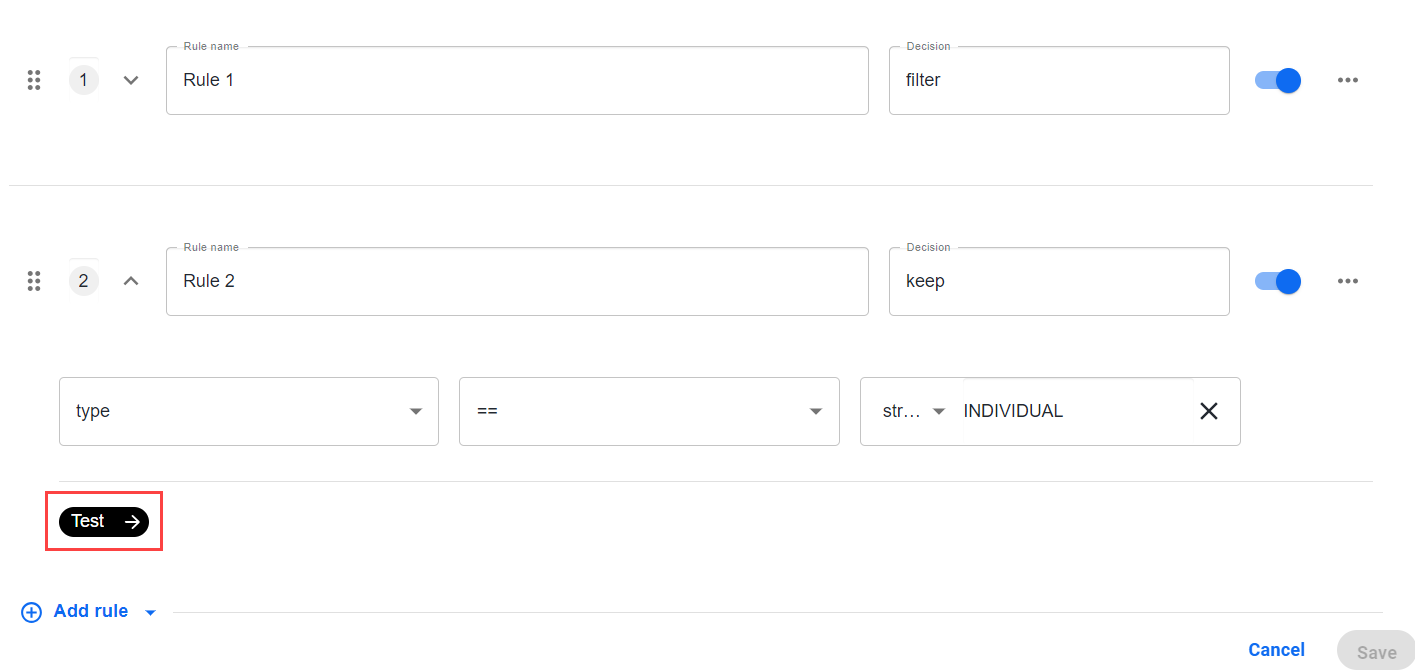
To test the design logic you create while adding or modifying rules, click the Test button.
Use Decision step with composite rule
Sometimes, you might need a composite rule along with a Decision step in your BP flow. Once you use a Decision step, you get only one output called a decision. A composite rule added via a diamond operator does not contain any business logic but is used to route this output to the rest of the BP elements based on the decision.
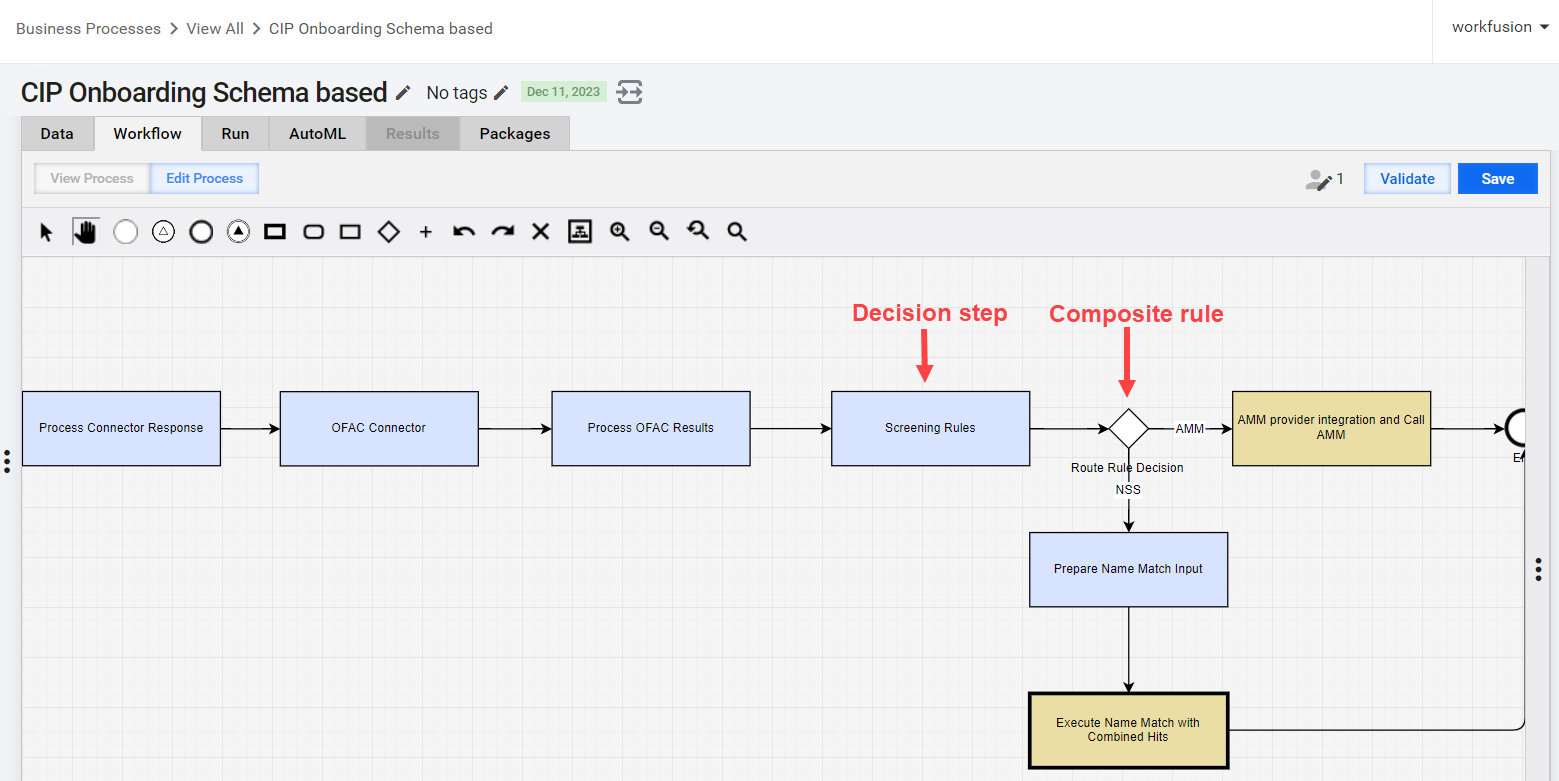
Your BP should be a schema-based one for you to be able to use a rule-based bot step.
For the composite rule to pass the decision to other BP elements in the flow, in the composite rule settings > the Outcome section, make sure the decision.outcome value is defined.
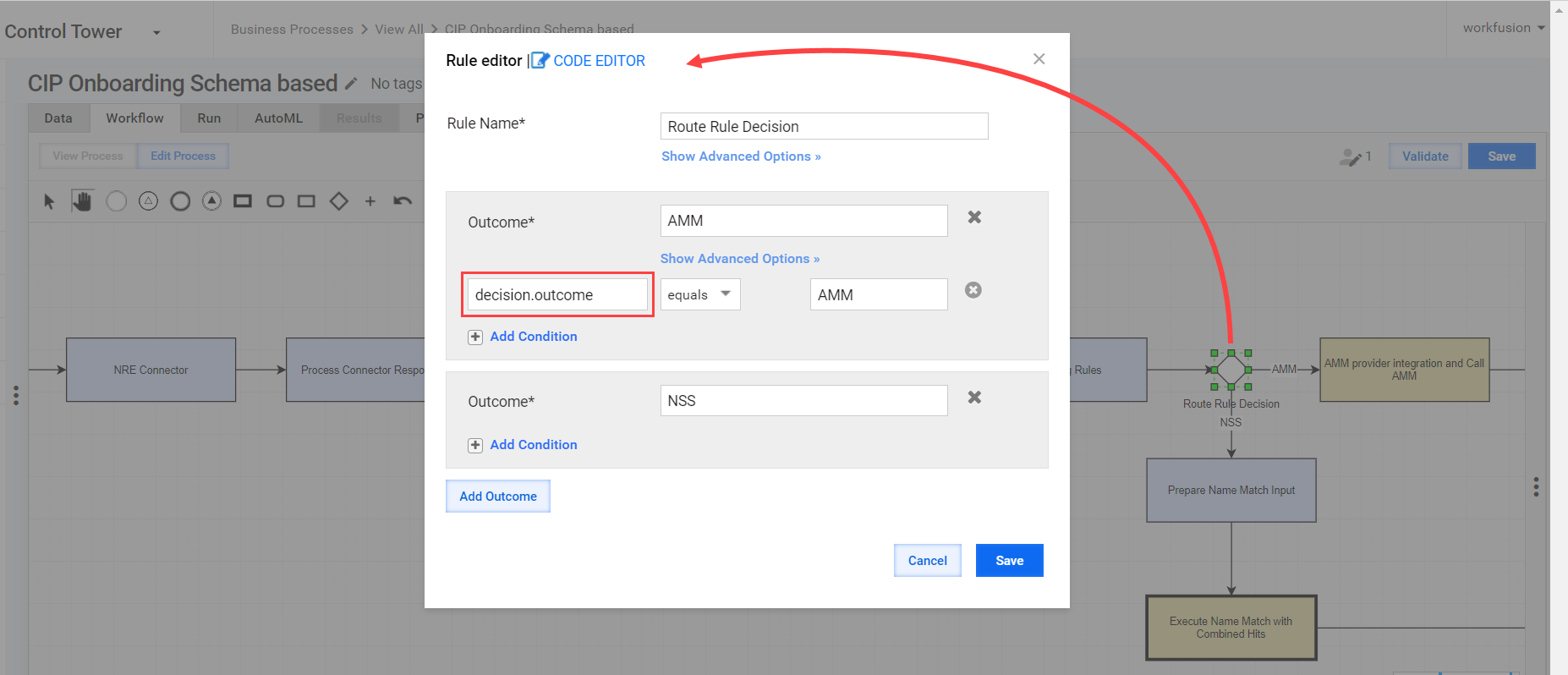
Only in this case, the decision output is sent to other bot steps in the BP.
View sample use cases
You can apply no-code bot step components for Payment Sanction Screening (PSS) Alert Disposition, a skill of Tara AI Agent.
Tara decisions
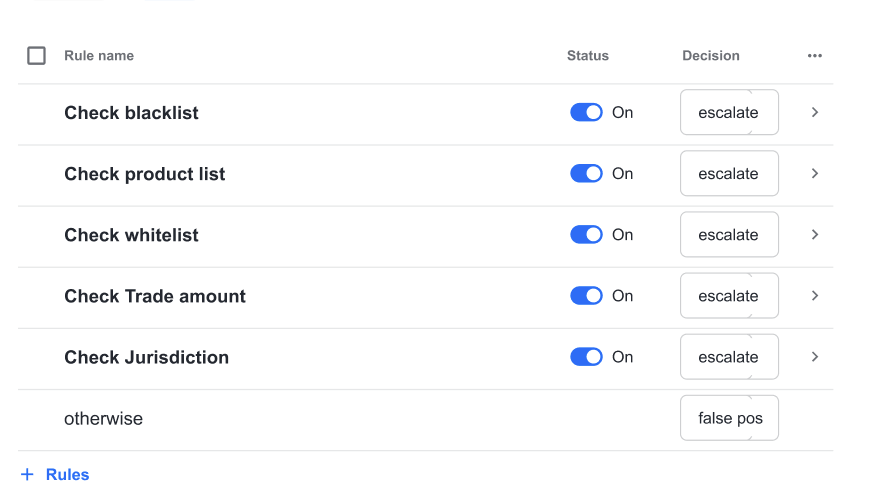
While screening, you can escalate a transaction for review due to various reasons, for example:
- A payer or a payee is on a most wanted list.
- The items to purchase are prohibited.
- The amount they are spending is suspicious.
- The country of a transaction and the people associated with it do not match.
However, every bank can have a slightly different policy. Thus, it will be helpful to configure how these decisions are made. You can create the needed criteria for a decision using a no-code decision step:
Tara filtering hits
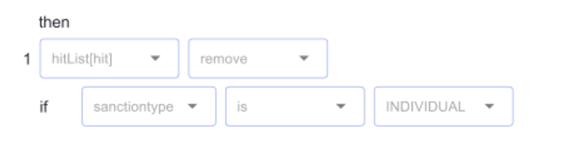
Tara has a step where you filter irrelevant hits from the sample Tara message.
You can perform this action in a transformation with a then action, for example:
Sample Tara message
{
  "id": "11111",
  "type": "PAYMENT_TRANSFER",
  "accountHolderDetails": {
    "type":"INDIVIDUAL",
    "name":"Doer Jerry"
  },
  "hits": [
    {
      "id": "2001",
      "tagContent": "DOE, J",
      "tagType": "NAME",
      "hitStartIndex": 0,
      "hitEndIndex": 5,
      "hitText": "DOE, J",
      "screenedData": {
        "type": "INDIVIDUAL",
        "name": "DOE, J",
        "dob": "10/12/1965",
        "country": "US"
      },
      "additionalData": {
        "type": "INDIVIDUAL",
        "name": "Doer Jerry",
        "dob": "10/10/1975",
        "address": "10 Bressenden Place, 8th floor",
        "country": "GBR",
        "city": "london",
        "state": "GBR",
        "postal": "SW1E 5DH"
      },
      "sanctionData": {
        "name": "doe, john",
        "type": "INDIVIDUAL",
        "country": "syrian arab republic",
        "sourceEntryId": "1111",
        "source": "OFAC",
        "listType": "WORLD_COMPLIANCE"
      }
    },
    {
      "id": "2002",
      "tagContent": "DOE, J",
      "tagType": "NAME",
      "hitStartIndex": 0,
      "hitEndIndex": 5,
      "hitText": "DOE, J",
      "screenedData": {
        "type": "INDIVIDUAL",
        "name": "DOE, J",
        "dob": "10/12/1965",
        "country": "US"
      },
      "additionalData": {
        "type": "INDIVIDUAL",
        "name": "Doer Jerry",
        "dob": "10/10/1975",
        "address": "10 Bressenden Place, 8th floor",
        "country": "GBR",
        "city": "london",
        "state": "GBR",
        "postal": "SW1E 5DH"
      },
      "sanctionData": {
        "name": "doe, johanna",
        "type": "INDIVIDUAL",
        "dob": "10/21/1970",
        "country": "US",
        "sourceEntryId": "2222",
        "source": "OFAC",
        "listType": "WORLD_COMPLIANCE"
      }
    }
  ]
}
Tara message schema
[
{
"id": "message",
"parents": [],
"children": [
{
"id": "id",
"parents": [
"message"
],
"type": "string"
},
{
"id": "type",
"parents": [
"message"
],
"type": "string"
},
{
"id": "accountHolderDetails",
"parents": [
"message"
],
"children": [
{
"id": "type",
"parents": [
"message",
"accountHolderDetails"
],
"type": "string"
},
{
"id": "name",
"parents": [
"message",
"accountHolderDetails"
],
"type": "string"
}
]
},
{
"id": "hits",
"parents": [
"message"
],
"children": [
{
"id": "hit",
"type": "hit",
"parents": [
"message",
"hits"
],
"children": [
{
"id": "id",
"parents": [
"message",
"hits",
"hit"
],
"type": "string"
},
{
"id": "tagContent",
"parents": [
"message",
"hits",
"hit"
],
"type": "string"
},
{
"id": "tagType",
"parents": [
"message",
"hits",
"hit"
],
"type": "string"
},
{
"id": "hitStartIndex",
"parents": [
"message",
"hits",
"hit"
],
"type": "string"
},
{
"id": "hitEndIndex",
"parents": [
"message",
"hits",
"hit"
],
"type": "string"
},
{
"id": "hitText",
"parents": [
"message",
"hits",
"hit"
],
"type": "string"
},
{
"id": "screenedData",
"parents": [
"message",
"hits",
"hit"
],
"children": [
{
"id": "type",
"parents": [
"message",
"hits",
"hit",
"screenedData"
],
"type": "string"
},
{
"id": "name",
"parents": [
"message",
"hits",
"hit",
"screenedData"
],
"type": "string"
},
{
"id": "dob",
"parents": [
"message",
"hits",
"hit",
"screenedData"
],
"type": "date"
},
{
"id": "country",
"parents": [
"message",
"hits",
"hit",
"screenedData"
],
"type": "string"
}
]
},
{
"id": "additionalData",
"parents": [
"message",
"hits",
"hit"
],
"children": [
{
"id": "type",
"parents": [
"message",
"hits",
"hit",
"additionalData"
],
"type": "string"
},
{
"id": "name",
"parents": [
"message",
"hits",
"hit",
"additionalData"
],
"type": "string"
},
{
"id": "dob",
"parents": [
"message",
"hits",
"hit",
"additionalData"
],
"type": "date"
},
{
"id": "address",
"parents": [
"message",
"hits",
"hit",
"additionalData"
],
"type": "string"
},
{
"id": "country",
"parents": [
"message",
"hits",
"hit",
"additionalData"
],
"type": "string"
},
{
"id": "city",
"parents": [
"message",
"hits",
"hit",
"additionalData"
],
"type": "string"
},
{
"id": "state",
"parents": [
"message",
"hits",
"hit",
"additionalData"
],
"type": "string"
},
{
"id": "postal",
"parents": [
"message",
"hits",
"hit",
"additionalData"
],
"type": "string"
}
]
},
{
"id": "sanctionData",
"parents": [
"message",
"hits",
"hit"
],
"children": [
{
"id": "name",
"parents": [
"message",
"hits",
"hit",
"sanctionData"
],
"type": "string"
},
{
"id": "type",
"parents": [
"message",
"hits",
"hit",
"sanctionData"
],
"type": "string"
},
{
"id": "country",
"parents": [
"message",
"hits",
"hit",
"sanctionData"
],
"type": "string"
},
{
"id": "sourceEntryId",
"parents": [
"message",
"hits",
"hit",
"sanctionData"
],
"type": "string"
},
{
"id": "source",
"parents": [
"message",
"hits",
"hit",
"sanctionData"
],
"type": "string"
},
{
"id": "listType",
"parents": [
"message",
"hits",
"hit",
"sanctionData"
],
"type": "string"
}
]
}
]
}
]
}
]
}
]
Tara contract
{
    "Inputs": [
        {
            "leftValue": {
                "value": "Tara message",
                "custom": false,
                "type": "message"
            },
            "rightValue": {
                "custom": false
            },
            "isMandatory": true
        },

    ],
    "Outputs": [
        {
            "leftValue": {
                "value": "decision",
                "custom": false,
                "type": "string"
            },
            "rightValue": {
                "custom": false
            },
            "isMandatory": true
        }
    ]
}
Supported operators
Decision step supported operators
| Data type | Operator | Description | Example |
|---|---|---|---|
| String/number/boolean | equals | Equals | attribute1 == 1000 |
| Number | not equals | Not Equals | attribute1 != 110 |
| Number | greater than | Greater Than | attribute1 > 20000 |
| Number | greater or equal | Greater Than or Equals | attribute1 >= 5000 |
| Number | less than | Less Than | attribute1 < 40000 |
| Number | lesser or equal | Less Than or Equals | attribute1 <= 300 |
| String/list | is in | To verify whether a field is a member of an Array or a Collection. The Array or Collection must be a variable. | /familyTree[ person memberOf $europeanDescendants ] |
| String/list | is not in | To verify whether a field is not a member of an Array or a Collection. The Array or Collection must be a variable. | /familyTree[ person not memberOf $europeanDescendants ] |
| Date | before | Checks if one date is before another. | date1(“23/12/2022”) before date2(“10/12/2022”) |
| Date | after | Checks if one date is after another. | date1(“23/12/2022”) after date2(“10/12/2022”) |
| Date | in last | Checks if a date is within a certain number of days from the current date. | date(“23/08/2023”) in last 50(checks whether date is in last 50days) |
| String | starts with | Checks the start of a string. | string1(“Physical Goods”) startswith ”Phy” |
| String | ends with | Checks the end of a string. | string1(Physical Goods) endswith ”oods” |
| Date | has format | Enters Regex. | date1“12/09/2023“ hasFormat "\\b\\d{2}/\\d{2}/\\d{4}\\b" |
| String | has length | Checks the length of a string. | string1(“Physical Goods“) hasLength 14 |
| Boolean | is true | Checks whether a Boolean value is true or not. | transaction.isvalid isTrue |
| Boolean | is false | Checks whether a Boolean value is false or not. | transaction.isvalid isFalse |
| String | has word count | Checks the word count of a string. | string1(“Physical Goods“) has word count 2 |
| String/list/boolean/date/number | is not empty | Checks whether the key has any value. | message.transaction.amount isNotEmpty |
| String/list/boolean/date/number | is empty | Checks whether the value of a key is empty or not. | message.accountHolderDetails.name isEmpty |
| String/list/boolean/date/number | is null | Checks whether the value of a key is null. | message.sanctionData.dob isNull |
Transformation step supported operators
| Data type | Operator | Description | Inputs to operator | Example | Rule |
|---|---|---|---|---|---|
| String | replace | Replaces a character with a desired character in a string. | srcValue, tgtValue |
| Replace the scrValue form transaction.amount with tgtValue. |
| String | append | Adds a string at the end of another string. | tgtValue |
| If the address in tgtValue is not present in Addresslist, then append tgtValue to Addresslist. |
| Date | format date | Transforms one format to another format. | srcValue, tgtValue |
| Transforms the scrValue format of transaction.date to tgtValue. |
| String/number/date | set | Sets a particular value to a string, number, or date. | tgtValue |
| Sets the value of transaction.itemtype to tgtValue. |
| Number/string | get count | Gets the sum of specific fields in a list. | tgtValue | If invoices is not empty, then <invoiceTotal> <getcount> <invoices.amount>(tgtValue). | Gets the sum (count) of the invoices.amount field from all elements of the list. |
| String | get unique count | Gets the count of unique items in the list. | tgtValue | If invoices is not empty, then <totalUniqueItems> <getUniqueCount> <invoices.product>(tgtValue). | Gets the unique items count from all the elements in the list. |
List-based Transformation supported operators
| Data type | Operator | Description | Inputs to operator | Example | Rule |
|---|---|---|---|---|---|
| List | remove | Removes and filters the hits. | srcValue, tgtValue |
| If the srcValue and tgtValue matches in hitList, only that particular hit is removed. |
| String/number/date | set | Sets a particular value to a string, number, or date. | tgtValue |
| Sets the value of transaction.itemtype to tgtValue. |