Start Business Process with no-code Trigger element
To start a Business Process (BP) based on external events or scheduled polling of a source system, you can apply a special no-code Trigger start element when designing your BP.
For technical details on the Trigger Worker archetype, see also Trigger Connector.
Add Trigger start element to Business Process
The no-code Trigger element can only be the start element of a BP:
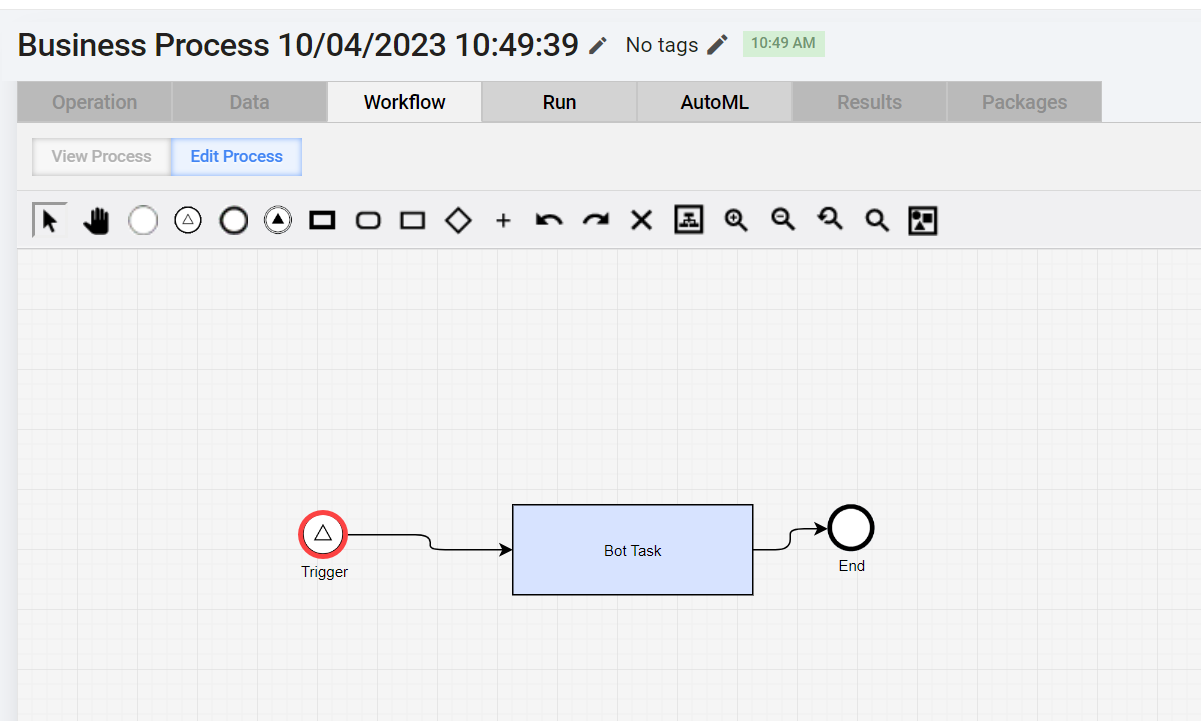
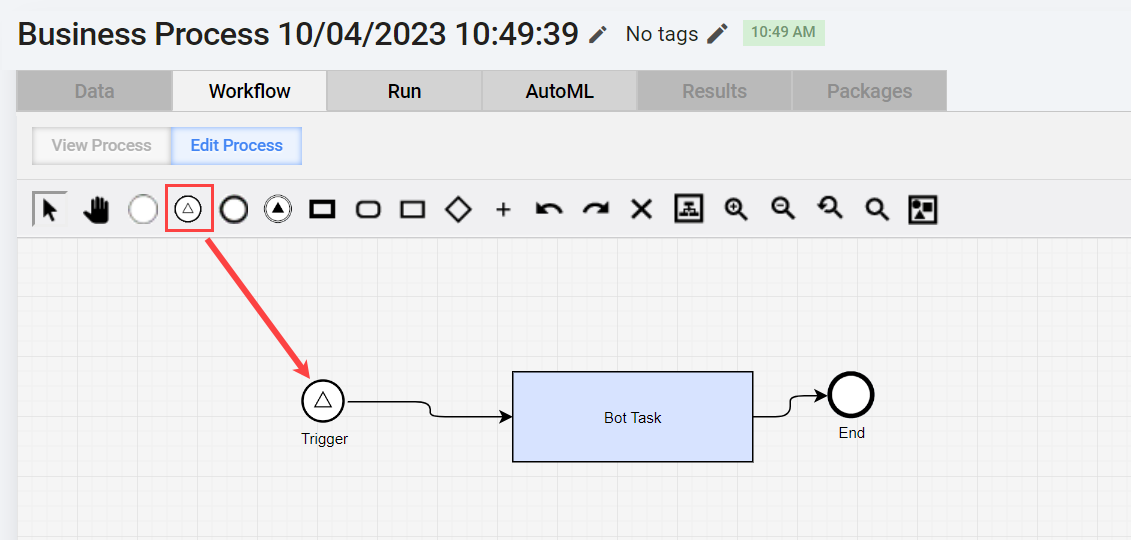
There are several ways you can add the Trigger element to your BP:
Navigate to the Workflow tab, select the Trigger element from the configuration panel above the canvas, and place it as the first step of your BP.
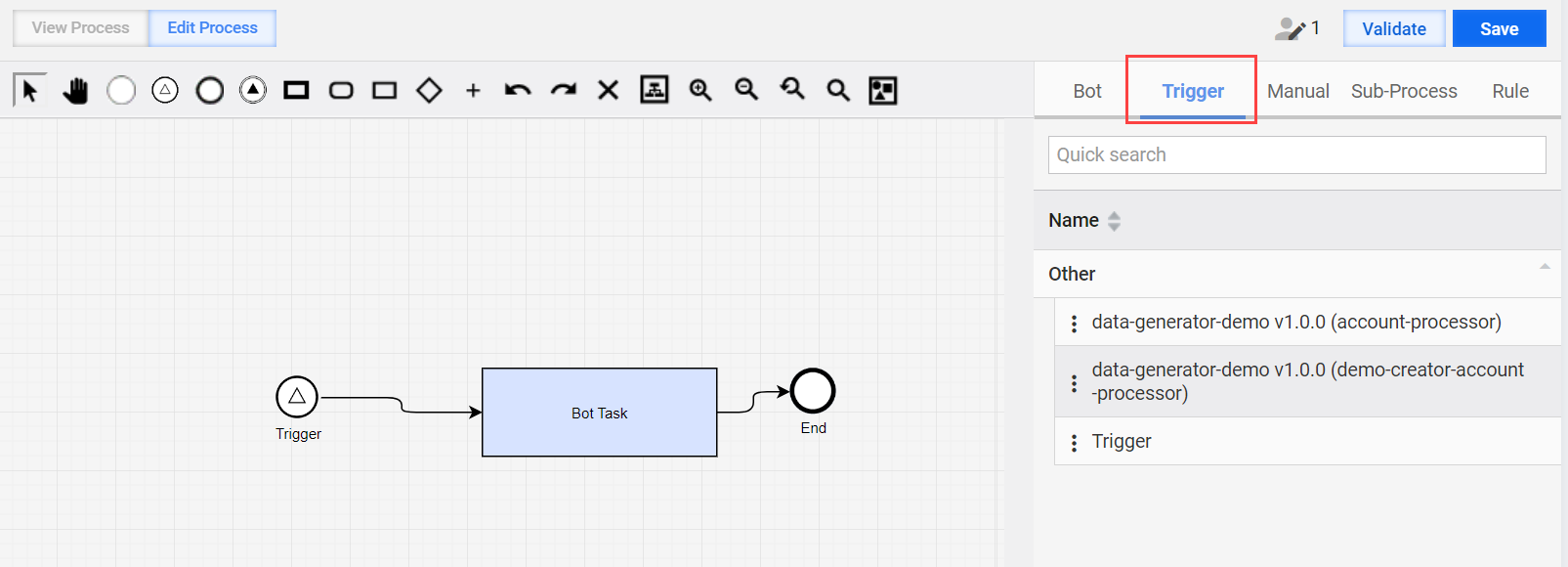
Import the trigger artifact as a part of an Asset Bundle. The Asset Bundle contains a bot configuration inside the artifact. Drag and drop the already configured trigger step from the right menu on the Trigger tab.
Edit Trigger start element settings
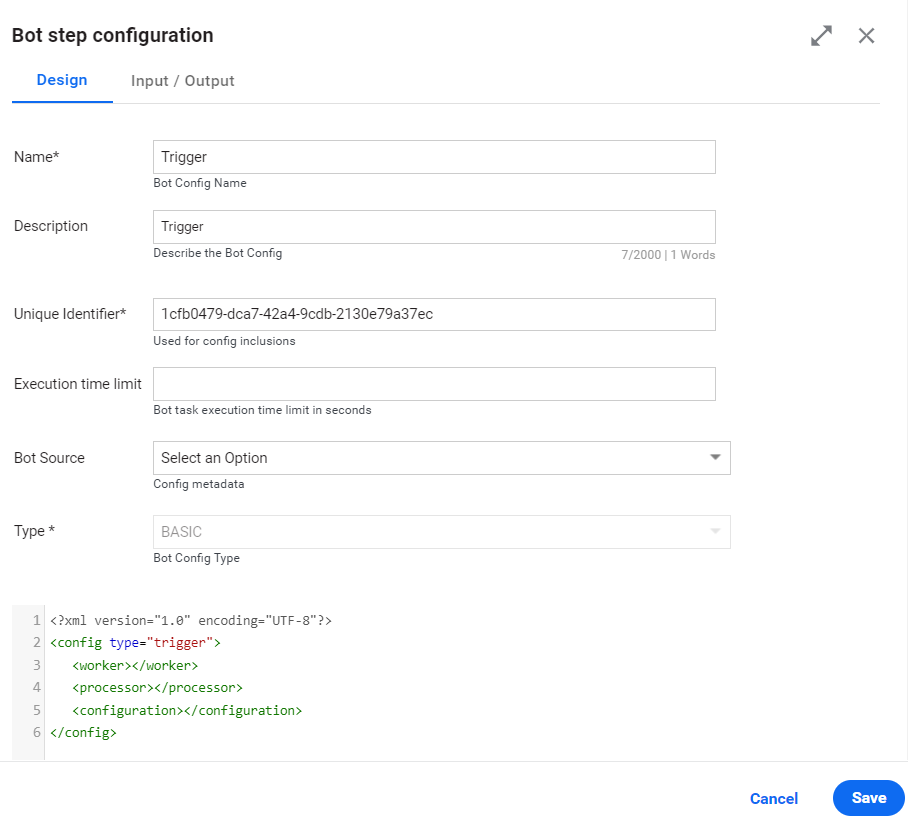
Once you add the Trigger start element to the canvas, right-click it, select the Edit option, and in the configuration window, on the Design tab, edit the step settings:
Enter a unique descriptive name in the Name field.
In the Description field, enter the step description if needed.
The Unique Identifier field is filled in automatically. You can use the step identifier as the code attribute, for example, for execution with the include-config plugin.
In the Execution time limit field, specify a value within the range from 1 to 43,200 seconds. Mind that the value should be equal or less the RabbitMQ delivery acknowledgment timeout. Also, see Configure Bot Task alerts and forced stop.
In the Bot Source dropdown, select a Bot Source if needed. Once you select the Bot Source, proceed to its settings by clicking Edit.
In the Type dropdown, select the bot configuration type.
 tip
tipIn the code area, you can enter configuration settings as XML code.
Click Save.
Limitations
For Work.AI v10.2.8, only a single start element is supported. Thus, you can use only one Trigger element at the start of your BP.
For Work.AI v10.2.8, only synchronous record sending is supported. A record-sending thread is blocked, waiting for a response from Control Tower or a timeout.
You cannot change the BP input type to or from a trigger-based one while there are active BPs, for example, during the bundle import with overwrite or BP workflow modifications. A corresponding error message is shown.