
Secrets Vault in Control Tower
WorkFusion platform provides Secrets Vault (formerly Secure Storage) functionality intended for storing sensitive data (i.e., login, password).
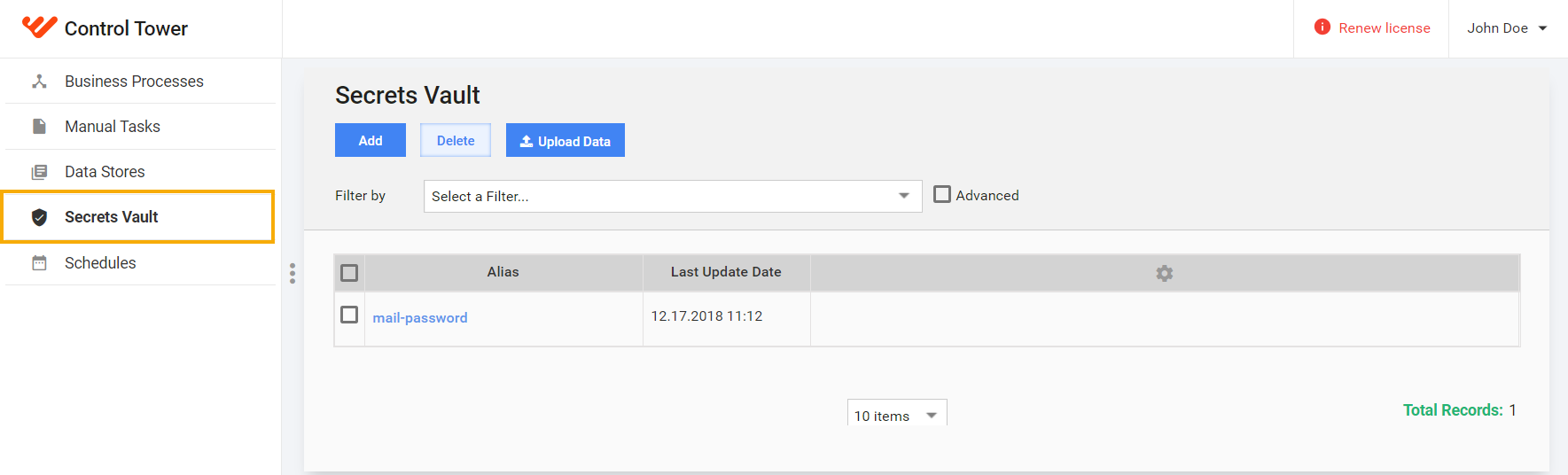
Manage Secrets Vault from bot configs
You can read, write, and delete records from Secrets Vault by using Secrets Vault Plugins (Secure Store Plugins).
tip
Documentation on Secrets Vault Plugins is available in the Help section in WorkFusion Studio. To access it, in the WorkFusion Studio menu, go to Help > Help Contents > Bot Task Plugins > Secrets Vault Plugins (Secure Store Plugins).
Add secret entry
To add a new secret entry, do as follows.
- Click the Add button above the grid. The following popup appears.
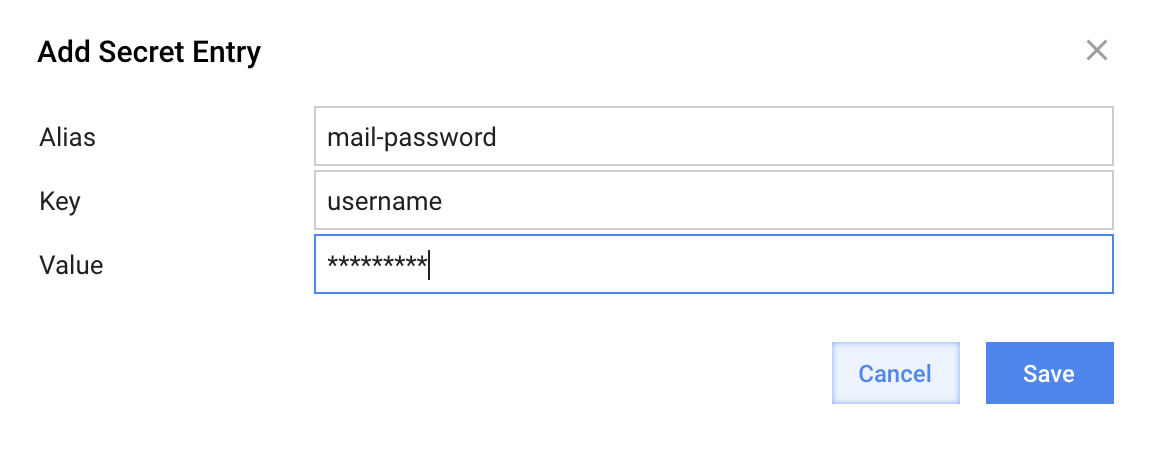
- Enter Alias, Key, and **Value **for this secret entry. Alias serves to distinguish secret entries and must be unique.
- Click Save.
As a result, a new entry appears in the grid.
caution
To use secret entries created in WorkFusion Studio in your business processes, you need to create the same secret entries in Control Tower Secrets Vault.
Add bulk entry
You can also create secret entries from a file (for example, if you want to create multiple entries).
Create a CSV file with three columns: alias, key, value.
alias, key, value
mail, john@example.com, password1
s3, user-admin, password2
crm, sales@example.com, password3
Click the Upload Data button. The following popup appears.
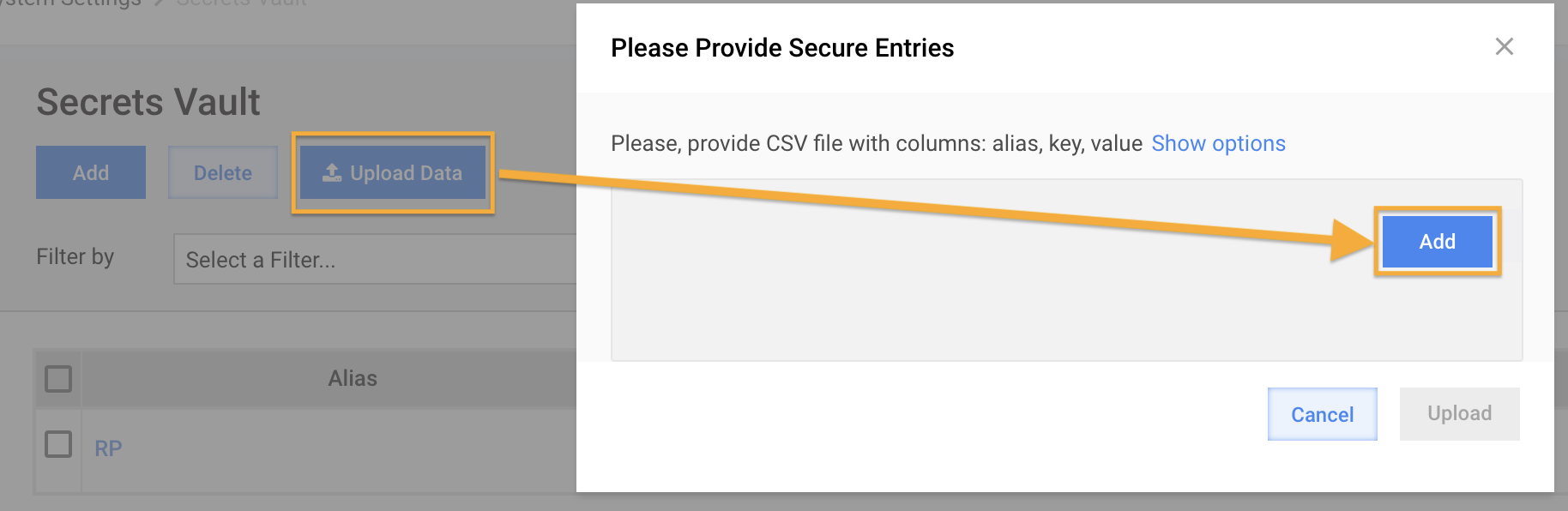
Click Add and browse the .csv file on your local machine.
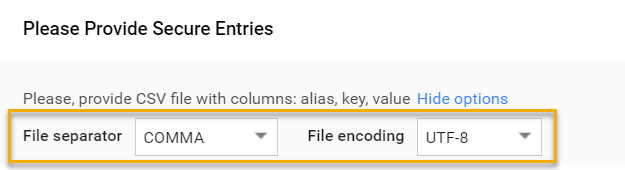
(Optional) Click the Options link and set File Separator and/or File Encoding, if needed.
tip
We recommend using Comma separator and UTF-8 encoding.
Update existing secret entry
To edit a secret entry, proceed as follows.
Hover over appropriate grid cell in the Alias column. The Update button appears.
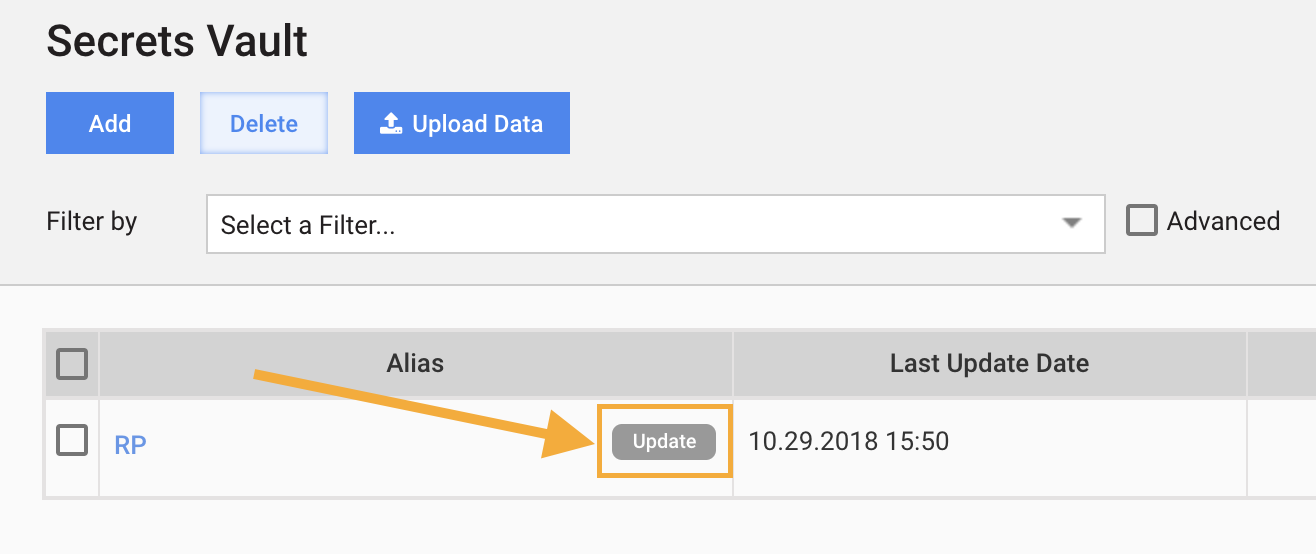
Click the Update button. The following popup appears.
caution
For security reasons, you cannot view secret entries. The message "No permission to view" is displayed.
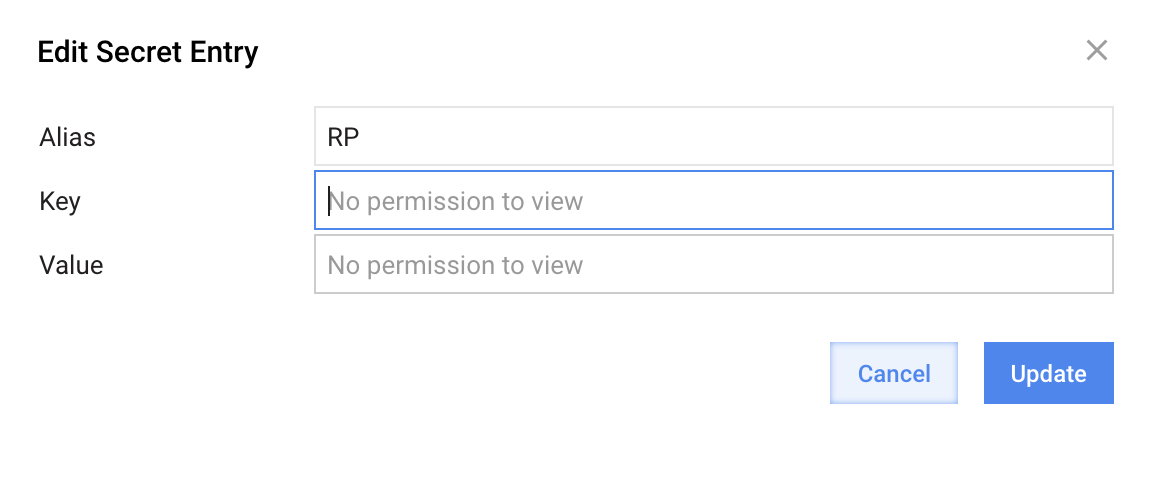
Enter new Key and New values. The Alias value cannot be modified.
Click Update.
Delete secret entry
- Tick checkboxes opposite the secret entries you need to delete.
- Click Delete.
Known issues
| Known Issue | Workaround |
|---|---|
The following combination is not saved: !#! | Do not use the combination |
When importing the list of secret entries, (\) symbol is not recognized | Do not use the combination |