
Manage secret entries in Secrets Vault
Secrets Vault (HashiCorp Vault) functionality is used to store all secure settings used in Intelligent Automation Cloud Business, specifically credentials and Control Tower secret entries. This short guide describes this functionality in a more detailed way.
Installation
Secrets Vault is installed during Business Edition installation process. It is launched together with all the application components.
Access Secrets Vault
caution
Mind you have Administrator credentials to sign in to Secrets Vault.
To get access to your local Secrets Vault storage as a user, do as follows.
- Open https://localhost:8200/ in your browser. You may see a warning message due to certificates. Mind that the message depends on the browser you use.
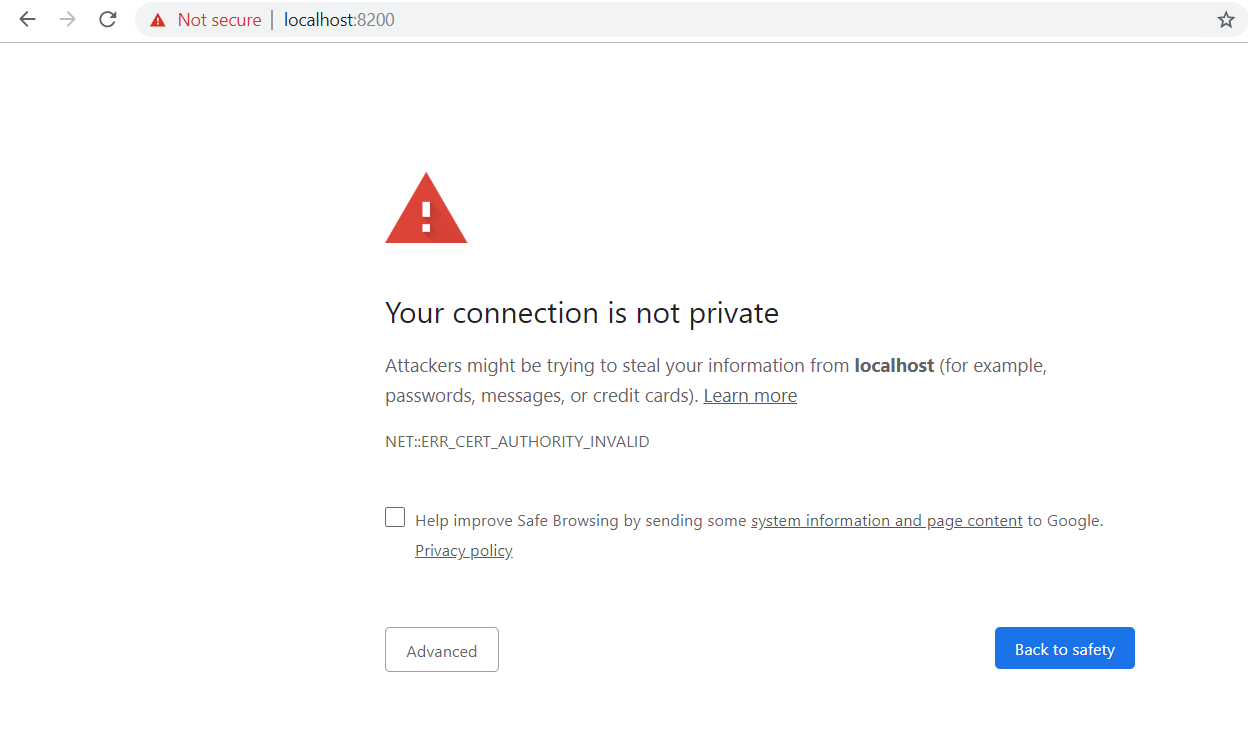
- Select the Advanced option and allow the browser to open the page.
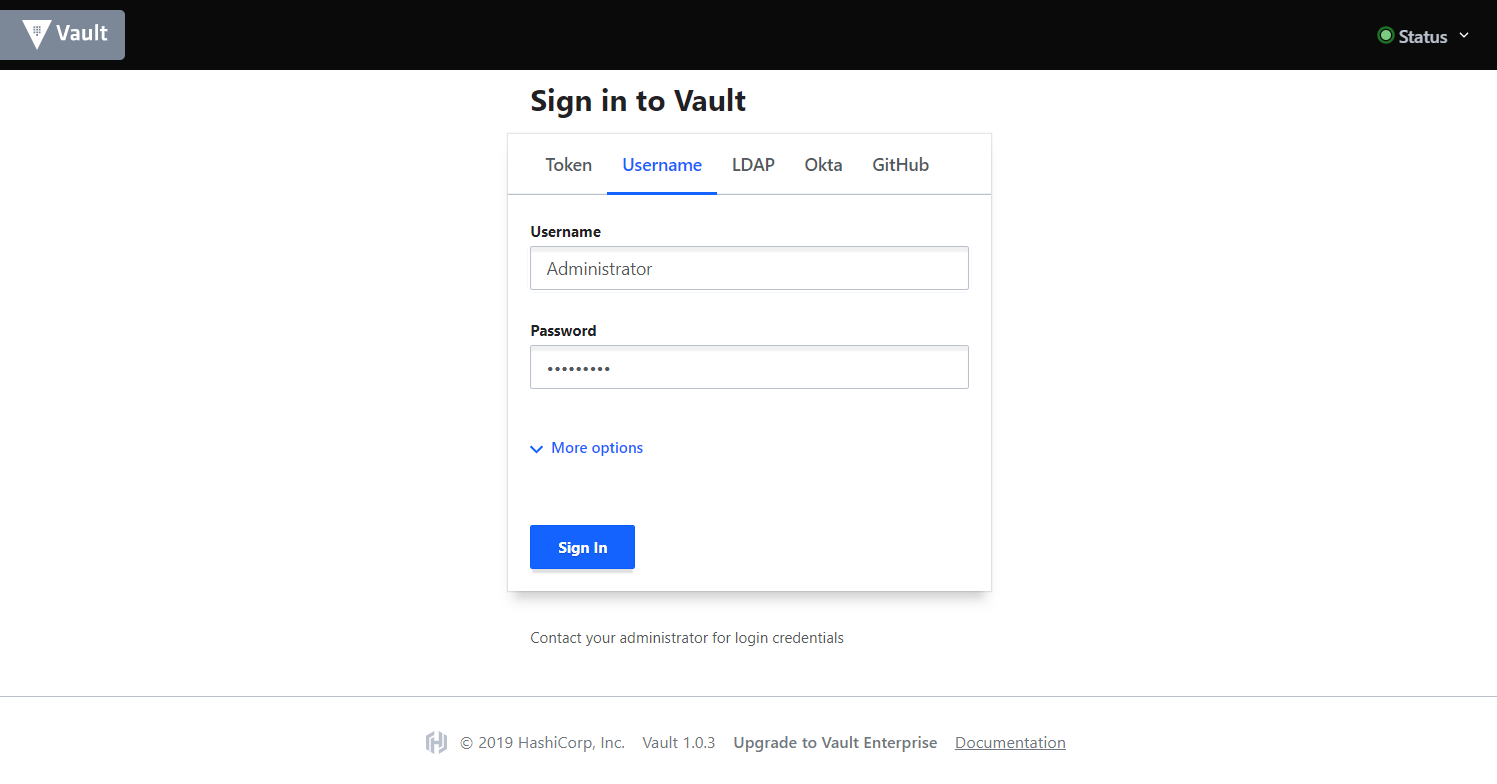
- On the login page, select the Username option and enter Administrator credentials set during installation.
After that, you will have access to keys stored in the Secrets Vault tree.
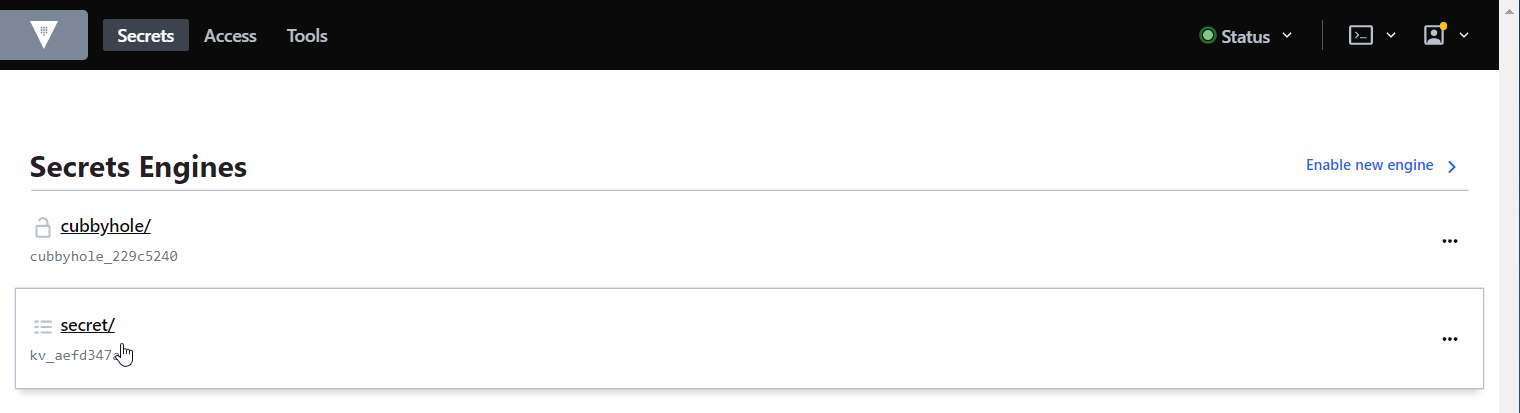
 Secret entries are stored in the
 secret/tree.
View and manage secret entries
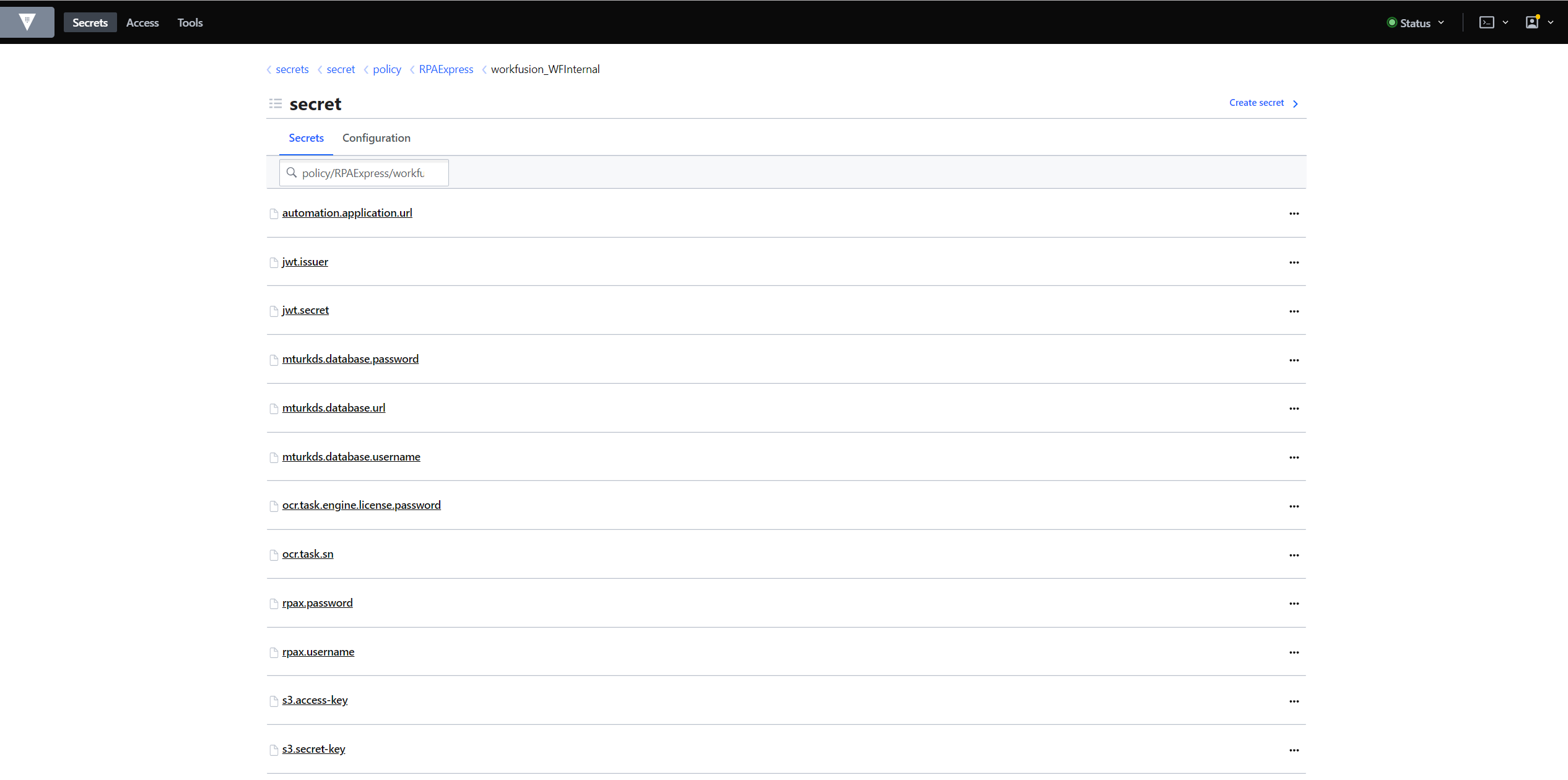
To view keys required for Intelligent Automation Cloud components (e.g., Administrator credentials, OCR and S3 access keys, database URLs and some additional parameters), go to secrets > secret > policy > RPAExpress > workfusion_WFInternal.
tip
Mind to sign out of the application after you have viewed/modified the secret entries.
Administrator credentials
You can view/change Administrator credentials not only in the modify mode, but in Secrets Vault too. Mind to use the following secret entries:
- rpax.username - Administrator username
- rpax.password - Admnistrator password
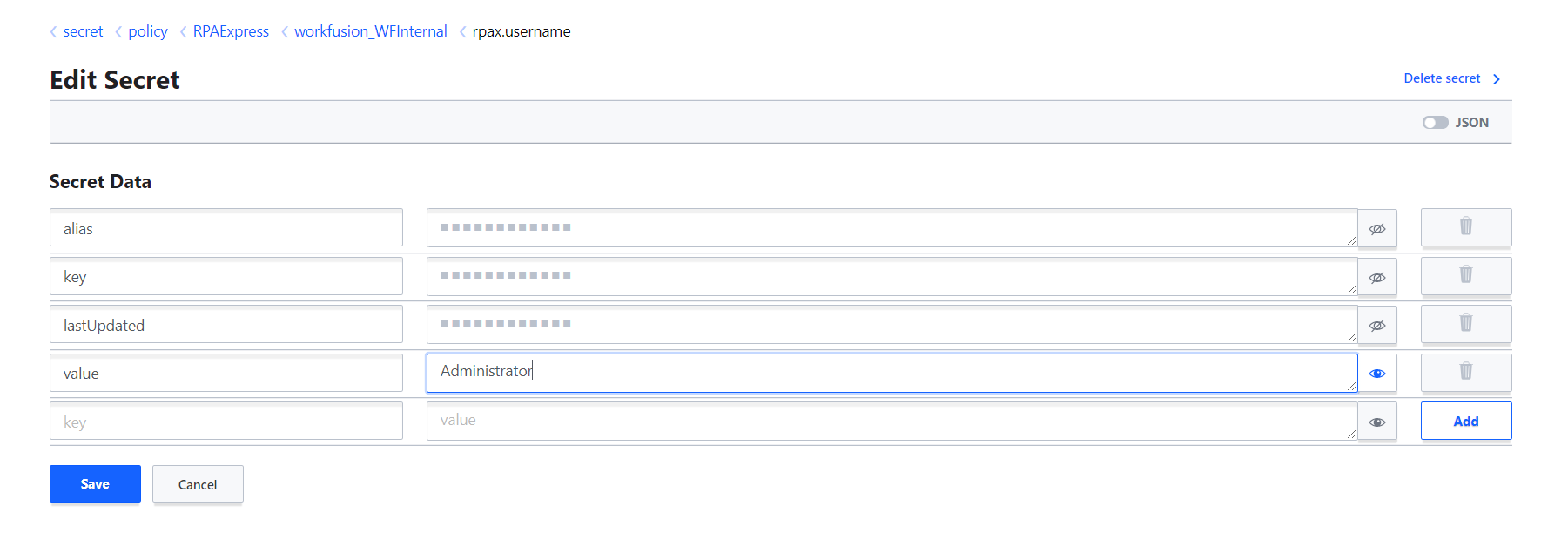
For example, you need to change your Administrator username.
- Click on the entry, e.g., rpax.username.
- Select the Edit Secret option.
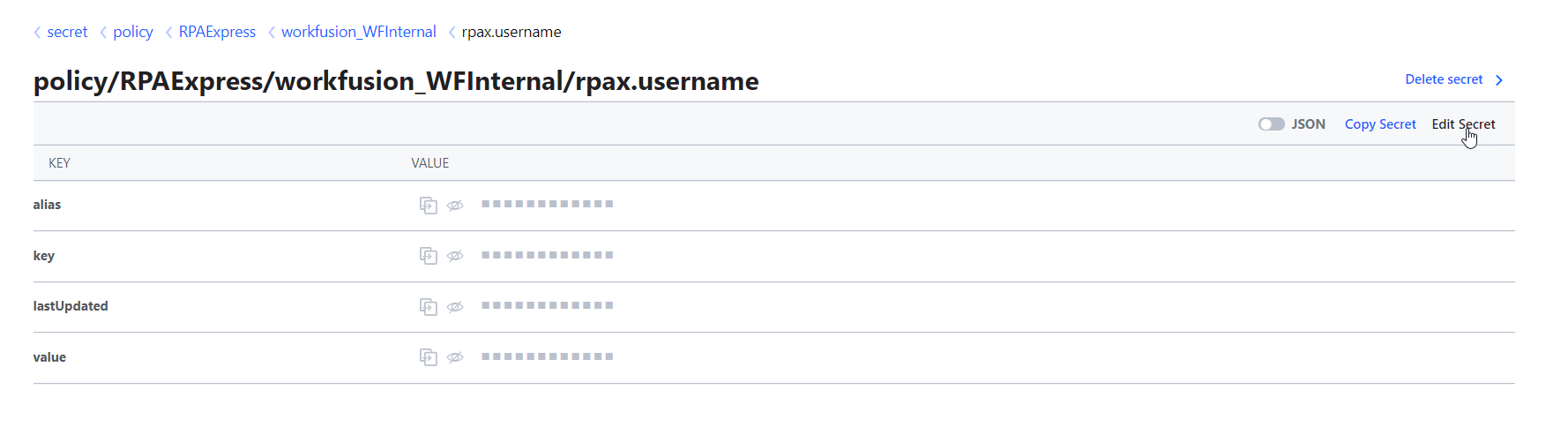
- Put the mouse cursor on the field you need to edit. Enter the necessary changes and click Save.
- Sign out.
note
As soon as you modify Administrator credentials, access to Secrets Vault changes as well.
Control Tower credentials
caution
To learn how to add secret entries in Control Tower, refer to Secrets Vault in Control Tower.
You can update keys and values for Control Tower secret entries both in Control Tower > Secrets Vault and in your local Secrets Vault. Let's see how it works in the example below.
Assume you have added a secret entry with the name/alias "test_secret" in Control Tower.
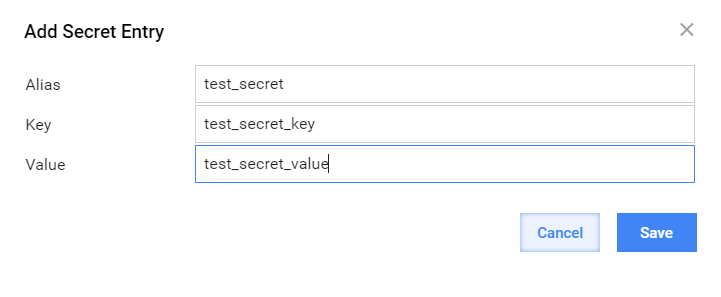
As soon as you save the entry, you are not able to view the changes you made in Control Tower unless you refer to your local Secrets Vault.
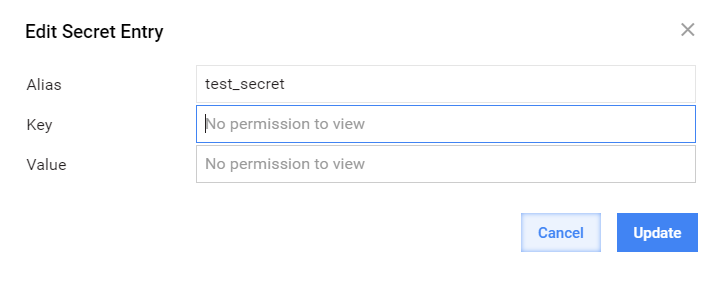
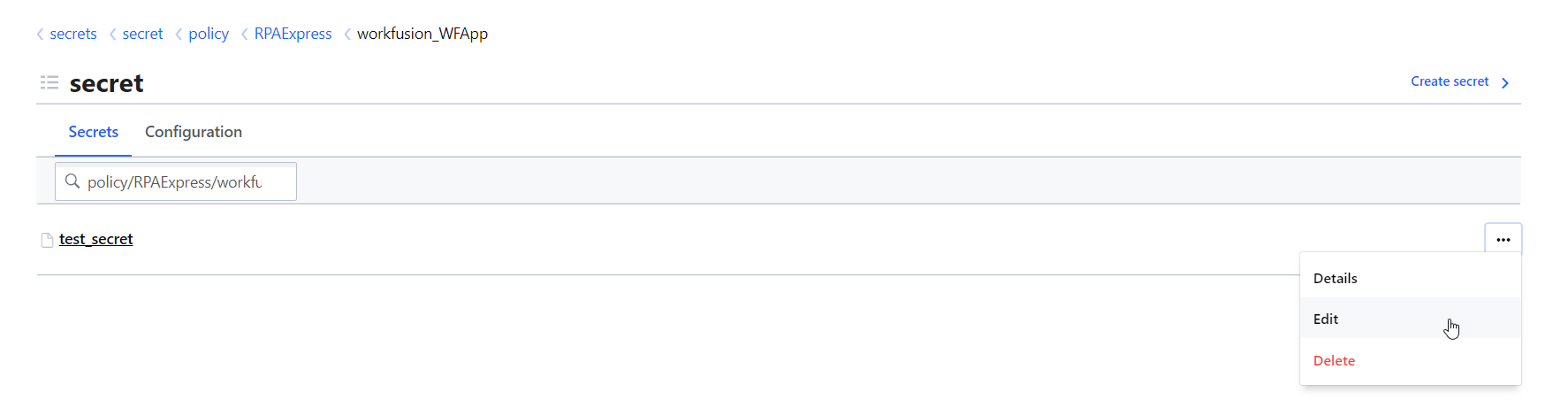
- Go to secrets > secret > policy > RPAExpress > workfusion_WFApp to find secret entries created in Control Tower.
- Click on the pop-up menu next to the secret entry and select Edit, or just click on the entry.
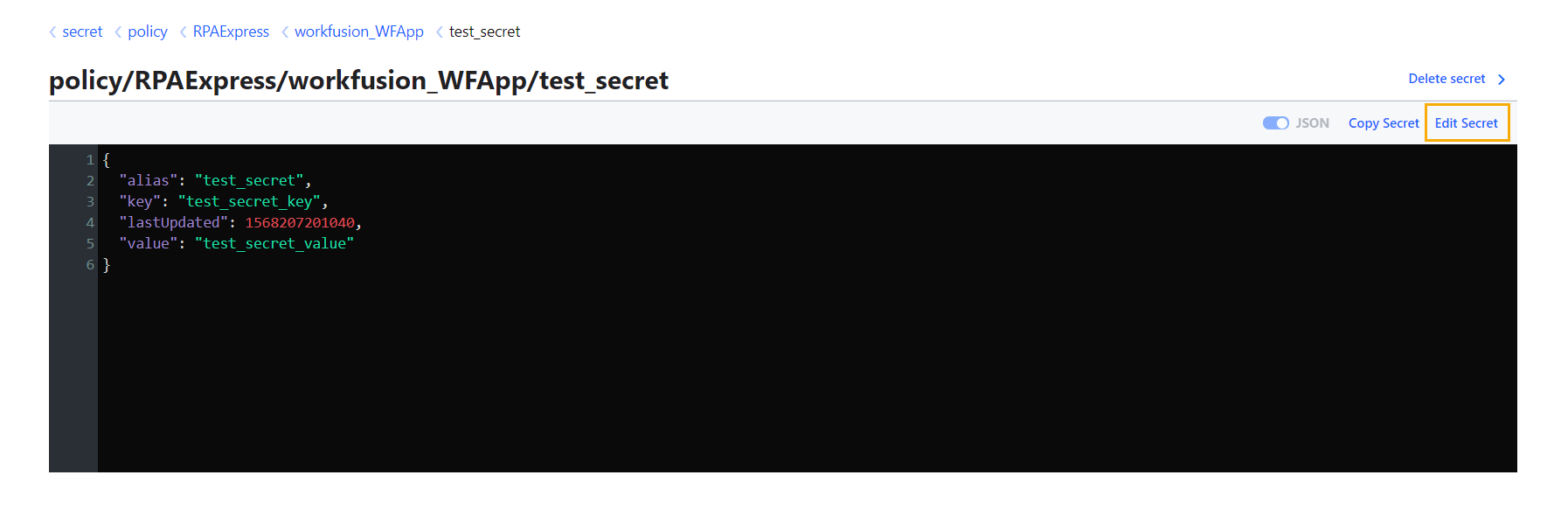
- In the window that follows, click Edit Secret.
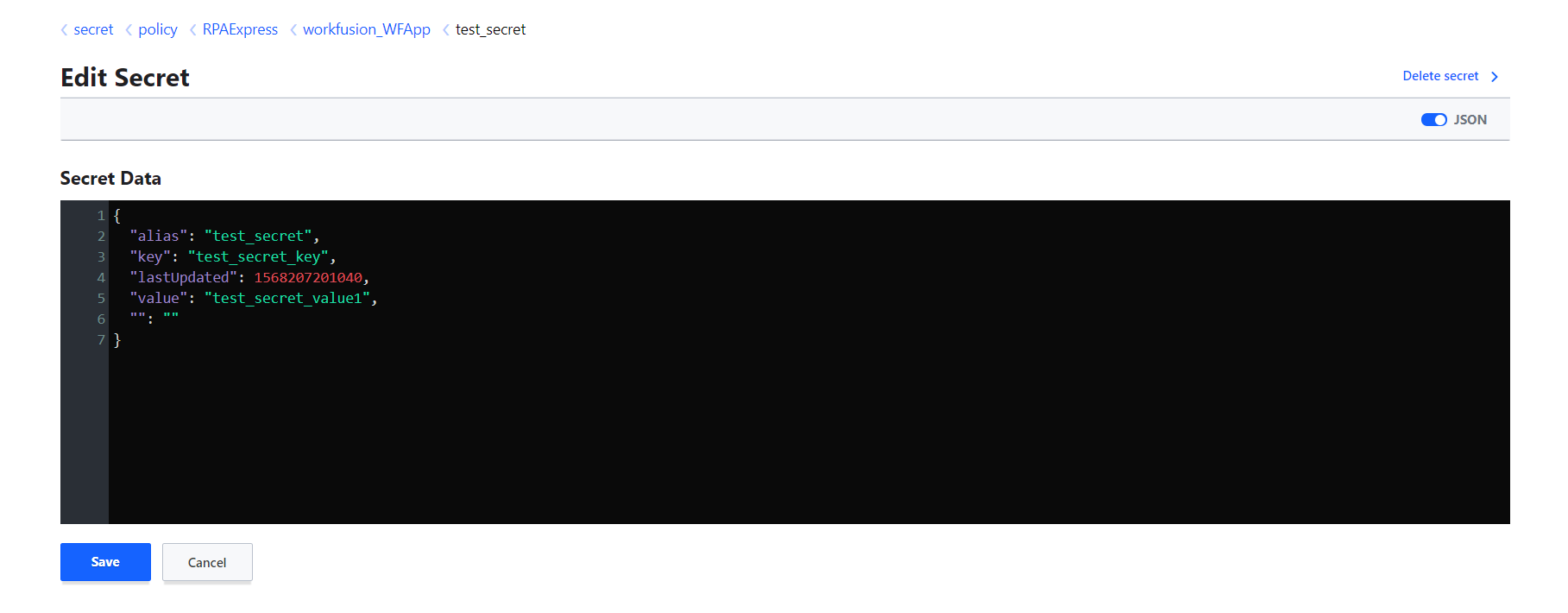
- Enter the changes you need and click Save.
- Sign out.
View logs
Secrets Vault, as any of Intelligent Automation Cloud omponents, has its own logs that are located in the folder C:\IntelligentAutomationCloud\Vault\logs\.