
Organize and configure simultaneous work
s you know, Intelligent Automation Cloud Business is a good tool for local automation. You can install it on your local machine and automate whatever you need. But Intelligent Automation Cloud Business can be used not only for local automation. It allows to use a centralized server application to handle multiple developer machines and manage created bots. This option allows several employees to develop automation tasks locally, deploy them to a remote server where tasks will be executed, and work on the server simultaneously.
The option to work simultaneously for multiple users is available in Business Edition only.
Reasons to provide multiple users to work in application
It may be not very clear from the beginning why it is required to have one single server with several developer machines, so let's discuss in more detail.
At first, why do you need to have multiple users working with Business Edition?
It depends on the number and complexity of tasks that you want to automate. Will there be simple tasks that mimic human actions or huge business processes with many steps, conditions, and human inputs? You need to understand how complicated your automated processes will be to develop and support. A lot of questions appear on this stage. You can find some of them below, just as an example.
- Do you have processes within your organization that take a lot of manual work? Can they be automated?
- Do you need to automate the whole process or only some steps? How many steps can be selected for automation?
- Which applications/systems are involved in the process? Do they require specific access or not?
- Do you need human inputs in automated process? Who should perform them?
- Who will check final results?
- Who will handle possible errors and exceptions? Is there any specific knowledge required for this?
You need to define the volume of work that you want to automate before organizing working processes with Business Edition. Depending on this, you can approximately count how many people will be involved in the automation process.
More key questions that appear when thinking about multiple users' work are how to organize access and how difficult it is to configure infrastructure. The common practice is to have separate production and development environments to avoid non-tested solutions and have a backup of production data somewhere in storage. In most cases, it requires specific costs for infrastructure and a separate administrator who will do backups and support both environments. With Intelligent Automation Cloud Business, you do not need to have several remote environments, as it allows to develop and test bots locally and then publish them on production environment. Thus, you can save costs and time not to configure major infrastructure to automate your processes.
User roles in application
As soon as you know the volume of tasks to automate, you can move to the next step — to define how many people will work with automated tasks and what their roles are.
Generally, there are three main roles in terms of Business Edition.
- Administrator – this is the person who installs Business Edition on a specific machine. It can be a local Windows machine or a separate Windows server. By default, this person has permissions to all components and all functionality on the machine, being able to manage business processes and work with manual tasks, as well as manage users (in Control Tower) and secret entries (in Secrets Vault).
- Developer – the role is required for RPA developers who develop and manage business processes or bot tasks on remote environment. Developer has almost the same permissions as of Administrator, except for managing users and editing secret entries.
- Operator/Support Matter Expert (SME) – this role can be applied to a business user who needs to run business processes in Intelligent Automation Cloud Business and receive output results. This is the most limited role in the terms of application. The user with this role cannot change any application settings and business processes/tasks. View permissions are available for this role only.
Depending on the tasks employees will perform, you can assign them to a specific role. It helps you to organize your employees and distribute access rights between them.
Organizational tips
In terms of user roles, there is a very important role — Developer. Without developers, it is impossible to automate any task. A person with the Developer role does not need to be a real programmer, but that will be a big help if he or she has specific knowledge in this area. Developer should have a basic knowledge of algorithms, loops, conditions in automation scripts. He or she should also understand how a separate business process works and which applications and systems are involved into it.
To organize work of multiple developers in Intelligent Automation Cloud Business, we suggest some typical recommendations.
- For codeless scripting, follow our Best Practices guide — Codeless scripting best practice.
- Use naming conventions. It helps other teammates better understand what a specific code or recording does, or what this group of actions implements. This approach also improves debugging and troubleshooting during testing.
- Log important steps in scripts. It helps to troubleshoot in case of any issues.
- Use a repository for version control to be aware of code and recordings created by different developers. This repository can be organized by different options from a simple shared folder to GitHub.
User access
Depending on user roles above, you can provide specific access to a server machine for these persons.
Administrators and Developers should be able to:
- log in to the server via RDP
- launch, stop the application and its components without any restrictions
- copy files to the server folders
- launch other applications required for automation
Operators should have remote access to Control Tower by link (see below), but they do not require access to the server via RDP.
Application configuration
Server installation
To provide the option for multiple users to work simultaneously, apply the approach described in the distributed environment deployment model. The important step of this model is a separate installation on the server and development machines.
For Business Edition installation, follow these steps.
- Make sure your server machine meets System Requirements. Remember that you should have Windows Server OS on the selected machine.
- Install as described in the installation guide. You may also follow Installation best practice.
- After Business Edition is successfully installed, launch it and switch on server components as described in Enabling server components.
Creation of Control Tower users
As soon as you make sure that Intelligent Automation Cloud Business is successfully installed and Control Tower launches and works without any issues, you can start creating multiple users. Before doing this, pay attention to User Management. Once Business Edition is installed, the Administrator user is created by default.
Pay attention that even Administrator cannot change any permissions within the specific role. All role permissions are unchanged in Intelligent Automation Cloud Business. You can only manage users not role permissions.
To avoid slow performance of a server machine, we recommend to create less than 6 users in Control Tower. When you create users, save credentials for each new account as they will be required later and used for remote connection to Control Tower from other machines.
WorkSpace access setup
You may need to set up additional access to WorkSpace for your employees. If you are planning to use manual steps within your business processes, register your users in WorkSpace to provide them with the option to process manual tasks. For that, use the same credentials that you set above for the required users.
Usually, only local Administrator has the access to WorkSpace.
To create a user in WorkSpace, do as follows.
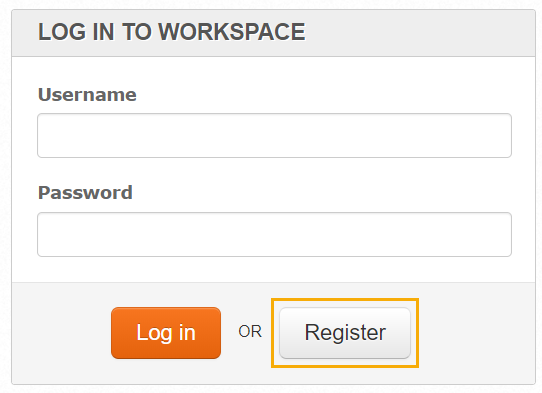
- Open WorkSpace and click the Register button.
- Populate all the fields according to the user settings in Control Tower.
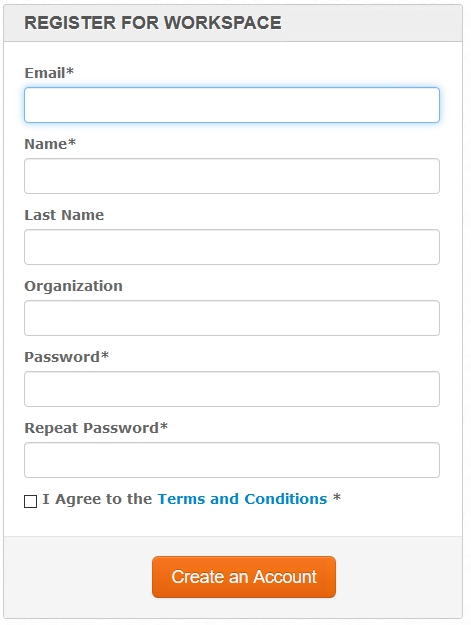
- Click Create an Account.
Development Workstation installation
After you define the required roles and create users in Control Tower and WorkSpace (optional), install Development Workstation on employees' machines.
This step can be skipped in case you have remote users with the Operator role, as Development Workstation is required for RPA developers only. A business user with the Operator role can reach out remote Control Tower and WorkSpace via browser links:
- Control Tower: http://<hostname or IP address>:15280/workfusion, for example: http://rpa-env:15280/workfusion/ (hostname)
- WorkSpace: http://<hostname or IP address>:15280/workspace, for example: http://127.1.1.1:15280/workspace/ (IP address)
See the installation steps below.
- Check that an employee machine meets System Requirements. For this installation type, the usual Windows OS is enough.
- Use the same Business Edition installation package to avoid difference in versions.
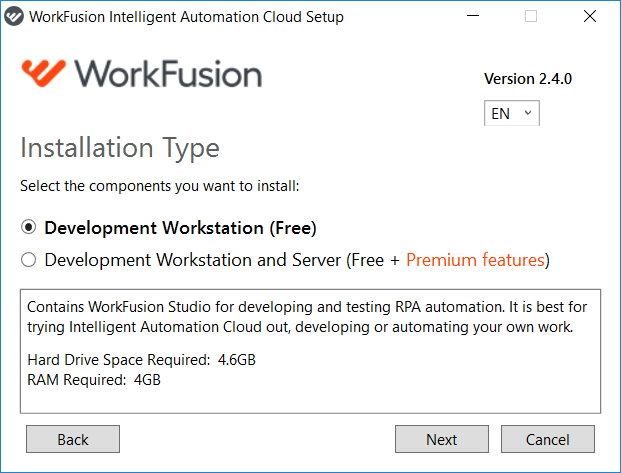
- While installing, use the Development Workstation (Free) option.
- On the Server Connectivity step, enter your server hostname or IP address that you have configured on the first step. The credentials should be the same you set for the specific user in Control Tower previously (the second step).
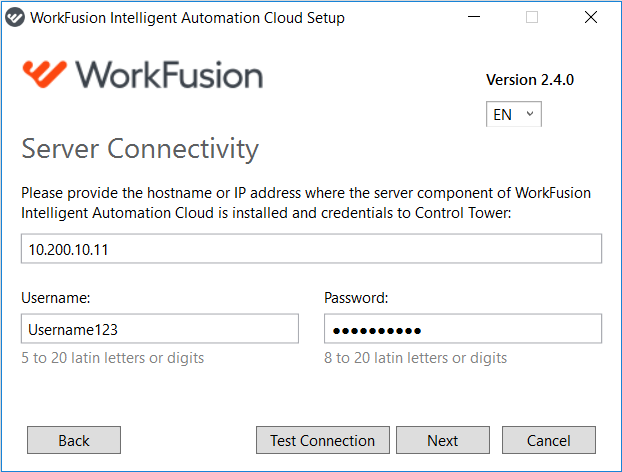
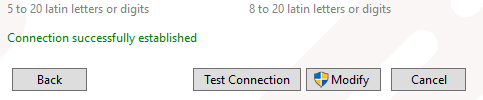
To check a connection, click Test Connection. You should see the green message "Connection successfully established".
If you see the warning message as below, make sure your server is available via network. Check with the local network team that your server can be reached out from other PCs in your organization.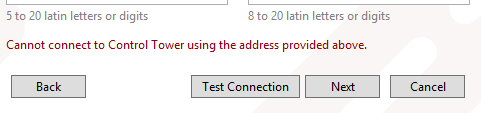
- After the installation process is finished, launch Business Edition and check whether the user is able to reach out remote Control Tower and WorkSpace with the configured credentials.
Pay attention that Control Tower on the server should be started and running to check availability for the user.
After this step, RPA developers will be able to create bot tasks and recordings on local machines, and then publish to the remote server.
Business users can also have similar configuration. Though, in case they do not require to develop scripts for business processes, there is no need to install Development Workstation to their local machines. They can manage business processes remotely using links to Control Tower and WorkSpace that should be provided to them separately.