
How to find Actions Library
note
Actions Library is a collection of all actions you can use to create a recording. The actions are grouped according to manipulations they perform. An action from the library can be added to its respective place in Actions Flow.
In case you cannot find Actions Library in WorkFusion Studio, perform the following steps.
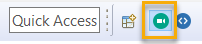
- Switch to Record perspective. There are several ways to do that.
- Click the Record icon in the right top corner of the window.
- Or click Open Perspective, select Record, and press OK.
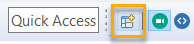
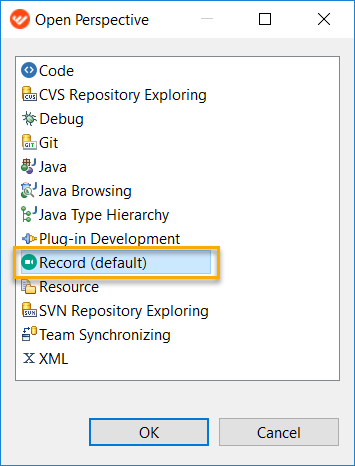
- Click the Record icon in the right top corner of the window.
- If you still cannot view Actions Library, go to Window > Show View > Actions Library.
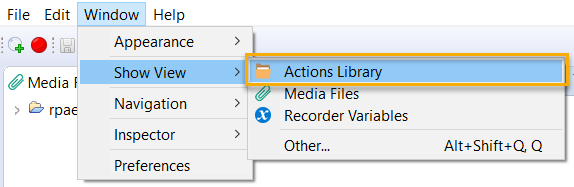 Actions Library is located on the left side of the window.
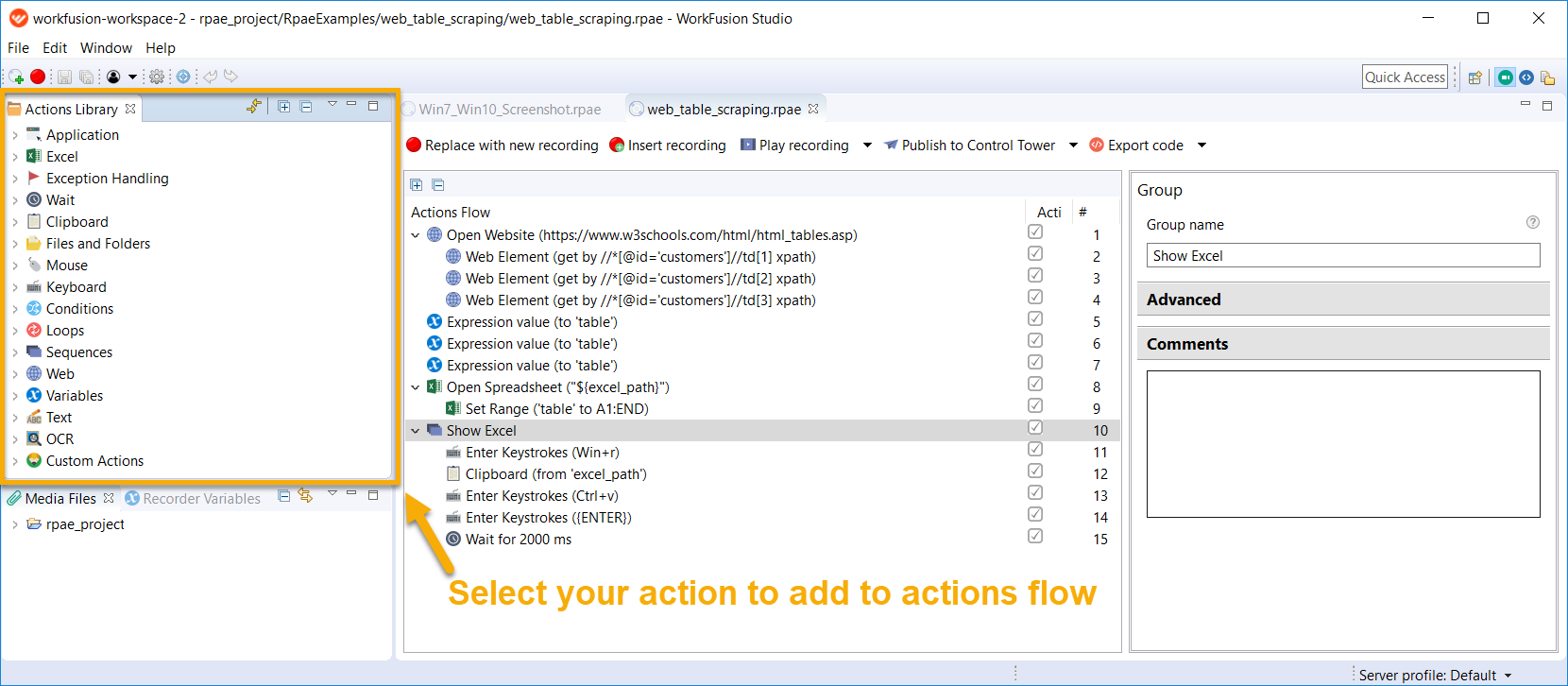
List of actions
There are the following actions for you to use in your automations:
- Application
- Excel
- Exception Handling
- Wait
- Clipboard
- Files and Folders
- Mouse
- Keyboard
- Conditions
- Loops
- Sequences
- Web
- Variables
- Text
- OCR
- Script as Custom Action
Run sample script
To demonstrate how actions work, we added some sample scripts to the action description. To run a sample script, you need to:
- download and unzip the recording folder
- copy the folder to your workspace (default location is C:\Users\%USERNAME%\workfusion-workspace\rpae_project)
- refresh the Media Files tab in RPA Recorder and open the script file