Review example project
The ODF 2 example project is created to demonstrate key features of the framework. It contains four simple Business Processes that operate on a mock data model. While functional, these processes do not perform anything practically useful.
The project itself is not intended to be used as a template. There are a lot of details related to the WorkFusion build infrastructure. To quickly create your project from scratch, use the ODF 2 quickstart archetype.
You can check out or download the example project source code from our public repository on GitHub: https://github.com/WFAutomationAcademy/odf2-example-project/tree/release/10.2.8.55.
Make sure you get the code of the branch that corresponds to your Work.AI platform version.
Project structure
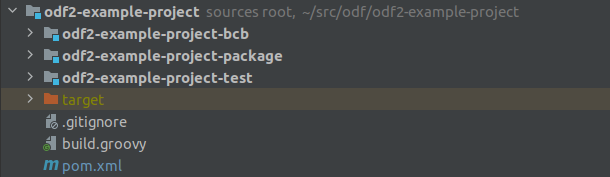
The ODF 2 example project is a normal Maven multi-module project with the following structure:
- odf2-example-project-bcb contains all production Java classes and unit tests. It is packaged as a Bot Config Bundle (BCB).
- odf2-example-project-package contains Business Processes and database migrations. It is packaged as an asset bundle and includes a BCB built from the previous module.
- odf2-example-project-tests contains integration tests based on the Spoke framework. The tests try to upload an asset bundle to the specified environment, run Business Processes, and check their output.
pom.xmlis a root configuration of the Maven project.
When you open the project in IntelliJ IDEA, it looks as follows:
Project configuration
Some project features depend on the proper configuration.
To deploy an asset bundle to Control Tower with the Maven command, do as follows:
pom.xmlin the project root contains the<remote-control-tower.url>property. It contains a placeholder that must be changed to the URL of the existing Control Tower instance:<properties>
<remote-control-tower.url>https://some-server</remote-control-tower.url>
<!-- Replace https://some-server with address of real CT instance -->
</properties>settings.xmlin the.m2subdirectory of the user directory must contain a server entry for theremote-control-towerserver. It must contain credentials for the existing Control Tower instance.
After you build a project with the mvn clean install command, you can upload the asset bundle to the remote Control Tower by running mvn -f odf2-example-project-package bundle:import.
To run integration tests, mind the following prerequisites:
pom.xmlin the project root contains theremote-control-tower.usernameandremote-control-tower.passwordproperties that must be changed to contain credentials for the existing Control Tower instance.<properties>
<remote-control-tower.username>user</remote-control-tower.username>
<remote-control-tower.password>secret</remote-control-tower.password>
<!-- Replace placeholder values with real credentials -->
</properties>
BCB module
Data model
The com.workfusion.odf2.example.model package contains data model classes of the example project.
A data model imitates the processing of email messages. The Email and Attachment classes represent incoming data and the Invoice class—a result of an aggregation of Attachments. No real interaction with email services of any kind is done. All emails are randomly generated inside InMemoryEmailService.
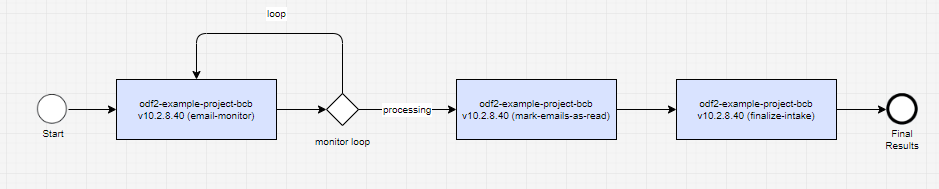
Intake Business Process Tasks
The com.workfusion.odf2.example.task.intake package corresponds to the Intake Business Process.
The Intake Business Process definition starts with a Monitor Task. EmailMonitorTask produces Email objects with Attachments.
The MarkEmailsAsReadTask task shows how to add further intake business logic. In this case, it emulates marking these Emails as read.
MarkEmailsAsReadTask is followed by a finalization task available directly from the ODF 2 framework.
Also, you might want to check EmailMonitorTaskTest from the test folder. That is a decent example of how to test a Monitor Task using the bot-task-junit library.
Processing Business Process Tasks
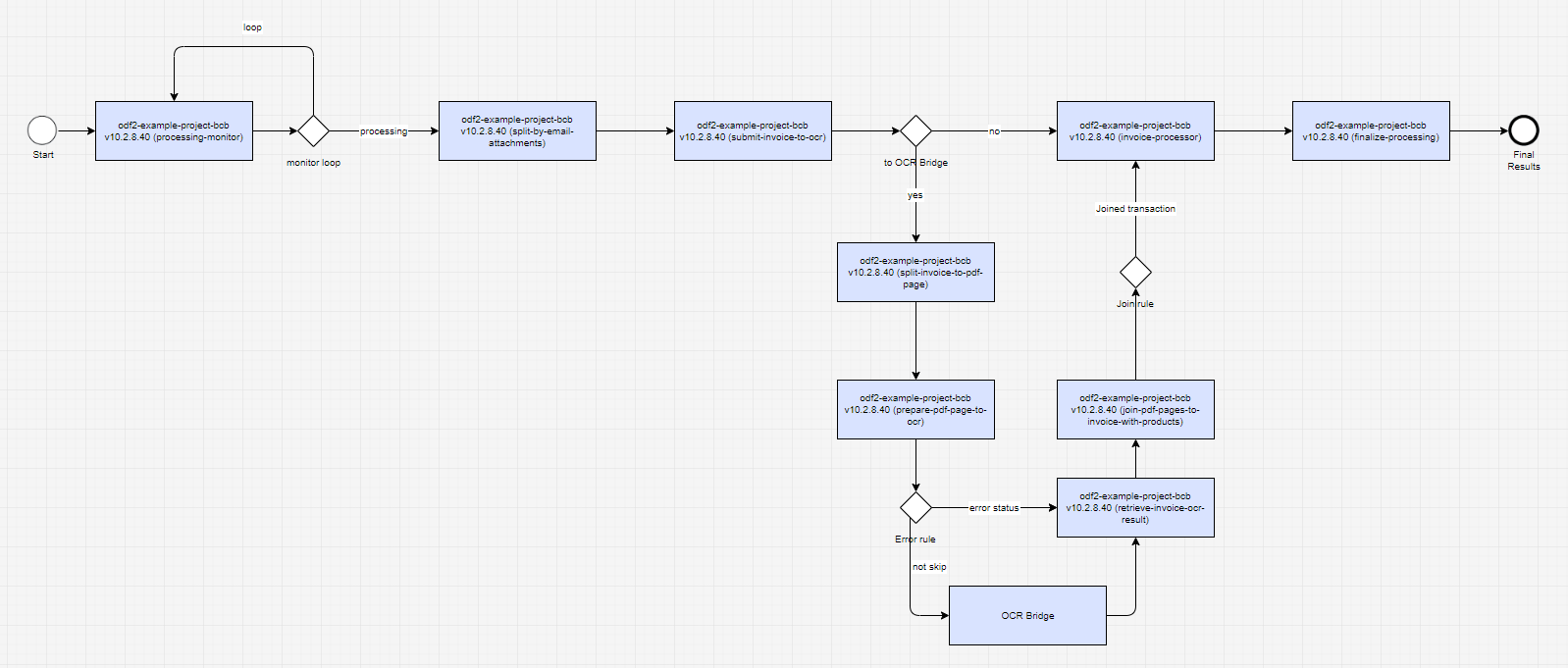
The com.workfusion.odf2.example.task.processing package corresponds to the Processing Business Process.
The Business Process starts with a Processing Monitor that picks Transactions finalized by the Intake Business Process. This task comes directly from the ODF 2 framework.
SplitByEmailAttachmentsTask creates an Invoice object for each Attachment in a given Email. Depending on an Attachment, it throws an exception that is handled either by LogAndForgetBehavior or RetryTransactionBehavior.
InvoiceProcessorTask showcases the business entity processing logic by changing Invoices produced by the previous task.
split-invoice-to-pdf-page splits a multi-page document into separate pages. This separation prevents reprocessing the entire document if one of the pages encounters an error during the OCR process. When all the document pages are processed, join-pdf-pages-to-invoice-with-products combines all the data from the pages into one invoice that is processed in the next step.
Moreover, the Processing Business Process contains an example of the OCR Bridge step usage. There is SubmitInvoiceToOcrTask that prepares a document link for OCR processing and RetrieveInvoiceOcrResultTask that follows after the OCR Bridge step and showcases the OCR result processing logic. For more details, refer to OCR usage example.
At the end of the Business Process, there is a default finalization task:
In terms of tests, there are InvoiceProcessorTaskTest and EmailToInvoiceConverterTaskTest, examples of how to test Bot Tasks with the extensive use of the OrmLite repositories.
Submission Business Process Tasks
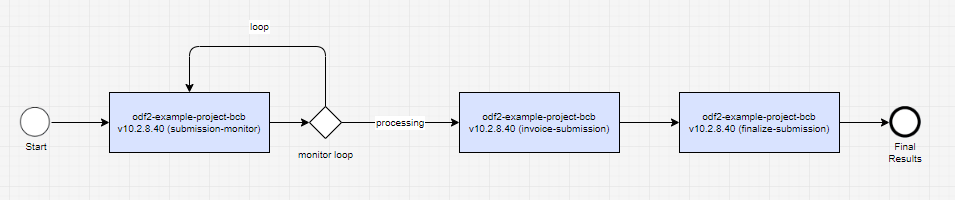
The com.workfusion.odf2.example.task.submission package corresponds to the Submission Business Process.
The Submission Business Process definition starts with the Monitor Task and ends with the finalization task. Both tasks are part of the ODF 2 framework. In the middle, there is InvoiceSubmissionTask that emulates sending Invoice to a different system:
Error handling Business Process Tasks
The com.workfusion.odf2.example.task.errorhandling package corresponds to the Error Handling Business Process.
The module comes with only one error handling task example:
ExceptionProcessorTask: a task to define whether manual error handling is needed.
The Error Handling Business Process is expected to analyze an error related to a transaction and try some form of error recovery. In the example, ExceptionProcessorTask sends certain transactions directly to the finalizer task, and the rest is processed with the help of the Manual Task.
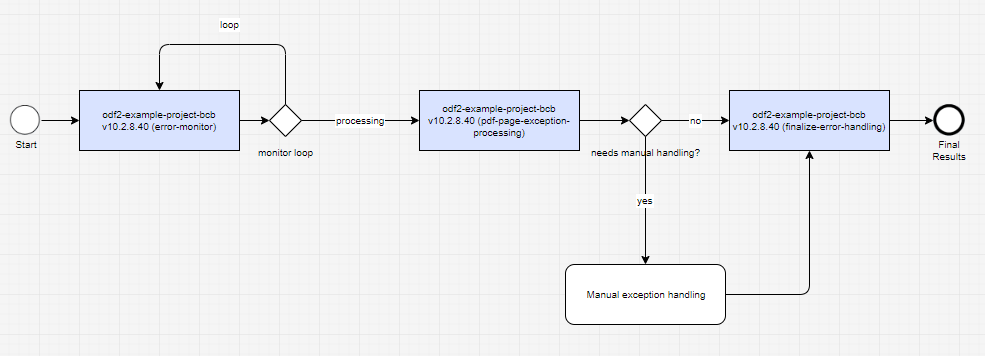
In terms of tests, there is ExceptionProcessorTaskTest, an example of how to test Bot Tasks with the error handling logic.
Resources
The BCB module also contains several important files inside the resources folder:
- The
usecase.propertiesfile is populated with actual AI Agent settings during a project build for the ODF 2 framework to read it at runtime and understand which AI Agent is associated with the current project. This is especially crucial for Data Stores since a Data Store name consists of AI Agent code and version. - The
assembly.xmlfile assembles your BCB into a final JAR file compatible with the Control Tower environment. Usually, you don't have to change this file. - The
bot-task-junit.propertiesfile contains settings for thebot-task-junitlibrary to be used during the test execution.
Package module
The package module or the Asset Bundle module comprises a Business Process and its supporting resources, such as AutoML models, Bot Configs, Data Stores, templates, and others.
In our case, the package module already contains four Business Processes that correspond to the modules mentioned above:
Data_Intake.zipData_Processing.zipData_Submission.zipError_Handling.zip
Also, there is package.xml inside the assembly folder. This file is a descriptor for copying dynamic resources.
Let's describe each folder inside the package module.
/artifactory-dependency
The directory is required if a BCB is used. Otherwise, it is optional. The directory's content maps to zero, one, or multiple BCBs.
In most cases, there is no need to add assets to the artifactory-dependency directory. After you run mvn clean package, BCB files from the BCB modules of the same project are deployed automatically to the target/artifactory-dependency folder.
/automl
The directory maps to zero, one, or multiple AutoML models (trained or not). Each trained model is a sub-directory of the model directory. Each model artifact (not trained yet) is a sub-directory of the artifact directory. When there is no such directory in an Asset Bundle, all Manual Tasks have the No Automation AutoML setting.
/bot-config
The directory contains bot steps (XML) that appear in Control Tower and are essential for designing Business Processes. It is intended to store all the bot steps the BCB module doesn't include.
Packing this directory is optional unless you have legacy Bot Configurations that are not in BCBs, for example, those created before the transition to the ODF framework.
Do not copy XML data from a BCB to the bot-config directory. Once the BCB import is over, all the necessary bot steps reappear in Control Tower automatically.
/business-process
Pack the directory with Business Process packages created as zip files in the local or server Control Tower in the development environment.
To add a new Business Process, do as follows:
- Create a Business Process in the server or local Control Tower in your development environment.
- Export the Business Process from Control Tower.
- Put the exported Business Process in the
resources/business-processfolder.
When you need to update a Business Process to incorporate BCB code changes, apply a similar workflow.
Be aware that the system automatically creates a Business Process draft for each imported Business Process package in Control Tower.
/datastore
The datastore directory serves as a storage for any content essential for creating and maintaining Business Processes. It is also the most convenient way to share temporary data across bot steps.
Pack the directory with CSV files to be used for creating Data Stores. One CSV file corresponds to one Data Store. The names of CSV files map to the names of Data Stores.
The data format in the files must be the same as if you uploaded data to a Data Store via Control Tower. Each file must contain headers and, at least, one record.
Mind that Data Stores created based on the files contain a single data type, NVarchar(max).
The datastore folder contains a Standardized Data Store schema. For details, read Manage Data Model.
/s3
Pack the directory with static resources if you need those for your AI Agent. Each top-level sub-directory in the s3 directory corresponds to an S3 bucket. Therefore, the names of these top-level sub-directories in the s3 directory must map to the names of S3 buckets.
/template
The directory contains zero, one, or multiple XML files, each representing a Template. An XML file name maps to a Template name.
A macro sub-directory can reside inside the template directory, representing Macro Templates used for advanced Manual Task customizations.
When simple Task Designer manipulations or Answer configurations are not enough to achieve the desired behavior or interface in a Manual Task, Macro Templates are created in Control Tower with custom HTML, CSS, or JavaScript code. Subsequently, you can re-use the Macro Templates in a base Manual Task template via the <include> tag.
/use-case
If you have a fully developed Business Process, packing the /use-case directory is optional.
You can include XML files representing Operations in the directory if you need them to develop a Business Process. In this case, put the files in the directory for the initial Asset Bundle deployment without a Business Process package. See the Package assets into an Asset Bundle for deployment | /business-process for packing the business-process directory.
meta-info.json
The file is required and must be a valid JSON file. The NAME and WF_VERSION parameter pairs are required.
The USE_CASE_CODE and USE_CASE_VERSION parameters are optional but recommended since they allow viewing AI Agent versions on the Digital Workers list. They define the AI Agent version where the imported bundle is applied. All AI Agent assets are to be tracked within the version. If the parameters are used, they must be used together.
The following restrictions apply to the parameters:
USE_CASE_CODEcan contain letters in uppercase, dashes (-), underlines (_), and digits.USE_CASE_VERSIONmust contain a semantic version of an AI Agent (see Semantic Versioning), for example, 1.0.2, 2.3.5-SNAPSHOT.
If an Asset Bundle is structured correctly, it contains all components needed for Business Processes to run in a target (production) environment. However, any component from the structure above is optional, except for meta-info.json.
Integration tests module
The odf2-example-project-test module contains integration tests based on the Spoke framework. These tests work by uploading an asset bundle to the Control Tower instance, running specific Business Processes, and asserting their results.
The execution of these tests during a Maven build is disabled by default. This is because these tests require running the Control Tower instance and can take some time to run. To explicitly enable them, turn on the it-testsMaven profile, for example, mvn clean verify -Pit-tests. You can also run the tests directly from the IDE in the same way as usual unit tests.
The configuration for tests is read from the resources/instance.properties file. This file uses Maven project properties from the root pom.xml file substituted during the build.