Configure session timeout
As soon as the processing period of a Manual Task (assignment) expires, all task progress is lost, and the assignment becomes available to other workers. Some assignments can be too complicated for workers to complete within the default timeframe. In this case, you can increase the Manual Task processing time.
To check the time remaining for the MT processing, see the timer in the top right corner of the Workspace interface.

Explanation
The Workspace application uses two sessions: the Keycloak one and the Workspace one.
- The Keycloak session is configured in the Keycloak administrator's section with the
SSO Session Idleparameter. The value must be greater than New processing period. - The Workspace session is configured in ZooKeeper with the
ws.assignment.max-lock-timeandserver.servlet.session.timeoutproperties.
The default values for these properties are as follows:
SSO Session Idle: 40mws.assignment.max-lock-time: 35m
To avoid problems when processing assignments, use the defaults. If you want to change the values, you must follow the rule: SSO Session Idle > ws.assignment.max-lock-time.
Otherwise, if you work on a Manual Task longer than the session timeout, you can't submit the processed assignment and lose your changes.
Solution
To change the assignment processing time, follow the steps below.
Step 1. Configure session in Keycloak
You need Step 1 only if you want to increase the processing time. For reducing the timeframe, you can skip Step 1 and go to Step 2.
First, you need to ensure that the Keycloak's SSO Session Idle value is greater than New processing period. Thus, the user's session is not lost before New processing period passes.
To verify the SSO Session Idle parameter, follow the steps below depending on the Work.AI version you are using:
- For Work.AI versions up to 10.2.9
- For Work.AI v10.3.1+
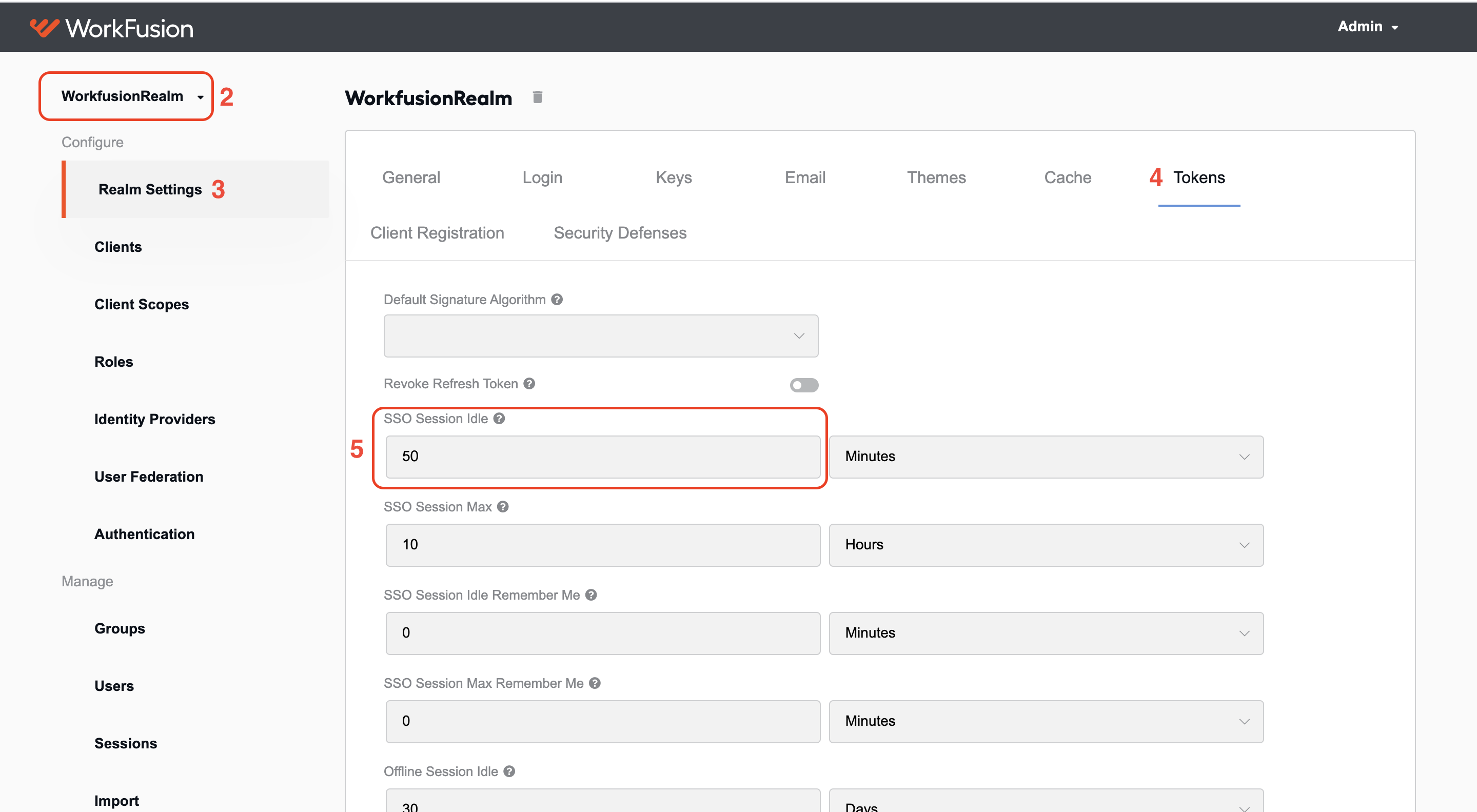
Log in to WorkFusion User Management (Keycloak).
On the left menu, in the realms dropdown, select WorkfusionRealm.
Go to the Realm settings section.
Open the Tokens tab.
In the SSO Session idle box, change the value to make it greater than the projected New processing period.
Remember to set the period in minutes. The unit of measurement is displayed to the right of the numeric value of the SSO session idle box.
Click Save.
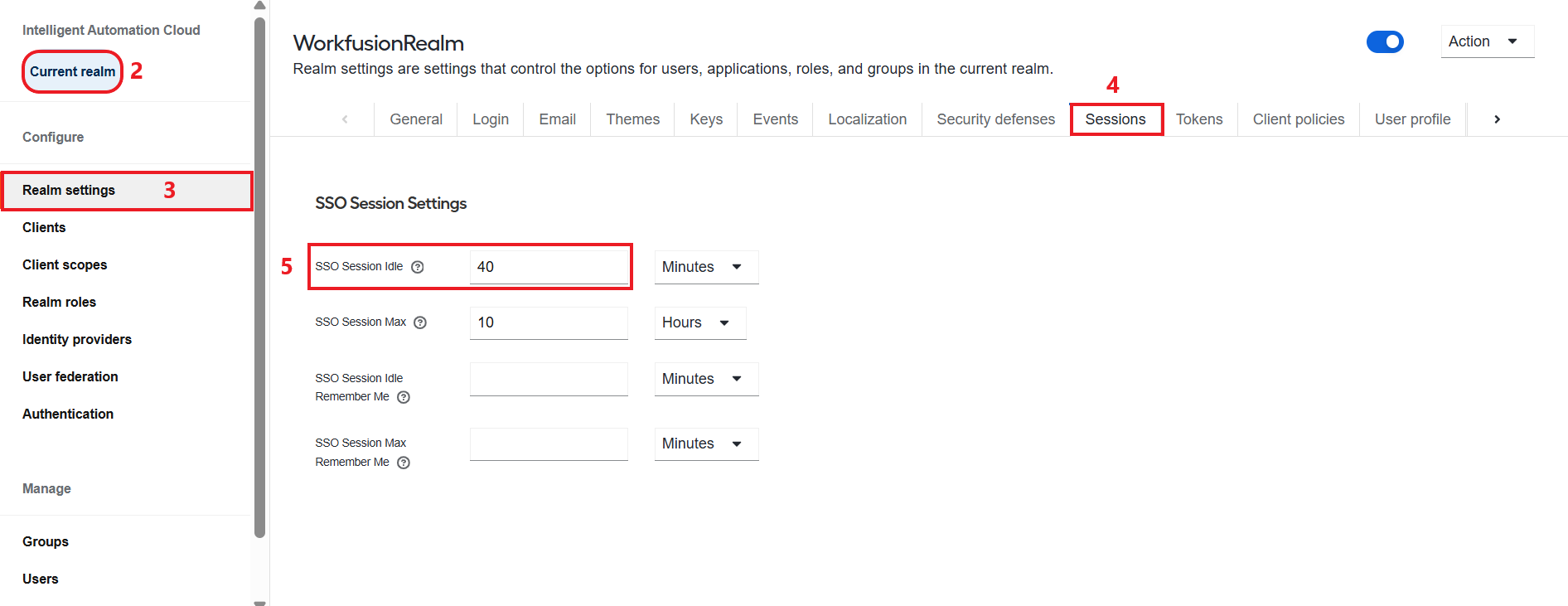
Log in to WorkFusion User Management (Keycloak).
In the top left corner, make sure you have WorkfusionRealm (current realm) selected.
Go to the Realm settings section and then navigate to the Sessions tab.
Open the Sessions tab.
In the SSO Session idle box, change the value to make it greater than the projected New processing period.
Remember to set the period in minutes. The unit of measurement is displayed to the right of the numeric value of the SSO session idle box.
Click Save.
Step 2. Update processing period in ZooKeeper
To change the processing period, you have to configure the properties loaded by Workspace on startup.
Change application properties
You can change application properties via the ZooKeeper service.
For a detailed guide on connecting to and working with ZooKeeper via ZooNavigator, see Set properties in ZooKeeper.
Log in to ZooNavigator and find the Workspace properties in the
/config/workspacefolder (or node). To find the folder, in the Search bar, type /config/workspace and press Enter.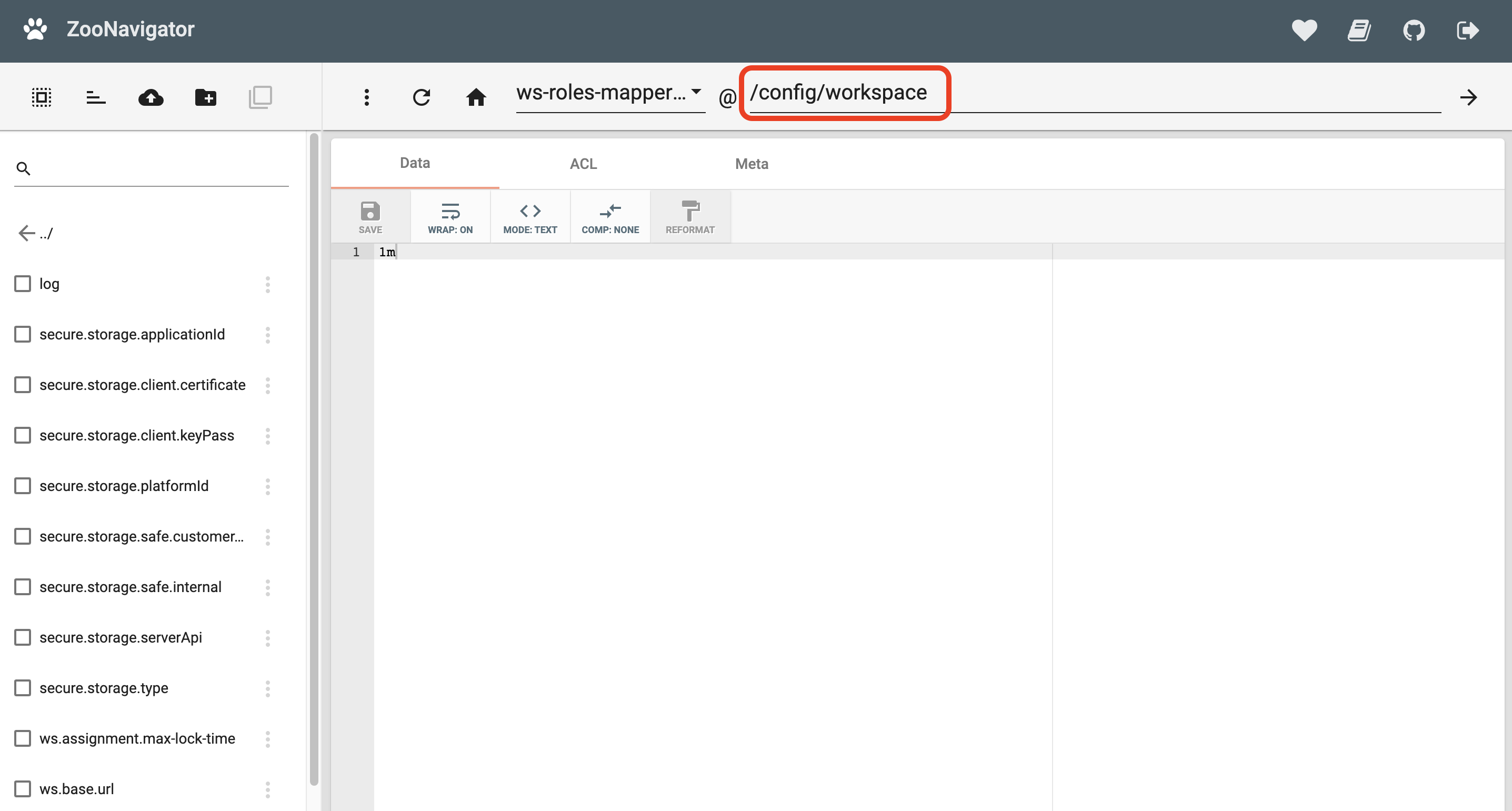
On the left bar, you can see all Workspace properties synchronized with ZooKeeper. You need the items associated with the assignment processing time:
ws.assignment.max-lock-time: assignment processing maximum time. The default value is 30m.server.servlet.session.timeout: user session timeout in minutes in Workspace. The default value is 35m.
If there are no such properties, create nodes for them:
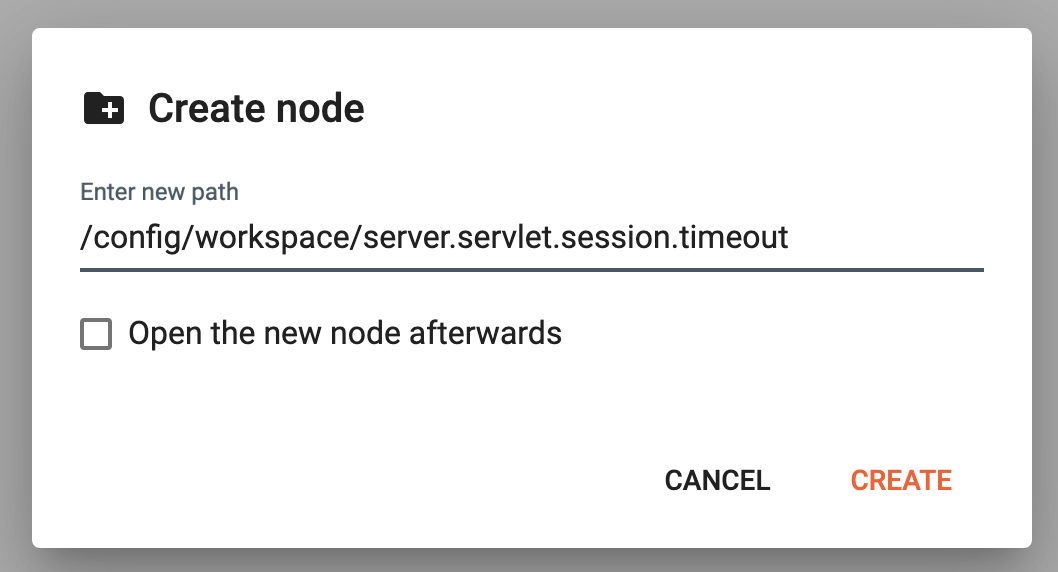
In the top toolbar, click the Create node icon (it looks like a folder with the plus sign).
In the Enter new path box, type /config/workspace/ followed by the required property name. For example, /config/workspace/ws.assignment.max-lock-time.
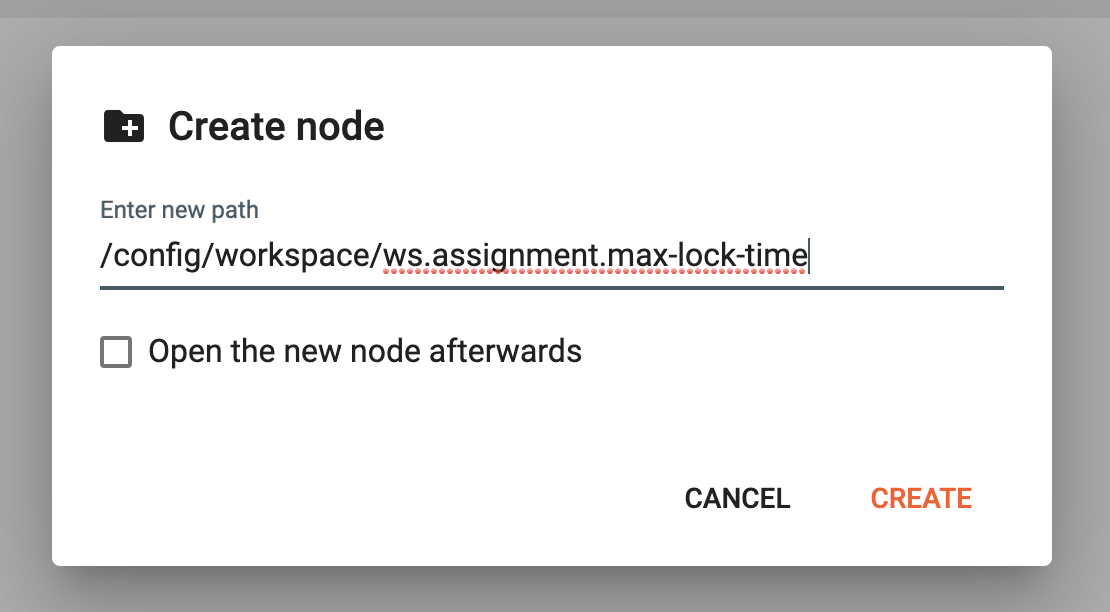
Click the Create button to sync the new property with ZooKeeper.
Repeat Steps 1 to 3 for the other property.
On the left bar, click the
ws.assignment.max-lock-timenode and set the new New processing period, for example, 60m. Click Save.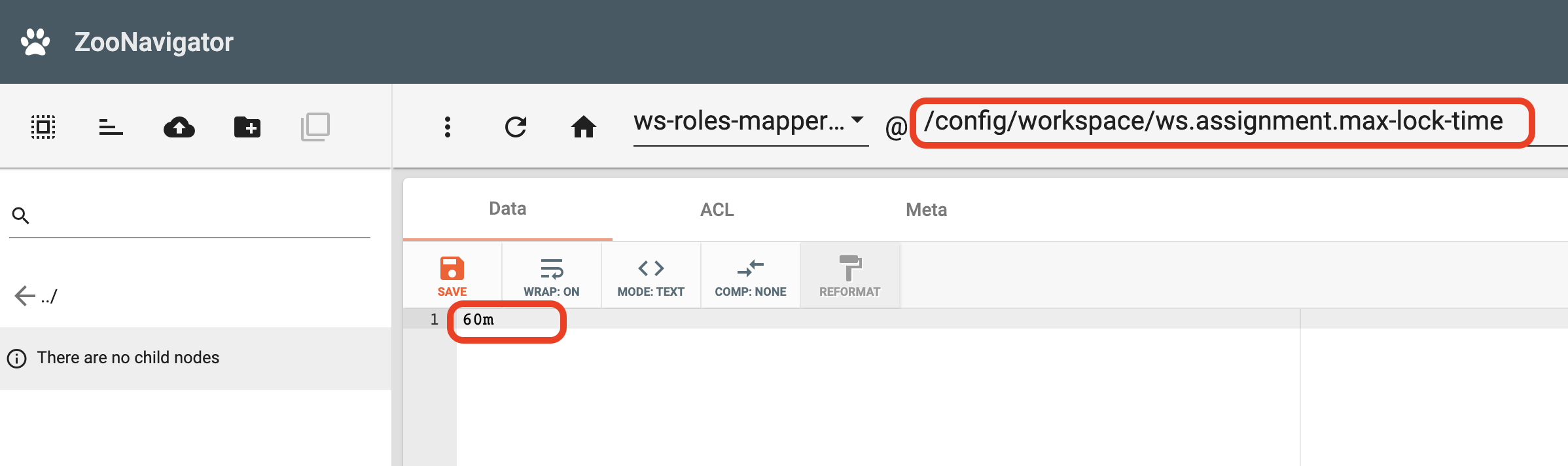
Click the
server.servlet.session.timeoutnode and set the same New processing period value as above +5m. Click Save.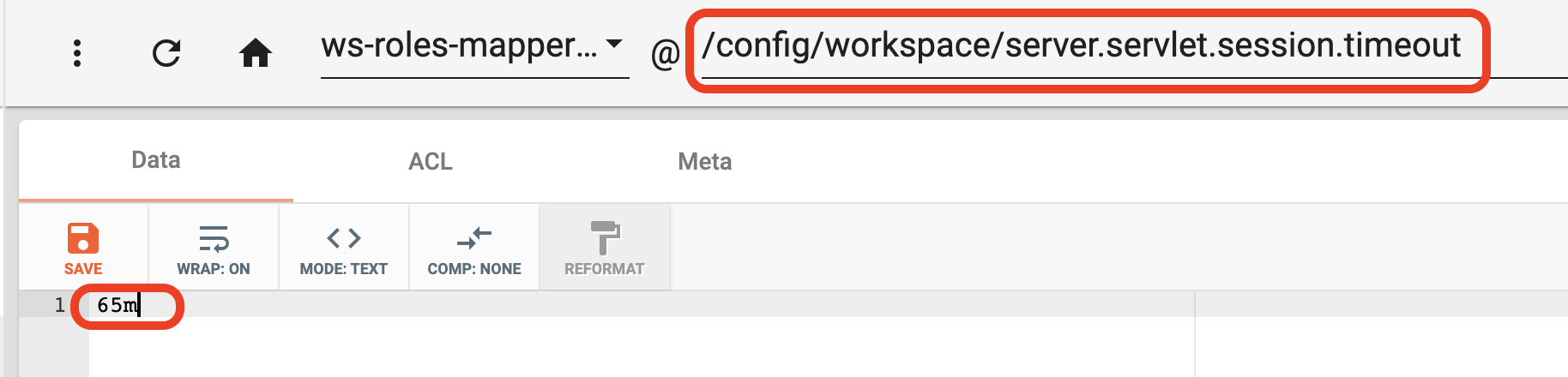 note
noteThe
server.servlet.session.timeoutvalue must be greater thanws.assignment.max-lock-timeby at least 5 minutes. Examples:ws.assignment.max-lock-time=NEW_PROCESSING_PERIOD mserver.servlet.session.timeout=(NEW_PROCESSING_PERIOD + 5) m
You have successfully updated the properties.
Restart Workspace
To sync the updated properties with Workspace, restart the application:
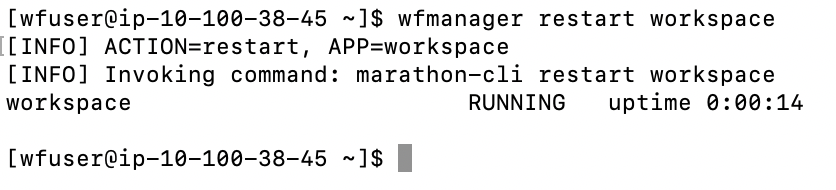
- On the Master server, connect to the server's terminal via SSH.
- In the terminal, execute the command
wfmanager restart workspace. - Wait until the command execution finishes.
Check
To check that the assignment processing time is changed, follow the steps below:
- In your browser, log in to Workspace.
- Click any assignment.
- In the top right corner, you can see the new processing time.