Override Workspace property value
Spring Boot has many options to set or override the Workspace application properties. On startup, it loads properties from all places and saves them into objects—PropertySource. Then, the PropertySource objects are arranged in the order of priority.
When a Work.AI component tries to use any property value, Spring Boot starts searching this property from the first PropertySource by priority. For more details, refer to the official Spring Boot documentation.
Also, Work.AI uses the Spring Cloud Config ZooKeeper solution, and these properties are loaded into the system before all others.
Review loaded properties
According to the information below and Workspace configuration, you can add the following properties:
- Those set in ZooKeeper with a specific profile
- Those set in ZooKeeper
- Java System properties saved in the
JAVA_OPSvariable in the/bin/setenv.shTomcat file - OS environment variables
worksapce.propertiesfile in the/confTomcat folderapplication-{profile}.ymlinwar/jarapplication.ymlin thewar/jarfile- The default value set in the property object annotated by
@ConfigurationProperties bootstrap.yml
Pay attention to the following considerations:
In
application.yml, you can set profile-specific properties:#application.yml properties
spring:
main:
web-application-type: servlet
---
# application-ws2.yml properties
spring:
profiles: ws2The
bootstrap.ymlfile has the least priority, but it is loaded at the Bootstrap phase where only Java System properties, OS environment variables, andbootstrap.ymlare loaded.
Set properties in ZooKeeper
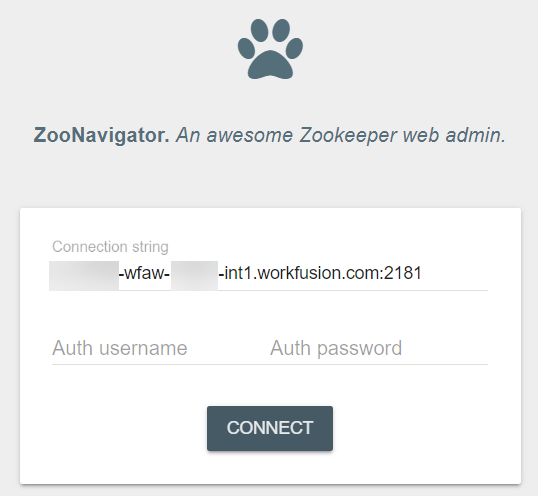
You can set properties in ZooKeeper using the ZooNavigator UI.
URL: https://{instance-name}-wfaw-{aws-account}-ct1.workfusion.com:10999/zoonavigator
Connection string: {instance-name}-wfaw-{aws-account}-int1.workfusion.com:2181
To set ZooKeeper with a specific profile property, do as follows:
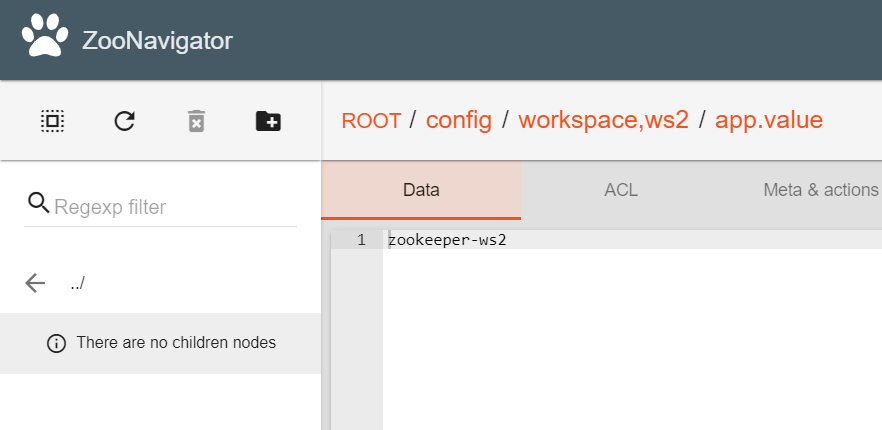
- Go to the /config/workspace,{your profile name} node, where {your profile name} is the name of your profile.
- Type in a new property and click the Create new node button.
- In the data window, set this property value.
In the example below, the property is app.value with the zookeeper-ws2 for the ws2 profile. This property value will be used if the ws2 profile is enabled.