
Create Automation Manual Task
WorkFusion VDS provides automation by training ML Models on human worker answers which are provided by means of Manual Tasks. These tasks (web forms with data and input fields) are designed in the WorkFusion application and are filled and submitted by human workers in the WorkSpace application.
Therefore, start by creating and configuring a Manual Task in the WorkFusion portal.
Design Manual Task
Go to Manual Tasks > Create Manual Task.
Select the Task type (Use Case).
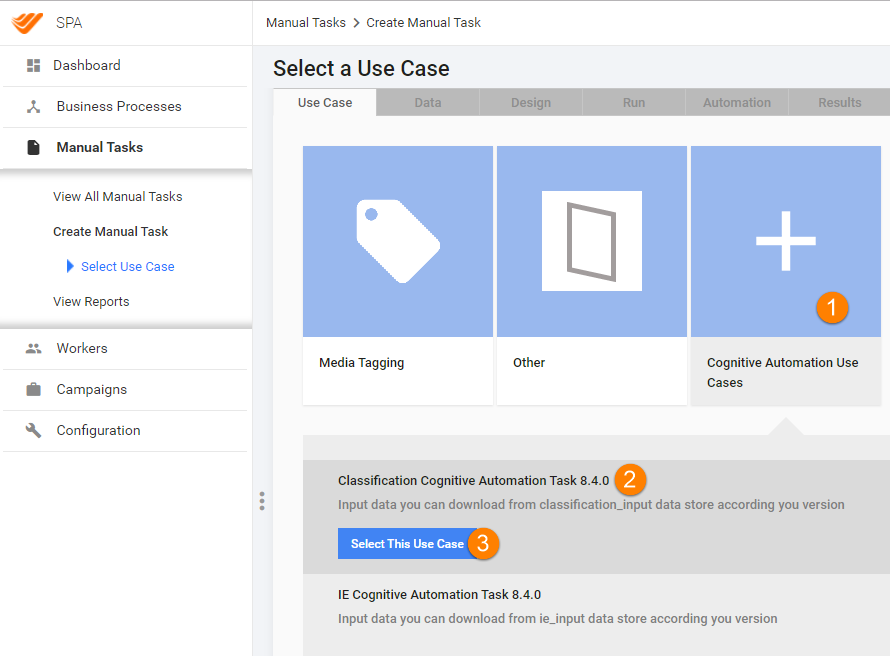
Currently, the most wide-spread use cases are:
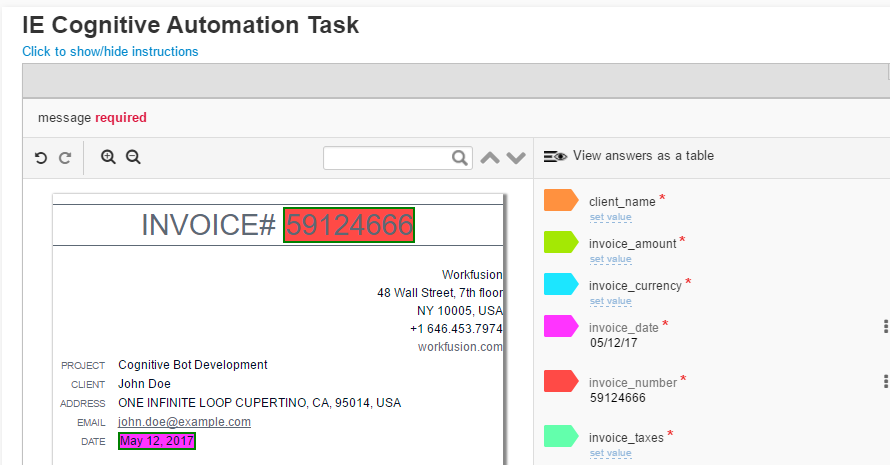
- Extraction
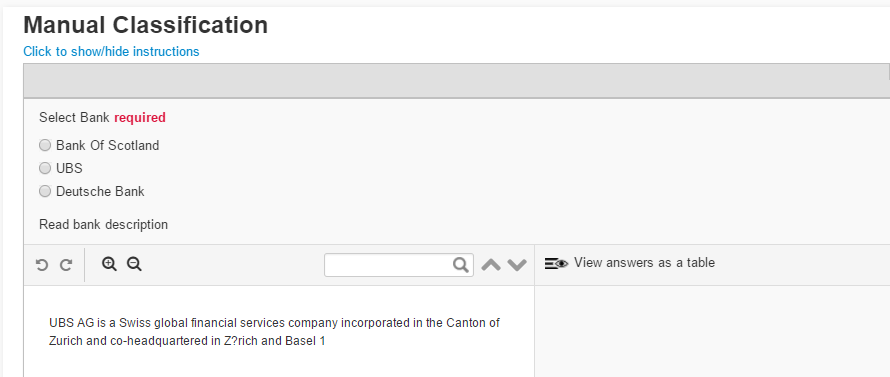
- Classification
warning
ALL fields to be automated with the model MUST be configured as REQUIRED. Otherwise, the SQC process fails to pick those fields.
Upload input data
Upload a CSV file prepared on STEP 1. Your input file should contain 20 records (Documents) or more.
Set up automation options
Set the options for Task Automation (Run Task > Advanced Options > the Automation tab).
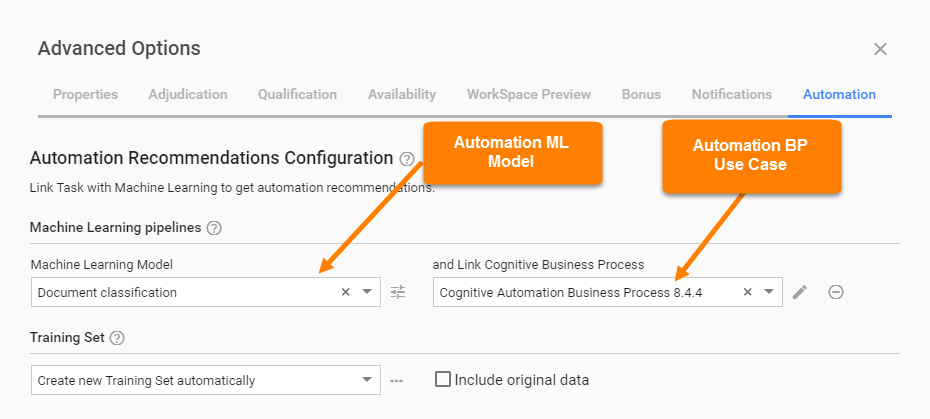
Select the Machine Learning Model that fits your Task, for example, Dividends Information Extraction, Classification, Financial Reports Data Extraction. This model is trained on Human answers and automates your Task by creating an Automation BP.
Select the Link Cognitive Business Process. The Automation Business Process is created from this Use Case when your Task is completed.
tip
If you selected a wrong Business Process or Model, click the arrow icon (▼) and select the required one, or click Remove icon (x).
Select the Automation Training Set:
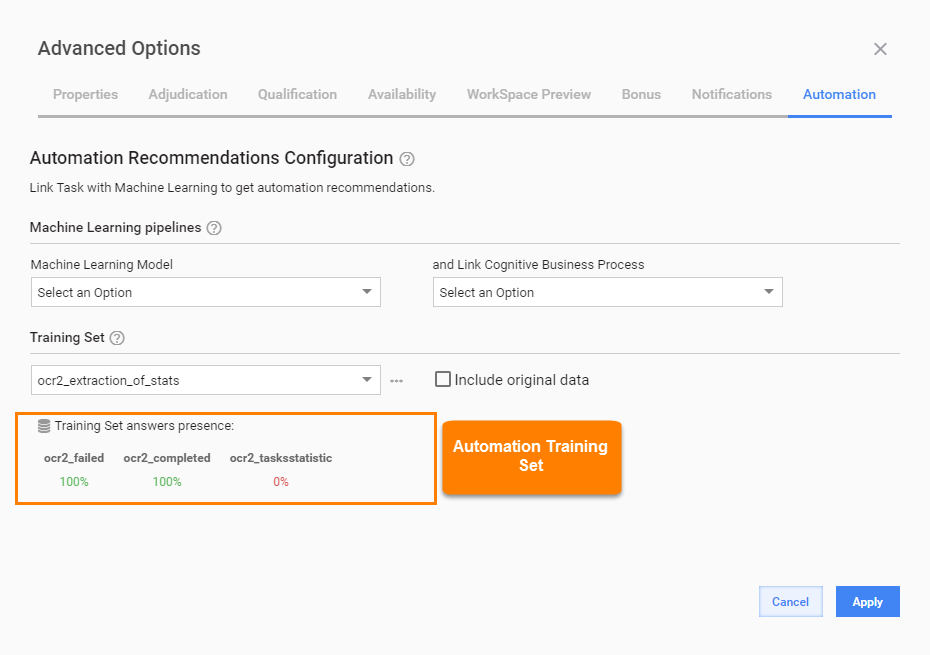
If you have some historical data for training the machine learning models, you can upload this data to the Automation Training Sets and use it for Task automation. When assigning an existing Training Set to a new Task or doing a quick assessment of data for ML purposes, you can see the Training Set answer presence and its percentage.
If you do not have a Training Set, select the Create new Training Set automatically option. It is a default option, a new Training Set is created for storing Workers' answers and training ML models to automate your Task.
tip
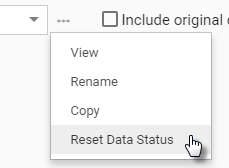
You can optionally perform the following actions with an existing Training Set:
- View: Opens the Training Set in a new window.
- Rename: Renames the Training Set.
- Copy: Creates a copy of the Training Set.
- Reset Data status: Sets the train_status column for all records to
NEW. Needed to include all records from a particular Training Set in ML Model training.
Uncheck the Include original data checkbox if you do NOT want to save all data from Task input to the Training Set. This action is needed because input data can contain columns not needed for automation and checking this option significantly increases the Training Set size.