
View results
How To Run a Business Process
When you have uploaded the Data, completed and validated the BP Design, and set the Run options, perform the following actions:
- Run the BP by clicking the Run This Process button on the Run Business Process tab.
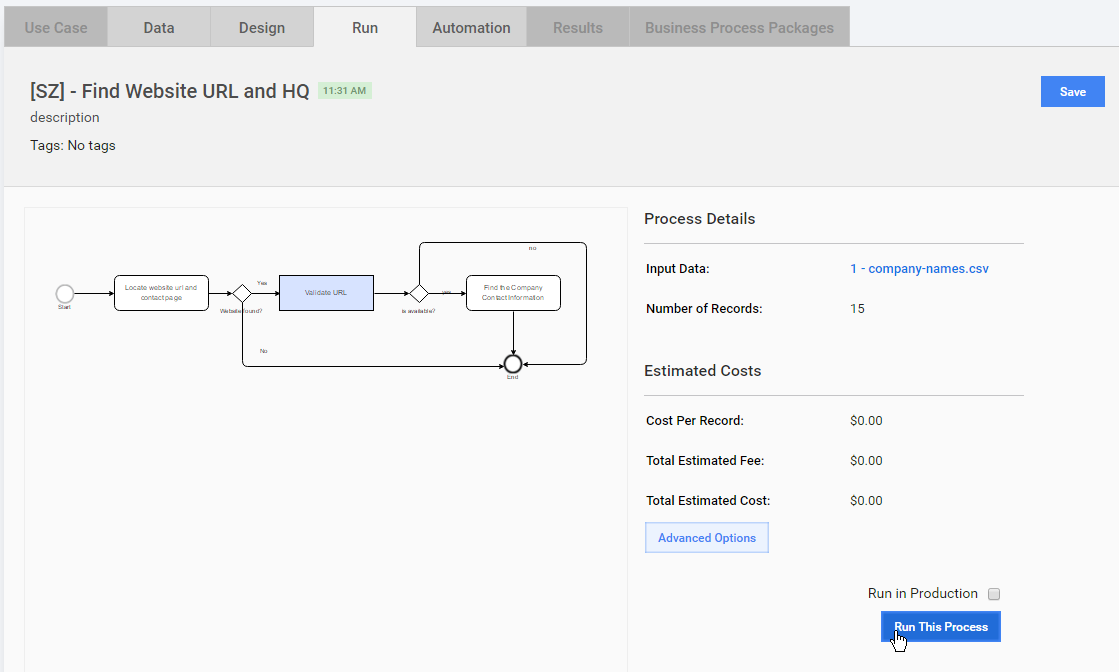
- If the BP is valid and has started successfully, you will see the following message: Business Process started successfully! You can view the results of the BP, or view the BP you have just created via the BP List.
- Log in as a Worker (in WorkSpace), search the BP Tasks by name or Tags, and complete all the Worker Tasks. Depending on the Task Adjudication Rules, you should have more than one Worker account.
- Go back to the Control Tower and edit the BP options, Design, or Data if needed.
- Copy the BP with Data. You can optionally stop or delete the original BP if you do not need it.
- Run the BP by checking the appropriate checkbox above the Run This Process button.
The following sections describe how to watch the BP progress, analyze Worker answers and activity, and get the final Result Data.
Workflow Diagram
You can watch the BP progress and get real-time statistics using the BP scheme on Design tab in View Mode and on the Run tab.
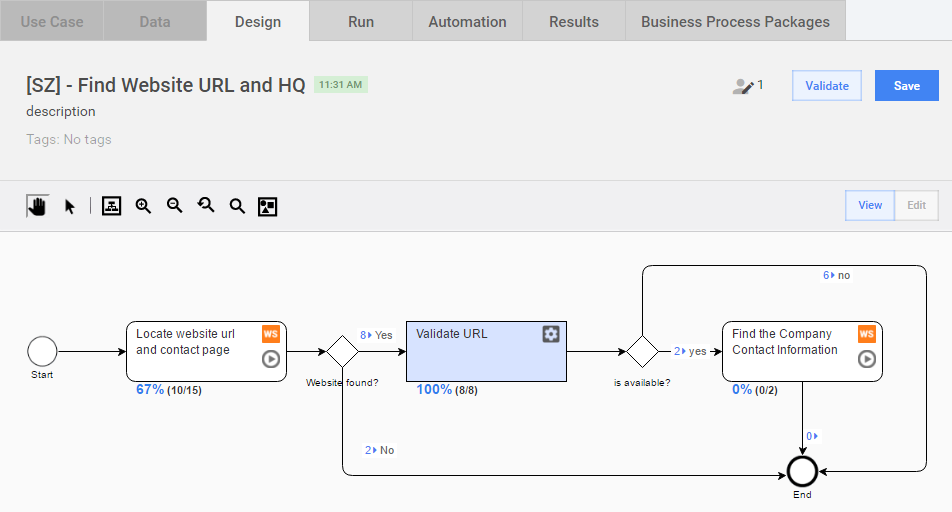
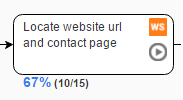
Each Task has an indicator with percent and number of Records handled in this Task. Example: 67% (10/15).
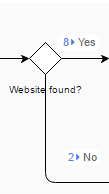
Each Rule Outcome has an indicator with number of Records that passed through a specific rule outcome based on conditions defined. Example: 8 → Yes and 2 → No.
These metrics are updated when new Records are submitted from different process steps by human workers or bots.
Summary
The Summary page gives a BP overview with key parameters and links. In the Choose Task drop-down, you can select an individual Task, Process, All BP Tasks, or Final Results.
- [M] – Bot Task
- [H] – Manual Task
- [P] – Process
Here you can view the Submission Statistics, Costs, and Worker Statistics for the whole process or for a selected step.
You can expand the BP Task Details by clicking the corresponding plus (+) icon or selecting a Task figure on the diagram.
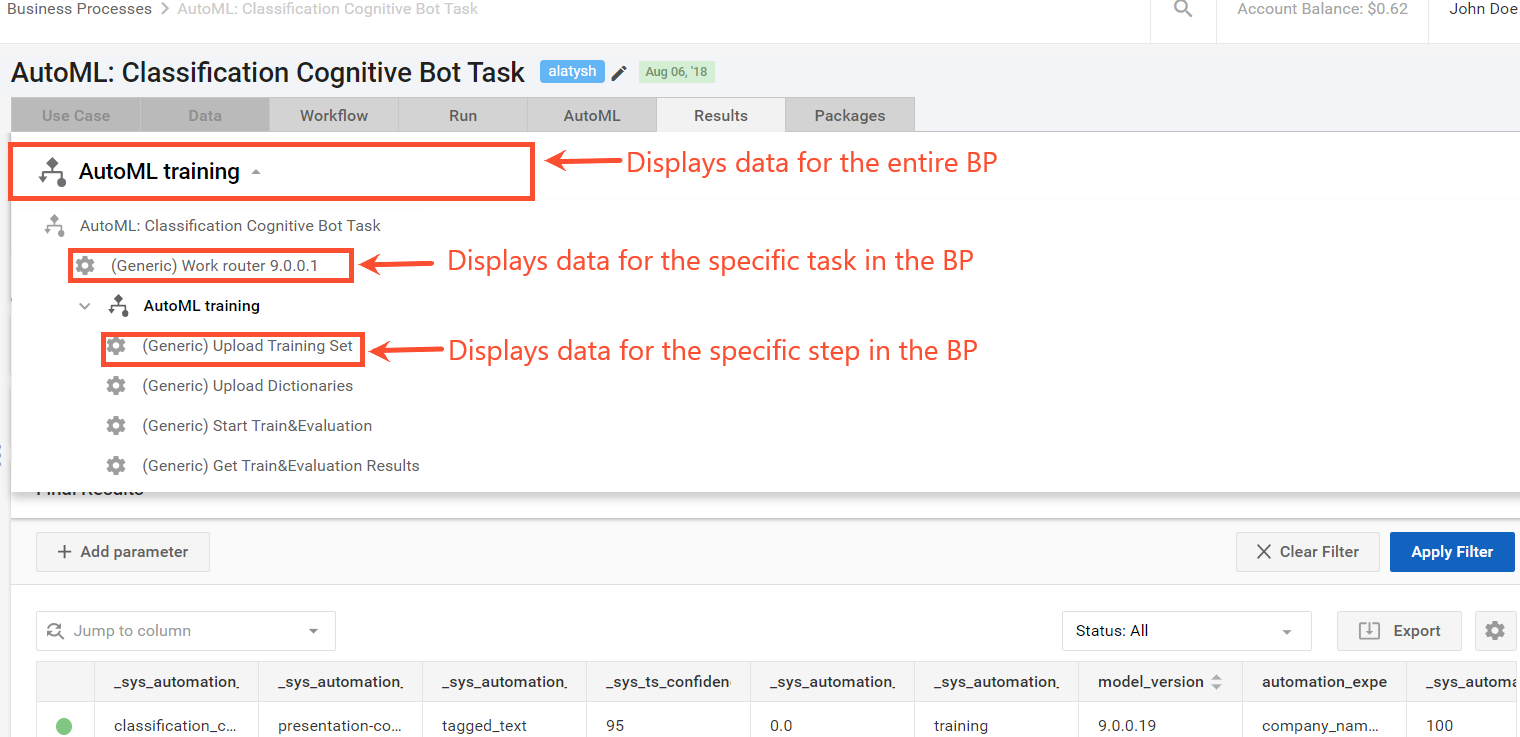
See the detailed description of Task Summary here.
View Results Data
The View Results > Data page combines all the data gathered in the BP:
- Worker answers from Manual steps – example: "website_url"
- Data from Bot steps (provided in the export plugin) – example: "validity"
- Columns from the Input Data file – example: "company_name"
In the Choose Task drop-down, you can select an option to display Data for an individual Task, Process, All BP Tasks, or Final Results.
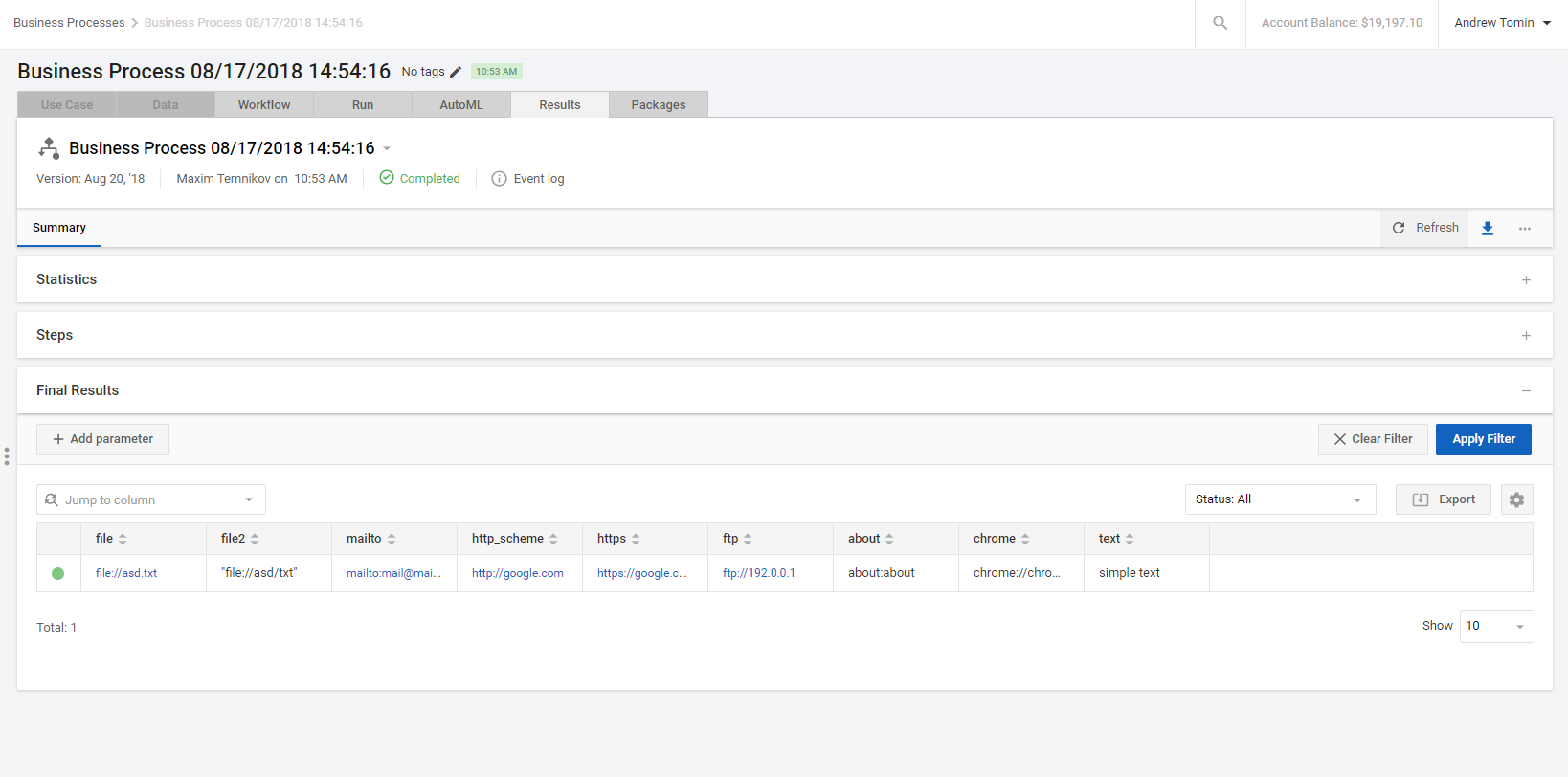
You can tweak the data view using the following filters:
- Record Status (In Progress, Not Started, Completed, Completed - Confidence Low)
- Process Step (any Manual or Bot step, or Final Results)
- Column name and value
- Worker ID
- Task ID
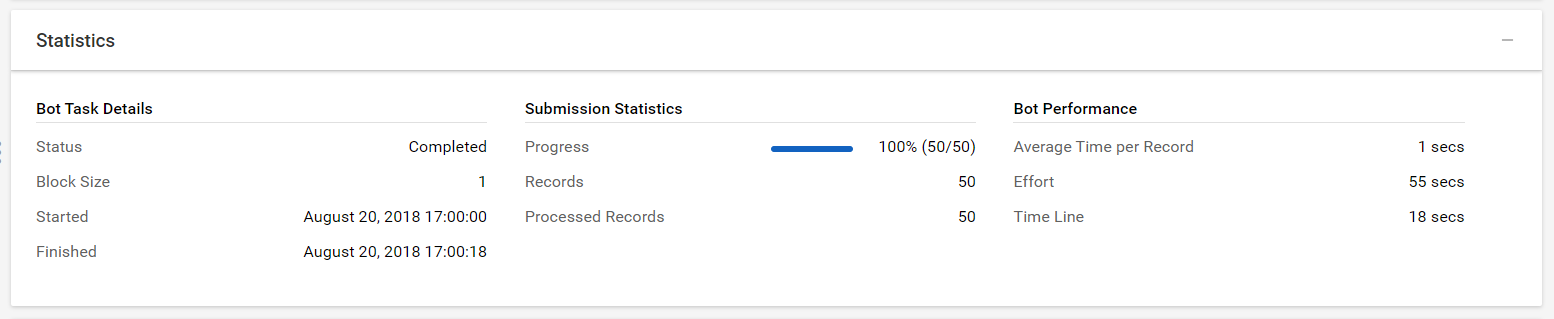
Statistics block
By clicking on the block you may find basic statistics information about the Business Process instance.
Final Results
The results can be exported to a CSV or Excel file and saved to your computer.
- Some value may be empty (for example, 1st and 2nd rows in the "validity" column). It happened because these records were not routed to the Bot step which automatically validates the website and adds "true" or "false" to the "validity" column. These records were routed directly to the process end after the 1st step, because their "website_url" was submitted as "n/a".
- See the detailed description of Task Result Data here.
- If you have problems with viewing exported UTF-8 data in Excel, see this topic.
Workers
In the Choose Task dropdown, you can select an option to display Workers for an individual Task, Process, All BP Tasks, or Final Results.
See the detailed description of Task Workers here.
For Bot Workers, the following actions are NOT available:
- Pay for Rejected Work
- Assign Qualifications
- Retract Worker Answers
- Send Message
- Give Bonus
Analytics
In the Choose Task drop-down, you can select an option to display Workers for an individual Task, Process, All BP Tasks, or Final Results.
See the detailed description of Task Analytics here.
Messages
See the detailed description of Task Messages here.
View All BPs
To view all BPs with their details, go to Business Processes > View All Business Processes.
See the description: Business Processes List
Results Tab
The Results tab provides a comprehensive overview of business process (BP) and its elements. It shows:
- Structure of BP
- Information about instances
- Statistics for every element of BP
- Failed elements in BP and errors that caused failure
- Execution results of individual tasks inside BP
- Workers' names, answers and feedback for individual manual tasks
Appearance of some tabs may differ depending on user permissions and license.
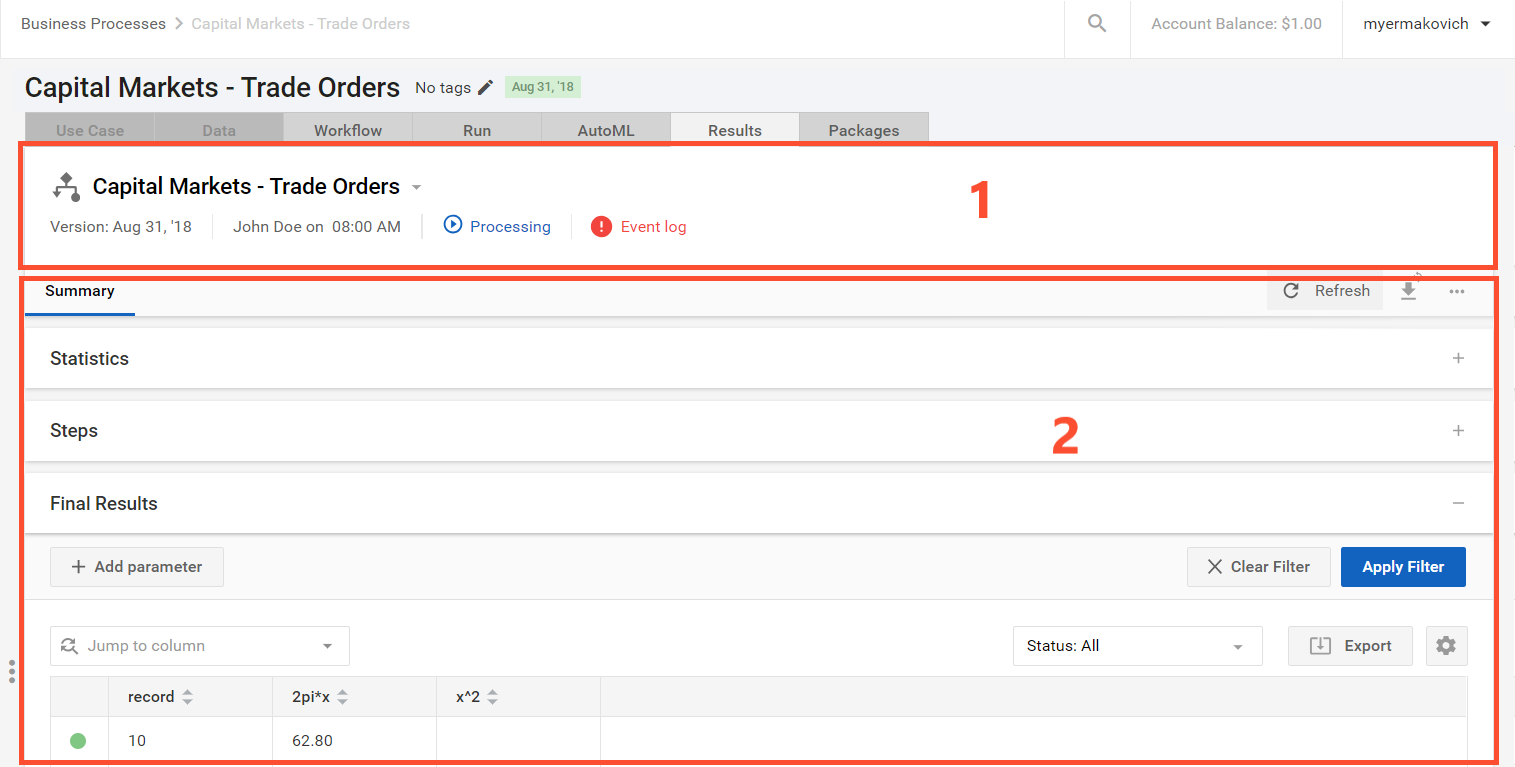
Results tab has 2 areas:
Tab view may have different sections depending on the selected BP element.
Information Header

1. Instance Menu
Instance drop-down menu provides information about BP structure. Choose individual instance from the tree structure to display its Results tab. Instances are displayed in order of execution, with BP as the first option. The current instance is displayed in bold.
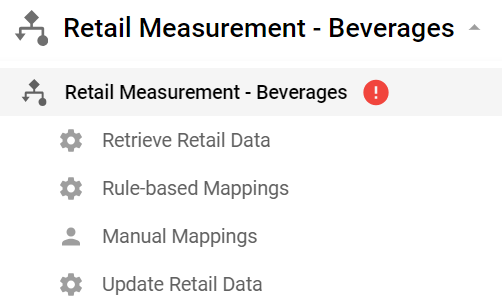
Icon to the left of instance name denotes its type:
 business process or subprocess
 machine task
 manual task
 Instance execution failed with error.
 To expand the components of subprocess, select the arrow sign (>) near its title.
2. Instance Metadata

Instance metadata shows:
- Version
- Author and creation date
- Execution status
- Event log
- Automation status
- Business process tags
- Unread workers messages
Your layout is defined by selected instance type and user licenses.
Select  to open full event log.
Tab View

Your layout depends on selected instance type.
- Only Summary is available for subprocesses, bot tasks and BP with bot tasks only.
- For BP with both human and bot tasks: Summary, Workers, Feedback.
- For human tasks: Summary, Workers, Assignments, Feedback.
The Workers tab is displayed if user has** MANAGE_WORKERS permission.
Select one of the tabs to view specific information.
Summary
Summary tab displays up to 3 blocks: Statistics, Steps, Data/Final Results:
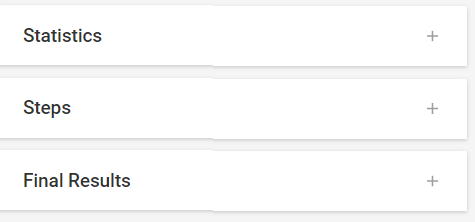
Select the header of each block to expand or collapse it.
Statistics
Statistics is shown for any instance type.
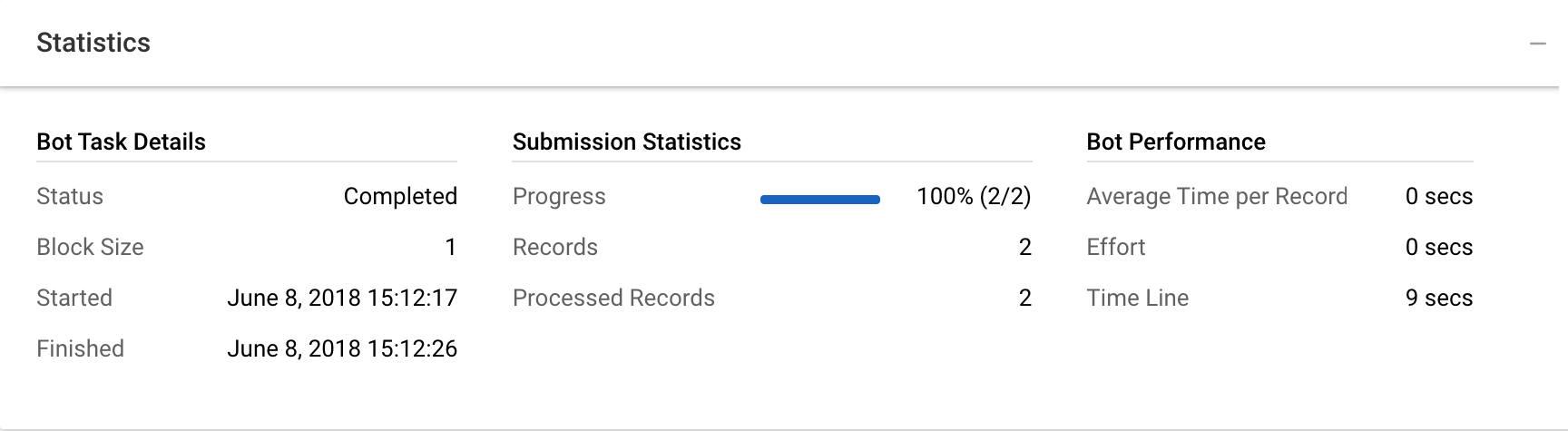
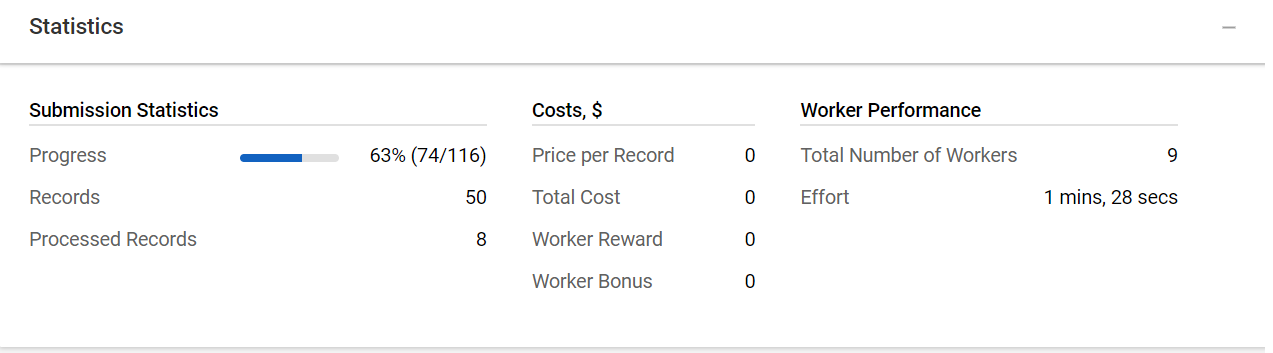
The look of the Statistics tab depends on the type of the selected instance.
Sample statistics chart for bot task:
Sample statistics chart for manual task:
Refresh button updates this view.
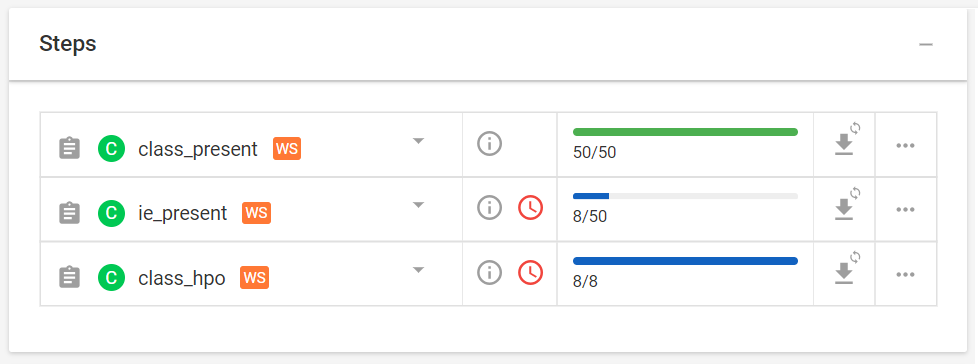
Steps
The Steps block is shown for compound instances: BP or subprocesses. It displays instance structure. You can manage each instance: view statistics and full event log, generate snapshot of the process, evaluate cognitive bot etc.
The actions use can select depend on user instance type and user license.
Refresh button updates this view.
Data/Final Results
The Data block is displayed for human or bot step, and the Final Results block is displayed for BP, so you see either Data or Final Results depending on the type of instance you've selected.
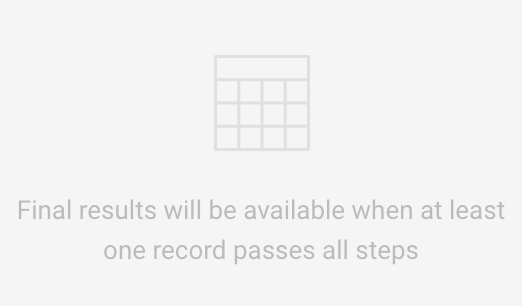
The Final Results block is shown for BP if at least one record passed through all the steps. This block shows each record in selected instance.

If no record passed through BP yet, you will see the message below:
Refresh button updates this view.
Use Table tools to customize the look of this table.
Workers
The Workers tab provides an overview of all human workers for manual task (or BP if selected).

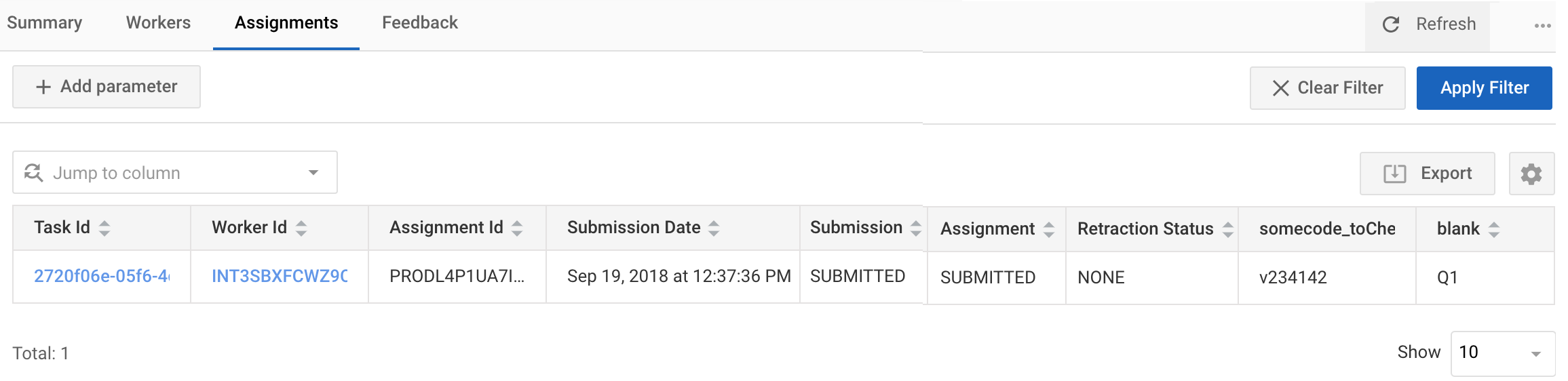
Assignments
The Assignments tab displays information about answers of workers related to specific task.
Feedback
The Feedback tab is available for manual tasks or BP with manual tasks. It contains all messages from workers for the selected element.
Unread messages have blue background. Select message to read full text, reply to or delete it .
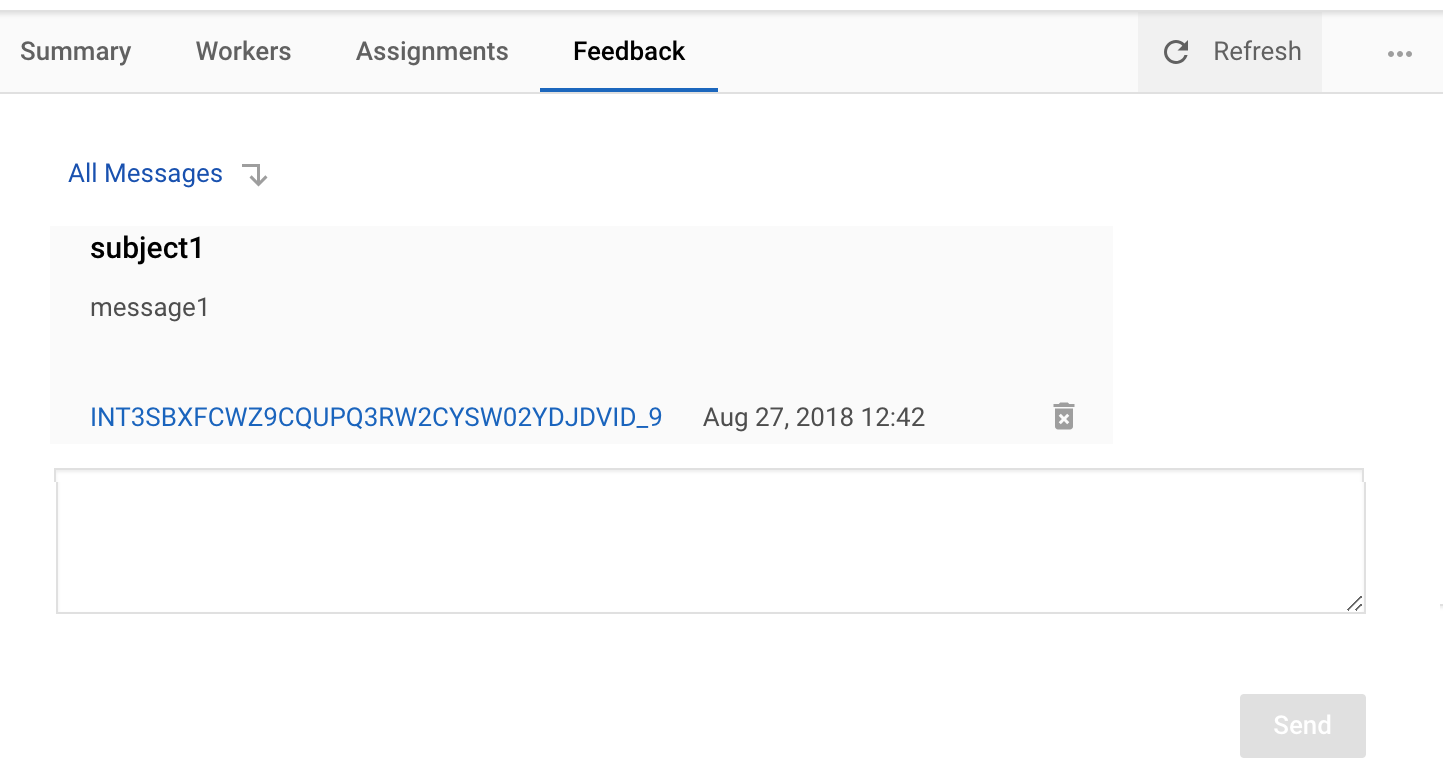
Select to go back to list view of all messages.
Select to delete current message.
Actions
Select to update all information on the Results tab (info header, expanded blocks or table).
Select to generate and download snapshots of the selected instance.
Select to open list of actions. These actions are related to the overall business process (not the selected instance!). Depending on the execution status of the BP this list may include the following actions:
- Copy
- Pause
- Resume
- Stop
- Repair
- Download Original Data
- Delete
Table Tools
Table tools apply to all tables in the Results tab: Data, Final Results, Workers, Assignments.
Table Settings
Select  at the right corner of the table to open table settings. You can select columns you want to see to customize your table.

Export
Select  to export any table in the format of your choice.
Only columns selected in Table Settings will be exported.
Filter
Filter through table columns using one or multiple parameters.
