Worker Profile
View All Workers
To view and manage Workers in WorkFusion platform, navigate to Workers > View All Workers.
This grid contains all Workers that have ever submitted Tasks or sent some feedback on a Task including Bot Workers.
You can perform the following bulk actions with Workers:
Give Bonus. This function is intended to stimulate Workers with high performance to accept more Tasks.
Send Message. You can Answer Workers' messages regarding Tasks or offer top-priority Tasks to some Workers.
To send a mass message to Workers, select the appropriate Workers, click the Send Message button, and enter your message with subject.Assign Qualification. You can assign an Accuracy Based Qualification to Worker(s).
Export to Excel.
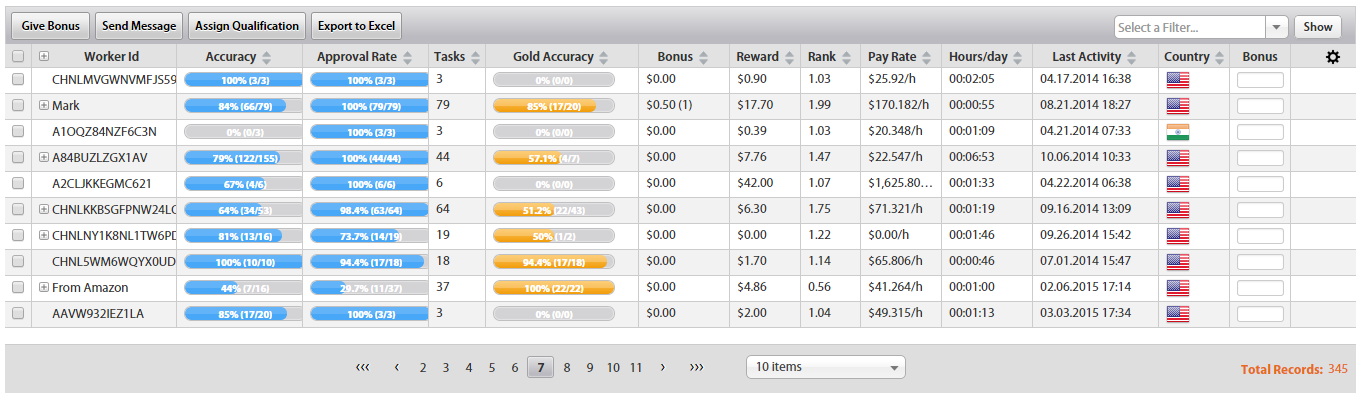
The grid can contain the following columns:
Column Heading |
Description |
Worker ID |
System generated unique identification number assigned to each Worker. |
| Accuracy | The percentage of all Worker Answers that coincided with Answers provided by majority. |
Approval Rate |
The percentage of Tasks completed and approved for the Worker. Calculated by dividing the amount of correct Answers submitted by the amount of total Answers associated with the Task. |
| Tasks | The number of overall Tasks performed by the Worker. |
Gold Accuracy |
The accuracy of the Worker in terms of Answering Gold questions. Calculated by dividing the amount of correct Answers submitted by the amount of total gold questions associated with the Task. |
| Bonus | The total amount of bonus funds issued to this Worker. |
| Reward | The total amount of compensation paid to the Worker. |
| Rank | The rank associated with the Worker compared to all Workers in the system. |
| Pay Rate | The average pay rate per hour for this Worker. |
| Hours/day | The total amount of hours and days spent by this Worker on Tasks. |
| Avg. Time per Task | The average time used per Task by the Worker. |
| Added | The date and time the Worker was added to the system. |
| Last Activity | The date of the last recorded Worker action (submission, feedback) |
| Country | The country of origin associated with the Worker. |
Bonus |
Entry field used to apply a one-time bonus to a particular Worker. |
See the description of the Filtering and Grid functions in Task Results > Workers.
Worker Profile
To view a Worker Profile, click the appropriate record in Worker ID column. You can also navigate to Worker Profile from Task Results > Workers.
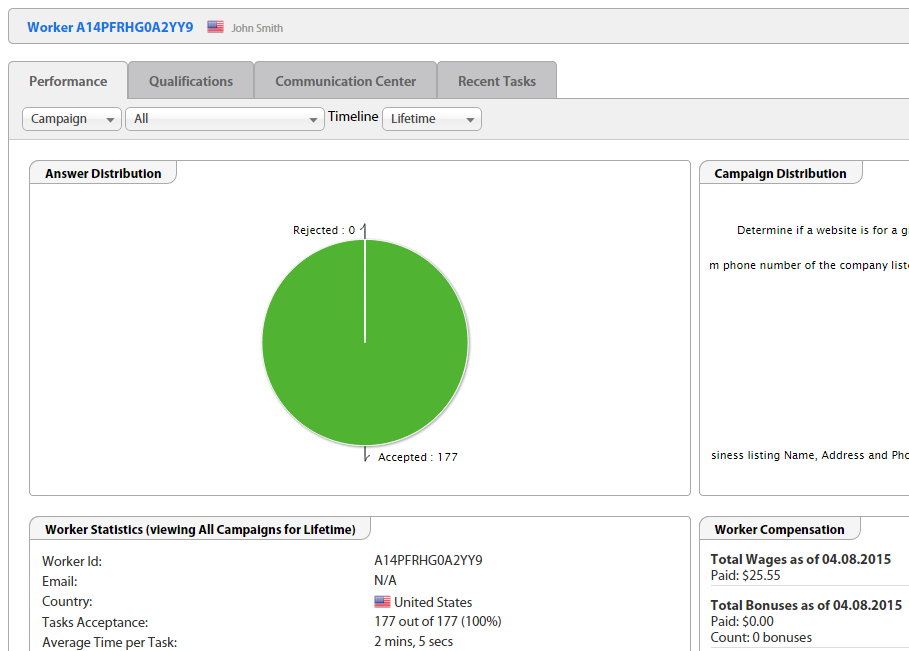
The top panel contains Worker ID, Name, Country, and Notes/Comments.
To edit Worker Name, Email, or Notes, hover over his/her Name and click the pencil icon.
Performance
The Performance tab contains overall Worker statistics displayed in tables and pie-charts.
You can filter the data by the following parameters:
- Campaign (Task, BP) OR Use Case
- All or one particular (Task, BP, or Use Case)
- Timeline
Charts
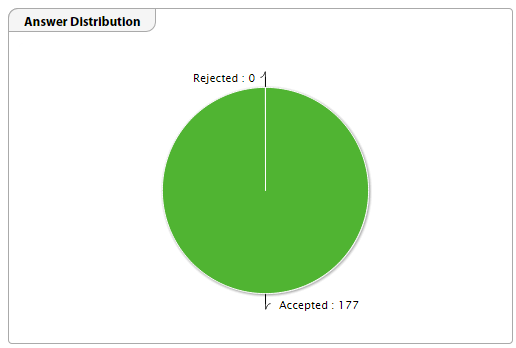
Answer Distribution. This chart displays the amount of Accepted Task versus the number of Rejected Tasks.
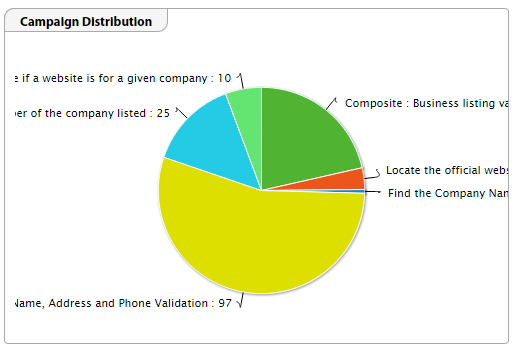
Campaign Distribution. This chart displays how many Worker Tasks the Worker has submitted in each Campaign (Tasks or BP). This allows you to gauge, among other factors, what kind of work this Worker likes to perform.
Worker Statistics
This grid contains key Worker parameters that are calculated based on Worker's activity.
Worker Compensation
This grid displays current Worker earnings: Total Wages, Total Bonuses, and Pay Rate.
Worker Gold Performance
This section lists the gold performance of the Worker. Gold Performance is determined both by Qualification Runs and by seeding Normal Runs with Gold Questions.
Gold Performance lists the percentage of correct answers (calculated by dividing the amount of correct answers submitted by the amount of total gold questions associated with the Task).
Gold Performance is calculated across all the Task runs.
Qualifications
The Qualifications tab provides information about the Qualifications of a specific Worker. In addition, it also allows you to grant Accuracy Based Qualifications to that Worker.
You can perform the following actions with the Worker's Qualifications:
- Add. To add a Qualification to a Worker:
- Click the Add New button.
- Select a Qualification from the dropdown under the grid.
- Enter the Score.
- Click the Save button.
- Edit. You can change the score for a Qualification.
- Remove. Be careful when performing this action, the Worker can feel offended and can stop taking your Tasks.
Worker Qualification(s) Chart
This chart shows you how the Worker has performed on the Qualifications assigned to him/her with the course of time.
Communication Center
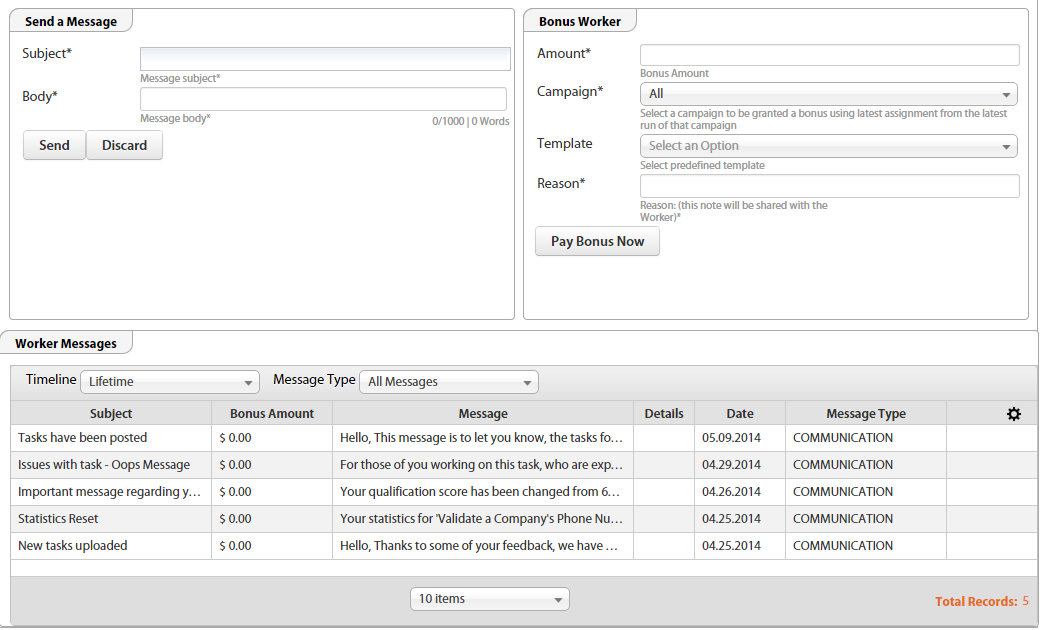
The Communications Center tab allows you to send messages to Workers and grant bonuses to them.
You can also view all the message history in the Worker Messages grid. To find specific messages, use the filters above the grid.
Recent Tasks
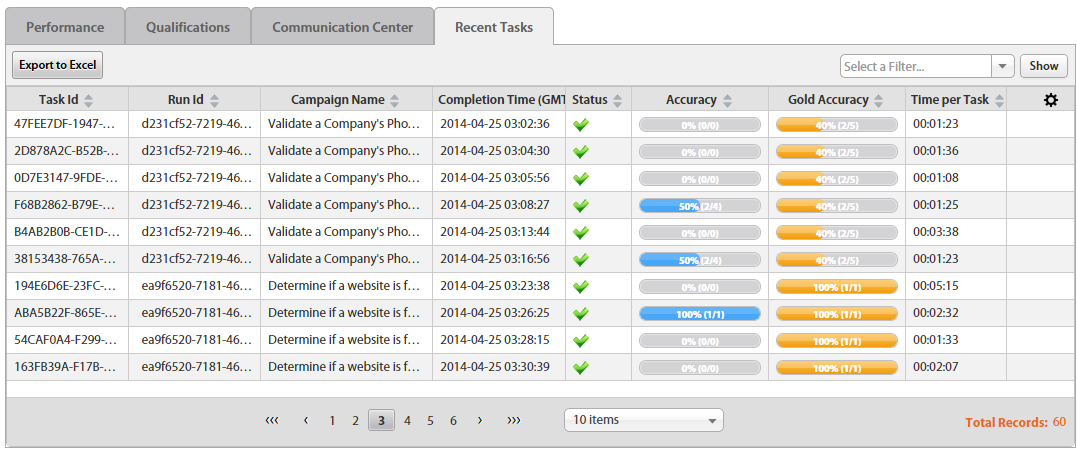
The Recent Tasks tab provides information about the Tasks performed by a specific Worker.
You can perform the following actions:
- Export to Excel.
- Filter the Tasks.
- Navigate to a specific Task by clicking the Task ID.