View Business Process logs
WorkFusion provides a capability to view Task and BP logs containing system events, error messages, and stack traces.
If a BP has some processing issues, the following icon is displayed in the BP list:
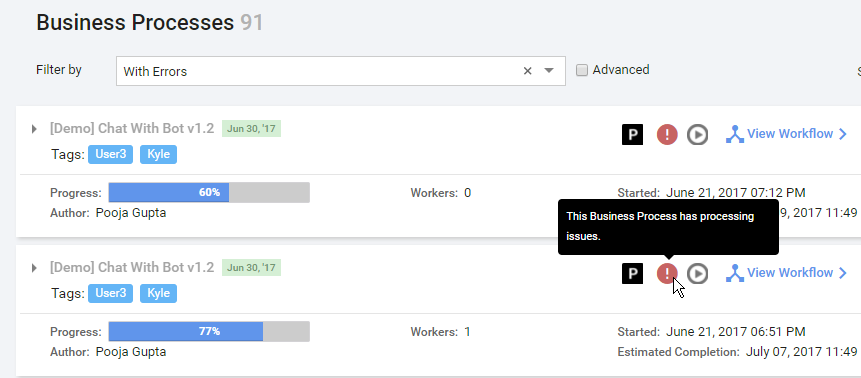
When the processing issues icon is displayed, it means:
- at least one record in a process has exhausted the maximum number of retries and failed
- other records continue execution on different process steps until:
- their maximal number of retries is exhausted
- OR they reach the final step
- the business process with processing issues is not stopped automatically. You need to do one of the following actions:
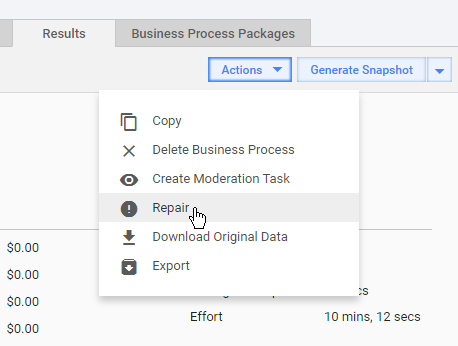
- fix the process steps code, save, and select Actions > Repair.
- OR stop the current process instance by using Actions > Stop. Afterward, you can copy this process instance, fix code errors, and run it with the same or new data.
To view the detailed information, go to BP > View Results > Summary.
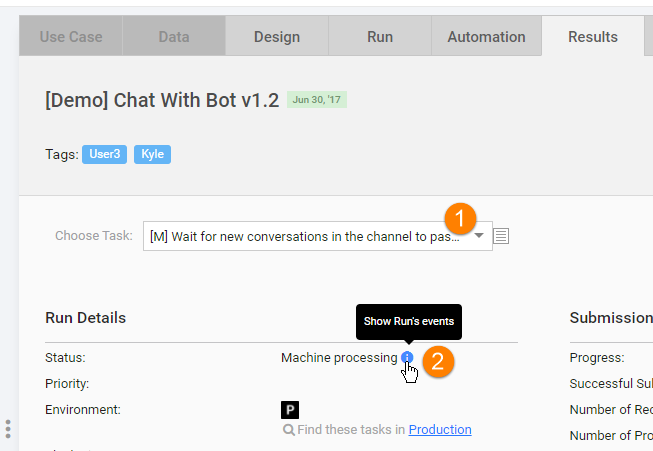
- From the Choose Task dropdown, select a BP step or Sub-Process.
- Click on the Show Run's events icon.
- The Events popup appears.
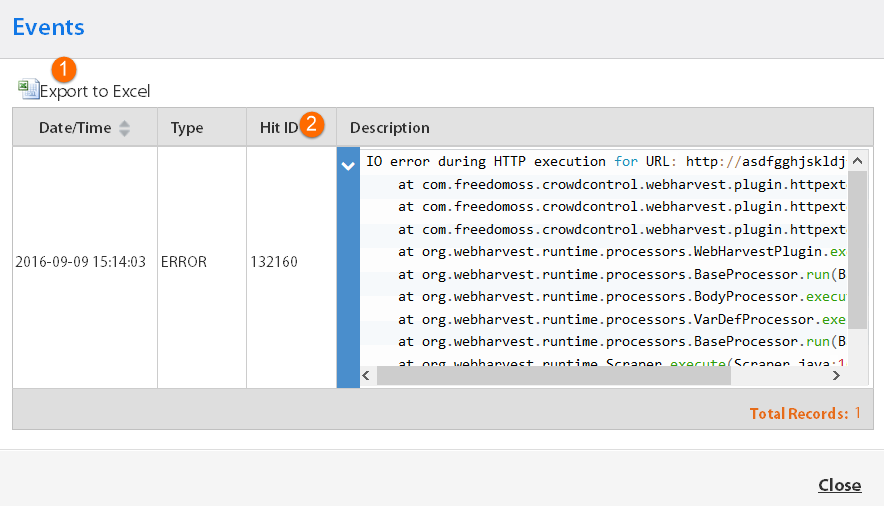
- Click on the Export To Excel button to read, filter, and analyze logs using all power of the Excel functionality.
- Refer to the Hit ID displayed a separate column.
- Expand descriptions to view the whole stack trace by clicking the arrow icon in the Description column.
- If some Bot steps have errors that are not connected with their configuration (external server not available, RPA node disconnect, etc.), re-run them by clicking Actions > Repair.