
Start Model training
When you have set a Manual Task and its Automation options, you need to run this Task to launch a ML Model training process.
Run Manual Task
On the Run tab, click Run This Task.
In a popup, click View Results.
Afterwards, you have two options:
- If you selected an existing Training Set on the previous step, stop the task (Actions > Stop Task).
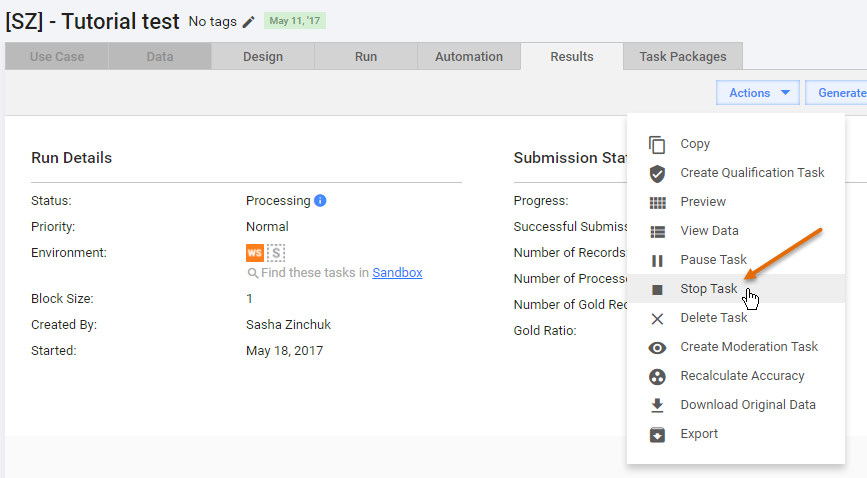
- Otherwise (a new Training Set), submit all documents as a Worker in the WorkSpace application.
As a result, the task is completed, and the ML Model training should start.
Triggers for VDS to start ML Model training
Manual Task is completed.
Min docs limit reached. This limit depends on the ML Model selected and is about 20 documents, i.e. if Workers submit 20 tasks in WorkSpace the model training will start.
Min delta limit reached: a number of new documents to re-train the model. Once Delta is reached (training set updated with required number of documents) > retraining will be started automatically.
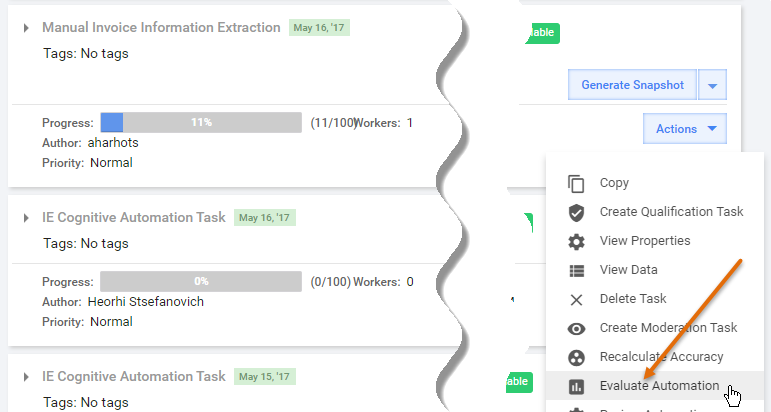
Force training (Evaluate Automation action with ignoring of limitations).
Check Model training
WorkFusion task list
Go to the View All Tasks page:
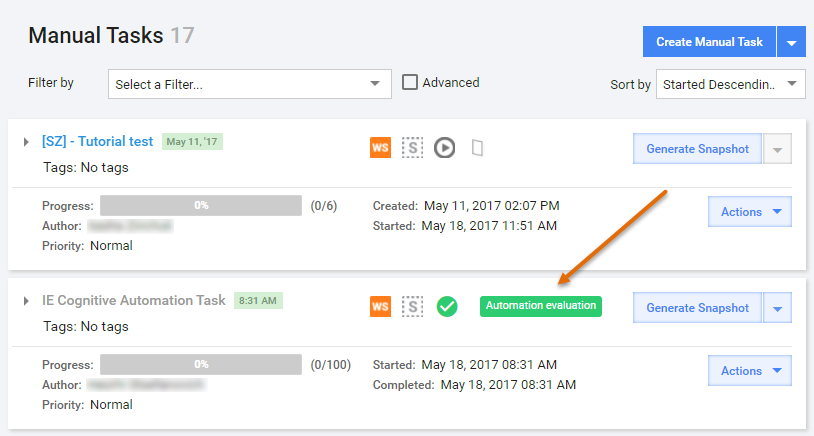
When the Automation training has started, you will see the Automation Evaluation icon next to your Manual Task.
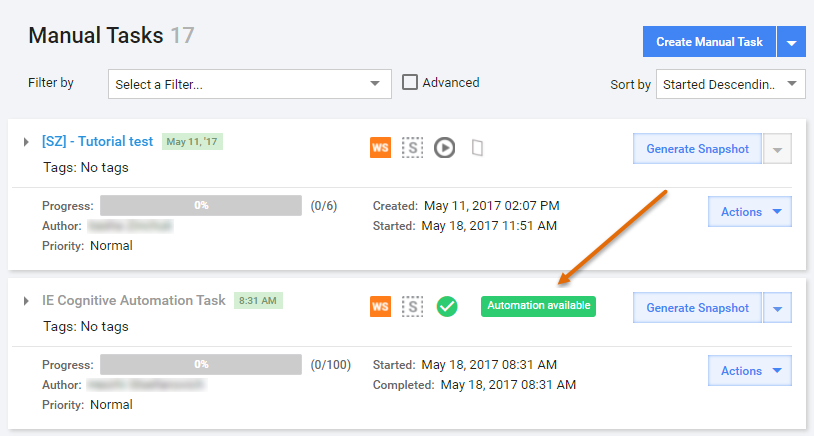
When the Automation training has completed, you will see the Automation Available icon next to your Manual Task.
Troubleshooting
MARATHON
Navigate to the MARATHON UI. The URL may be changed; contact your administrators to get the exact URL.
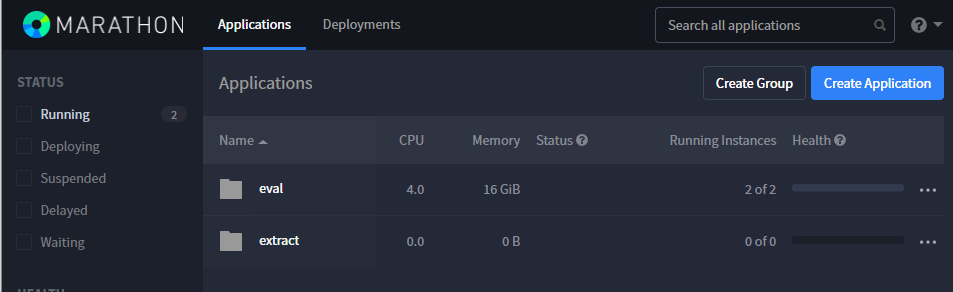
Click the eval > vds folder. The models currently in training will show a number of Running Instances.
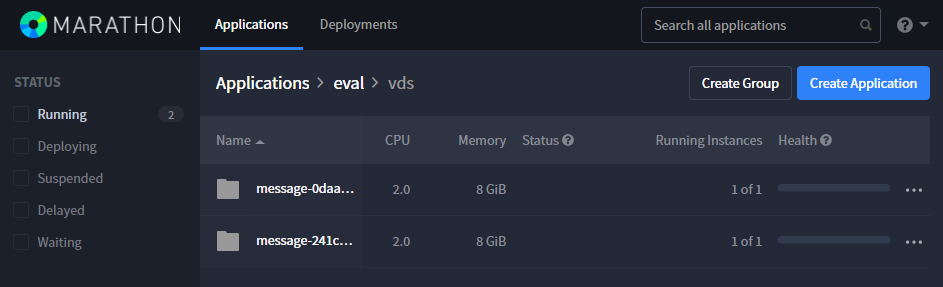
To view error logs, click on a model folder (
message-...), navigate to the bottom of the page and click the main link at the bottom of the list.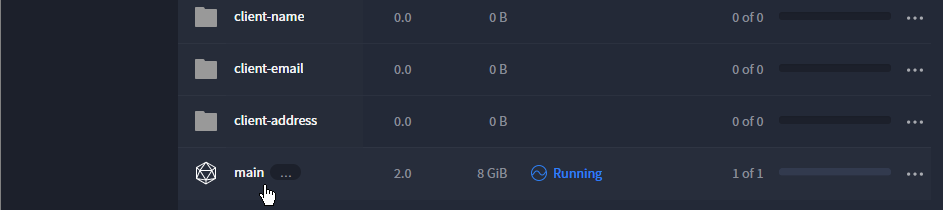
Clicking the stderr link will give you some log information, but for real-time logs, click the running instance link (in this case, it is the
eval_vds_message...link).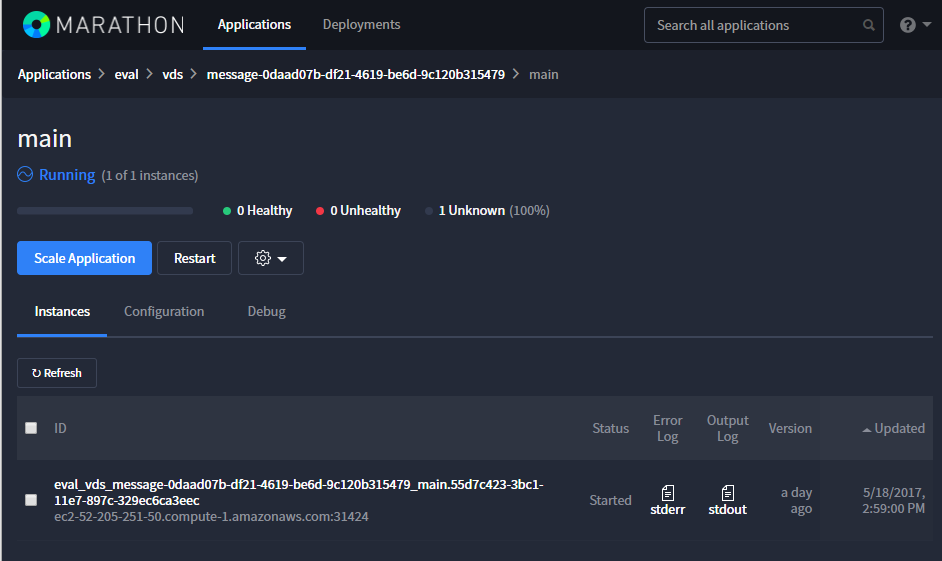
Click the link (Mesos details) at the bottom:
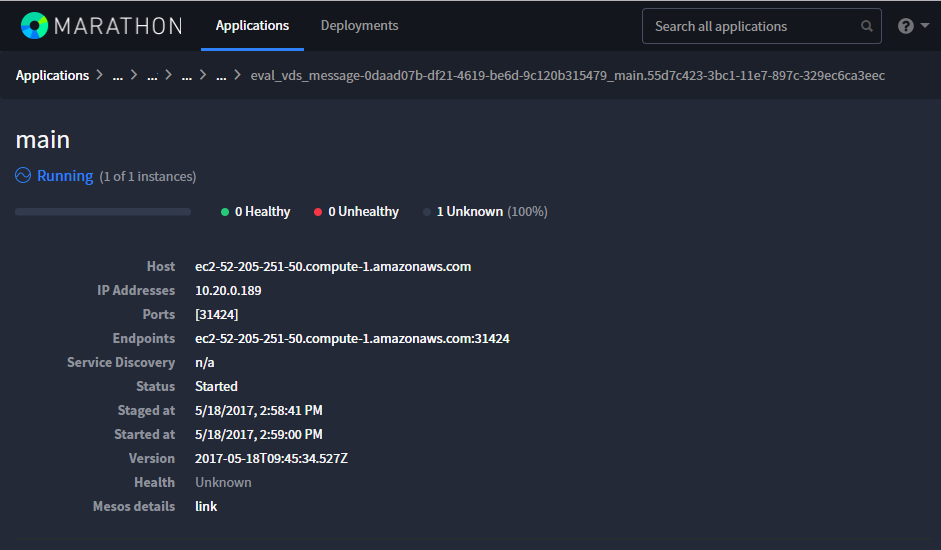
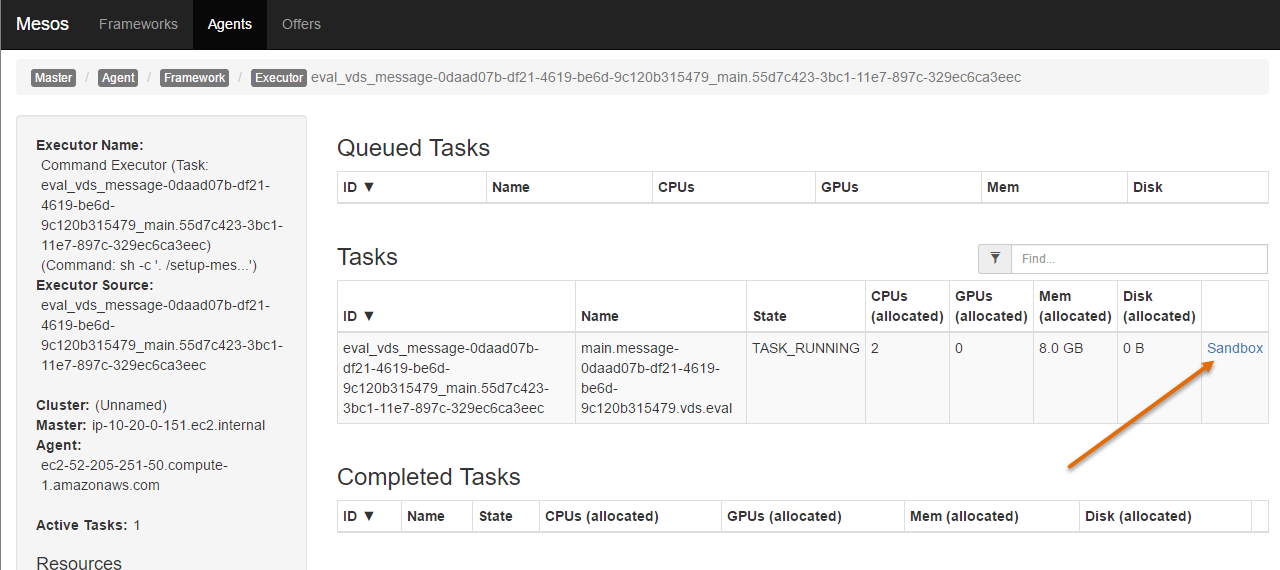
You are redirected to the Mesos application. Click the Sandbox link:
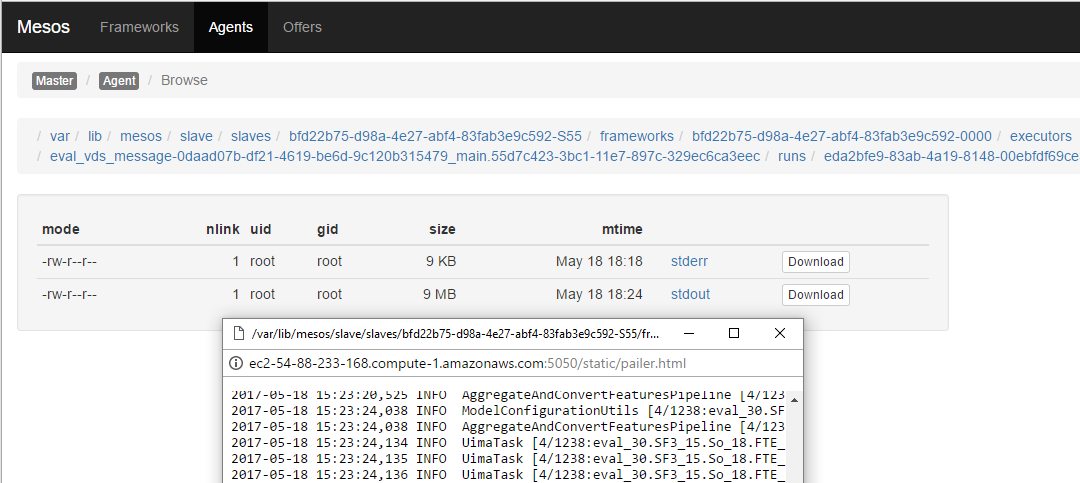
The real time run log will be displayed. Click stderr or stdout:
S3
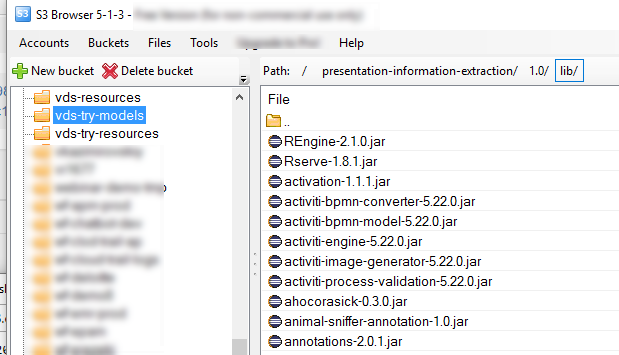
vds-models is a bucket for Hyper models.
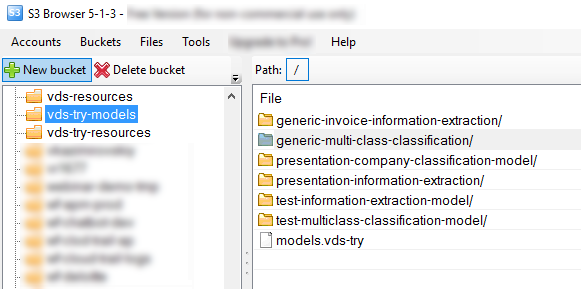
The Hyper model content is as follows:
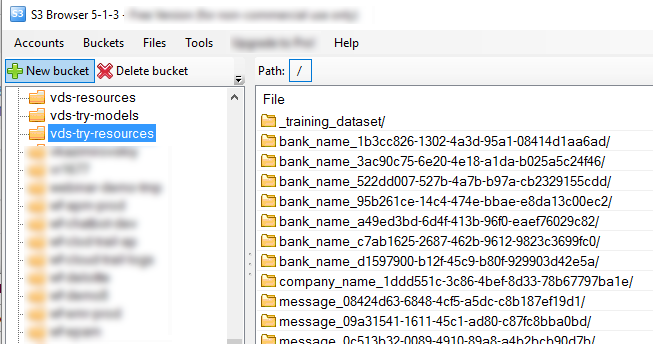
vds-resources is a bucket for trained models.
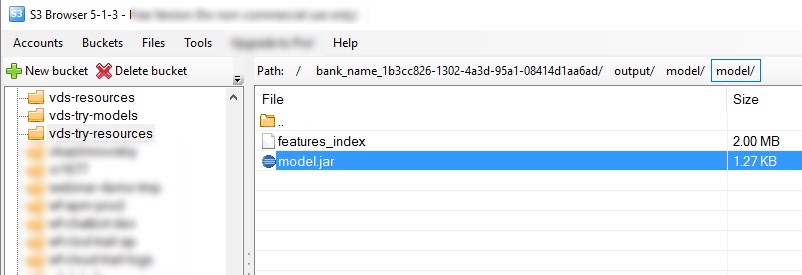
output/.../model.jar:
SSH to (Legacy) DUCC intallation
You can check the following logs during training:
tail -100f /opt/workfusion/apps/vds/gateway/log/gateway.log
tail -100f /opt/workfusion/apps/vds/ducc-adapter/log/ducc-adapter.log
You can check the following logs during extraction:
tail -100f /opt/workfusion/apps/vds/gateway/log/gateway.log
tail -100f /opt/workfusion/apps/vds/emulator/log/emulator.log
tail -100f /opt/workfusion/apps/vds/scaling/log/scaling.log
Once hyperModel and trained model are downloaded from S3 to ML server, a model log file is created.
For example:
tail -100f /opt/workfusion/apps/vds/emulator/log/generic-invoice-information-extraction-1.0-message-6abcaa52-8f5f-47ae-9640-e139170b0976.log
To restart vds services, execute the following command under the wfuser user:
service vds restart
All Hyper models are downloade here:
/opt/workfusion/apps/vds/hypermodel/work/_lib/
All trained models are downloaded here and have a unique suffix:
/opt/workfusion/apps/vds/hypermodel/work
WFML_Job_Data Data Store
- Experiment group
- Job ID
- Start date
- Status
- Last updated
- Training set size
- Tags
- Original campaign UUID
- Model version
- Automation root run UUID
- Experiment ID
- Model code
- Model version
(LEGACY) DUCC
Navigate to http://vds-try-master.workfusion.com:13133/jobs.jsp.

Check Job State. Positive states are: Initializing, Running, Waiting for driver, Completed.
To see a job log:
- Click the ID link:

- Click the log link:

The log opens in a new window.
Find a root job:
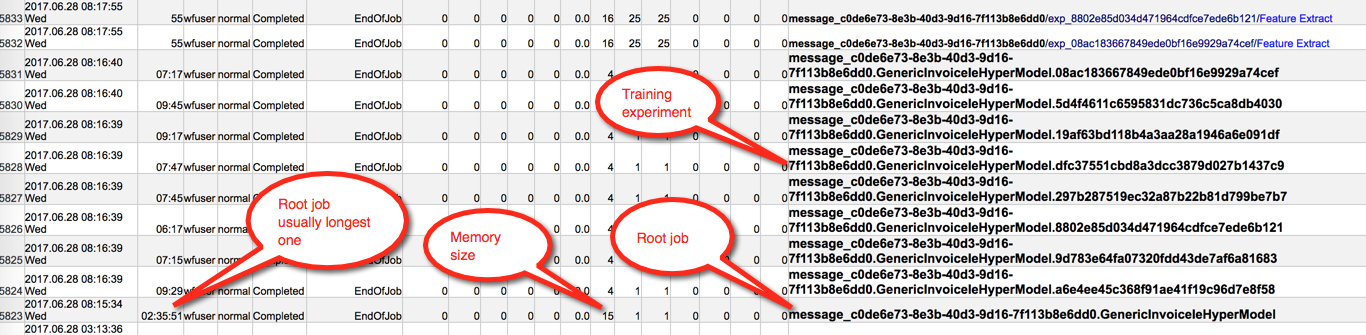
To stop model training, find a job's PID and kill the process on the Linux box.