
Create Business Process
There are two ways to create a new business process:
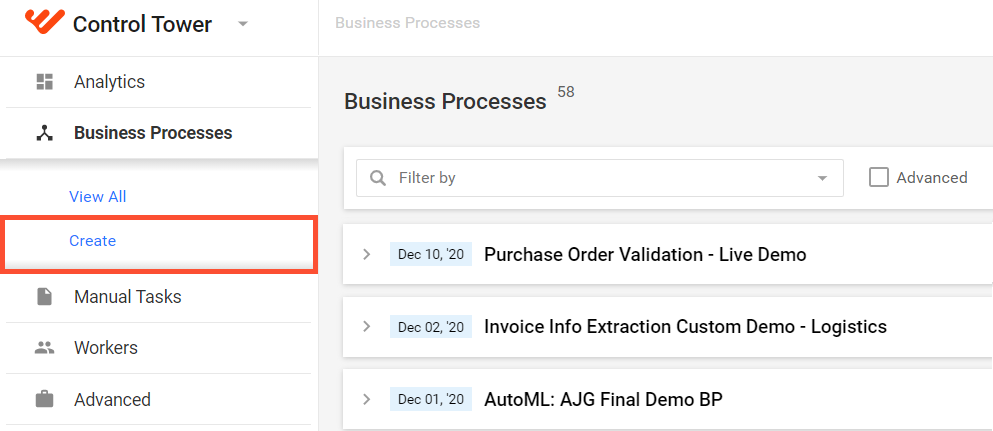
Select Business Processes > Create.
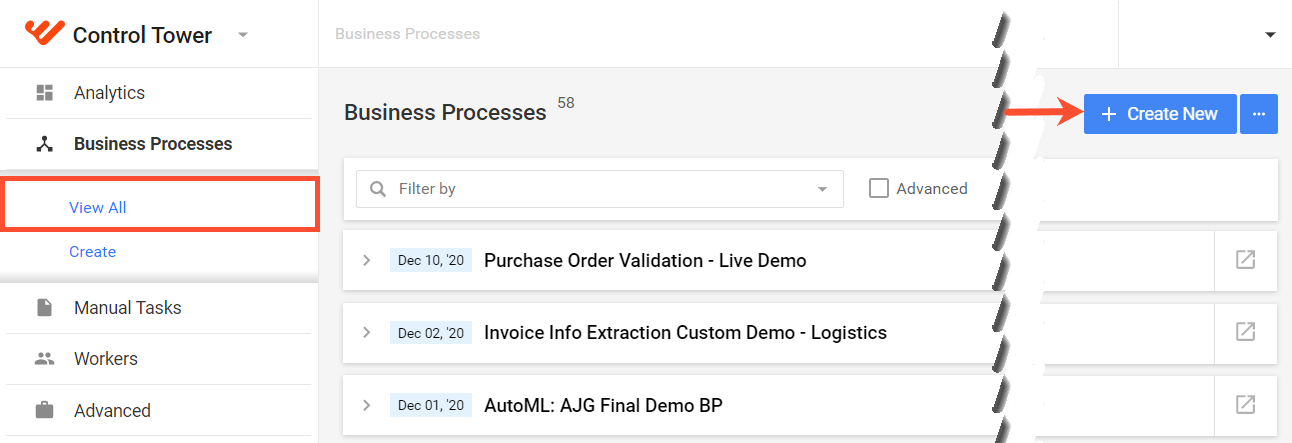
Select Business Processes > View all and click on the Create New button.
Select Use Case
Use Cases serve as the foundation for both Tasks and Bot Configurations. They describe the workflow of a particular Business Process and thus serve as a template to create either Manual or Bot Tasks based on that workflow.
- For Manual Tasks, Use Cases simplify task creation by having predefined questions, answers, instructions, and sample input file and gold files.
- For Bot Tasks, Use Cases simplify development by providing a baseline of the configuration code.
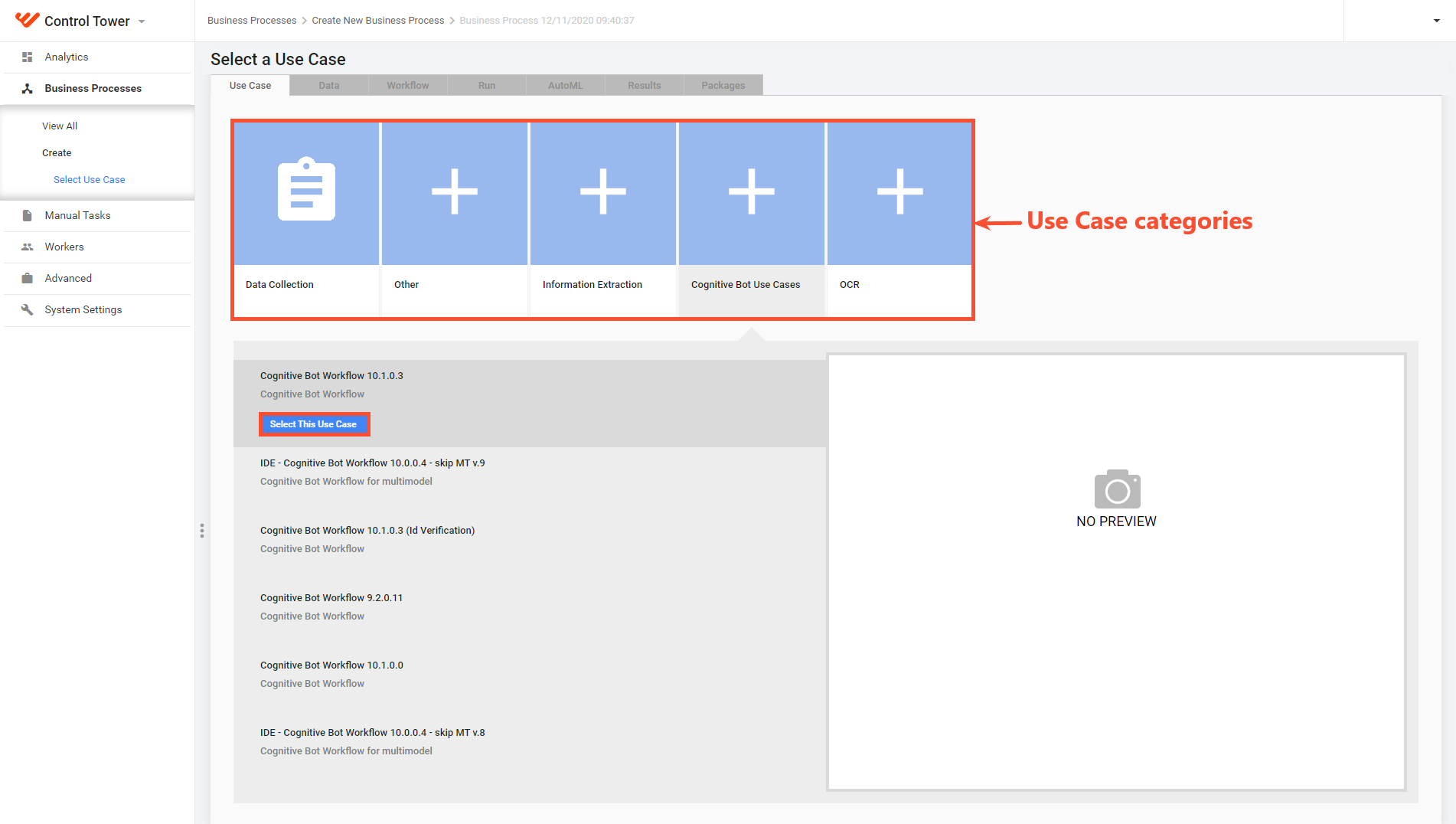
The procedure for selecting a business process Use Case is the same as for Tasks. See Select a Task Use Case.
Upload Data
On this step, you should upload an initial Data file that will be used by the business process tasks.
Uploading Data for a business process is similar to uploading data for Tasks. For more details, see Upload Data for Task.
There are only several differences:
You can tick the No Data option for Business Processes that do not require an input data file. For example, this comes in handy when the data is generated later on or downloaded from a Data Store or an external data source at runtime.
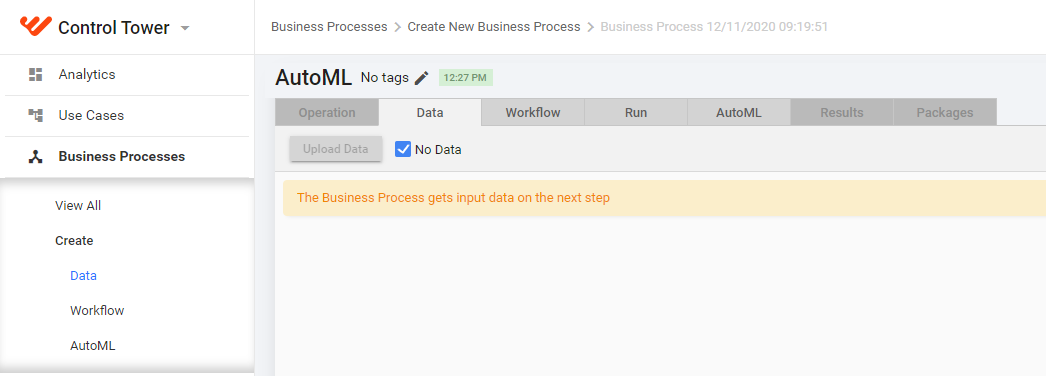
A sample file cannot be downloaded.
Gold Data for a business process cannot be uploaded. But you can upload Gold Data for individual Human Tasks of a business process.
If you have problems with UTF-8 data upload, see Importing and Exporting UTF-8 Data.
Press Next to proceed to the Design tab, if you are satisfied with the uploaded data.