
WorkSpace Preview
By default, Dynamic Task Rendering is enabled for all Tasks, i.e. Worker cannot pick a particular Worker Task from a Task type in the WorkSpace application.
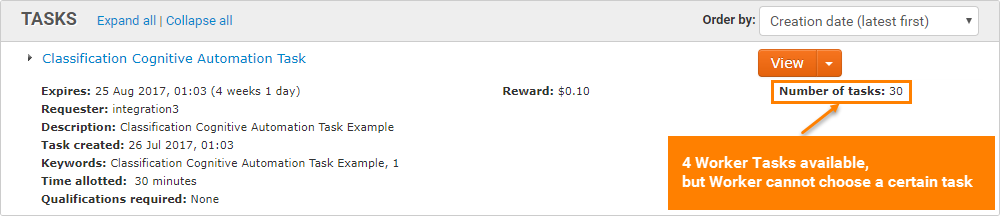
As a workaround, you can open a Task View and click Skip multiple times to get a Worker Task needed.
A better way to solve this problem is using WorkSpace Preview feature in WorkFusion (Run Task > Advanced Options > WorkSpace Preview).
Enabling WorkSpace Preview
- Dynamic Task Rendering will not work with WorkSpace Preview enabled.
- Use only "1 + 0" Adjudication Rule.
- If a Task is part of a business process, WorkSpace Preview can be configured only inside the business process. If the HT is opened as a separate task, the Data Elements list is empty.
When WorkSpace Preview is set, a Worker can click the Show Tasks button and pick a particular Worker task from a grid:
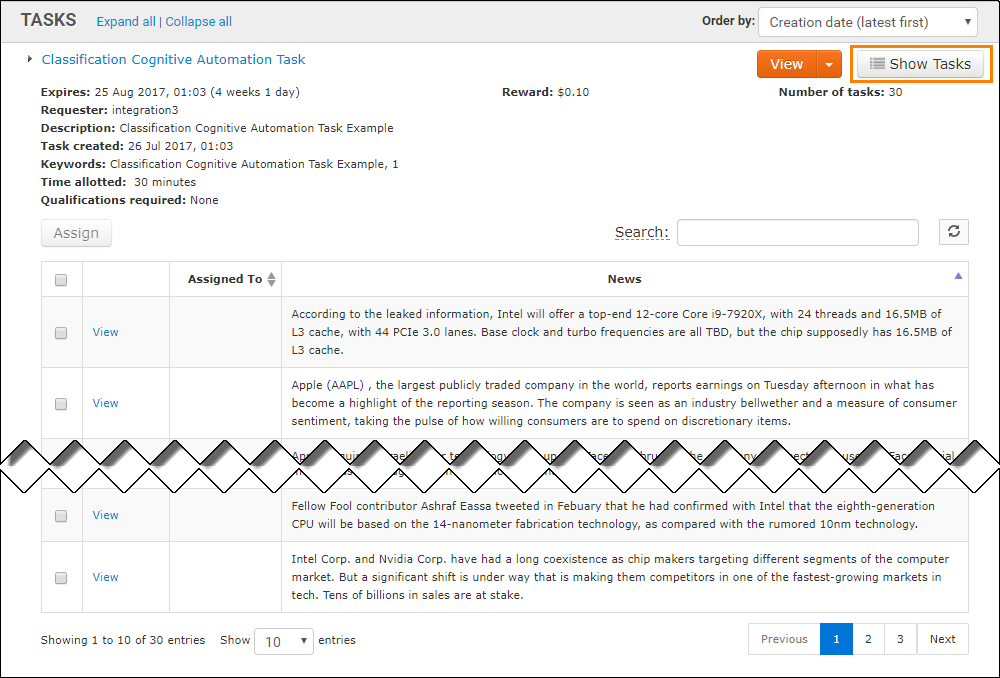
To enable WorkSpace Preview, complete the following actions:
Set up your Manual Task design.
Go to Run Task > Advanced Options > WorkSpace Preview.
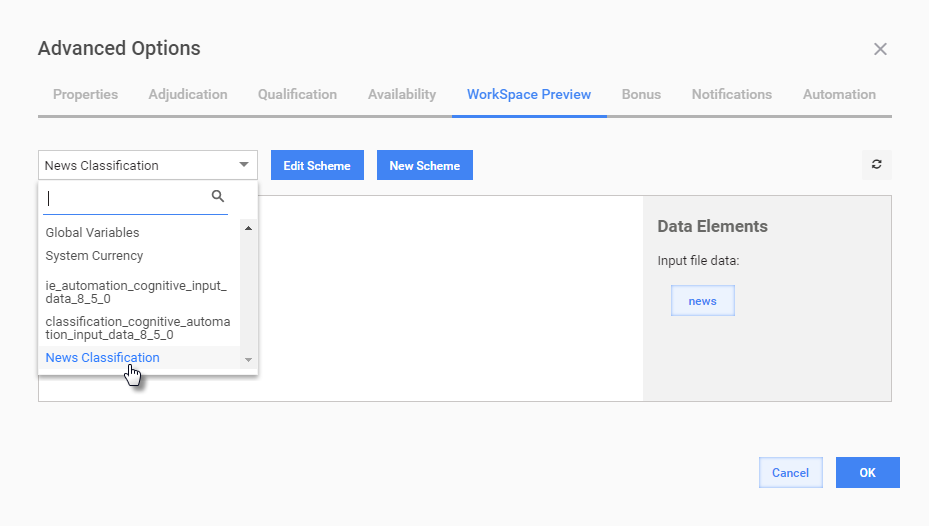
Select a Field Schema from a dropdown or create a new one by clicking the New Scheme button.
The Field Schema defines the grid column names (with format) shown to Workers in WorkSpace. See more details about Field Schema here.
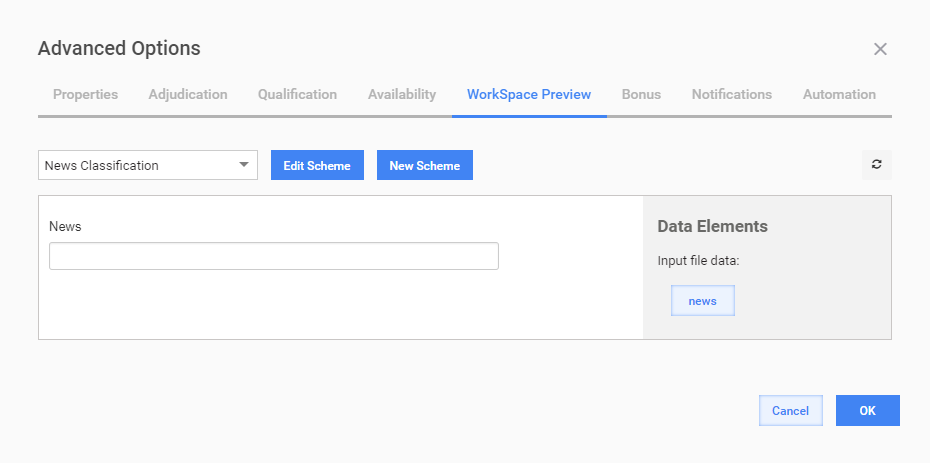
Click a field on the left panel and then click a corresponding Data Element on the right panel. Repeat this step for all fields.
This action will map Task input columns with grid columns shown in WorkSpace.
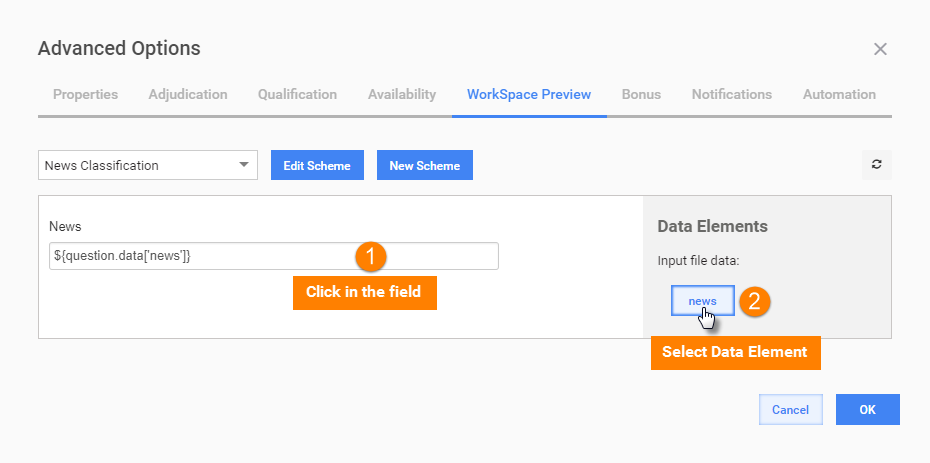
Pay attention to the Answer Types in Field Schema – they should correspond to the Data Element values (for example, URL, Number, Email, etc.)
Fields with Answer Type = "URL" are rendered as hyperlinks.
Click OK to save these settings.
Result
After posting the Task to WorkSpace, Workers will see the following grid:
Workers can do the following actions:
- expand/collapse grid by clicking the Show Tasks button.
- Sort grid rows by clicking corresponding column headers.
- Search particular Worker Tasks by entering their values into the Search field.
- Refresh grid to display only currently available Worker Tasks.