Upgrade from 8.2.3 to 9.1.x
Prerequisites
Do not change passwords when performing this upgrade. Use the same passwords from your SPA 8.2.3 installation. The upgrade will fail if you attempt to change the passwords.
Overview
This is the guide to follow for upgrading WorkFusion SPA software from one release to another. This guide does not include the migration of business processes.
Changelog
Product architecture changes page.
Security improvements: Introduced supervisord as user space systemd alternative. It used to manage all required daemons.
Security improvements: Added nginx on every linux server (except vds agent) to terminate TLS channel encryption. It requires TLS certificates on installation stage.
Security improvements: Moved all sensitive data into vault.
Stability improvements: Option to replace riak with minio as s3 backend.
Deprecation: Solr component don't installed by default.
Major component changes and version upgrades:
- MySQL upgraded 5.6 to 5.7
- Postgres 9.4 to 9.6
- S3CMD 1.0.0 to 2.0.1
- Tomcat upgraded from 8.0.33 to 8.5.32
Planning migration
As WorkFusion SPA 8.2.X is operating on RHEL 6, while 8.5.X and higher require RHEL 7.3 or higher, a new line of servers will be required for the procedure.
The following details need to be clarified and prepared for prior to the migration activities start:
New line of servers capacity planning, based on the existing processing requirements and future needs
Estimate development effort for migrating away from the deprecated functionality
- Usage report tool
- Migration notes
- Deprecation notes
Define migration timeline (Dev, UAT, Prod) and align with the stakeholders
9.1.x installation
To speed up and simplify 9.1.x installation process, collect the following details from the old installation:
- Licenses (OCR, Analytics)
- Customizations (third-party libraries, and so on)
- Configurations (for populating
secrets.ymlandconfig.ymlconfig files)
After that follow the installation guide.
Provisions
The following provisions should be observed when using this guide.
WorkFusion environments
old-wf.workfusion.com: APP Server name in 8.2.3. For example,onprem-v2-552-8-2-3-wf.workfusion.com.new-wf.workfusion.com: WorkFusion Server names in 9.0. For example,aafs-844-852-db1.wfwf-10005.workfusion.com.
WorkFusion installation directory
We assume, that WorkFusion is installed in /opt/workfusion/.
If in your environment WorkFusion is installed in another directory, use that directory instead.
WorkFusion default user
Default WorkFusion user is assumed as wfuser.
If in your environment the default user is different, use that user name instead.
Ports
Ports used in this guide are default. Consider to change them in case the different ports are configured in your environment.
Data backup and migration
Preparation
To successfully migrate all the platform components to a new environment, backup all the data in the storages and the databases.
Create a directory for dumps:
mkdir /opt/workfusion/dumpsStop the following services to proceed with the backup and make sure all the data are consistent.
/opt/workfusion/apps/wfagent/wfagent stop
/opt/workfusion/apps/nexus/nexus/bin/nexus stop
/opt/workfusion/apps/s3emu/riak.service stop
Data Backup
MySQL
sudo -u wfuser -i
/opt/workfusion/lib/mysql/bin/mysqldump --max_allowed_packet=1024M --routines -S /opt/workfusion/apps/mysql/mysql.sock -u root -p -B sqc -B wfdb  >> /opt/workfusion/dumps/mysql-sqc_wfdb.sql
PostgreSQL
export LD_LIBRARY_PATH=$LD_LIBRARY_PATH:/opt/workfusion/lib/pgsql-9.4.7/lib
/opt/workfusion/lib/pgsql-client-9.4.7/bin/pg_dumpall -U postgres -h 127.0.0.1 -p 5432 > /opt/workfusion/dumps/postgres-all.sql
MongoDB
/opt/workfusion/lib/mongodb/mongodump --host 127.0.0.1 --port 27017 --username admin --password "myadminpass" --archive=/opt/workfusion/dumps/mongo-dump.tar
S3Emu
Check how much space your S3 storage takes:
s3cmd -c /opt/workfusion/apps/s3emu/etc/s3cfgfasttrack du -H | grep TotalEnsure that you have enough disk space.
Create a script that backs up S3 data:
cat << 'EOF' > backup-s3.sh
#!/bin/bash
BUCKET_LIST=$(s3cmd --signature-v2 -c /opt/workfusion/apps/s3emu/etc/s3cfgfasttrack  ls | cut -d'/' -f3); \
for i in $BUCKET_LIST; do mkdir -p /opt/workfusion/dumps/wf-s3-content/$i && \
s3cmd --signature-v2 -c /opt/workfusion/apps/s3emu/etc/s3cfgfasttrack get -f -r s3://$i /opt/workfusion/dumps/wf-s3-content/$i; done
EOF
Make it executable and launch it:
chmod +x backup-s3.sh
./backup-s3.sh
Archive wf-s3-content:
tar -czvf /opt/workfusion/dumps/wf-s3-content.tar.gz /opt/workfusion/dumps/wf-s3-content
Nexus
nexus stop
tar -czvf /opt/workfusion/dumps/nexus.tar.gz /opt/workfusion/apps/nexus/sonatype-work/nexus
Check the additional data and passwords on the Application server and
save them in the dumps directory:
cp -pr /opt/workfusion/webapps/apache-tomcat-8.0.33/conf/secure* /opt/workfusion/dumps
To speed up the download all data can be zipped.
tar -czvf /opt/workfusion/dump.tar.gz /opt/workfusion/dumps
Data Migration
Copy dumps to a new DB Server. For this purpose, you can use any application which is the best for you.
Default directory for dumps: /opt/dump
Populate
secrets.ymlwith the AWS access and secret keys from 8.2.3 installation.Example keys
s3_access_key:       JOZXPHL1ZC8WXZAJ1111
s3_secret_key:       qAEYOVLOViPjxk3Lbuj0wrDztf8fGJrqM1111w==
Unpack the archive with dumps and move to the folder where dumps were stored on DB server.
tar zxvf dump.tar.gzGo to the directory where you have extracted the dumps to.
Data restoring
S3Emu
Unpack the archive with S3Emu backup from 8.2.3.
tar -xzvf wf-s3-content.tar.gz
cp -r opt/workfusion/dumps/wf-s3-content/* /opt/workfusion/minio/data/
MySQL
mysql -u mysql -p -h 127.0.0.1
mysql> show databases;
+--------------------+
| Database           |
+--------------------+
| information_schema |
| mysql              |
| performance_schema |
| sqc                |
| sys                |
| wfdb               |
+--------------------+
6 rows in set (0.00 sec)

mysql> drop database sqc;
Query OK, 5 rows affected (0.03 sec)

mysql> drop database wfdb;
Query OK, 202 rows affected (1.04 sec)

mysql> quit
note
Perform the step only if a new installation URL differs from the previous one. For example, if the port changes, or URL is switched from HTTP to HTTPS.
If your new environment runs on a port that differs from the one previously set, you should use the sed command in accordance with the new enviroment URL.
Example 1:
The old environment uses the port 80 non-TLS while the new one works on the port 8443 with TLS.
So the sed command to replace the url is as follows:
sed -i "s/http\:\/\/old-wf\.workfusion\.com/https\:\/\/new-wf\.workfusion\.com\:8443/g" mysql-dump.sql
Example 2:
The old environment uses the port 443 TLS while the new one should work on the port 8443 with TLS.
sed -i "s/https\:\/\/old-wf\.workfusion\.com\:443/https\:\/\/new-wf\.workfusion\.com\:8443/g" mysql-dump.sql
or
sed -i "s/https\:\/\/old-wf\.workfusion\.com/https\:\/\/new-wf\.workfusion\.com\:8443/g" mysql-dump.sql
Replace a defined user for stored procedures:
In the code below, WORKFUSION_DB_USER is the user from secrets.yml.
sed -i s/mysqluser/WORKFUSION_DB_USER/g mysql-dump.sql
Upload the dump to MySQL:
mysql -u mysql -h 127.0.0.1 -p < mysql-sqc_wfdb.sql
PostgreSQL
- Connect to PostgreSQL database
psql -U postgres -h 127.0.0.1
Run the next queries in the PostgreSQL shell to remove connections that may prevent dropping of databases (you can copy and paste all of them to the PSQL shell and press Enter):
SELECT pg_terminate_backend(pg_stat_activity.pid)
FROM pg_stat_activity
WHERE pg_stat_activity.datname = 'virtualizer_sandbox'
  AND pid <> pg_backend_pid();
SELECT pg_terminate_backend(pg_stat_activity.pid)
FROM pg_stat_activity
WHERE pg_stat_activity.datname = 'virtualizer'
  AND pid <> pg_backend_pid();
SELECT pg_terminate_backend(pg_stat_activity.pid)
FROM pg_stat_activity
WHERE pg_stat_activity.datname = 'wf_datastore'
  AND pid <> pg_backend_pid();
SELECT pg_terminate_backend(pg_stat_activity.pid)
FROM pg_stat_activity
WHERE pg_stat_activity.datname = 'wfml_automation'
  AND pid <> pg_backend_pid();

drop database virtualizer_sandbox;
drop database virtualizer;
drop database wf_datastore;
drop database wfml_automation;
Replace the old URL in PostgreSQL 8.2.3 dump with the new one.
note
Perform the step if a new installation URL differs from the previous one.
For example, if the port changes, or URL is switched from HTTP to HTTPS.
If your new environment runs on a port that differs from the one
previously set, you should use the sed command in accordance with
the new enviroment URL.
Example 1
The old environment uses the port 80 non-TLS while the new one works on the port 8443 with TLS.
So the sed command to replace the url is as follows:
sed -i "s/http\:\/\/old-wf\.workfusion\.com/https\:\/\/new-wf\.workfusion\.com\:8443/g" postgres-all.sql
Example 2
The old environment uses the port 443 TLS while the new one should work on the port 8443 with TLS.
sed -i "s/https\:\/\/old-wf\.workfusion\.com/https\:\/\/new-wf\.workfusion\.com\:8443/g" mysql-dump.sql
Restore data from the PostgreSQL 8.2.3 dump:
psql -U postgres -h 127.0.0.1 -f postgres-all.sql
In the code above: postgres is the PostrgeSQL user from secrets.yml.
MongoDB
Restore the database from backup
mongorestore --host 127.0.0.1 --port 27016 --username mongodb --password "mongodb" --archive=mongo-dump.tar
In the code above:
--username mongodbisrpa_manager_db_admin_userfromsecrets.yml.--password "mongodb"is therpa_manager_db_admin_passfromsecrets.yml.
Nexus
tar -xvzf nexus.tar.gz
cd opt/workfusion/apps/nexus/
wfmanager stop nexus
cp -r sonatype-work/* /opt/workfusion/nexus/sonatype-work/
DB
Apply DB migrations:
cd /opt/workfusion/_migrations/workfusion
migrate pending --env=development
migrate up --env=development
cd /opt/workfusion/_migrations/workspace
migrate pending --env=development
migrate up --env=development
cd /opt/workfusion/_migrations/sandbox
migrate pending --env=development
migrate up --env=development
cd /opt/workfusion/_migrations/sqc
migrate pending --env=development
migrate up --env=development
Go to the installer directory.
Run as
wfuser../install.sh install db
Vault
Upload the user secrets from 8.2.3 Business Process to Vault:
cd /opt/workfusion/wf-sec-storage
mkdir _upgrade
cp secure-store*.txt _upgrade/
Use the following command to list all secrets:
cd wf-sec-storage
./loader.sh workfusion show
Copy the output to a text file (
prop.file).In the text file, substuitute
:with=and remove the spaces before and after=.Run the following command to update the secure properties:
./loader.sh workfusion prop.fileRestart Tomcat.
APP Server upgrade
Connect to APP Server:
Apply migrations for SQC, Virtualizer, Virtualizer-sanbdox databases.
cd /opt/workfusion/workfusion/migrations_workfusion
migrate pending --env=development
migrate up --env=development
Go to the installer directory.
Run as
wfuser:
```bash
./install.sh install app
```
- Restart applications to apply changes:
```bash
wfmanager restart all
```
VDS Server upgrade
Connect to VDS Master Server.
Go to the installer directory.
Run as
wfuser:./install.sh install vds-masterCopy the old models file from
s3://vds-models/models.prodto a temporary directory:s3cmd -c /opt/workfusion/s3cmd_conf/workfusion_s3cfg --signature-v2 sync s3://vds-models/models.prod /tmp/Copy the new models file from
s3://vds-models/models.flat-prodto a temprorary directory:s3cmd -c /opt/workfusion/s3cmd_conf/workfusion_s3cfg --signature-v2 sync s3://vds-models/models.flat-prod /tmp/Merge these files to a new one:
cat /tmp/models.prod >> /tmp/models.flat-prodUpload the merged file to
s3://vds-models/models.flat-prod:s3cmd -c /opt/workfusion/s3cmd_conf/workfusion_s3cfg --signature-v2 sync /tmp/models.flat-prod s3://vds-models/models.flat-prod
RPA Server upgrade
Perform the upgrade steps for RPA Server as described in RPA Server upgrade.
APM Server upgrade
If you have any custom APM configuration like checks, don't forget to transfer them to a new APM server.
OCR server upgrade
License
note
Repeat actions for all activated licenses for all OCR servers.
Run License Manager using any user:
export LD_LIBRARY_PATH=$LD_LIBRARY_PATH:<INSTALL_DIR>/apps/ABBYY/FREngine11/Bin
<INSTALL_DIR>/apps/ABBYY/FREngine11/Bin/LicenseManager.Console
License serial number and other license parameters can differ from samples.
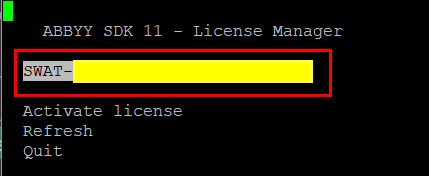
Select the activated license:
Open license parameters:
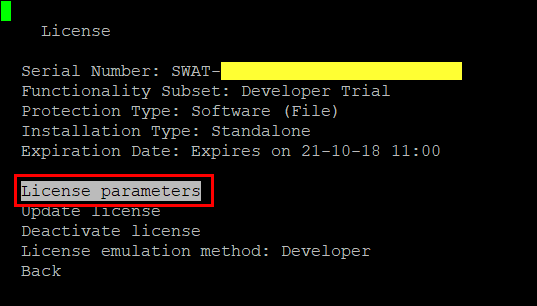
Make a screenshot of the first page. Ensure that the line with Volume > Regular Text > Remains is visible.
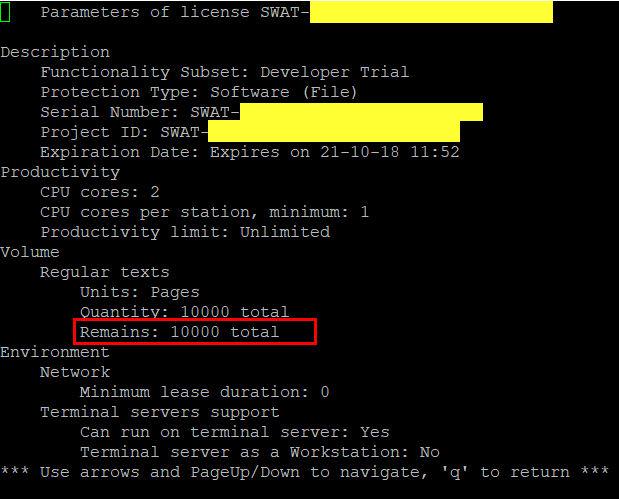
Request and activate the license using the Activating OCR License guide. . Attach all license screenshots if the remaining one is greater than 0.
API
Pattern usage
Changes below are required in case a custom pattern is used in BP. See OCR API reference.
Replace the patternName parameter with the pattern parameter that is passed by content, not a filename.
Affected endpoints:
/processImage/submitPatternadded/trainPatternrenamed tomergePatternthat is combined with a new one/processDocumentuses the pattern submitted with/submitPattern
Use useDefaultPattern=true instead of patternName=default.
Affected endpoints:
/processImage/processDocument
OCR parameters
Collect all changed parameters of OCR service in YML files (the /etc directory) comparing with standard listed in blocks below:
ocr-rest.yml
Standard OCR rest properties:
db.cleanup.abbyy:
 input: 2000
 output: 2000
 record: 600

spring.profiles.active: disabled-auth,mongoDbQueue,gridfs-storage,mongo-task

ocr.rest.timeout: 5
ocr.rest.retries: 2
ocr-worker.yml
Standard OCR worker properties:
worker.executor.abbyy.pool.size:

spring.profiles.active: abbyy,mongoDbQueue,gridfs-storage
Update configuration YML files with collected parameter values on the previous step.
Files to review in case any customization exists:
ocr-rest.ymlocr-worker.yml
OCR GhostScript
A new version of GhostScript is available since 8.5.x SPA version.
Newer version of GhostScript has impact on document convertion to tiff and may change quality of OCR.
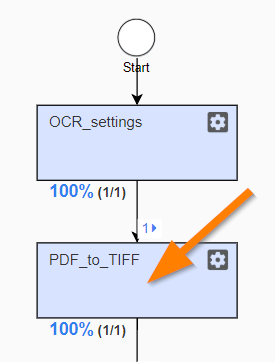
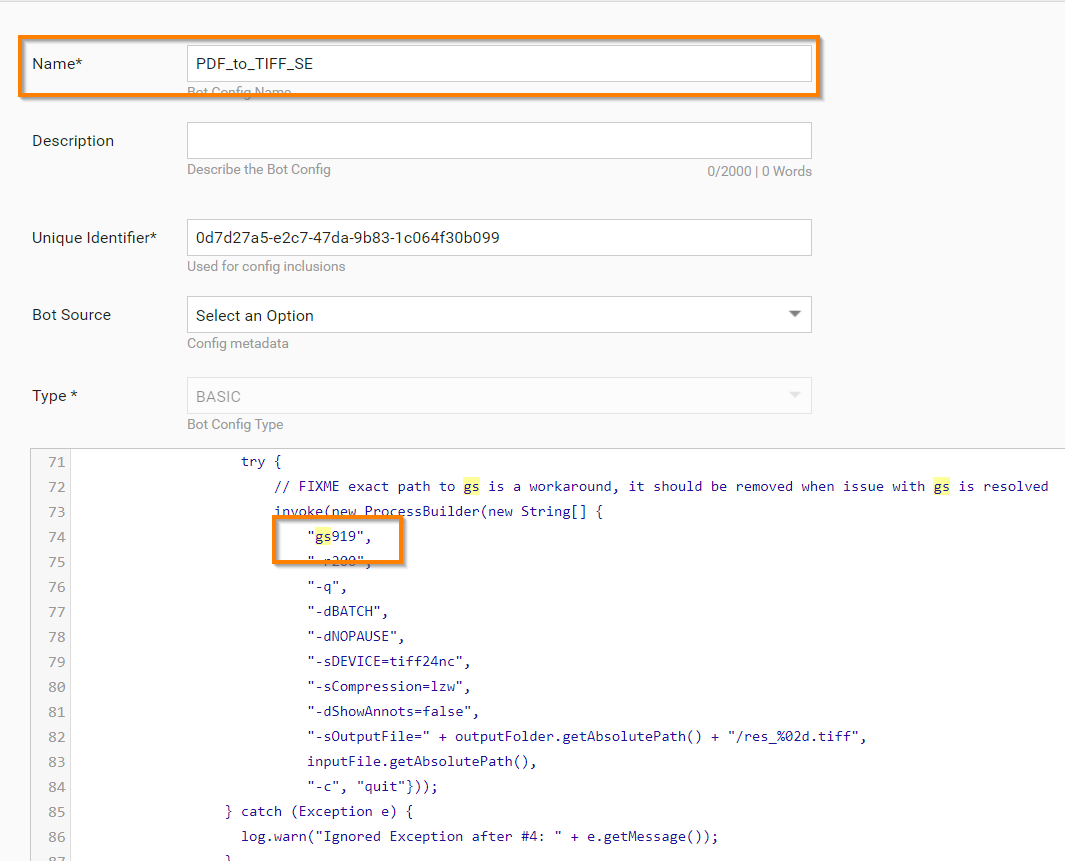
If one of pre-processing steps uses GhostScript before OCR and the quality is worse, there's need to downgrade version of GhostScript in Bot Task (PDF to TIFF convert) of Business Process:
gs is a new version, gs919 is an old version.