Change unit session resolution
WorkFusion RPA has an RDP client that doesn't use Windows Credential Management. Earlier, the client featured a single fixed screen resolution that was impossible to change. However, in specific RPA scenarios, such as image-based RPA, Business Process (BP) implementation requires a resolution different from the provided one. Such inconsistency can lead to BP failures.
The new feature is designed to allow you to change the resolution of the RPA unit session on all RPA units. Now, you can configure the resolution on each RPA server for each specific RPA unit. You can set a single parameter for all units or different ones for each unit on an RPA server.
Resolution settings
The resolution settings are located in the bot-agent-master.yml file that exists on every RPA server, for example, RPA_INSTALL_FOLDER\bot-agent\conf\bot-agent-master.yml.
To set the same resolution for all units, edit the
custom.rdp.resolutionparameter in the file:custom.rdp.resolution: "1280*700" # set resolution for all units, for example: "1920*1080", "2560*1440", "800*600"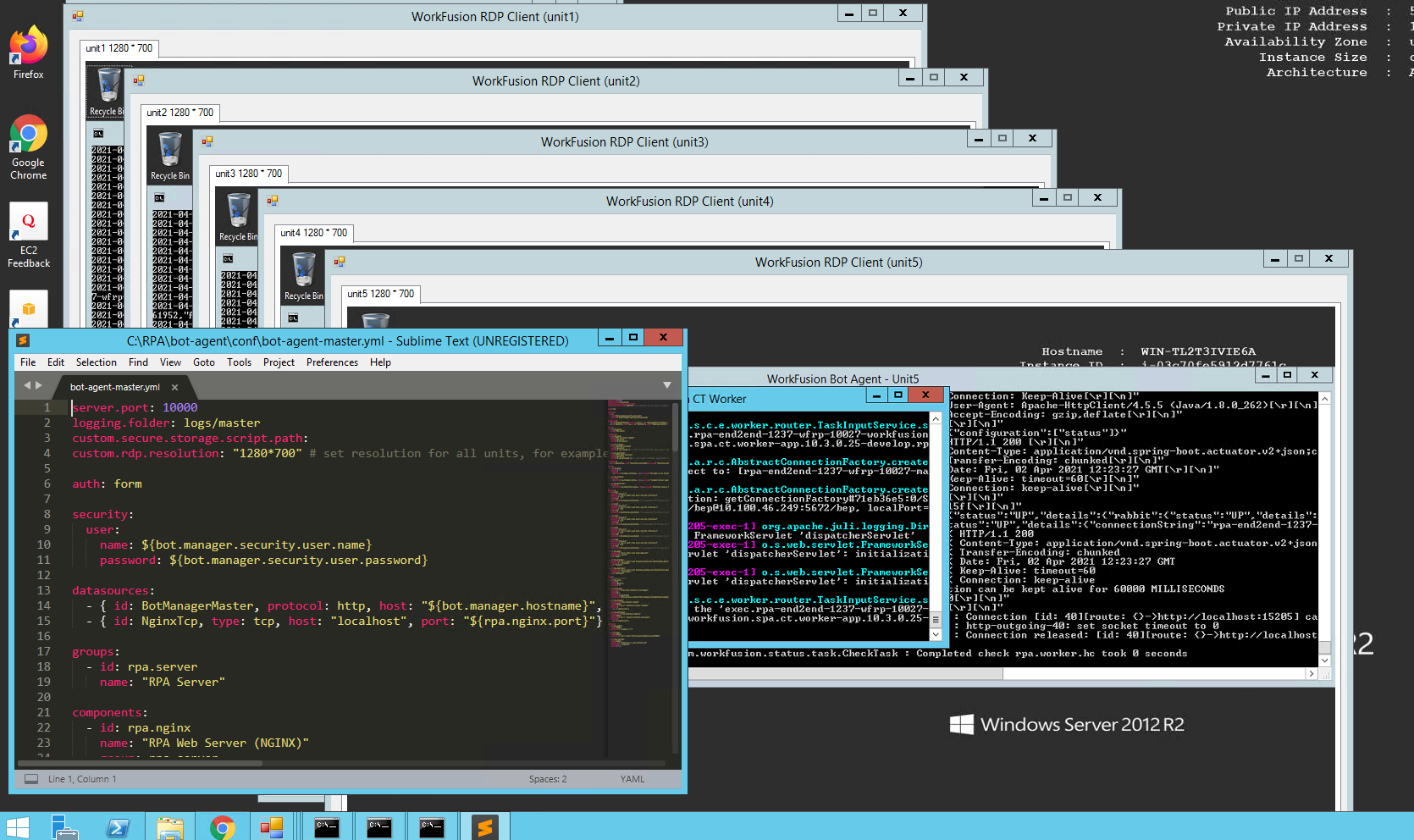
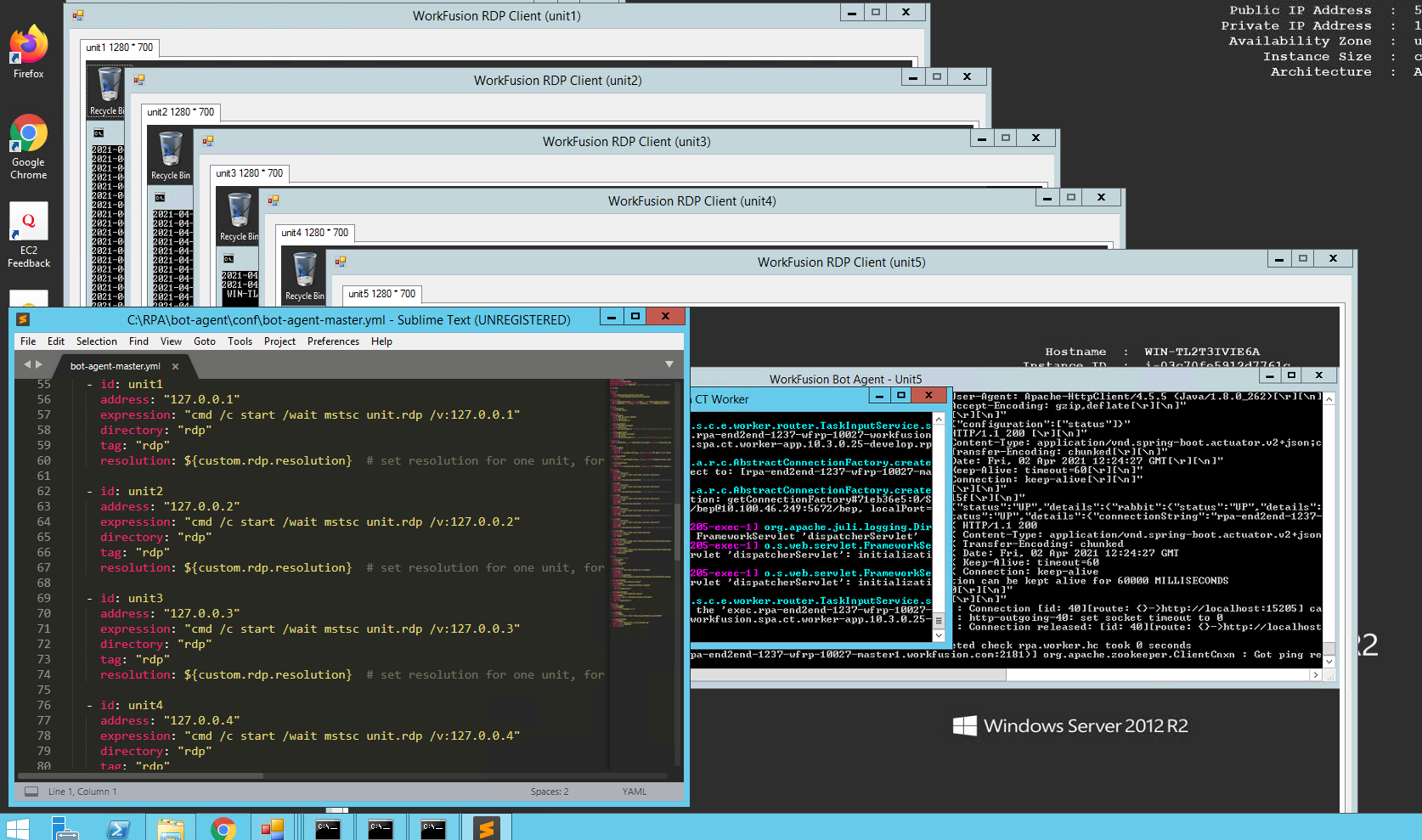
To set different resolutions for several units, edit the resolution parameter for each of them in the YML fie. By default, it is
custom.rdp.resolution, but you can change the name.processes:
- id: unit1
address: "127.0.0.1"
expression: "cmd /c start /wait mstsc unit.rdp /v:127.0.0.1"
directory: "rdp"
tag: "rdp"
resolution: 1920*1080 # set resolution for one unit, for example: "1920*1080", "2560*1440", "800*600"
- id: unit2
address: "127.0.0.2"
expression: "cmd /c start /wait mstsc unit.rdp /v:127.0.0.2"
directory: "rdp"
tag: "rdp"
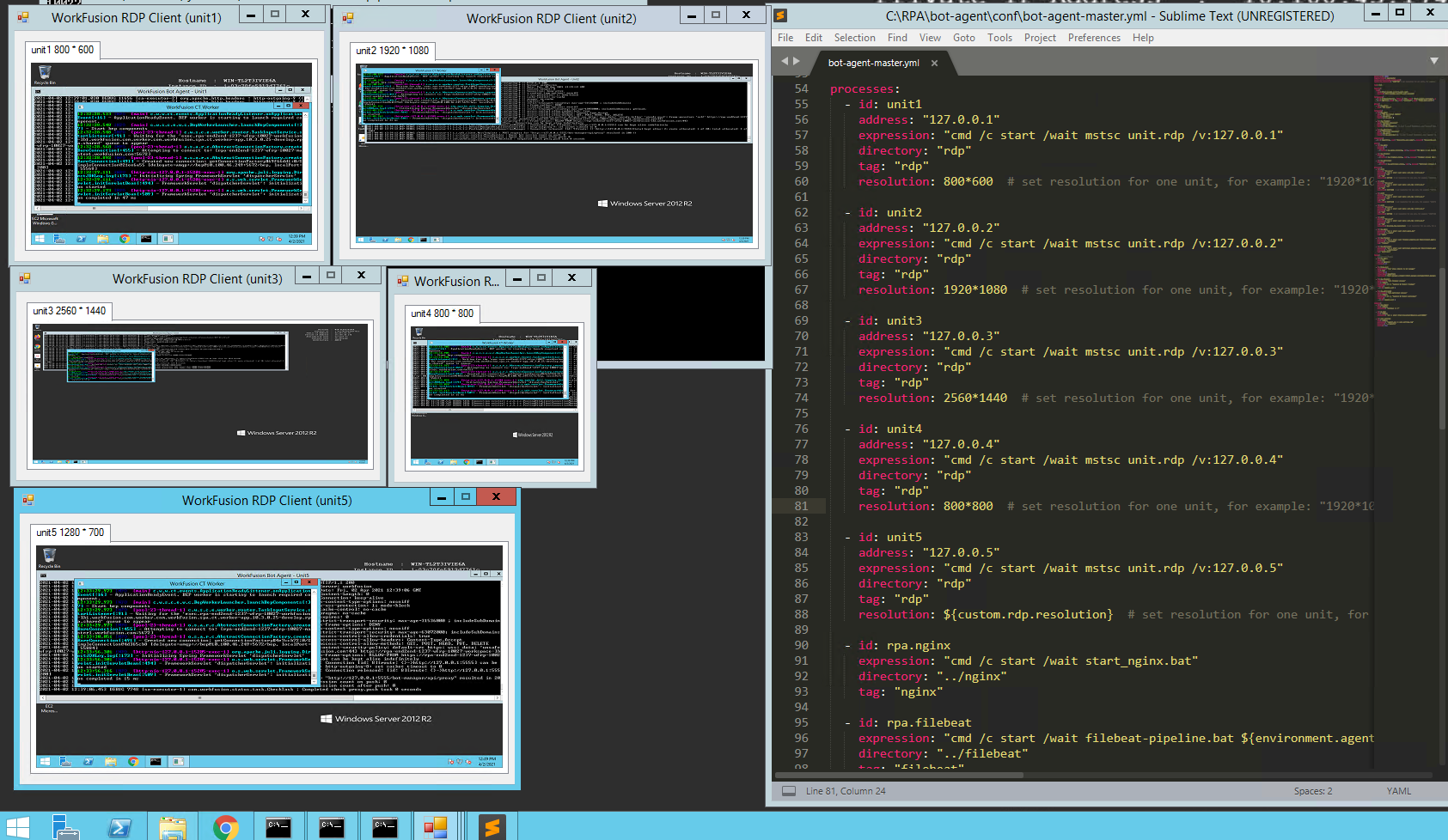
resolution: 2560*1440 # set resolution for another unit, for example: "1920*1080", "2560*1440", "800*600"Note that unit4 has a custom resolution, while the unit5 has a standard one.
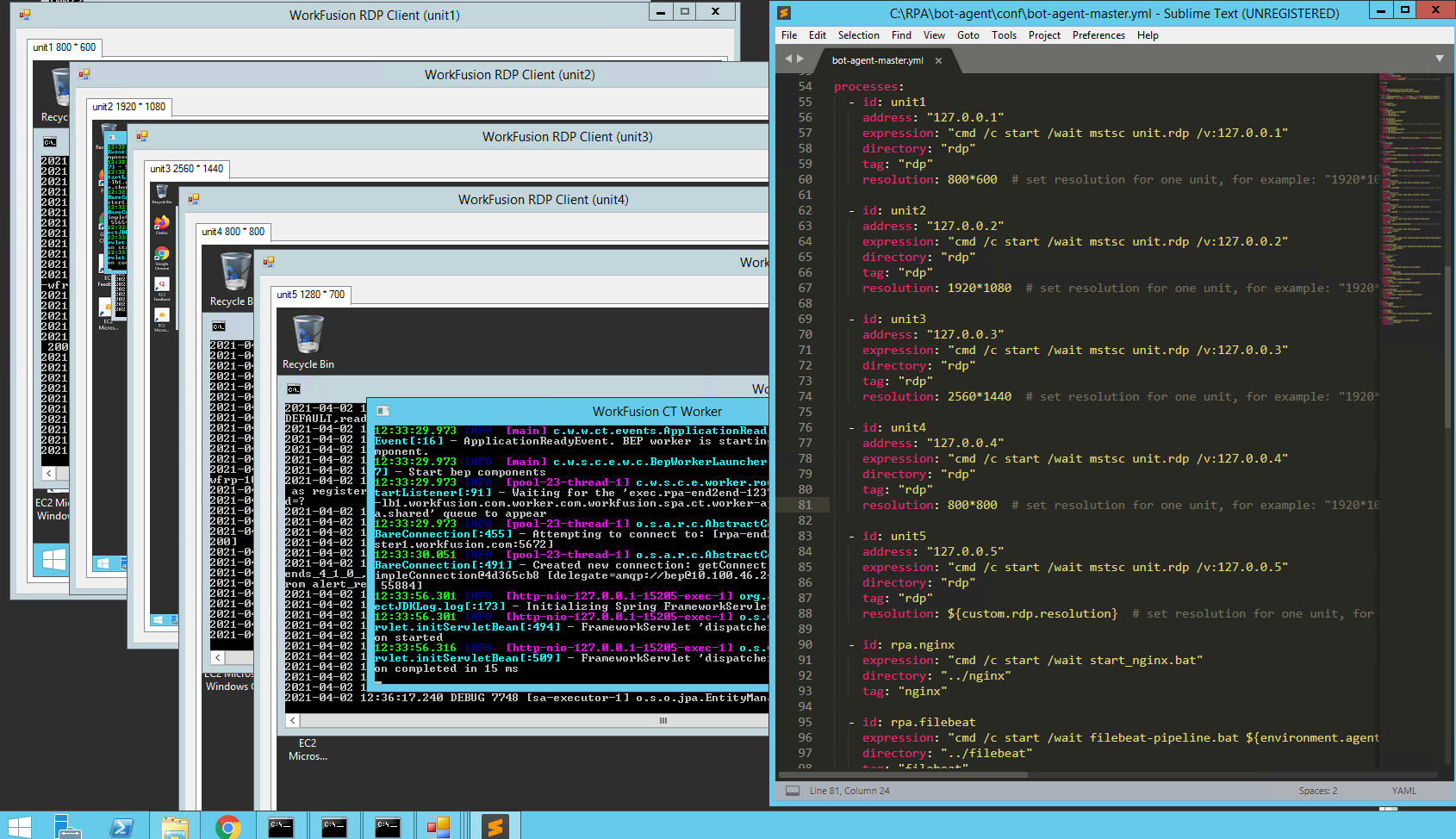
To apply the changes, restart the RPA service.
RDP window resolution versus RPA server resolution
In most RDP clients, the connected screen resolution is used by default:
If the screen resolution is larger than the RDP resolution, you see the whole RDP in its actual resolution that takes a part of your screen. You can't scale RDP up but still can scale down.
If the screen resolution is smaller than the RDP resolution, the RDP automatically scales down to take the maximum of your screen. You can't scale RDP up but still can scale down.
Mind that the maximize icon is disabled in both scenarios.
RDP window manual manipulations
You can change the RDP window size while saving its proportions and without affecting the session.
The manual RDP window resize doesn't change the resolution but scales visual content up and down. Such behavior doesn't affect the current BP execution or unit resolution configuration in the yml file.