
Analytics
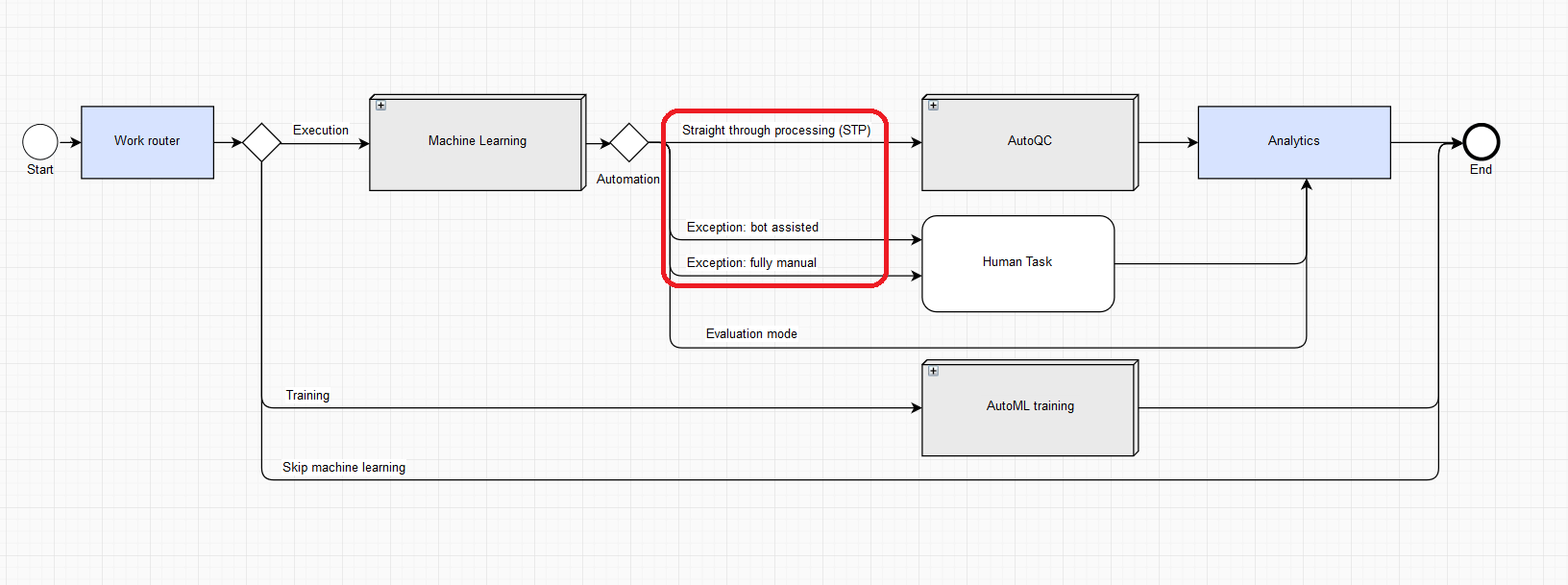
The following figure is an example of a typical OOTB AutoML Business Process (BP).
Analytics in an OOTB AutoML BP allows to collect and rate model predictions and AutoML performance against Gold (human) answers and human performance.
If Analytics is enabled, you have two options:
Input is raw data without the answers. In this case, the document goes through STP or Exception pipeline, and you get the real-time Analytics.
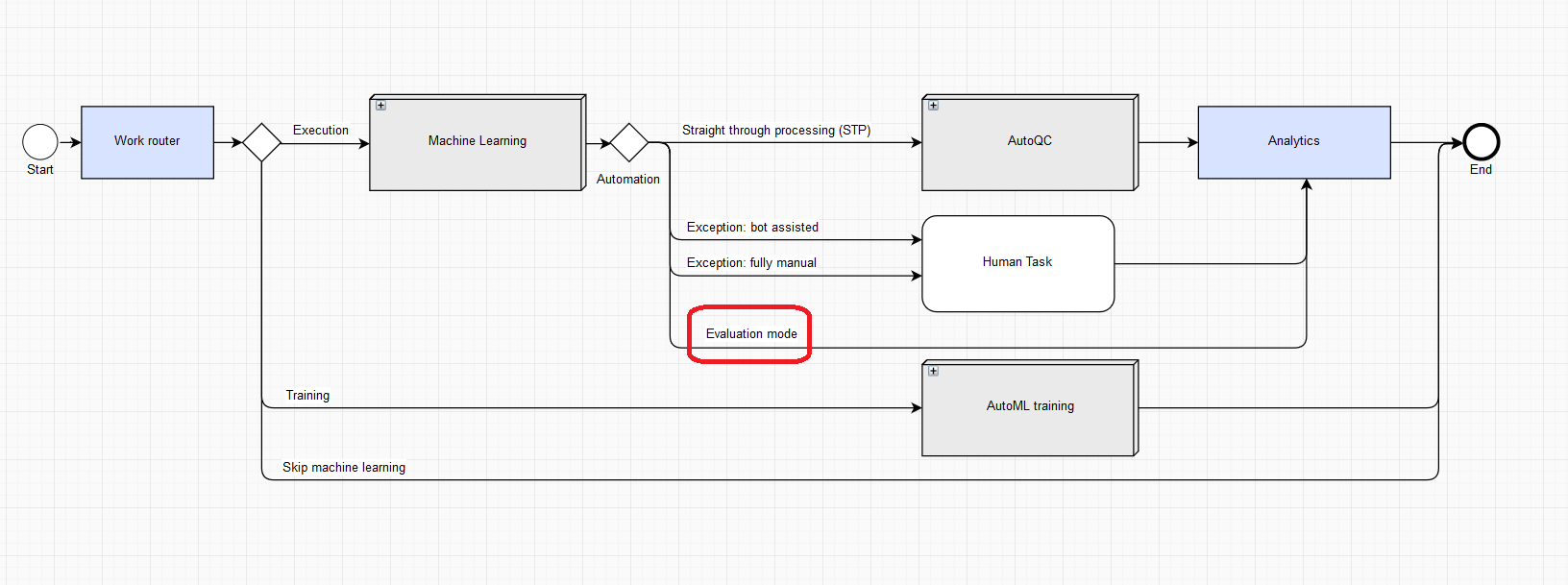
Input is a tagged document containing answers for a given Manual Task, i. e. the gold document for the current Manual Task. In this case, processing happens via the Evaluation mode. All human work is omitted, because answers are already present. In the Evaluation mode, model answers are compared with gold answers on the Analytics step.
Enable Analytics
To enable storing data for further analysis, follow these steps:
In the Business Processes section, click on a BP to enable Analytics.
On the Workflow tab, double-click Work router.
In the Analytics section, select Enabled and click Save.
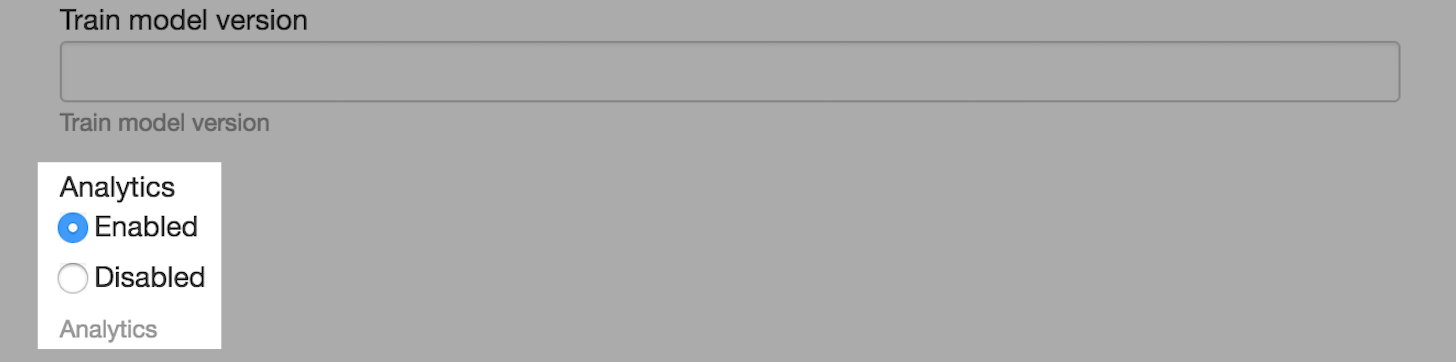
This setting is applied to each AutoML BP which is created for a given use case.
note
Since version 10.0, analytics is enabled by default.
Use Cases
The following section contains common use cases with enabled Analytics.
Compare Model Predictions with Gold Answers
note
Model prediction is an answer from the AutoML service with the applied Post-Processing in the AutoML BP.
To rate model execution using the prepared Gold answers, for example, from the initial training set, follow the steps described for your use case:
- Information Extraction
- Classification
Information Extraction
note
Gold data for an Information Extraction model is tagged text, which is a document produced after tagging a Manual Task in Workspace.
On the Workflow tab, locate the Manual Task and double-click it.
On the Design tab, click the Answer and find the Unique Code as in the following example:
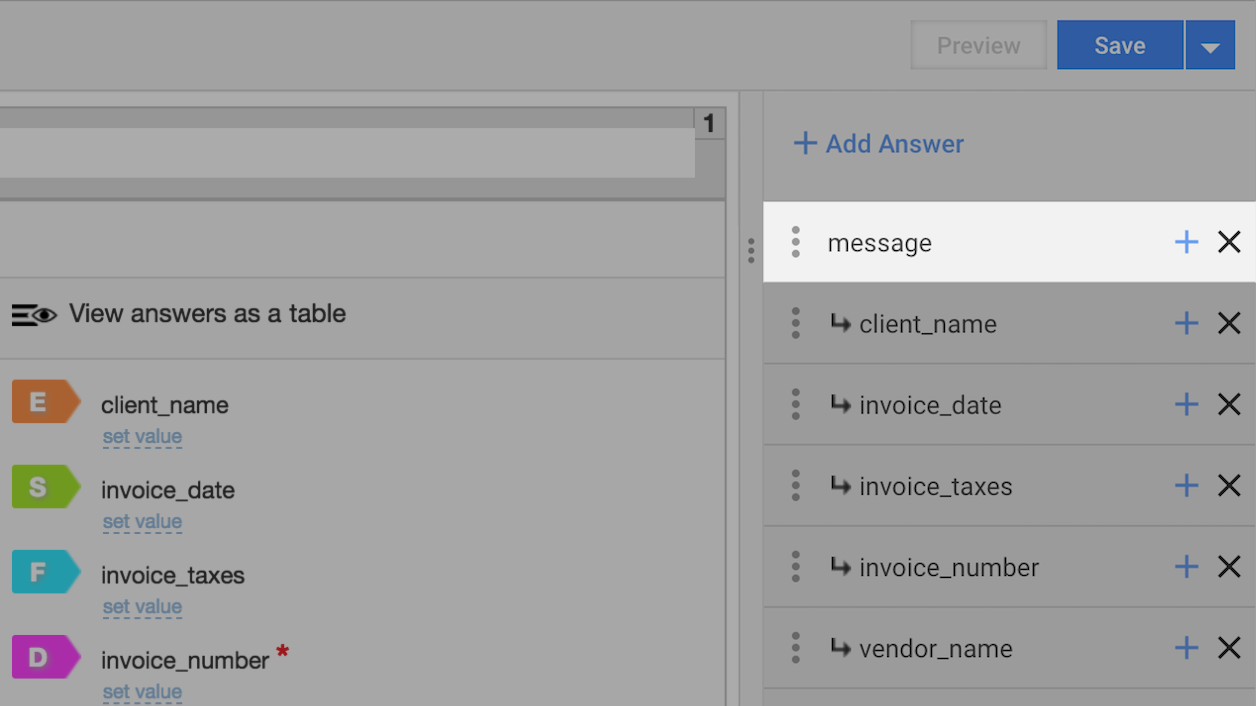
In the Data tab, click Upload Data to add your tagged text to the AutoML BP. When uploading input data for your AutoML BP on the Data tab, two cases are possible:
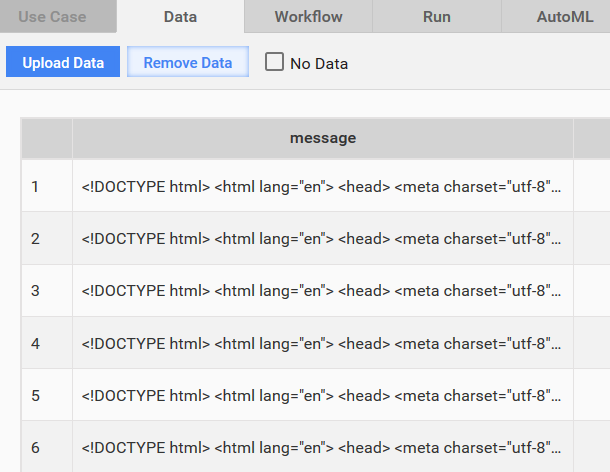
- Your tagged text is placed under a column with the same name as the Answer Unique Code. Mapping is performed automatically, no extra actions required.
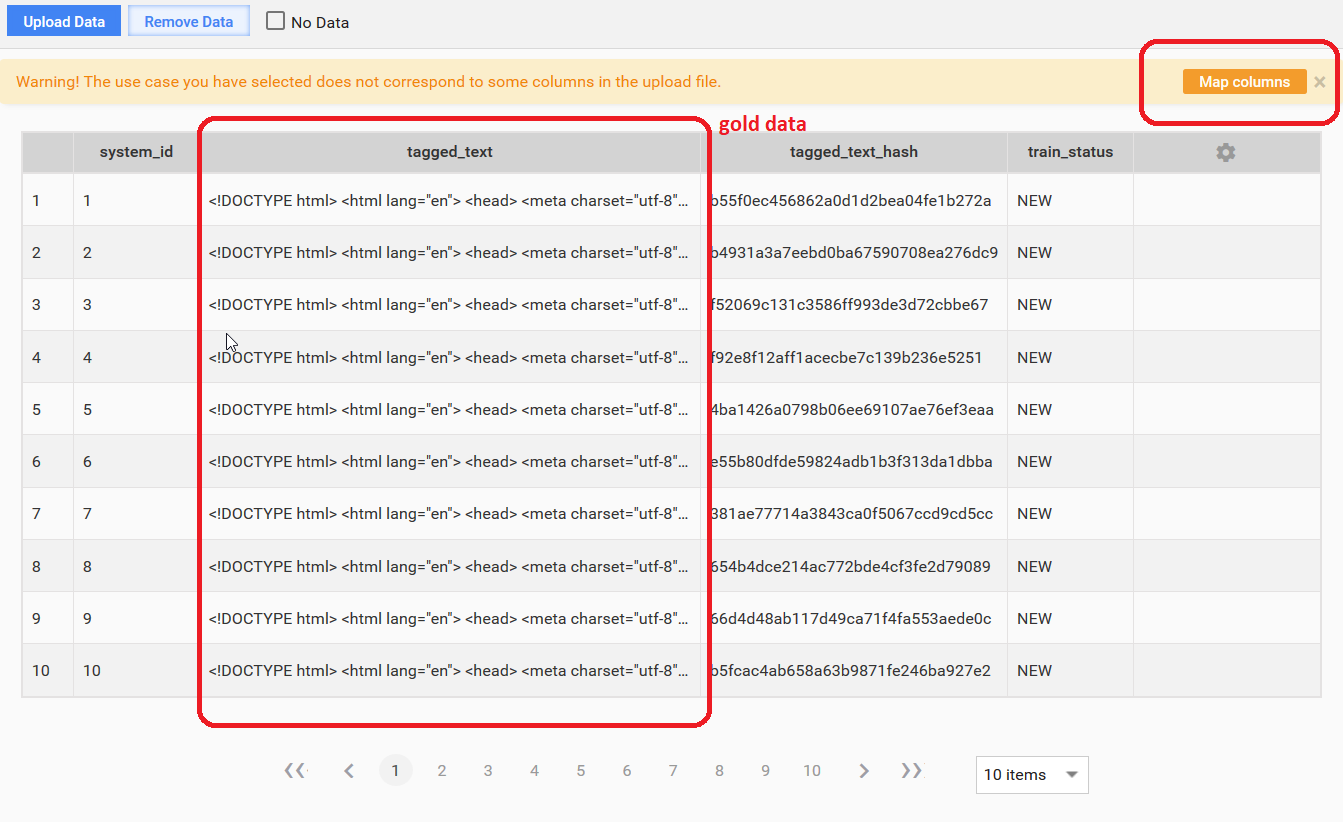
- Your tagged text is placed under a column with a different name. In this case, click Map Columns and manually map that column to the Answer Unique Code.
note
If input data has other column with the same name as the IE answer code, you should rename it manually. Otherwise, the said column will be processed with auto-mapping instead of the desired column.
Run your BP. Click the Run tab > Actions > Run.
All records after the Machine learning sub-process flow to the Evaluation mode branch directly to the Analytics step. See the following section for details.
Tagged text can be provided as a link to tagged documents.
Classification
note
Gold data for a Classification model is expected classified class.
On the Workflow tab, locate the Manual Task and double-click it.
On the Design tab, click Add Answer and find the Unique Code as in the following example.
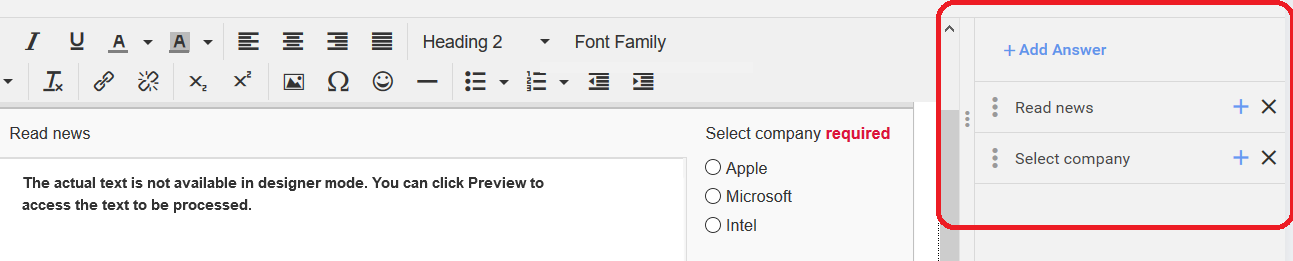
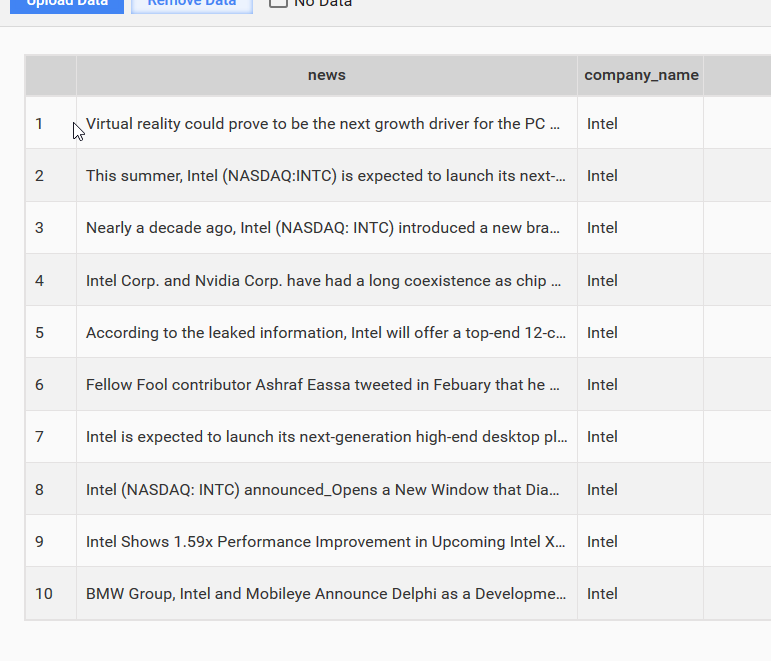
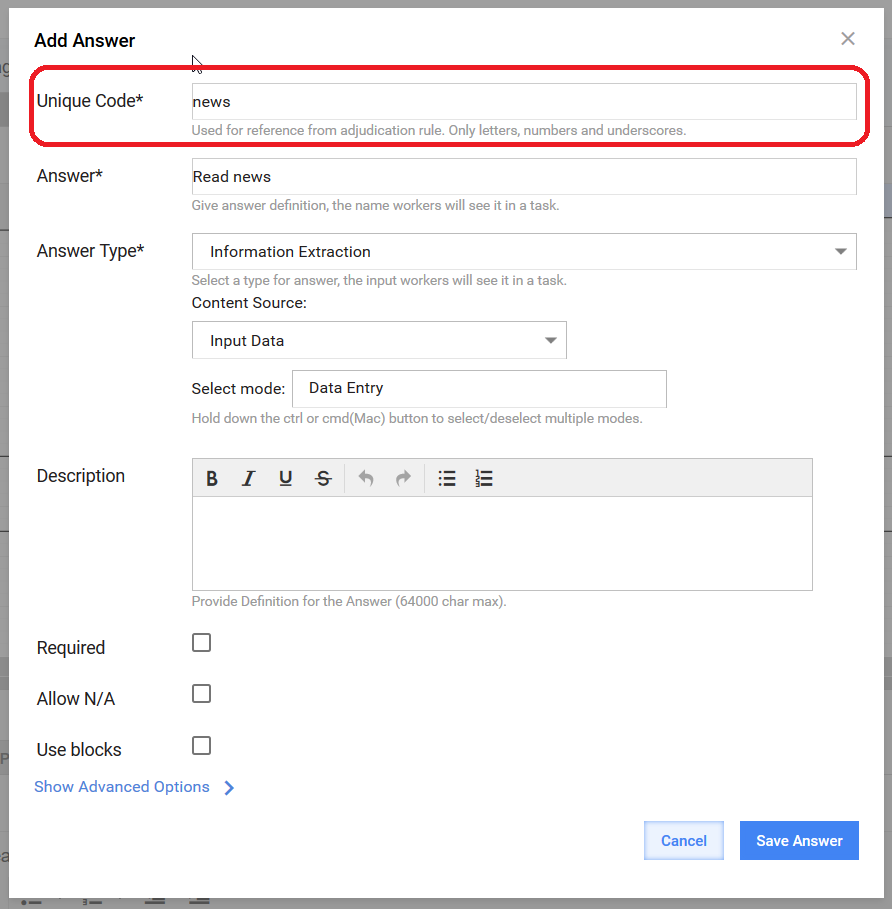
In the example above, news is a Unique Code for classified data. Note that the answer type for the Classification should be Information Extraction. company_name is a Unique Code for the classification decision.
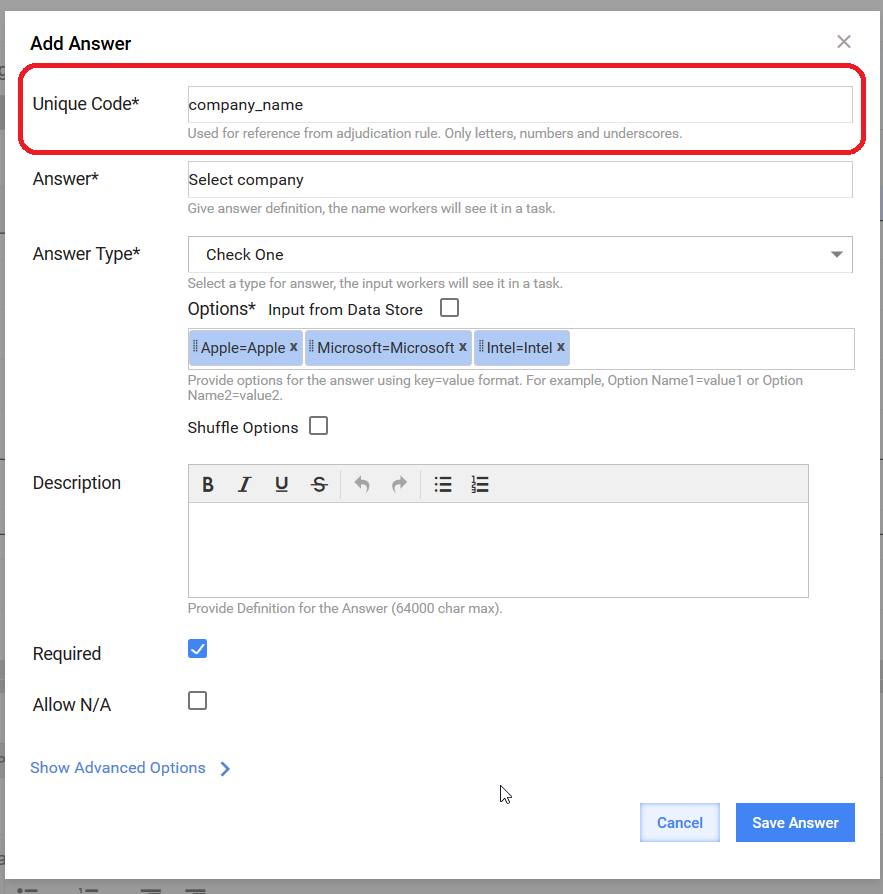
When uploading input data for your AutoML BP on the Data tab, make sure your data meets the following requirements:
Classification data: one column contains classified data (original text) and has the same column name as the classified data Unique Code.
Classification decision: another column contains gold data (classification decision) and has the same column name as the classification answer Unique Code.
caution
There is no automatic column mapping for the classification Unique Code. Automatic mapping is still available for the classified data column.
Run the BP.
All records after the Machine learning sub-process flow to the Evaluation mode branch directly to the Analytics step.
If you use simple model execution, provide only the column with classified data in input data. See the following section for details.
Model Predictions in Daily Model Execution
When Analytics is enabled, AutoML BP collects comparison information for model predictions against human answers.
- If the processed document goes through the Exception: bot assisted or Exception: fully manual branch, the model answer is compared against human answers.
- If the processed document goes through the Straight through processing (STP) branch, the model answer is compared against itself.
- If AutoQC is used and the document goes through the Manual Taskbranch, the model answer is compared against human answers.
Collected data usage
Comparison data is saved in a data store with name according to the following pattern: automation_stat_[bp_campaign_uuid], where bp_campaign_uuid equals to the _sys_bp_campaign_uuid field after the Machine Learning sub-BP with the following replacement: [^\w] with _ (underscore).
The data store has the following structure:
| Column name | Data type | Description | Aggregation | Additional information |
|---|---|---|---|---|
run_uuid | TEXT | Current BP instance UUID. | ||
field_name | TEXT | Answer code. | Per field in document | |
group_name | TEXT | Group name if field_name relates to a group. | Per field in document | |
gold_value | TEXT | Gold answer if any. | Per field in document | |
extracted_value | TEXT | Model answer if any. | Per field in document | |
TP | INTEGER | Metric for a given answer code: True Positive. | Per field in document | Used INTEGER because BOOLEAN is not supported by Data Store plugins. |
TN | INTEGER | Metric for a given answer code: True Negative. | Per field in document | Used INTEGER because BOOLEAN is not supported by Data Store plugins. |
FP | INTEGER | Metric for a given answer code: False Positive. | Per field in document | Used INTEGER because BOOLEAN is not supported by Data Store plugins. |
FN | INTEGER | Metric for a given answer code: False Negative. | Per field in document | Used INTEGER because BOOLEAN is not supported by Data Store plugins. |
score | TEXT | Model answer metric: score for a given answer code. | Per field in document | Used TEXT because DECIMAL is not supported by Data Store plugins. |
confidence | TEXT | Model answer metric: estimated Accuracy for a given answer code. | Per field in document | Used TEXT because DECIMAL is not supported by Data Store plugins. |
document_id | TEXT | Equals to hitUUID. | Per document | |
doc_html_link_tagged | TEXT | Empty by default. | Per document | |
timestamp | TIMESTAMP | Record insert timestamp. | Per document | |
environment | TEXT | WorkSpace environment type: | Per document | |
ml_process_time | INTEGER | Process time of the automation-extract plugin (post to ML service + ML extract + and so on). In milliseconds. | Per document | |
human_process_time | INTEGER | Human spent time. In case of multiple workers, total time spent. In milliseconds. | Per document | |
human_process_type | TEXT | Type of human work: FULLY_MANUAL, BOT_ASSISTED, EXPIRED. | Per document |
tip
- For more details about TP, TN, FP, FN calculation, refer to Machine Learning Basics.
- The collected data is used to build AutoML analytics charts: Cognitive Automation Breakdown.
Comparison rules for non-empty Gold and Model answers
Use the following comparison algorithm to calculate statistical metrics (TP, TN, FP, FN):
- Split gold and model answer with
|(pipe). - Sort the resulting arrays.
- Compare arrays by elements with the same position.
This comparison method is used with multi-value fields saved in one string with a pipe separator. If the field is not multi-value and still contains a pipe |, such comparison is the same as using equals.