
Set Run parameters
On the Run tab, you can:
- view Manual Task (MT) summary details
- edit MT tags
- set a Workforce
- preview an MT
- save an MT
- perform MT actions
- apply advanced options
- run an MT in the development or production environment
caution
Always test MTs or Business Processes (BP) in the development environment to ensure correct configuration in accordance with instructions.
View Manual Task details
The Task Details block displays the Number of Records and Number of Gold Records together with the Workforce selected for the Manual Task.
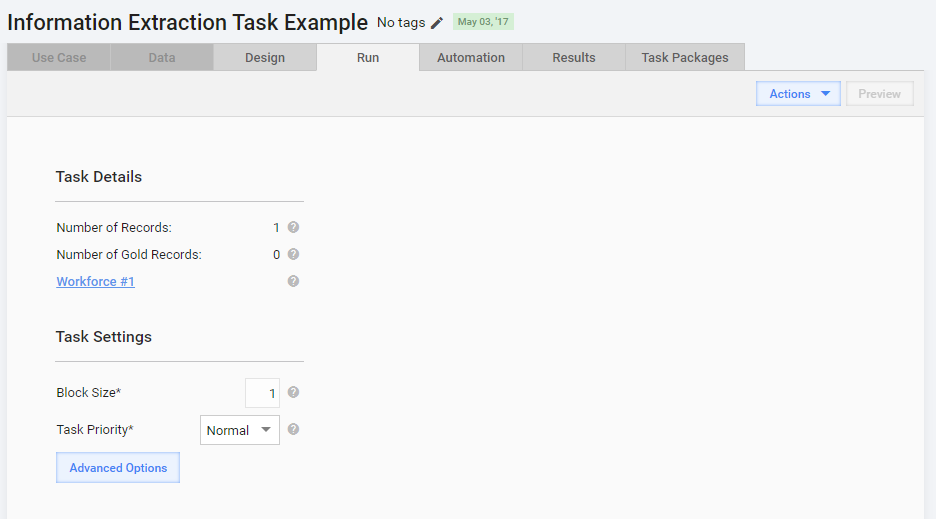
For detailed field descriptions, move your cursor over the corresponding question icon.
Edit tags
Tags are intended to categorize Manual Tasks and make it easier for Business Users to find them.

Set Workforce
Workforce is a grouping entity specifying who is working on a particular MT. A Workforce can contain one or several Crowds.
To select or change a Workforce for an MT, follow the steps below:
Click the Select link.
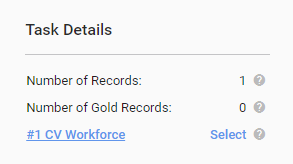
In the popup window, check the required Workforce and click the Select button.
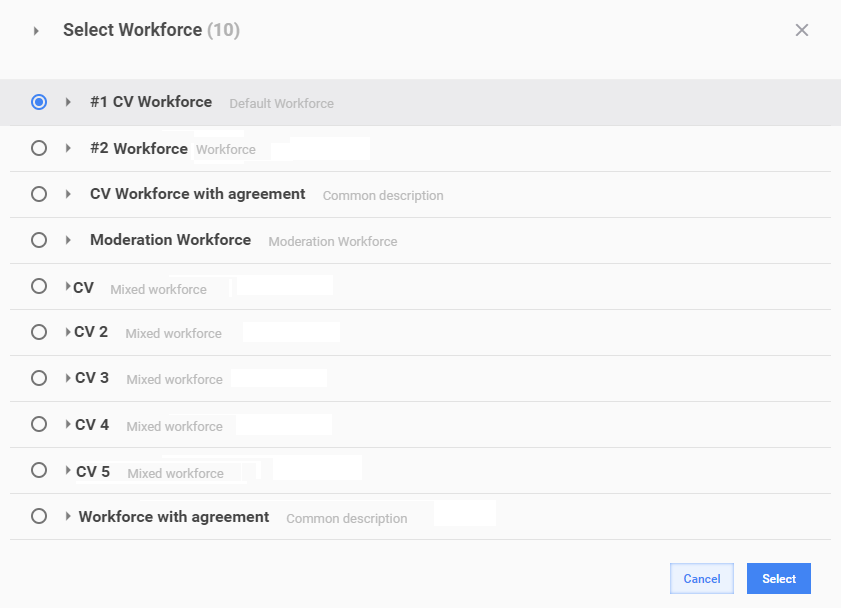
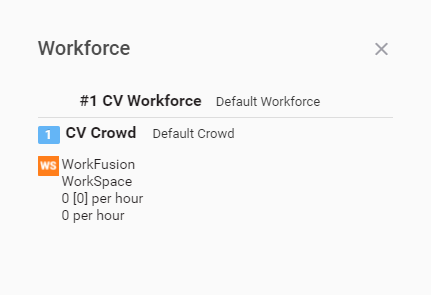
To view the selected Workforce and its Crowds with parameters, go to the Task Details block and click the Workforce name link. The following popup appears:
tip
For detailed information on Workforces, see the Manage Workforces and Crowds topic.
Edit Manual Task settings
In the Task Settings block, you can edit the Block Size and Task Priority fields.
Block Size stands for the number of records displayed for one task. The default value is 1. If the Block Size is 3, a Worker is to complete three records to get paid for one task.
Task priority is the priority of the current MT. For priority setup, refer to Run Priorities.
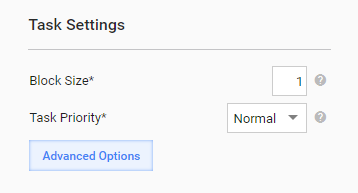
Set the Task Priority to change the task ranking in the search results of target endpoints. Tasks with the highest priority are displayed at the top.
Example:
Suppose, you have two similar MTs with different input data files. You want Workers to complete the second MT in the first turn. For that, set the second MT's priority to Max.
When a worker finds the task type and clicks the View link, they see the MTs with the highest priority on top.
Select Manual Task actions
On the Run tab, you can select one of the following task actions:
- Copy—to create MT duplicates. For details, refer to the Copy Task article.
- Create Qualification Task—to create an MT to qualify workers to accept and submit tasks. For details, see the Create Qualification Task topic.
- View Data—to show the Upload Data tab for draft MTs and to display the View Results tab for processing or completed tasks.
- Delete Task—to delete a Manual Task.
- Download Original Data—to download an input data file.
- Export—to export the MT in the XML format. You can aslo import this file.
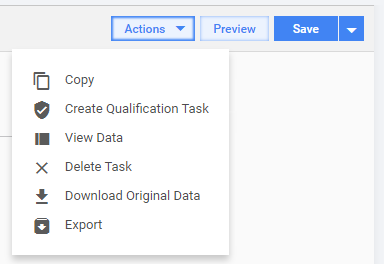
Task actions vary depending on the Task Status—Draft, Processing, Paused, Completed.