
Run Business Process
Run Business Process
To run a Business Process (BP):
- Go to the Run tab in the selected BP.
- Click Run This Process.
Before running the process, you can set the following Advanced options for the BP:
- Set Threshold–minimum completed tasks (or % of processes records) required to go to the next step in the process.
- Select whether to save the results of the process to a Data Store.
- Set the number of times Control Tower will attempt to repair the BP in case an exception occurs.
note
If you have more than one bot working during the BP execution, the BP runs simultaneously on the maximum number of available bots required for it.
If you have multiple records in Input data, the data records are distributed among available bots.
View results
The Results page contains all information about the process with key parameters and links:
- Summary with the general information about the BP (status, event log, and so on)
- Statistics
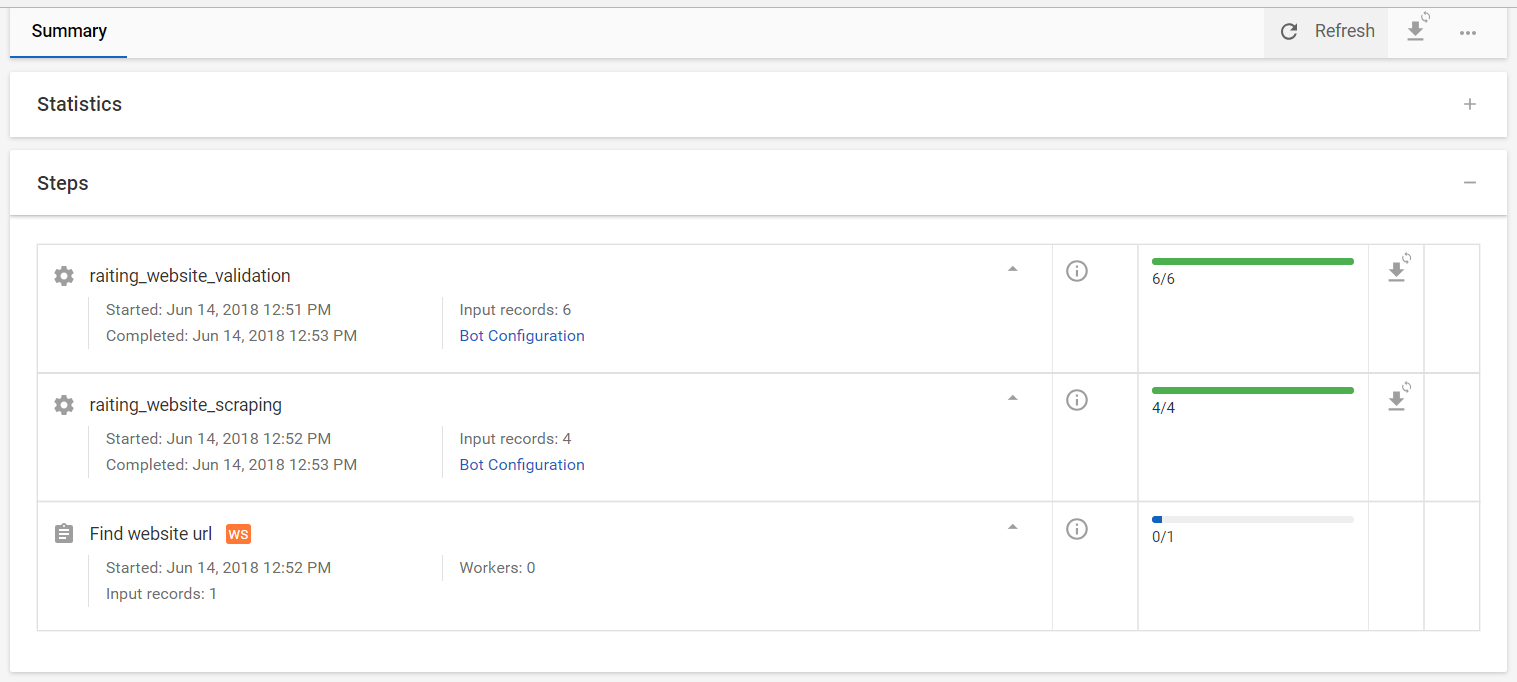
- The list of all steps in the BP and their statuses and event log for each step
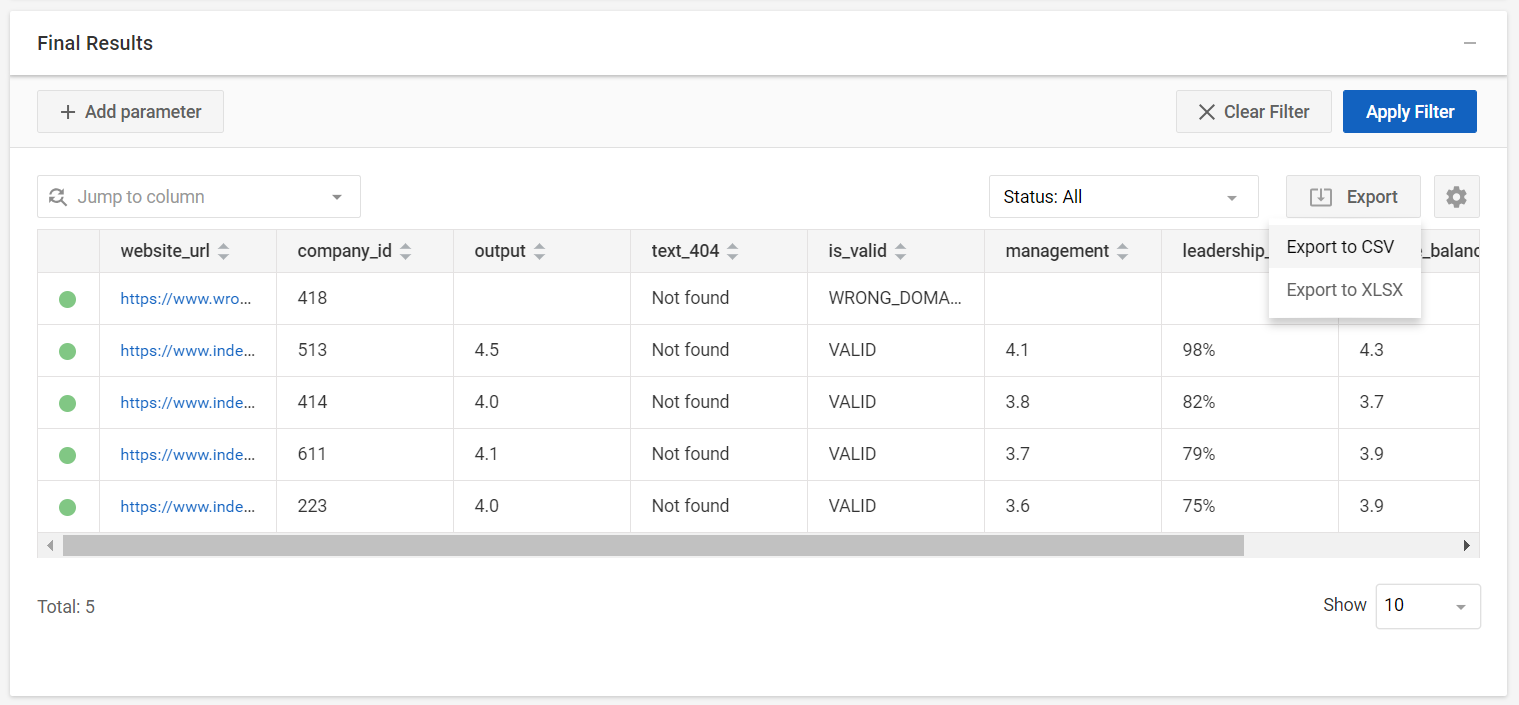
- Output data from the completed steps
On the steps tab, you can see if you need to process any Manual Tasks.
The final results tab contains the output data that can be exported in a CSV or XLSX file.
Additionally, you can see the output data from each step in the BP by clicking on the step’s name in the Steps tab.
Event log
The Results page contains event logs for the whole BP and each of its steps. To view the log, click the icon

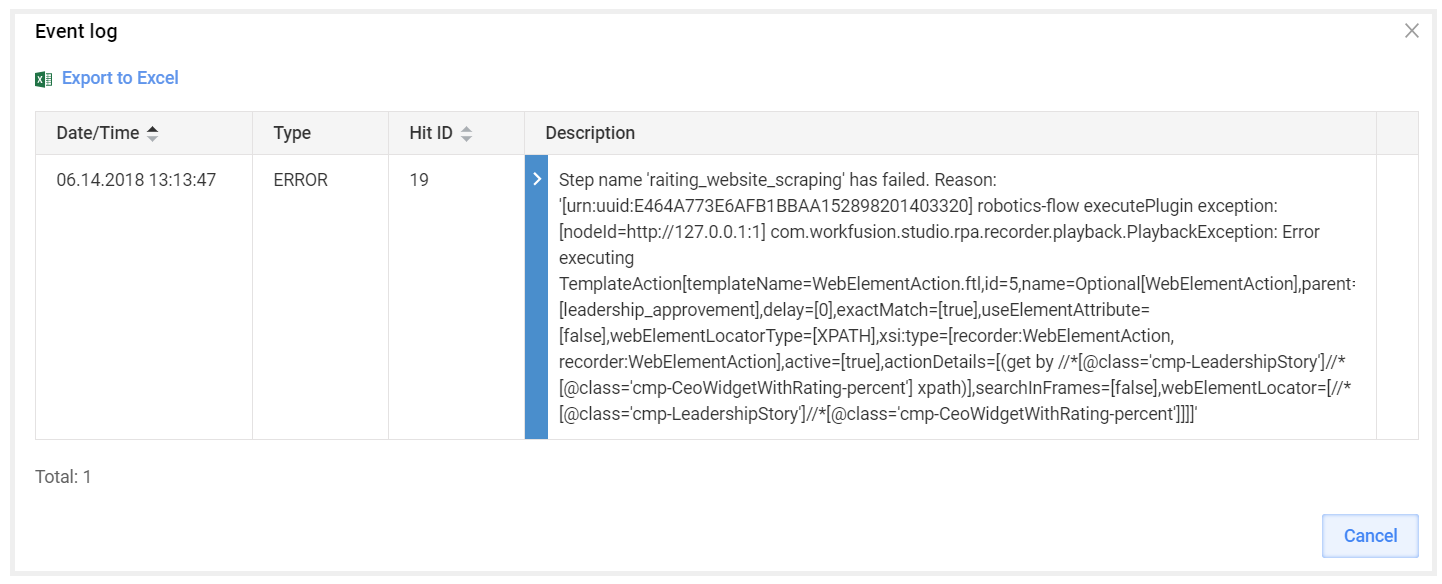
In there are errors in the event log, a user can see the whole error log by clicking the arrow on the blue field. The Hit ID is displayed in a separate column for quick reference.
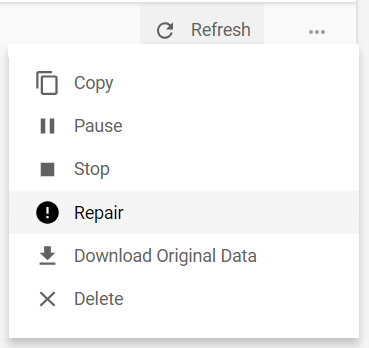
In case the BP fails due to reasons not related to its configuration (external server not available, RPA node disconnect, and so on), you can try to repair it via Actions > Repair.
Process Manual Task
On the Results page, open the Steps tab to see if you have any pending Manual Tasks in the BP.
To process a Manual Task:
- Click the name of the task. You are redirected to the task's page.
- Open the Statistics tab.
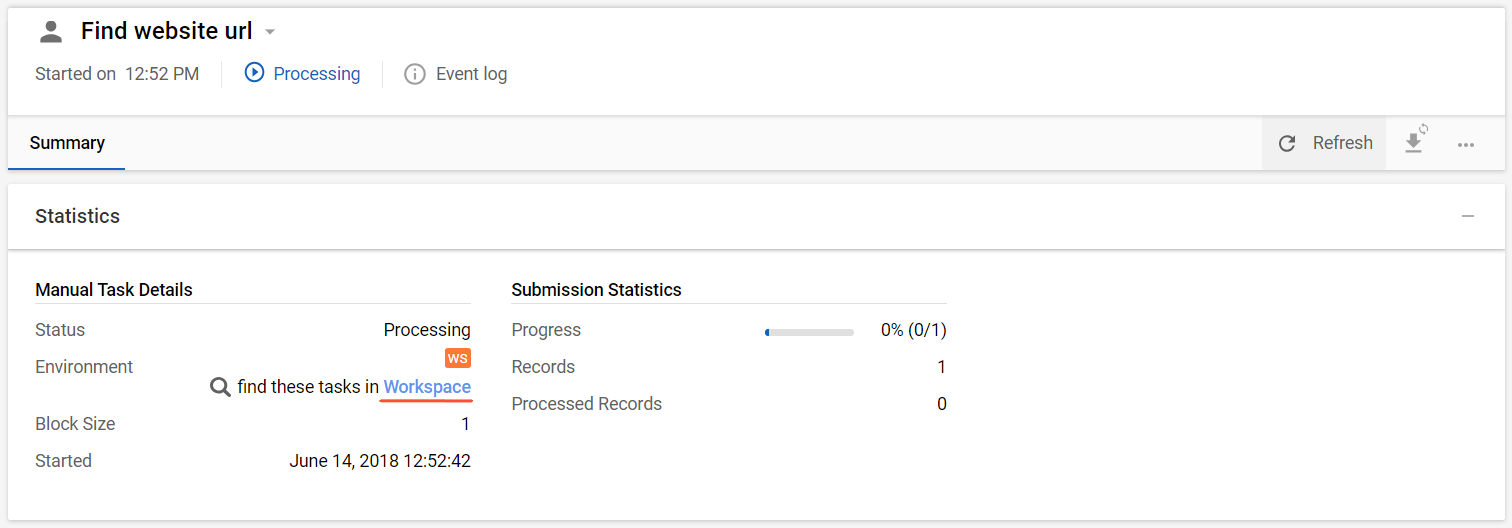
- Click the Workspace link to open the task.
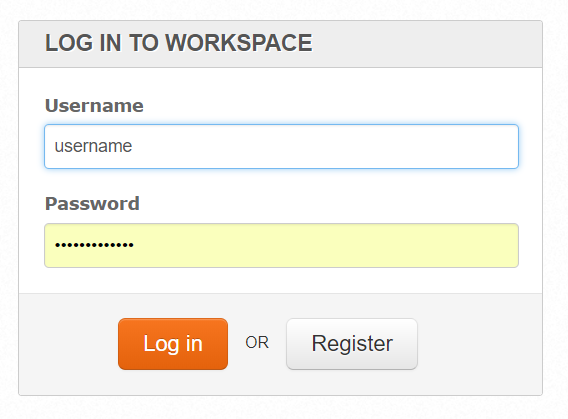
- Log in using your credentials.
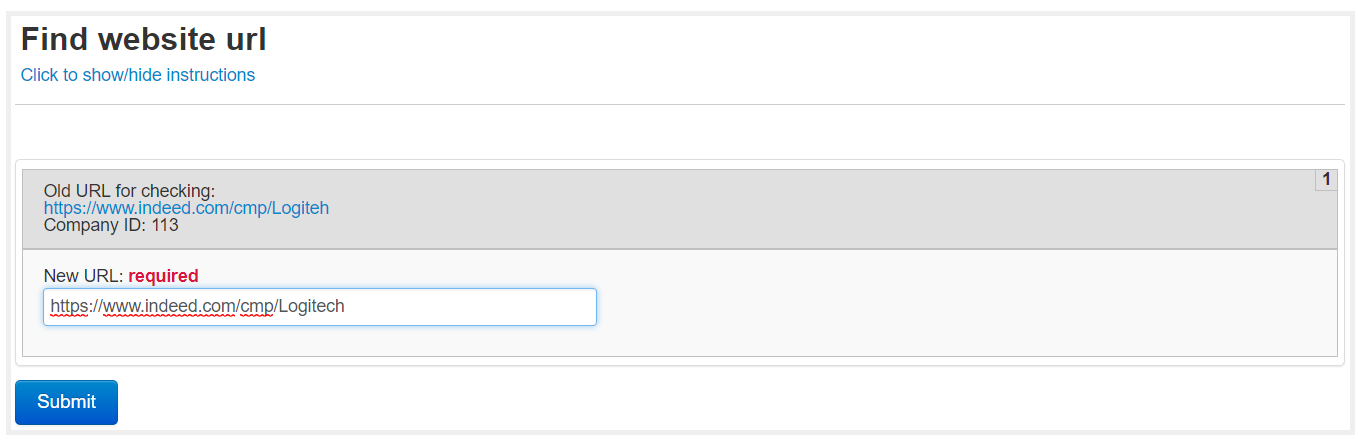
- Accept the task.

- The page with the Manual Task opens. Provide the Answer for the task and click Submit. The data from the Answer is sent to the next step in the BP if there are any.
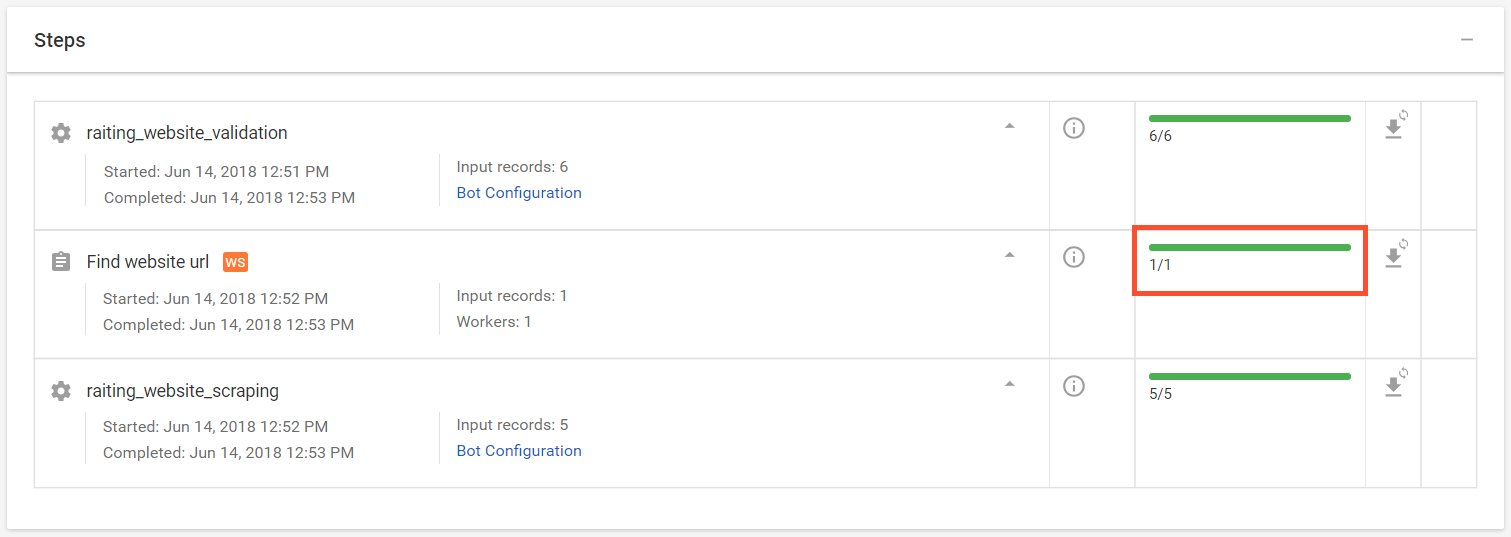
- Update the process's Results page. The status of the Manual Task and the BP are updated.
Re-run Business Process
important
If you want to run your Business Process once again, you need to copy it.
To run a BP again, you need to:
- Copy the BP instance.
- Select Include the input data to run it with the original input data.
- Run the BP or create a schedule to start the execution at the specified time.
Import and export Business Process
There is an option to import and export BPs to and from Control Tower.
To do this, you need to create a BP package:
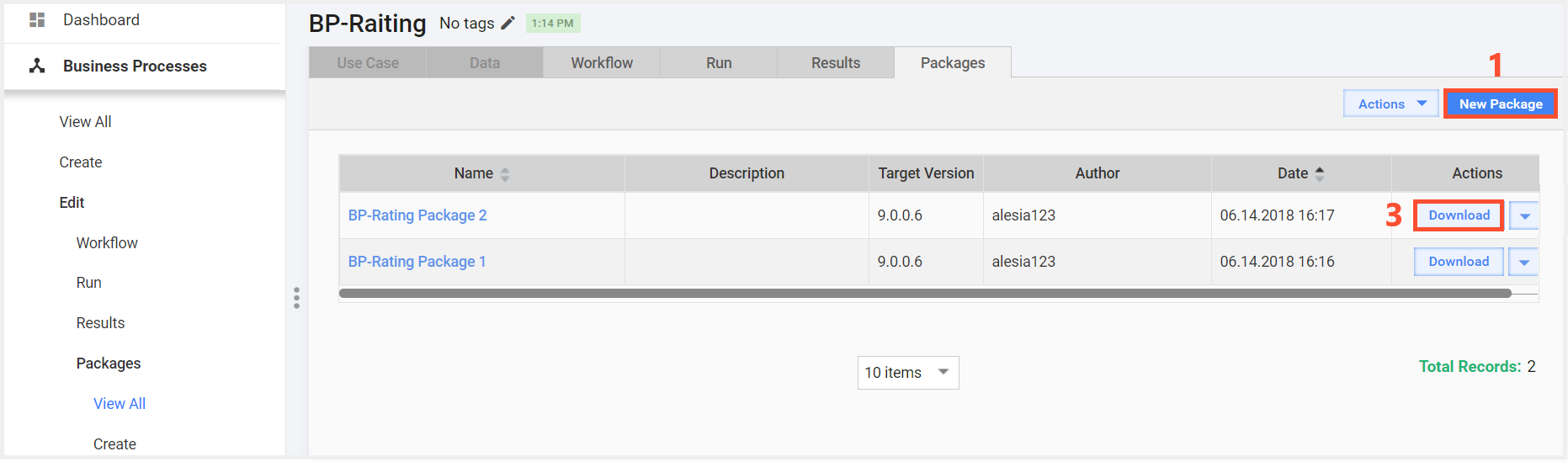
- Go to the BP page, open the Packages tab, and click the New Package button.
- Add the title, description (if required), and click Save.
To save the package to your machine, click Download.
warning
It is strongly recommended not to update or import the same Business Process during the execution of its instances as it can cause undesired effects or warnings.
To import a created package to Control Tower:
- Go to Business Processes and click Import package.
- Click Add and select the archive with the BP package.

You can preview the BP package before importing it. If a BP with such a name already exists on Control Tower, the system suggests two options:
- Create a new version of the BP and leave the existing one unchanged (default).
- Overwrite the existing BP.
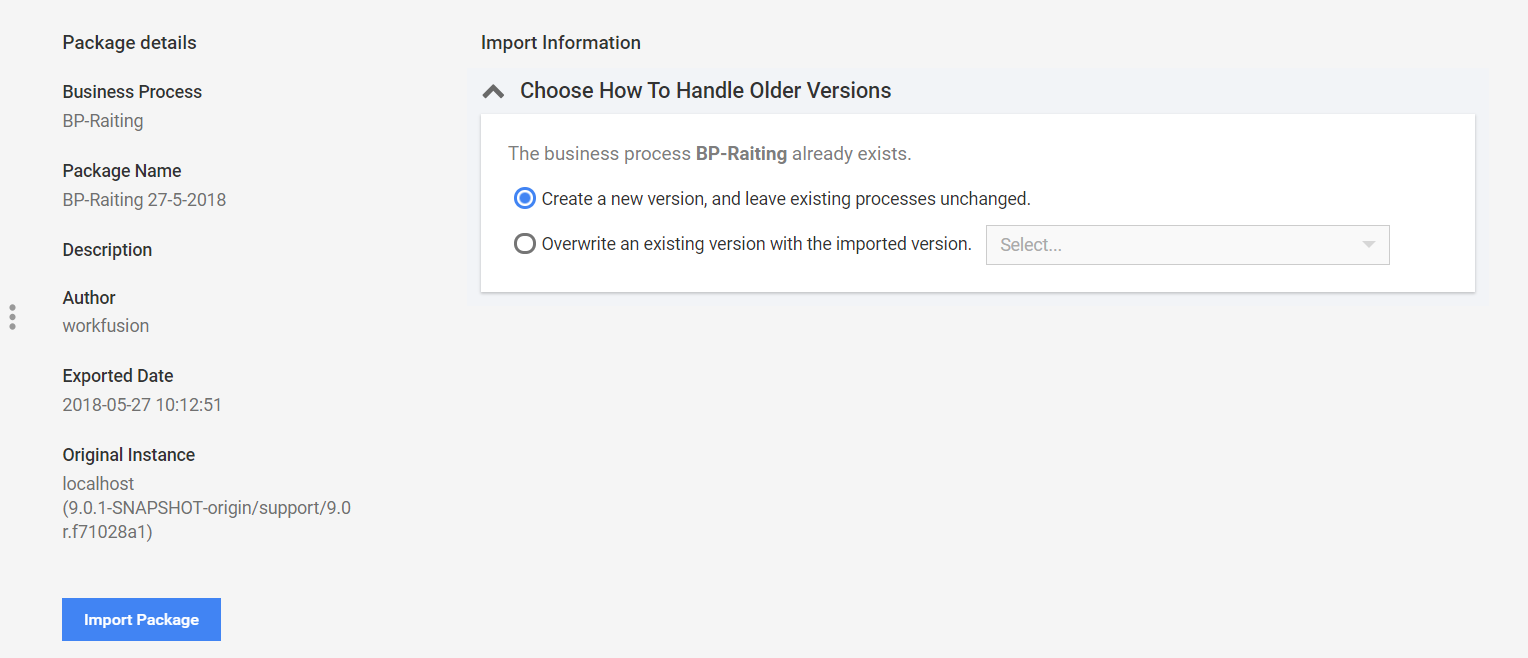
After selecting the required option, click Import Package. The new BP appears on the Business Processes page.
Back up Business Process
To create a backup of all your BPs, in the user's drop-down menu, click the Backup all button:
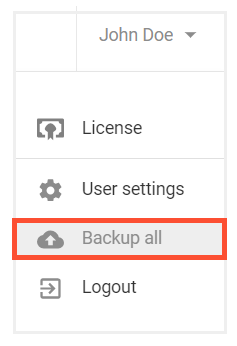
It exports all your processes and tasks in the BP package format. It means you can copy and import your BPs to another machine.
The backup folder is configured during installation. The default location is:
c:\Users\%YOUR_USER_NAME%\ControlTower\Backup\
note
The backup service cleans up the backup folder before creating the backup of all BPs.
It helps to save only the latest versions of your BPs, as by default, during the first start of Control Tower, all packages from the backup folder are imported.