
ML project implementation
ML implementation phases
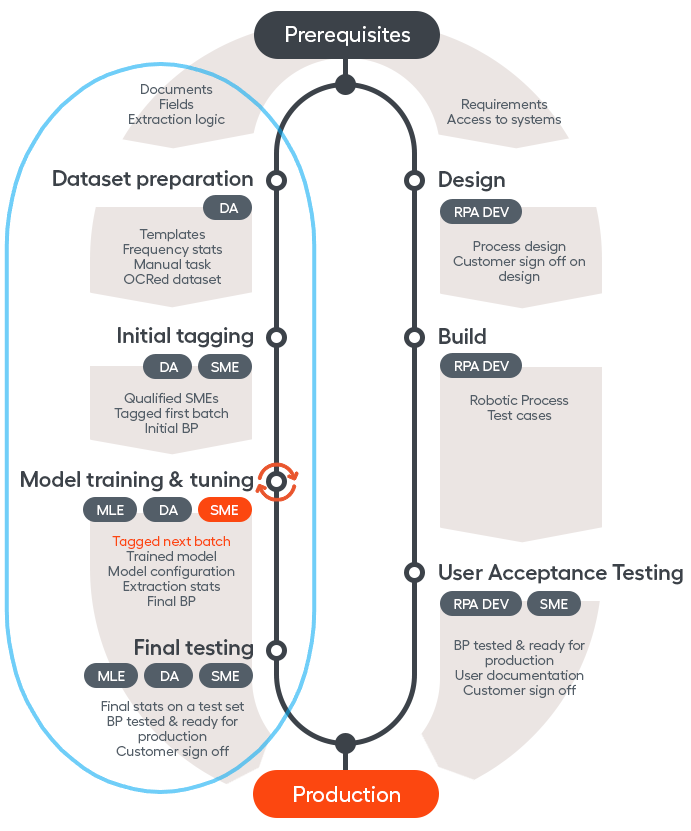
ML Use Case lifecycle's typical phases include:
- Preparation of the dataset, including analysis of documents and fields that would allow to choose the right approach to creating a training set of them. At this stage MLE is not involved; DA(s) work with SMEs.
- Initial tagging, where SMEs get qualified and tag a set of documents and DA checks their work. Usually adjudication is used to ensure quality of tagging at initial stage. The number of documents tagged at this stage is chosen arbitrarily, based on the speed of tagging, size of the dataset and project plan in general. However, this number has to be sufficient for model to train (for example, couple of hundreds records). It only makes sense to differentiate such stage if the dataset is big (that is, not equal to this initial batch) and at least two trainings of the model will be conducted. Then the best practice is to start the first training before the whole dataset is tagged: it allows to see the first results and have the MLE start working on model tuning based on these results in advance, without waiting for the whole dataset to be tagged. It is critical especially if tagging takes long time and the project timeframe is limited.
- Model training & tuning is the phase where MLE kicks in. Once the number of documents sufficient for training is accumulated, MLE trains the model and starts to work on its tuning. SMEs continue to work on tagging (if more tagging is left to be done). DA helps MLE to analyze results and come up with logic for post-processing and continues to check the quality of SME tagging. This phase can occur only once in case of very short POCs or can repeat multiple times in case of bigger POCs, pilots and especially production projects - as many times as needed to arrive at the desired quality and coverage of automation. In the latter case once MLE applies some tuning to the model and SMEs accumulate new batch of tagged documents, the model is trained again on the increased dataset. Then analysis and tuning continue on new results, and tagging continues if applicable.
- Final testing is conducted once the iterations of model training and tuning produce the result required by success criteria. Once customer provides sign off on the result, model can be launched in production.
If the project involves both ML and RPA, the development of RPA part will happen in parallel with ML and usually independent of it.
HPO training
In WorkFusion training of new ML models is done in two stages: Hyper Parameter Optimization (HPO) finds the best parameters/Metamodel for the supplied Training Set and then Model training itself uses the Metamodel to train the ultimate model. See HPO vs Metamodel for more information.
Default HPO time limit configuration is 2 hours per field since version 9.0. Until version 9.0, it was 10 hours per field. It is possible but highly unlikely that HPO for a field finishes before this time limit, because the optimization aim is to reach 100% quality (F1 metric) in experiments, which is something unlikely to happen. It is not recommended to lower the time limit, either, as the quality of the resulting features will likely be lower if you do not allow HPO to run enough experiments.
Work with input formats
Prepare for AutoML
The format of an input file on which the model will be trained is important both from the perspective of pre-processing (for example, digitizing it in case of pdf) and from the perspective of how successful the training on it will be. Let's consider some possible input formats and how to deal with them.
- HTML
- Can be directly processed with AutoML
- Image
- Send to OCR
- PDF
- Digital PDF can be processed with Java code. PDF doesn't have fixed format and new documents will require an additional effort to process. Document formatting will be lost in most of the cases.
- Send to OCR.
After OCR of an image or pdf, we receive output in two format: xml and html. For ML it's important to use xml, as it contains more information about the original document. It is also advisable to use ABBYY OCR (its engine is used by default in WorkFusion) where possible because it produces xml that is most useful for WorkFusion ML models (for example, contains tags that are directly used by some of the ML features).
- Excel
- Rule based approach using Java
- Convert to HTML before process with AutoML
Excel input is complex: excel files can be huge in size and after conversion to HTML it might be an issue to display them in human task in WorkSpace. An approach in such case would be to split excel files by 50-100 rows before displaying these parts in human task and then combine the output back to what is required.
- Word
- Get plain text using Java
- Convert to HTML using Java
- Convert to PDF or Image and send to OCR
- Email
- Work with email body like with the plain text
- Plain Text
- Use directly with AutoML
ML vs rule-based approaches
IMAGE (General approach: ML) This type of documents usually comes as scans.
- Make sure that an image has sufficient resolution (at least 300 dpi) and convert it if needed using the ImageMagic library.
- Perform the OCR step.
- Perform the HT or ML step to extract information from the document.
PDF (General approach: ML)
PDF documents can be categorized in three different types, depending on the way the file originated. How it was originally created also defines whether the content of the PDF (text, images, tables) can be accessed or whether it is “locked” in an image of the page.
- “True” or Digitally Created PDFs
Digitally created PDFs, also known as “true“ PDFs, are created using software such as Microsoft® Word, Excel® or via the “print” function within a software application (virtual printer). They consist of text and images. Both the characters in the text and the meta-information have an electronic character designation. With ABBYY FineReader 14 you can easily search through these PDFs and select, edit or delete text similar to how you would do that in other editable formats, such as Microsoft® Word. The images in digitally created documents can be resized, moved, or deleted.
- “Image-only” or Scanned PDFs
When scanning hard copy documents on MFPs and office scanners, or when converting a camera image, jpg, tiff or screenshot into a PDF, the content is “locked” in a snapshot-like image. Such image-only PDF documents contain just the scanned/photographed images of pages, without an underlying text layer. Consequently, image-only PDF files are not searchable, and their text usually cannot be modified or marked up. An “image-only” PDF can be made searchable by applying OCR with which a text layer is added, normally under the page image.
- Searchable PDFs
Searchable PDFs usually result through the application of OCR (Optical Character Recognition) to scanned PDFs or other image-based documents. During the text recognition process, characters and the document structure are analyzed and “read”. A text layer is added to the image layer, usually placed underneath. Such PDF files are almost indistinguishable from the original documents and are fully searchable. Text in searchable PDF documents can be selected, copied, and marked up.
Processing pdf workflow depends on type of PDF. In case of searchable or 'true' pdf we can get content of the files using pdfbox apache library. 'Image-only' pdfs should go through OCR step at first (the same workflow as for images)
EXCEL (general approach: rule-based)
Both approaches can be applied for this type of document, but generally it is much easy to implement rules-based approch cause excel is structured document.
ML approach can be used if the customer has many different templates of excel documents. You can face some issues while viewing and extracting data at the manual task step for the document with more than 50 rows. In addition to this, keep in mind that you should convert excel to html before sending the document to MT
HTML (general approach: rule-based)
For html files we also can go with both aproaches. Be aware that if customer has well structured HTML format probably the best solution is to use xpath to extract data from documents
PLAIN TEXT (general approach: ML)
ML approach is preferred for this format, but rule-based also can be applied (for example we 100% sure that invoice number is the first word in the document). Note that plain text is the worth case for the ML approach cause this format does not have any additional information (like html tags).
OTHER FORMATS
You may encounter other types of documents. Review the structure of the documents to make the right decision on the use of the approach
Model training and tuning
Tuning of the model by MLE is done through AutoML SDK. While MLEs can run training from SDK, Control Tower has a set of AutoML components used to:
- Create a dataset (Manual Task, Automation training set).
- Manage quality of dataset (Adjudication Rules, Qualification Task).
- Run HPO and extraction (Automation Business Process).
- Monitor and troubleshoot training (Marathon and Mesos, the WFML_Job_data Data Store).
- View and analyze results (Automation Chart and Dashboards).
Running (HPO) training from Control Tower
To start model (HPO) training from CT, the following steps are taken:
- Create a manual task selecting ML Model, BP Use Case and Training Set (assuming the training set is ready and uploaded as Automation training set to CT) in the Automation options.
- Run and stop the task to start model evaluation. Note that to see the training BP, you need to select Automation Training filter in the BPs view. By default, training processes are hidden.
- Once training finished, you will see AUTOMATION AVAILABLE label on the manual task. Then you can click on the label, set accuracy threshold and apply recommendation to create a process with Automation sub-process in it.
- Now, you can run the Automation process with the trained model extracting data.
note
You can automate manual tasks that are steps of a business process in the same way as you automate standalone manual tasks.
Automation Business Process in detail
Automation Business Process is a collection of steps through which training, extraction, automatic quality control, statistics calculation and all the other surrounding activities of automation are executed.
Automation settings step is where BP parameters are configured (for example, enable/disable Statistical Quality Control and Statistics calculation). After the Settings step, BP divides in two flows: Training and Production. Training is launched first through the steps that were described above. Once a trained model is ready and you apply recommendation, manual task on which it was started (either within BP or standalone) is replaced with this Automation (sub)process and the Production flow in it is activated.
Production flow of the Automation BP is where trained model is applied for extracting data. It has the following structure:
- At Extract Information ML algorithms try to extract data automatically
- The Post Extract step does Post-Processing and Normalization of data extracted by ML Model.
- Prepare data, basically, prepares data for the Statistics Calculation step.
- A special Composite Rule (Skip manual steps or is the data extracted automatically?) checks the Extract Information step results:
- If failure or partial success, Records are sent to Human Workers. Note that in case of failure, the data extracted by the model is cleared and human tag all from scratch; in case of partial success the data extracted by the model is shown to human and they complete what was missed.
- If success, apply Statistical Quality Control or go to Statistics calculation is SQC is disabled. If SQC is enabled and inspection is required, then send a batch of Records to human Workers (the same original manual task is present inside the SQC subprocess).
- If a BP uses Gold Data (documents tagged by Human SMEs), the execution goes directly to the Statistics Calculation step without SQC.
- Statistics Calculation step provides calculations for quality statistics and saves results to data store. Enabling Statistics Calculation is required to use Automation dashboards because they use statistics that is saved in the database at this step.
Common customer questions
Records where the model is not confident are verified by human but how do I know if the "success" decisions of the model are in fact correct?
SQC or AutoQC uses of statistical methods to the monitor and maintain the quality of model decision. AutoQC sub-process chooses the optimally cost-effective combination of automated machines and cloud worker that always deliver at or above the acceptable quality level. The main concept of AutoQC is to take a Sample from a defined Batch of items (BP records, documents, etc.) and verify each item in that sample (which is done by human in the manual step inside the AutoQC subprocess). After the sample verification, the whole batch is considered as accepted or rejected depending on the Rejection Limit. This way AutoQC makes conclusions on correctness of what the model considers to be success decisions based on a sample.
Model release and move to production
Trained model can be moved from one environment to another - for guidance on how to do it refer to Migrate trained model.
When more data is accumulated, model retraining can be launched manually or set up to launch automatically. For a production process the latter case would mean that the model is retrained in production environment and automatically applied in place of the model that is currently running, therefore it is rarely used. Depending on customer architecture and security requirements, two Model (Re-)Training Strategies can be applied: retraining in DEV or PROD.