
Managing Workers
To start managing Workers, click the Workers item in the top menu. You will see the following grid with a search field.
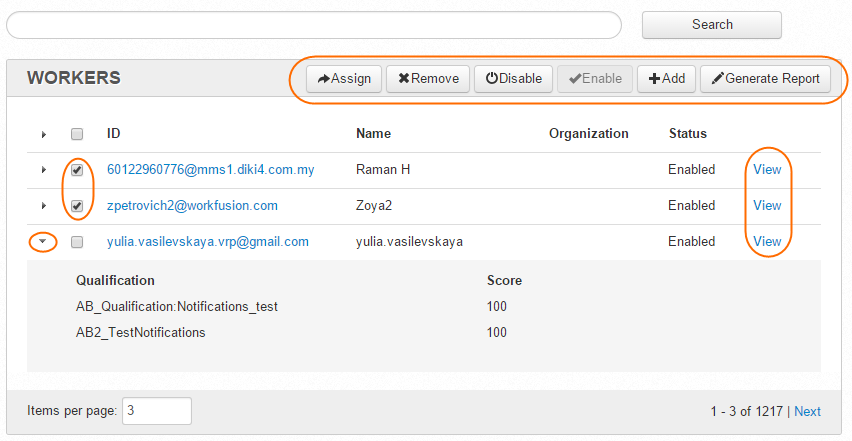
Actions with Workers
On the Workers page, you can perform the following actions:
- view Worker parameters—ID, Name, Organization, Status, Qualifications.
- search Workers—You can search Workers by their ID, Name, or Organization.
- view/edit Worker Profile, Teams, Qualifications History—Click the appropriate View link in the right column.
- add Workers—Click the Add button.
- assign Qualification to selected Workers—Select Worker(s) and click the Assign button.
- remove Workers—Select Worker(s) and click the Remove button.
- enable/disable Workers—Disabled Workers cannot log in and accept Tasks.
- generate Report in a CSV file—This report displays all the Worker Assignments with payment details over a certain period.
Add Worker
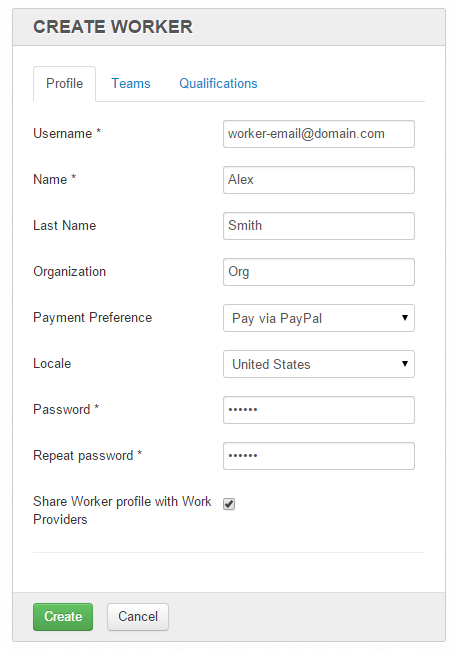
To add a new Worker, do as follows.
- On the Workers page, click the Add button in the top right corner.
- Fill the worker Profile fields.
- (Optional) Add Worker Teams and/or Qualifications.
- Click the Create button.
Create Worker
To edit the Worker Profile, perform the following steps.
- On the Workers page, click the appropriate View link.
- Edit fields on Profile, Teams, or Qualifications tab. You can also review the Qualifications History tab.
- Click the Update button.