
Track transactions
The article describes how to enable some features of Process Analytics and start tracking Service-Level Agreement and Straight Through Processing; metrics which are an essential part of Smart Process Automation Analytics. Reading this article is essential before users start using Analytics.
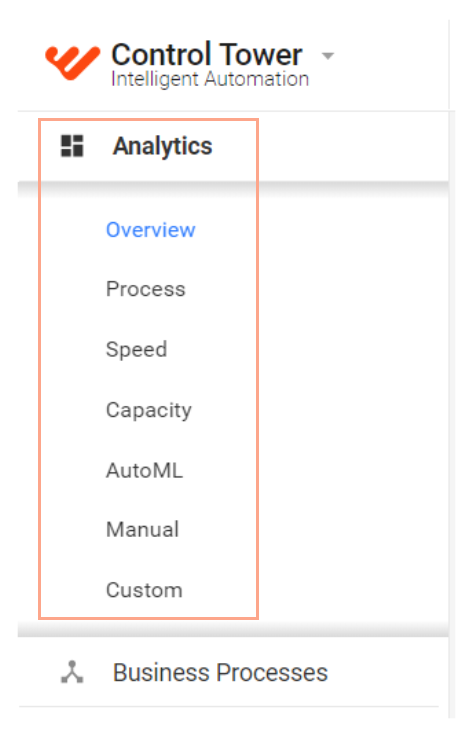
Go to the Control Tower side-bar menu to find Analytics Dashboards.
Definitions
- Transaction is a business entity like a document, an email, or an invoice.
- Transactions Tracking is a functionality that allows identifying business entities within a process. It's enabled on a specific step in a process and becomes a part of a process design.
- Service-Level Agreement (SLA) Metric is a metric that shows how the transactions processed in a process within set limits.
- Service-Level Agreement (SLA) Feature is functionality to track the SLA metric. An SLA contract can be set for the count of processed transactions per day or the time needed to process a single transaction. SLA is available only if transaction tracking is activated.
- Straight Through Processing (STP) shows how transactions move through business processes and if they were processed automatically (i.e. Straight Through), or with the involvement of human workers. It's used to calculate the automation rate.
- STP shows the ratio of Transactions fully processed by Bots (each Business Process is processed by Bot) to the total amount of Transactions (Transactions that processed by both Bot and Human). The higher the STP percentage is, the better Business Processes are automated.
Difference between records and transactions
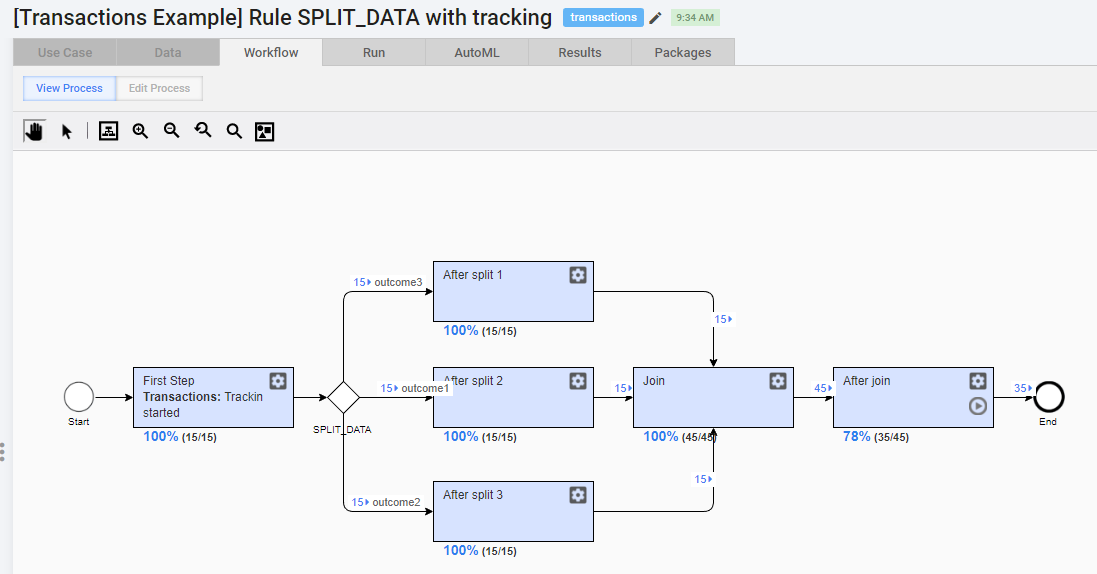
In the example below, the processes are the same.
With tracking
Process Workflow
Process Dashboard
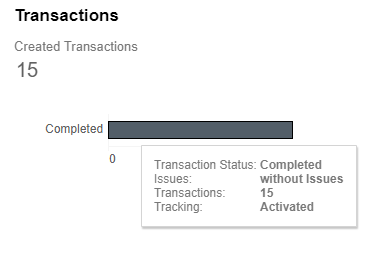
In case Transaction tracking is activated:
- transactions as business entities are tracked despite any split-join steps, so processing time from end to end is calculated properly and SLA by time can be applied.
- only transactions as business entities are counted to measure the volume of processed work so SLA by volume can be applied.
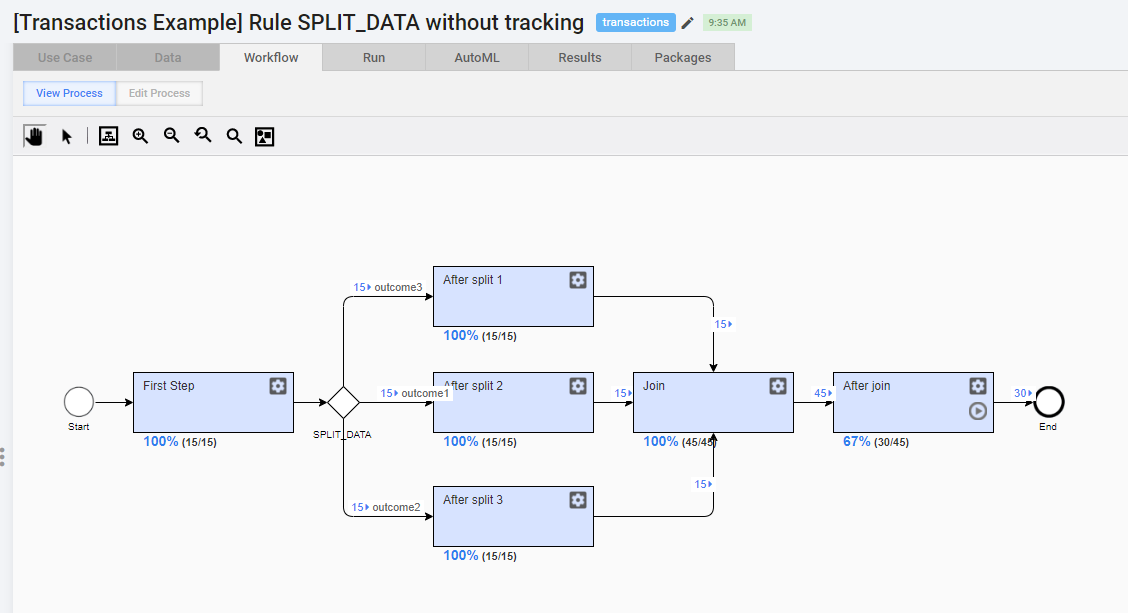
Without tracking
Process Workflow
Process Dashboard
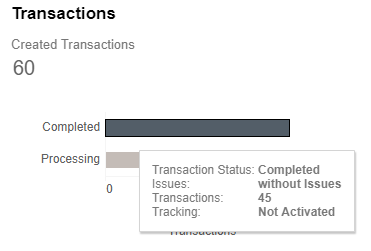
In case Transaction tracking is not activated, records are counted and it doesn't correspond with business entities and reflects more technical information than business-related.
What can be tracked
- SLA settings can be applied only to a Process Execution.
- Transaction Tracking is applied at Business Process with the ability to track and exclude from tracking steps.
How to use
Enable Transaction Tracking
To enable Transaction Tracking for STP calculation and SLA metrics for the Business Process, follow the steps in Control Tower.
- Choose the required Business Process in a draft state and open the Workflow tab.
- Right-click on the step and select Transaction Tracking > the Start tracking transactions sub-menu. The step is marked as Transactions: Tracking started.
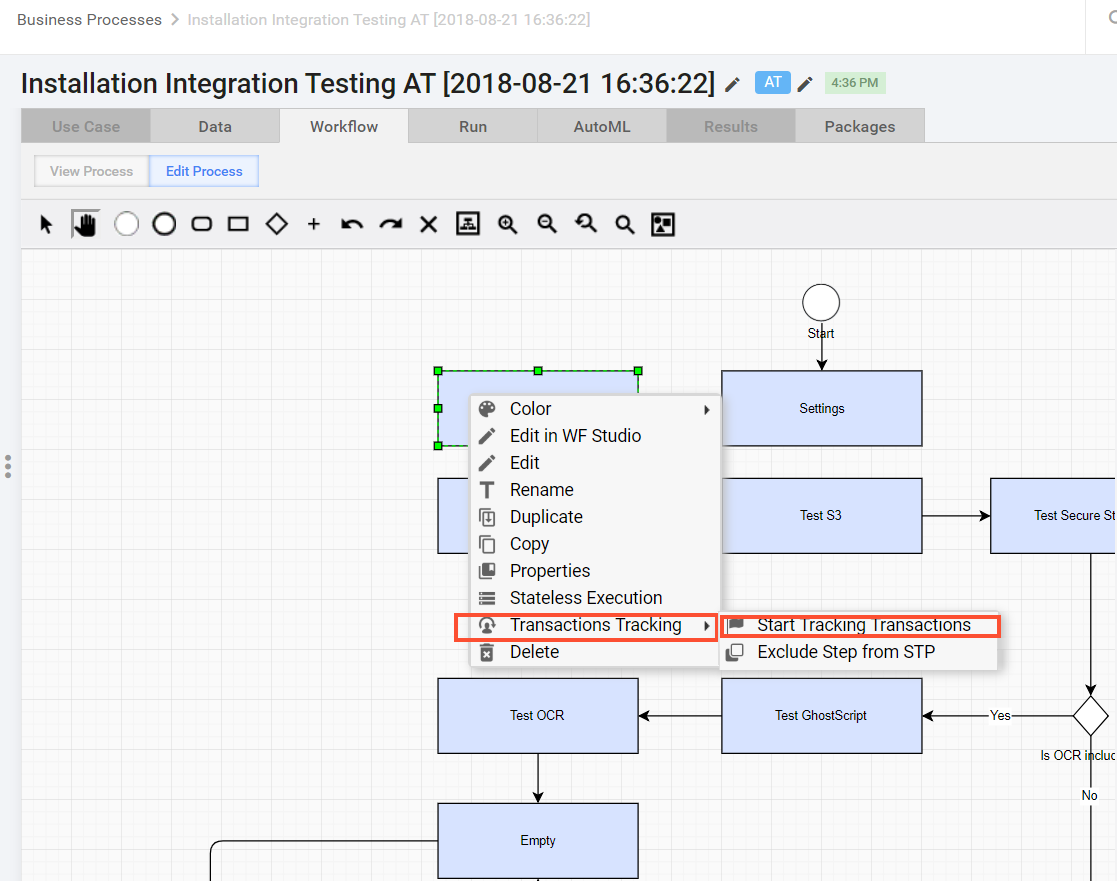
After transaction tracking is enabled, every input record to this step will be counted as an independent transaction and its movement through a process will be saved to the database.
If tracked record steps are split, all its child steps will be tracked as parts of the parent record as described above.
The transactions may not appear in the first step of the process as input data might contain a link to the storage with documents to process. Thus, on the next step only, a system can retrieve documents to be processed, and here's transaction tracking should be started. We recommend avoiding such designs of BP unless you are certain that this behavior is needed.
To mark the document as a transaction that should be tracked, you should start tracking from the step where every record input corresponds to the single document.
note
It is possible to enable tracking on multiple steps. It will not affect already tracked records but will start to track any new independent records, that will pass through this step.
Constraints
Transaction Tracking and Stateless Execution
Transaction tracking doesn't work the Stateless Execution feature is enabled!
When the Stateless Execution feature is enabled, the Control Tower does not collect intermediate data into the database, and transaction info will not available in the analytics dashboard.
Read more about Stateless Execution of Bot Tasks.
Behavior on split rules
When a tracked transaction passes the Split rule, all records from rule outcomes will be tracked as part of the original record.
There is slightly different behavior for different split rules when two records, that were created from one parent, meet in one of the next steps.
If records were produced by split_rule and were joined by join_rule, then only one record for the business entity will be created in the log. In case of the 'split_data' rule, after two parts meet in some step, a log record is created for each part of the original record. For more details, refer to Split-Join Rule usage.
Tracking sub-processes
Tracking on sub-processes works as it was part of the original process: activate tracking on any step inside sub-process and transactions will be tracked until the end of the parent process, or you can activate it before sub-BP and transactions will be tracked inside sub-BP as usual.
To activate tracking for incoming records you should expand the business process and activate tracking on the first step.
How to exclude step from Straight Through Processing (STP)
You can exclude some steps on a business process from STP rate calculation. Step exclusion will not affect how the entity is logged to the database. Every step will still be recorded.
That option will only affect the statistics calculation. The excluded steps will be not counted in STP-related metrics.
To exclude a step from the STP:
- Go to required Business Process in the draft state > the Workflow tab within Control Tower
- Right-click on the step
- Select Transaction Tracking >Exclude Step from STP from the sub-menu.
Sample process
The below process has the following steps:
- Bot step to check input data provided for the process with enabled Transaction Tracking
- Manual step to add information which is Excluded from STP
- Manual step to add information which is Excluded from STP
- Bot step to add data to the table with no Transaction Tracking enabled
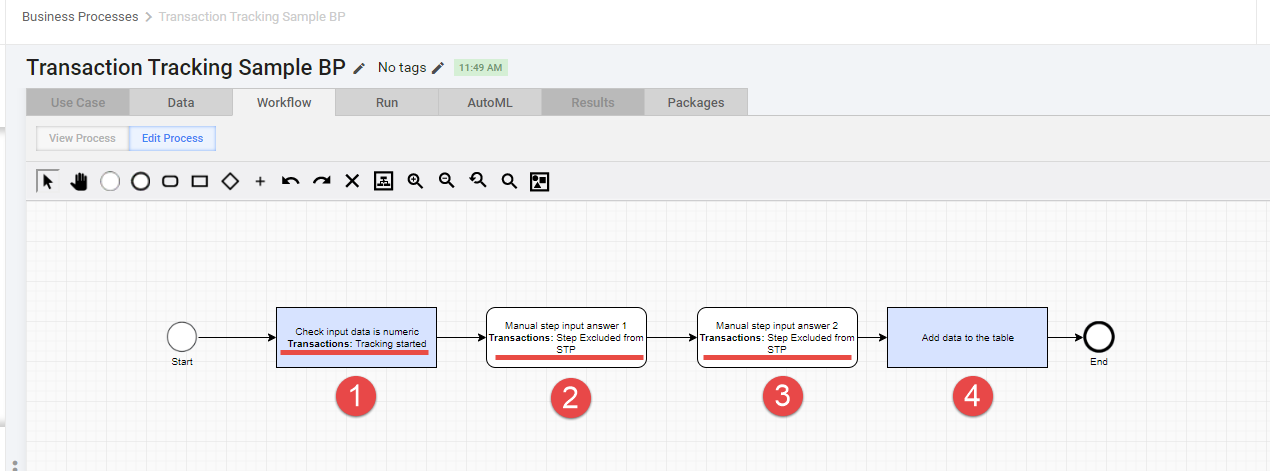
Sample Business Process and Input Data
Service Level Agreement
Service Level Agreement is used to define whether transaction processing meets the set time thresholds for completion.
SLA available only if Transaction Tracking is enabled otherwise all transactions are calculated based on HitSubmissionDataItem.originalItemId and are considered to meet the SLA by default.
Two new SLA types added:
- Transaction Cycle time defines that transaction processing time. Cycle time of a transaction is defined as
max(AwsHit.completionDate)-min(AwsHit.creationTime)with all joins used for defining transactions (ink). If a transaction cycle time is <= SLA value, a transaction meets SLA else it doesn't. - Volume of transactions defines the number of transactions to be processed per day. We define the volume of transactions for a day (
AwsHit.completionDate). If the volume of transactions for a day (AwsHit.completionDate) is >= SLA value, all transactions meet SLA else all the transactions below SLA value are marked as not meeting the SLA.
How to get SLA info for each BP execution (example)
SELECT r.rootRunUUID
, r.sla_type
, r.sla_value
FROM Run r
where r.sla_type is not null
and r.status<>'DRAFT'
and r.status<>'DELETED'
How to enable SLA tracking
Prerequisite: SLA can be configured for processes with enabled Transaction Tracking only.
SLA can be enabled and configured for Process execution.
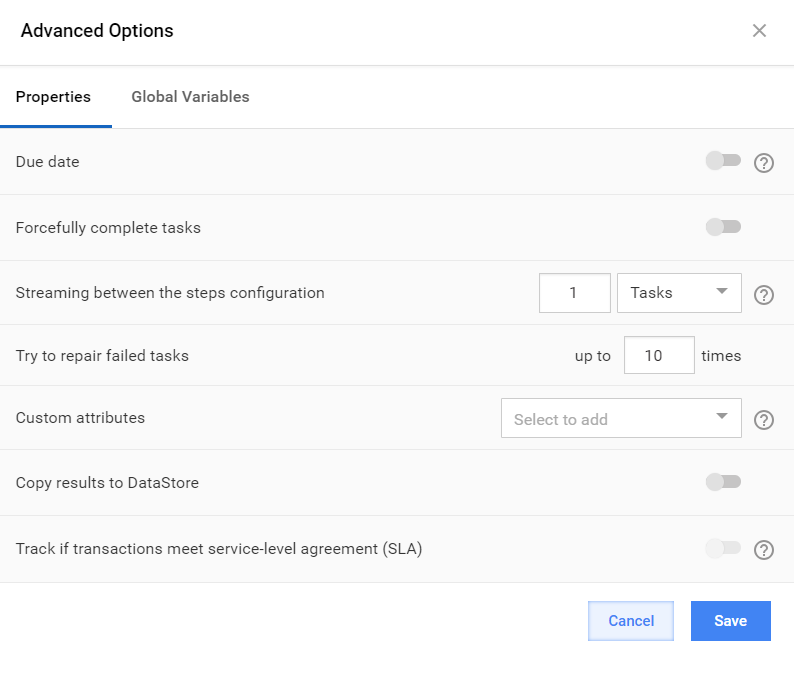
- Go to required Business Process in Control Tower
- Open Run Tab > Advanced Options popup.
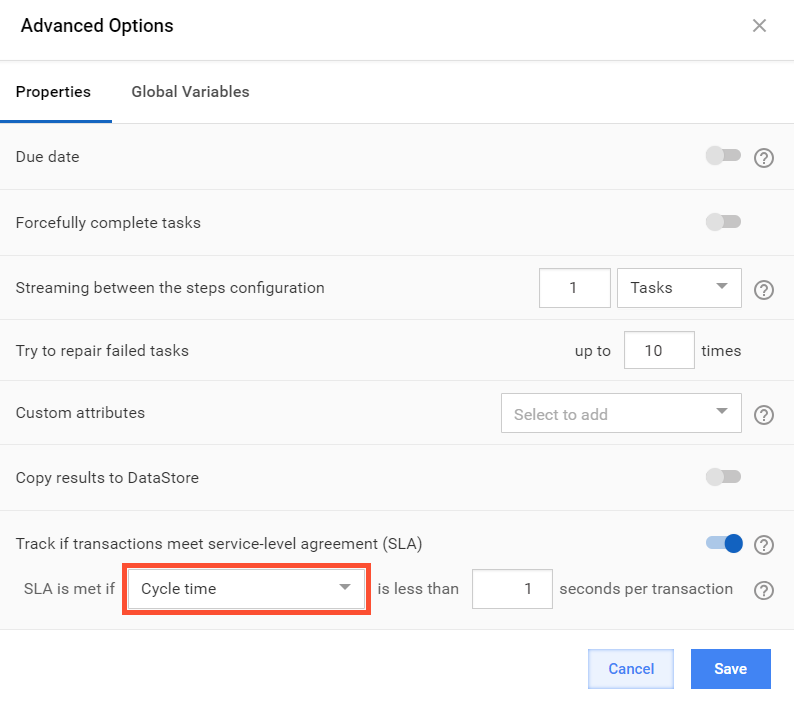
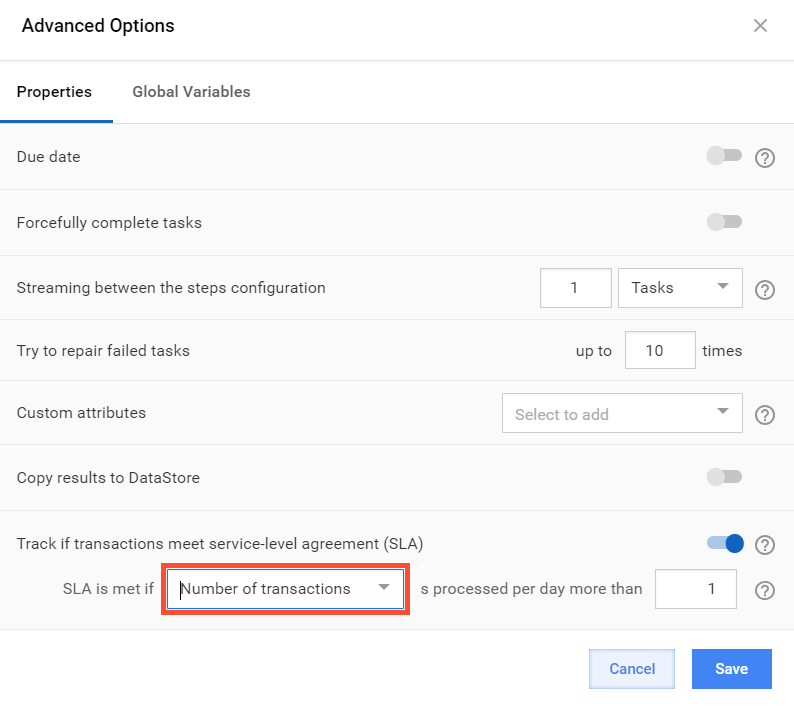
- Choose from two options for SLA agreement: Cycle time or Number of transactions.
- The Cycle time agreement verifies if every separate transaction is processed per the defined amount of seconds.
- The Number of transactions agreement means that all transactions processed per day will meet SLA if a certain amount of transactions is processed by this process execution.
Scheduling Business Process with SLA
SLA can be applied to the process executions that are launched by the scheduler.
How to schedule Business Process with SLA enabled
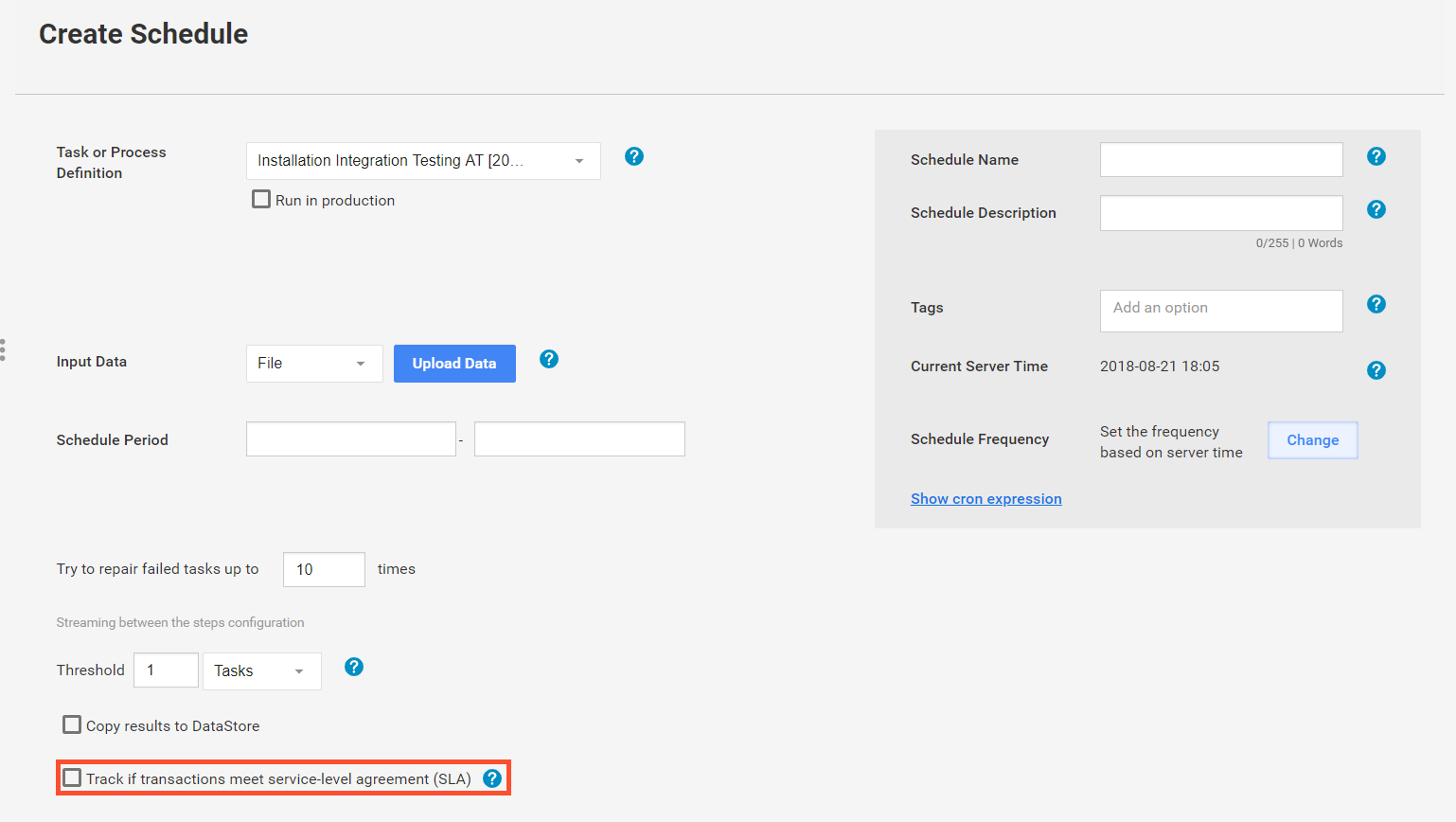
- Go to Control Tower > Advanced > Schedules.
- Create a new Schedule.
- Choose the required business process with activated Transaction Tracking.
- Select the SLA checkbox.
Other settings are the same as in Advanced Options.
note
This SLA will apply to all process executions launched by the scheduler. There is no way to edit the scheduler, only to replace it with a new one.
Constraints
Exporting a BP Package
During the export of the BP package with the configured SLA, these settings will not be exported and need to be reset after importing.
Copying a Process Execution
After copying a Process Execution, the SLA settings need to be configured again as it is not saved in the Business Process package.
It will not affect Process Executions that are already running.
Business Process migration
- Transaction tracking becomes a part of the BP Package so can be migrated between environments (for example, from Dev to Prod).
- SLA settings are not saved while creating a BP Package.
Performance
No any evidence of the performance degradation was found during testing with enabled Transaction Tracking.